1. Кіріспе
This manual provides instructions for the setup, operation, and maintenance of your Logitech Brio 301 Full HD Webcam. The Brio 301 is designed to deliver clear video and audio for your online communications, featuring 1080p resolution, automatic light correction, a noise-reducing microphone, and an integrated privacy cover.
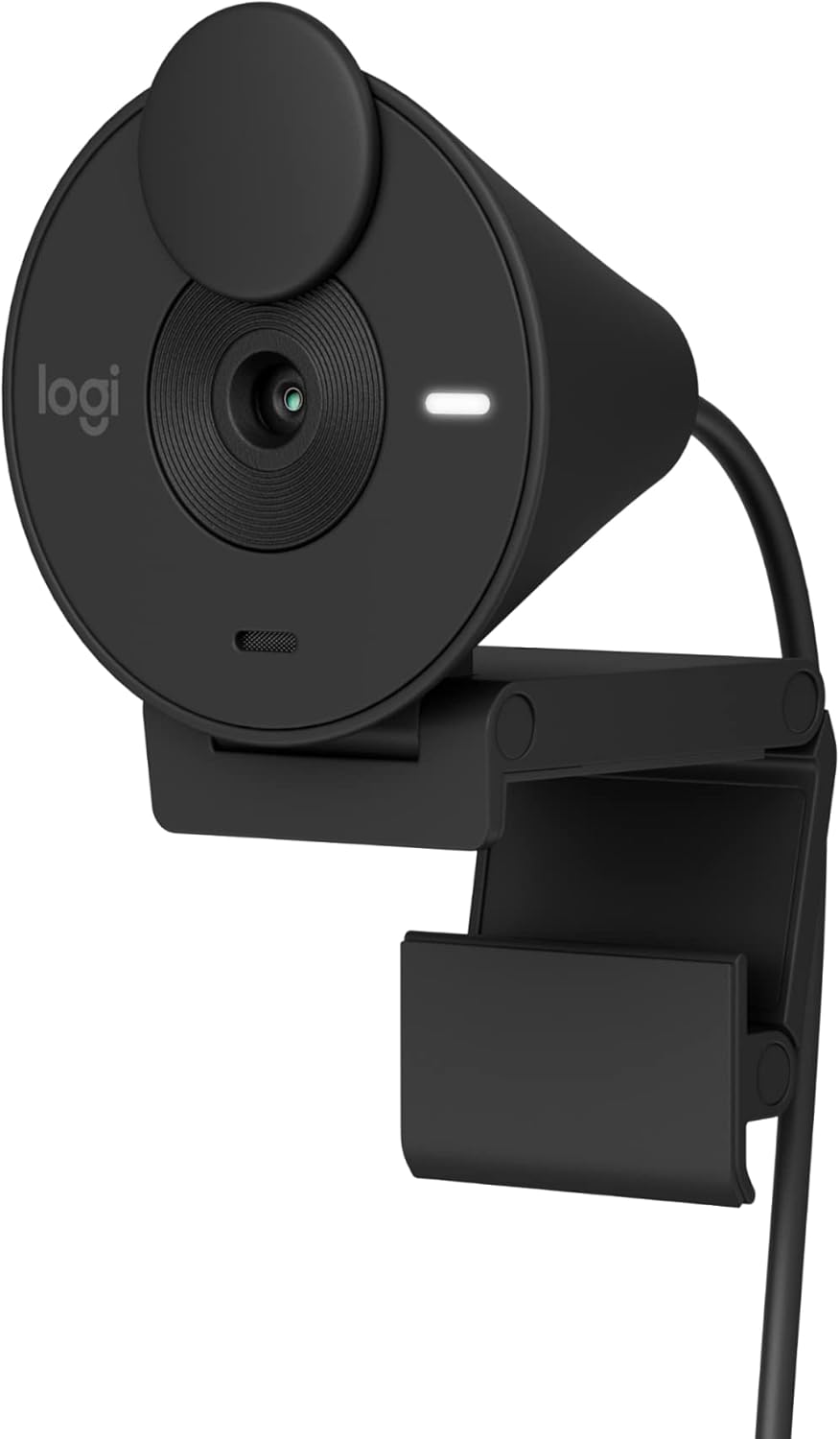
Image 1.1: Logitech Brio 301 Full HD Webcam, black color, shown from a front-side angle with its monitor clip.
2. Қорапта не бар
The Logitech Brio 301 package includes the following components:
- Logitech Brio 301 Webcam (with integrated USB-C cable)

2.1 сурет: жоғарыдан төменге view Logitech Brio 301 webcam with its integrated USB-C cable coiled below it. The image also indicates the cable length (5 ft / 1.5 m) and product weight (2.63 oz / 74.6 g).
3. Орнату нұсқаулары
- Орналастыру Webкамера:
Open the integrated mounting clip. Place the webcam on top of your computer monitor or laptop screen. Adjust the clip to securely hold the webcam in place. Ensure the webcam lens is facing you and is at an appropriate height for eye-level communication.
- Компьютерге қосылу:
Plug the integrated USB-C cable from the Brio 301 webcam into an available USB-C port on your computer. If your computer only has USB-A ports, you may need a USB-C to USB-A adapter (sold separately).
- Драйверді орнату:
The Logitech Brio 301 is a plug-and-play device. Your operating system (Windows 10 or later, macOS 10.15 or later, ChromeOS) should automatically detect and install the necessary drivers. No manual driver installation is typically required.
- Software Configuration (Optional):
For advanced settings and customization, download the free Logi Tune application from the Logitech website. Logi Tune allows you to adjust color, image quality, and other video experiences. (Note: Logi Tune is not available for Chrome OS).

Image 3.1: The Brio 301 webcam positioned on top of a computer monitor, displaying a user in a full HD video call.
4. Пайдалану нұсқаулары
4.1. Starting a Video Call
Once connected, the Brio 301 will be recognized by most video conferencing applications (e.g., Zoom, Microsoft Teams, Google Meet). Select "Logitech Brio 301" as your camera and microphone input within your chosen application's settings.

Image 4.1: The Brio 301 webcam shown above a monitor displaying a video call, with logos indicating compatibility with Zoom, Chromebook, Google Meet, and Microsoft Teams.
4.2. Құпиялылық жапқышын пайдалану
The Brio 301 features an integrated privacy shutter. To cover the lens and ensure privacy, simply spin the shutter clockwise until the lens is fully obscured. To uncover the lens, spin it counter-clockwise.

Image 4.2: The Brio 301 webcam with an arrow indicating the rotation of the privacy shutter to cover the lens.
5. Негізгі мүмкіндіктер
- Толық HD 1080p ажыратымдылығы: Provides clear and natural image quality for video calls.
Image 5.1: A screen capture from a video call demonstrating the full HD clarity of the Brio 301 webcam at 1080p and 30 frames per second.
- Auto Light Correction (RightLight 2): Automatically adjusts to poor lighting conditions, ensuring you are seen clearly even in low-light environments.

Image 5.2: A side-by-side comparison showing a person in a video call, with the left image appearing dim and the right image appearing brighter and clearer due to auto light correction.
- Noise-Reducing Microphone: The integrated mono microphone suppresses background noise, allowing your voice to be heard clearly during calls.

Image 5.3: The Brio 301 webcam with a graphic illustrating sound waves, emphasizing the noise-reducing capabilities of its microphone.
- Кіріктірілген құпиялылық жапқышы: A physical shutter that can be spun to cover the camera lens for instant privacy.
- USB-C қосылымы: Modern and reversible USB-C connection for easy setup.
- Платформаның үйлесімділігі: Certified for Zoom, Microsoft Teams, and Google Meet, ensuring seamless integration. Also compatible with Nintendo Switch 2's new GameChat mode.
- Тұрақты дизайн: Made with a minimum of 48% post-consumer recycled plastic (percentage varies by color).

Image 5.4: A detailed diagram labeling key components of the Brio 301 webcam, including the privacy shutter, full HD lens, 70° field of view, auto light correction, mono noise-reducing mic, LED activity light, and USB-C connectivity.
6. Logi Tune Software
The Logi Tune application provides additional control over your Brio 301 webcam. You can download this free software from the official Logitech webсайт.
6.1. Features of Logi Tune:
- Adjusting color and image quality settings.
- Customizing your video experience.
Ескерту: Logi Tune is not available for Chrome OS. Headset voice prompts within the Logi Tune app are supported in English, French, German, Italian, Spanish, and Portuguese.

Image 6.1: Screenshots of the Logi Tune application interface, showing options for image adjustments such as auto exposure, white balance, brightness, and contrast.
7. Техникалық қызмет көрсету
- Линзаны тазалау: Оптикаға арналған арнайы жұмсақ, мамықсыз шүберекті пайдаланып, ақырын сүртіңіз webcam lens. Avoid abrasive materials or harsh cleaning chemicals, which can scratch or damage the lens.
- Денені тазарту: Сыртын сүртіңіз webжұмсақ, d бар камераamp мата. батыруға болмайды webсуға салыңыз немесе шамадан тыс ылғалды пайдаланыңыз.
- Сақтау орны: When not in use, especially during transport, ensure the privacy shutter is closed to protect the lens from dust and scratches. Store the webcam in a clean, dry environment.
8. Ақаулықтарды жою
| Мәселе | Мүмкін шешім |
|---|---|
| Webкамера компьютермен анықталмады. |
|
| No video or black screen in video application. |
|
| Бейне сапасы нашар (бұлыңғыр, күңгірт, түйіршікті). |
|
| Microphone not working or poor audio quality. |
|
9. Техникалық сипаттамалар
| Ерекшелік | Мәлімет |
|---|---|
| Үлгі нөмірі | 960-001513 |
| Максималды бейне ажыратымдылығы | 1920x1080 pixels (Full HD 1080p) |
| Фото сенсор технологиясы | CMOS |
| өрісі View | 70 градус |
| Микрофон | Mono, Noise-Reducing |
| Қосылу мүмкіндігі | USB-C (integrated cable, 1.5m / 5ft) |
| Автоматты жарықты түзету | Оң жақ жарық 2 |
| Құпиялық мүмкіндігі | Біріктірілген құпиялылық ысырмасы |
| Операциялық жүйенің үйлесімділігі | Windows 10 or later, macOS 10.15 or later, ChromeOS |
| Өлшемдері (LxWxH) | 2.09 x 1.78 x 2.58 дюйм (5.3 x 4.5 x 6.5 см) |
| Элемент салмағы | 2.63 унция (74.6 грамм) |
| Материал | Minimum 48% post-consumer recycled plastic (varies by color) |
10. Кепілдік және қолдау
For detailed warranty information and technical support, please visit the official Logitech support website. You can find product registration, FAQs, and contact information for customer service there.
Logitech қолдауы Webсайт: support.logi.com


