1. Кіріспе
This manual provides essential information for the proper setup, operation, and maintenance of your Tibuta 10-inch Android 13 Tablet. Designed for versatility, this tablet features a 10.1-inch IPS display, a Quad-core processor, 4GB RAM, 32GB internal storage (expandable), and dual cameras, making it suitable for various daily activities from entertainment to productivity.

Image: The Tibuta 10-inch Android 13 Tablet, showcasing its sleek design and the included protective case.
2. Орнату
2.1 Қораптан шығару және бастапқы тексеру
Carefully remove all components from the packaging. Verify that the tablet and its protective case are present and undamaged. The package typically includes the tablet, a protective case, and a charging cable.

Image: The Tibuta tablet with its protective case, ready for use.
2.2 Планшетті зарядтау
Before first use, fully charge the tablet. Connect the provided USB-C charging cable to the tablet's USB-C port and the other end to a compatible power adapter (not always included) or a computer's USB port. The battery indicator on the screen will show charging status. A full charge typically takes several hours.
2.3 Қуатты қосу/өшіру
- Қосу үшін: Press and hold the Power button (located on the side) until the Tibuta logo appears on the screen.
- Қуатты өшіру үшін: Қуат опциялары мәзірі пайда болғанша Қуат түймесін басып тұрыңыз. «Қуатты өшіру» опциясын таңдап, растаңыз.
- Қайта бастау үшін: Қуат параметрлері мәзірінен «Қайта іске қосу» тармағын таңдаңыз.
2.4 Бастапқы конфигурация
Upon first power-on, the tablet will guide you through the initial setup process. This includes selecting your language, connecting to a Wi-Fi network, setting up your Google account, and configuring basic security settings. Follow the on-screen prompts.
2.5 Wi-Fi желісіне қосылу
- Go to 'Settings' > 'Network & internet' > 'Wi-Fi'.
- Toggle Wi-Fi 'On'.
- Тізімнен қалаған Wi-Fi желісін таңдаңыз.
- Enter the network password if prompted, then tap 'Connect'.
3. Пайдалану нұсқаулары
3.1 Негізгі шарлау
The Tibuta tablet utilizes a responsive touchscreen for navigation. Common gestures include:
- Түртіңіз: Элементті таңдау немесе қолданбаны ашу.
- Сырғыту: Беттер немесе тізімдер арқылы жылжу үшін.
- Масштабтау үшін шымшу: Суреттерді үлкейту немесе кішірейту үшін немесе web беттер.
- Ұзақ баспасөз: Мәтінмәндік мәзірлерге кіру немесе қолданба белгішелерін жылжыту үшін.
3.2 Камераны пайдалану
Your tablet is equipped with a 5.0MP front camera and an 8.0MP rear camera for photos and video calls.
- Open the 'Camera' app.
- Tap the camera switch icon to alternate between front and rear cameras.
- Фотосуретке түсіру немесе бейне жазуды бастау/тоқтату үшін ысырма түймесін түртіңіз.

Image: The tablet highlighting its dual camera capabilities for capturing moments.
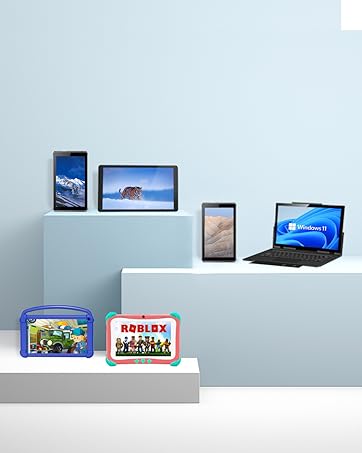
Image: The tablet being used for a video call, showcasing its front camera functionality.
3.3 Дыбыс мүмкіндіктері
The tablet includes built-in speakers for audio playback and a 3.5mm stereo headphone jack for private listening. Volume can be adjusted using the physical volume buttons on the side of the tablet.
3.4 Сақтауды басқару
The tablet comes with 32GB of internal storage. You can expand this storage up to 128GB using a microSD card (not included). To insert a microSD card, locate the card slot on the side of the tablet and gently push the card in until it clicks into place.

Image: Illustration of the tablet's 32GB internal storage and expandability up to 128GB, ideal for saving photos and files.
3.5 Applications and Google Mobile Services (GMS)
The tablet runs on Android 13 and is GMS certified, providing full access to the Google Play Store. You can download and install a wide range of applications, including popular social media apps like Facebook, Twitter, YouTube, and TikTok.
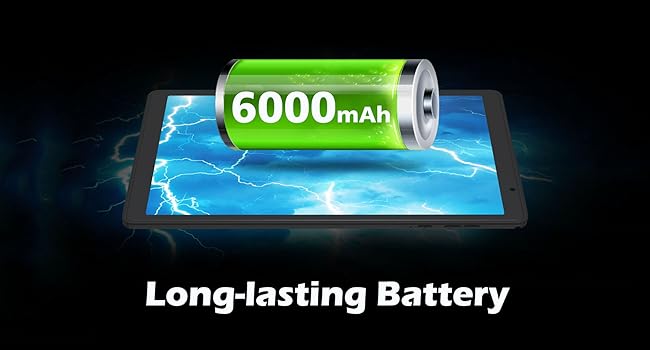
Image: The tablet displaying various GMS-certified applications, indicating broad app compatibility.
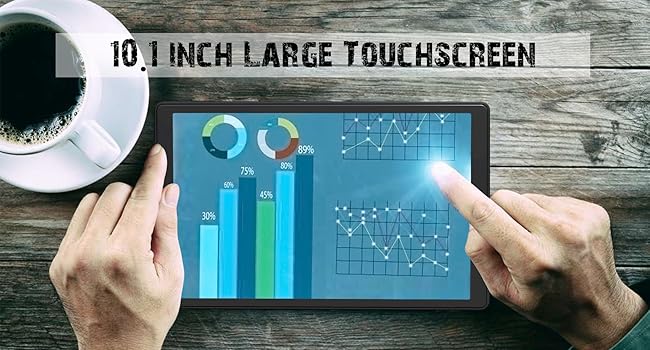
Image: The tablet in use for diverse activities such as studying, shopping, video calls, reading, and watching movies.
3.6 Батареяның қызмет ету мерзімі
The 6000mAh battery provides approximately 8 hours for video playback, 9 hours for daily use, and 10 hours for music playback. Actual battery life may vary based on usage patterns and settings.

Image: Visual representation of the tablet's large battery capacity and estimated usage times for various activities.
4. Техникалық қызмет көрсету
4.1 Планшетті тазалау
Планшеттің экраны мен корпусын тазалау үшін жұмсақ, түксіз матаны пайдаланыңыз. Қатты дақтар үшін, аздап dampшүберекті сумен немесе экранды тазалау ерітіндісімен құйыңыз. Қатты химиялық заттарды немесе абразивті материалдарды пайдаланбаңыз.
4.2 Бағдарламалық құралды жаңарту
Regularly check for and install system updates to ensure optimal performance, security, and access to new features. Go to 'Settings' > 'System' > 'System update' to check for available updates.
4.3 Батареяға күтім жасау
Батареяның қызмет ету мерзімін ұзарту үшін:
- Планшетті өте жоғары температураға (ыстық немесе суық) түсірмеңіз.
- Батареяның жиі таусылуына жол бермеңіз.
- Use the original charging cable or a certified equivalent.
4.4 Сақтауды басқару
To maintain smooth performance, periodically manage your tablet's storage:
- Пайдаланылмаған қолданбаларды жойыңыз.
- Clear cache data for apps in 'Settings' > 'Apps' > [App Name] > 'Storage & cache'.
- Көлемі үлкен files (photos, videos) to external storage or cloud services.
5. Ақаулықтарды жою
Бұл бөлімде планшетте кездесетін жалпы мәселелер қарастырылады.
5.1 Құрылғы қосылмайды
- Ensure the tablet is sufficiently charged. Connect it to a power source for at least 30 minutes.
- Try a forced restart by holding the Power button for 10-15 seconds.
5.2 Баяу өнімділік
- Пайдаланылмаған фондық қолданбаларды жабыңыз.
- Clear app cache and temporary files.
- Жеткілікті бос сақтау орнын қамтамасыз етіңіз.
- Планшетті мерзімді түрде қайта іске қосыңыз.
5.3 Wi-Fi қосылымына қатысты мәселелер
- Параметрлерде Wi-Fi функциясын өшіріп және қосып көріңіз.
- Wi-Fi маршрутизаторын қайта іске қосыңыз.
- Желіні ұмытып, қайта қосылыңыз.
5.4 Зарядтау мәселелері
- Check if the charging cable and adapter are securely connected.
- Басқа зарядтау кабелін немесе қуат адаптерін қолданып көріңіз.
- Inspect the charging port for any debris.
5.5 Зауыттық параметрлерді қалпына келтіру
Мәселелер жойылмаса, зауыттық параметрлерді қалпына келтіру бағдарламалық құралға қатысты көптеген мәселелерді шеше алады. Ескерту: Бұл планшеттегі барлық деректерді жояды. Жалғастырмас бұрын маңызды деректердің сақтық көшірмесін жасаңыз.
- «Параметрлер» > «Жүйе» > «Параметрлерді қалпына келтіру» тармағына өтіңіз.
- «Барлық деректерді өшіру (зауыттық параметрлерді қалпына келтіру)» таңдаңыз.
- Шешіміңізді растаңыз және экрандағы нұсқауларды орындаңыз.
6. Техникалық сипаттамалар
Key technical specifications for the Tibuta E100 Tablet:
| Ерекшелік | Техникалық сипаттама |
|---|---|
| Модель атауы | E100 |
| Операциялық жүйе | Android 13 |
| Экран өлшемі | 10.1 дюйм |
| Экран ажыратымдылығы | 1280 x 800 пиксель (IPS) |
| Процессор | 1.6 ГГц төрт ядролы |
| Жедел Жадтау Құрылғысы | 4 ГБ |
| Ішкі жад | 32 ГБ |
| Кеңейтілетін сақтау орны | 128 ГБ дейін (microSD) |
| Артқы камера | 8 МП |
| Алдыңғы камера | 5 МП |
| Батарея сыйымдылығы | 6000 мАч литий-ион |
| Сымсыз қосылым | 2.4G WiFi (802.11n), Bluetooth 4.2 |
| Өнім өлшемдері (LxWxH) | 8.86 x 11.02 x 2.01 дюйм |

Image: A summary of the tablet's key performance specifications and features.

Image: The tablet's 10.1-inch IPS display, highlighting its high-quality visual output.
7. Кепілдік және қолдау
For warranty information or technical support, please refer to the documentation included with your purchase or visit the official Tibuta webсайт. Сондай-ақ, өнімді сатып алған платформа арқылы тұтынушыларға қызмет көрсету орталығына хабарласа аласыз.


