1. Кіріспе
This user manual provides detailed instructions for the IPEVO VZ-R HDMI/USB Dual Mode Document Camera. It covers product features, setup procedures, operational guidelines, maintenance tips, and troubleshooting information to help you effectively use your device for real-time projection, remote work, distance learning, web conferencing, video recording, and live demonstrations.
2. Өнім аяқталдыview
The IPEVO VZ-R is an 8-megapixel document camera designed for versatile visual communication. It offers both HDMI and USB connectivity, allowing direct connection to displays or computers. Its robust design and advanced imaging capabilities make it suitable for various educational and professional environments.
Негізгі ерекшеліктері:
- Қос режим қосылымы: Seamlessly switch between HDMI for direct display output and USB for computer-based applications.
- Жоғары ажыратымдылықты бейнелеу: Captures up to 3264 x 2448 pixels in USB mode and 1920 x 1080 pixels in HDMI mode, ensuring clear and detailed visuals.
- Large Capture Area: Maximum capture area of 10.6” x 18.9” (16:9) or 13.5” x 18.1” (4:3).
- Жетілдірілген өнімділік: Features a Sony CMOS image sensor and Ambarella SoC for fast focus, noise reduction, and accurate color reproduction.
- Біріктірілген жарықдиодты шам: Provides additional illumination for optimal image quality in low-light conditions.
- Webcam функционалдығы: Functions as a high-quality webcam, compatible with various third-party video conferencing software.
- Икемді дизайн: Swiveling head and multi-jointed stand allow for capturing objects at different heights, angles, and orientations.
- Тұрақты және портативті: Constructed with a glass fiber reinforced stand (GVX-5H) for increased durability and ease of transport.
- Интуитивті басқару элементтері: Tactile built-in buttons on the device body for instant image adjustments.

3. Пакет мазмұны
Барлық элементтер пакетте бар екенін тексеріңіз:
- Camera head and stand
- Негіз
- USB Type-C to Type-A cable (4.90ft/150cm)
- Бұрауыш
- Бұрандалар x 4
Ескерту: An HDMI cable and a wall power adapter are not included in the package and must be acquired separately if needed.
4. Құрылғының орналасуы
The IPEVO VZ-R features an intuitive button layout for easy control. Familiarize yourself with the functions of each button:

- ЖАРЫҚ: Toggles the LED light on/off.
- СҮЗГІ: Cycles through various image filters (e.g., grayscale, negative).
- АЙНАЛУ: Кескінді сағат тілімен 90 градусқа бұрады.
- ZOOM + / ZOOM -: Adjusts the digital zoom level.
- EXP + / EXP -: Adjusts the exposure level (brightness).
- FOCUS / AF-LOCK: Initiates auto-focus or locks the current focus.
- ҚУАТ: Құрылғыны қосады немесе өшіреді.
5. Орнату
5.1 Физикалық жинақ
- Attach the camera head and stand assembly to the base using the provided screws and screwdriver. Ensure it is securely fastened.
- Position the VZ-R on a stable, flat surface.
5.2 Connecting to a Computer (USB Mode)
- Connect the USB Type-C end of the provided cable to the VZ-R.
- Connect the USB Type-A end of the cable to an available USB port on your computer (Mac, Windows PC, or Chromebook).
- The VZ-R will be recognized as a standard webcam. You may need to download and install the IPEVO Visualizer software from the official IPEVO website for full functionality and advanced controls.
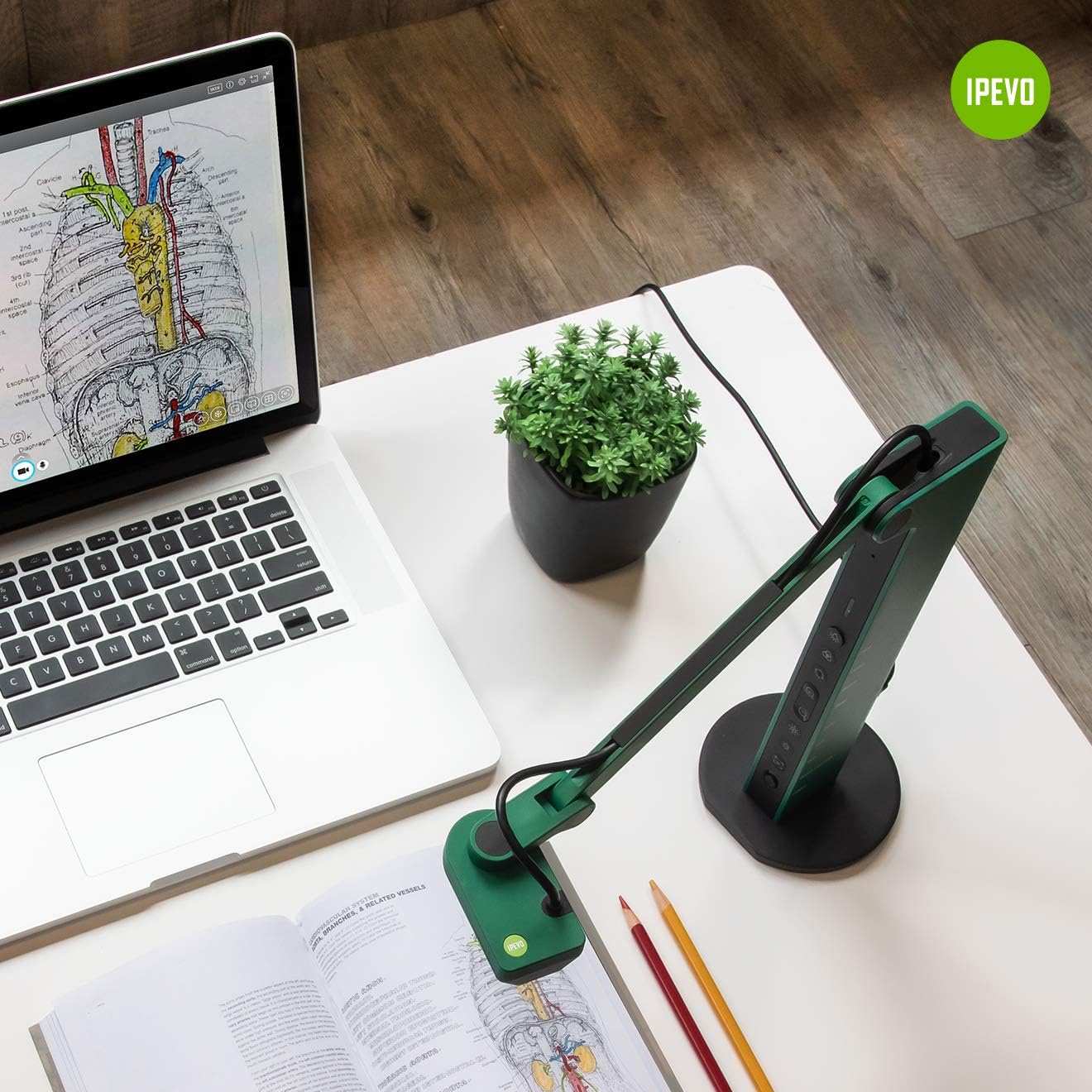
5.3 Connecting to a Display (HDMI Mode)
- Connect an HDMI cable (not included) from the VZ-R's HDMI output port to the HDMI input port on your TV, monitor, or projector.
- Ensure the display device is set to the correct HDMI input source.
- The VZ-R will automatically project its live feed to the connected display.

5.4 Құрылғыны қуаттандыру
The VZ-R is powered via its USB connection. When connected to a computer, it draws power from the USB port. For HDMI-only operation, connect the USB cable to a USB wall adapter (not included) for power.
6. Пайдалану нұсқаулары
6.1 Using the IPEVO Visualizer Software
For advanced control and features when connected to a computer, download and install the IPEVO Visualizer software. This software allows you to:
- Adjust image settings (resolution, exposure, white balance).
- Annotate live images.
- Record video and capture snapshots.
- Utilize various presentation tools.
6.2 Құрылғыдағы түймелерді пайдалану
Refer to Section 4, "Device Layout," for the location and function of each button. These buttons allow for quick adjustments without software interaction, especially useful in HDMI mode.
6.3 Adjusting the Camera Arm
The VZ-R's multi-jointed stand allows for flexible positioning. Gently adjust the arm and camera head to capture your desired object or document. The swiveling head provides additional flexibility for different angles and orientations.
6.4 Ретінде пайдалану Webкамера
When connected to a computer via USB, the VZ-R can function as a webcam. Select the VZ-R as your camera source in your preferred video conferencing application (e.g., Zoom, Google Meet, Microsoft Teams). Its flexible arm allows you to easily switch between showing your face and displaying physical documents or objects during a call.


7. Техникалық қызмет көрсету
To ensure the longevity and optimal performance of your IPEVO VZ-R, follow these maintenance guidelines:
- Тазалау: Use a soft, dry cloth to clean the exterior of the device. For the camera lens, use a lens cleaning cloth and solution specifically designed for optics. Avoid abrasive cleaners or solvents.
- Сақтау орны: When not in use, store the VZ-R in a clean, dry place away from direct sunlight and extreme temperatures. The flexible arm can be folded for compact storage.
- Өңдеу: Құрылғыны абайлап ұстаңыз. Оны түсіріп алудан немесе қатты әсер етуден аулақ болыңыз.

8. Ақаулықтарды жою
If you encounter issues with your IPEVO VZ-R, refer to the following common problems and solutions:
- No Image Displayed (USB Mode):
- Ensure the USB cable is securely connected to both the VZ-R and your computer.
- Verify that the VZ-R is selected as the camera source in your software (e.g., IPEVO Visualizer, video conferencing app).
- Компьютердегі басқа USB портына қосылуға тырысыңыз.
- Компьютеріңізді қайта іске қосыңыз.
- No Image Displayed (HDMI Mode):
- Ensure the HDMI cable is securely connected to both the VZ-R and your display device.
- Confirm that your display device is set to the correct HDMI input source.
- Ensure the VZ-R is receiving power via its USB connection to a wall adapter.
- Басқа HDMI кабелін қолданып көріңіз.
- Кескін бұлыңғыр немесе фокустан тыс:
- түймесін басыңыз FOCUS / AF-LOCK button to initiate auto-focus.
- Ensure the object is within the camera's optimal focal range.
- Check for any obstructions on the camera lens.
- Image is Too Dark or Too Bright:
- Adjust the exposure using the EXP + / EXP - түймелері.
- Ensure the LED light is on if operating in a dimly lit environment.
- Сыртқы жарықтандыру жағдайларын тексеріңіз.
- Жыпылықтаған кескін:
- Ensure all cables (USB, HDMI) are securely connected and not damaged.
- Басқа кабельді қолданып көріңіз.
- Ensure adequate power supply.
9. Техникалық сипаттамалар
| Ерекшелік | Мәлімет |
|---|---|
| Өнім өлшемдері | 4.56 x 4.25 x 11.85 дюйм |
| Элемент салмағы | 2.2 фунт |
| Элемент үлгі нөмірі | 5-898-4-01-00 |
| Бейне түсіру рұқсаты | 2448p (USB Mode), 1080p (HDMI Mode) |
| Экспозицияны басқару түрі | Нұсқаулық |
| Түс | Жасыл |
| Масштабтау түрі | Digital (smooth zoom) |
| Бірінші қолжетімді күн | 14 жылдың 2020 мамыры |
| Өндіруші | IPEVO |
10. Кепілдік және қолдау
For warranty information and technical support, please refer to the official IPEVO website or contact IPEVO customer service directly. You can typically find support resources, FAQs, and contact details at www.ipevo.com. For direct customer service inquiries, you may also reach out to cs@ipevo.com.
Ескерту: Берілген деректерде осы нұсқаулыққа енгізуге арналған ресми өнім бейнелері болған жоқ.


