
1. Кіріспе
This manual provides essential instructions for the safe and efficient operation, setup, and maintenance of your Procolored F13 Panda DTF Printer. Please read this manual thoroughly before using the printer to ensure optimal performance and longevity.
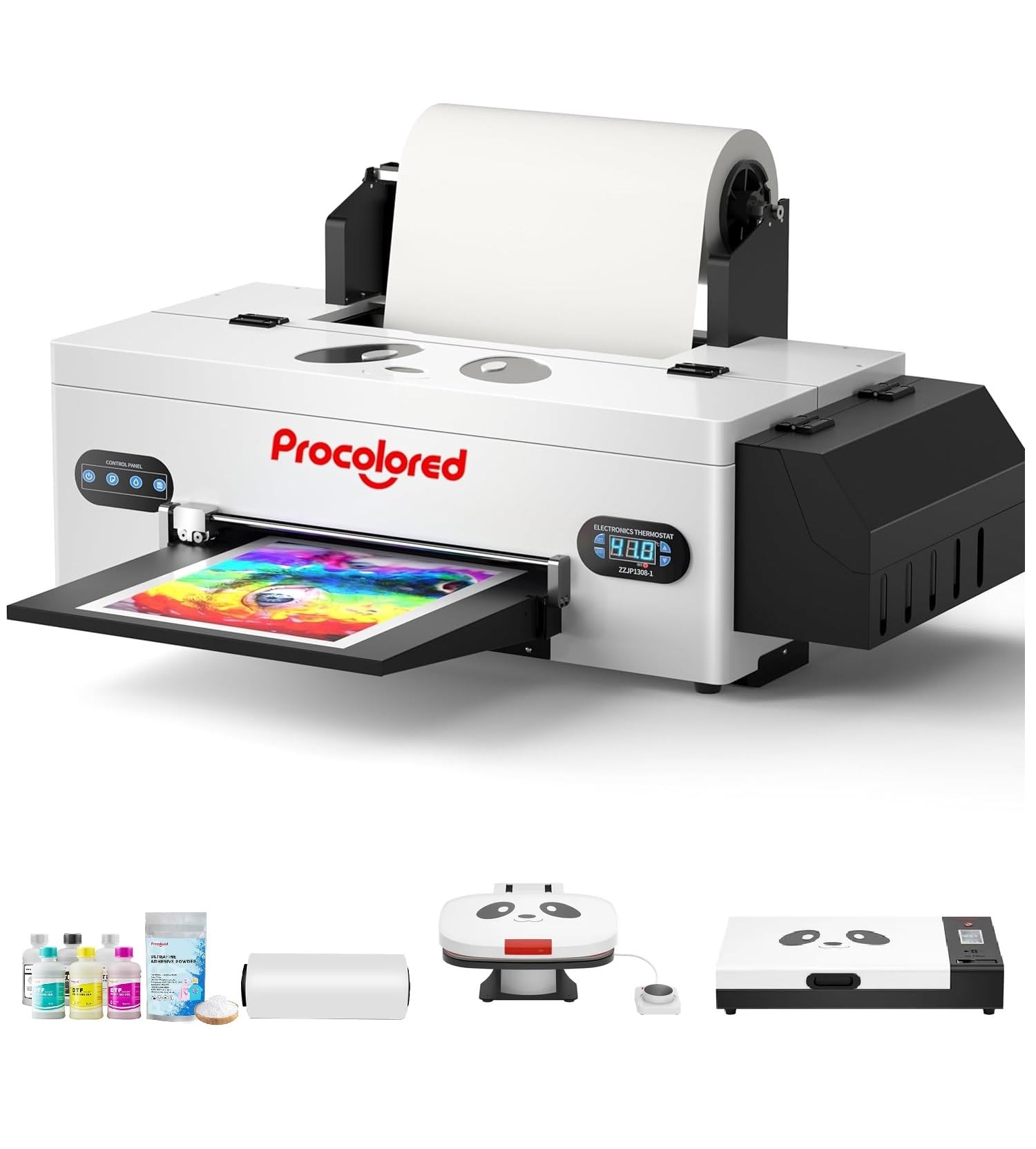
Figure 1: Procolored F13 Panda DTF Printer.
2. Қауіпсіздік туралы ақпарат
Жарақат алуды немесе принтерді зақымдауды болдырмау үшін әрқашан келесі қауіпсіздік шараларын орындаңыз:
- Принтердің тұрақты, тегіс бетке қойылғанына көз жеткізіңіз.
- Connect the printer to a grounded power outlet with the correct voltage (AC 100-230V).
- Принтерді суға немесе шамадан тыс ылғалдылыққа ұшыратпаңыз.
- Жұмыс кезінде қолды қозғалатын бөліктерден аулақ ұстаңыз.
- Use only recommended inks and cleaning solutions.
- Балалардың қолы жетпейтін жерде сақтаңыз.
3. Пакет мазмұны
Барлық элементтер пакетте бар екенін тексеріңіз:
- Procolored F13 DTF Printer
- Roll Film 13"
- DTF Ink Set (CMYK+WW)
- Nozzle Protection Fluid
- DTF Powder
- Пластикалық қолдау
- Деректер кабелі (USB)
- Қуат кабелі
- Moisturizing Device
- Бөтелке қалдықтары
- Картридж
- Spare Ink Tube
- Роликті жақша
- Сия тақтасы
- Сүргіш
- Кескіш пышақ
- USB кілті
- Шприц
- Бұрауыш
- Ролик жолағы
- Ұзартқыш түтік
- Needle Hub
- Көктем
- Тампон

Figure 2: Included accessories for the Procolored F13 DTF Printer.
4. Орнату нұсқаулығы
4.1 Қораптан шығару және бастапқы орналастыру
Carefully remove the printer and all components from the packaging. Place the printer on a sturdy, level surface in a well-ventilated area.
Video 1: Procolored F13 DTF Printer Unboxing. This video demonstrates the unboxing process and initial setup steps for the printer.
4.2 Пленка орамын орнату
Install the 13-inch DTF film roll onto the designated holder at the rear of the printer. Ensure the film feeds smoothly into the printer mechanism.
4.3 Ink System Setup
Fill the ink tanks with the corresponding DTF pigment inks (Cyan, Magenta, Yellow, Black, White, Light Cyan). Ensure the white ink circulation system is properly connected and functioning to prevent clogging.

Figure 3: Illustration of the advanced white ink system, showing circulation, siphon effect, and automatic cleaning.
4.4 Қуатты қосу және бағдарламалық құралды орнату
Connect the power cable to the printer and a suitable power outlet. Install the Procolored RIP software (compatible with Windows 7/10/11) on your computer. Follow the on-screen instructions for software installation and driver setup.
4 -сурет: Аяқталдыview of the Procolored RIP software interface and available tutorials.
5. Пайдалану нұсқаулары
5.1 Preparing for Print
- Power on the printer using the main switch.
- Ensure the DTF film is correctly loaded and aligned.
- Open the Procolored RIP software on your computer.
- Import your design and adjust settings such as size, resolution (up to 1440x1440dpi), and color profile.
5.2 Басып шығару процесі
Initiate the print job from the software. The printer will feed the film and apply ink. The built-in cutter will automatically trim the film after printing, optimizing material usage.
Video 2: Procolored F13 DTF Printer in operation. This video demonstrates the printing process, including film feeding and ink application.
5.3 Басып шығарудан кейінгі
After printing, apply DTF powder to the wet ink and cure it using a DTF oven or heat press. Once cured, the design is ready for transfer to textiles.

5 -сурет: Мысалыamples of versatile applications for DTF prints, including shirts, flags, tote bags, and caps.
6. Техникалық қызмет көрсету
6.1 Автоматты тазалау жүйесі
The F13 Panda DTF Printer features an automatic cleaning system that operates even when the printer is powered on. This system helps prevent print head clogs and ensures consistent print quality. Regular use of this feature is recommended.
6.2 White Ink Circulation
The printer includes a white ink circulation system with a siphon filtration diaphragm pump. This system minimizes blockages and maintains the quality of white ink. Ensure the system is always active during operation.
Video 3: F13 L1800 DTF Apparel Printer features. This video highlights the white ink circulation and automatic cleaning functions.
6.3 Жалпы тазалау
Принтердің сыртқы бетін жұмсақ, damp cloth. Refer to the software's maintenance section for specific print head cleaning procedures if needed.
7. Ақаулықтарды жою
If you encounter issues with your printer, consider the following common solutions:
- Басып шығару сапасының мәселелері: Perform a nozzle check and head cleaning through the software. Ensure ink levels are sufficient.
- Film Feeding Problems: Check for obstructions in the film path and ensure the film roll is correctly installed and aligned.
- Бағдарламалық қамтамасыз ету қателері: Restart the software and the printer. Ensure your software and drivers are up to date.
- Қосылу мәселелері: Verify USB cable connection and ensure the printer is powered on.
For persistent issues, contact Procolored customer service.
8. Техникалық сипаттамалар
| Ерекшелік | Техникалық сипаттама |
|---|---|
| Бренд | Боялған |
| Модель атауы | F13-XMJZ |
| Қосылу технологиясы | USB |
| Баспа технологиясы | Сия бүріккіш |
| Арнайы мүмкіндік | Портативті |
| Принтердің шығысы | Түс |
| Максималды басып шығару жылдамдығы (түсті) | 1 бет/мин |
| Максималды басып шығару жылдамдығы монохромды | 1 бет/мин |
| Өнім өлшемдері (D x W x H) | 16.53"D x 34.25"W x 16.4"H |
| Сия түсі | Cyan, Magenta, Yellow, Black, White, Light Cyan |
| Ажыратымдылық | 1440 x 1440 нүкте/дюйм |
| Ең үлкен медиа өлшемі | A3 (13 Inches) |
| Бағдарламалық қамтамасыз етуді қолдау | Windows 7/10/11 |
| Өнімге арналған арнайы қолданулар | Textile Printing |
9. Кепілдік және қолдау
Your Procolored F13 Panda DTF Printer comes with a comprehensive warranty:
- Print Head and Related Components: Six-month warranty.
- Басқа аксессуарлар: Бір жылдық кепілдік.
Our dedicated customer service team is available 24/6 to address any queries or technical issues you may encounter. Please refer to your purchase documentation for specific contact details.