
1. Кіріспе
Thank you for choosing the Blackstorm 27-inch QHD Mini-LED Gaming Monitor. This monitor is designed to provide an exceptional visual experience for gaming enthusiasts, offering unparalleled precision and performance. Featuring a 27-inch IPS panel with advanced Mini-LED backlighting, it delivers superior image quality, making every gaming moment vivid and immersive. This manual will guide you through the setup, operation, and maintenance of your new monitor.
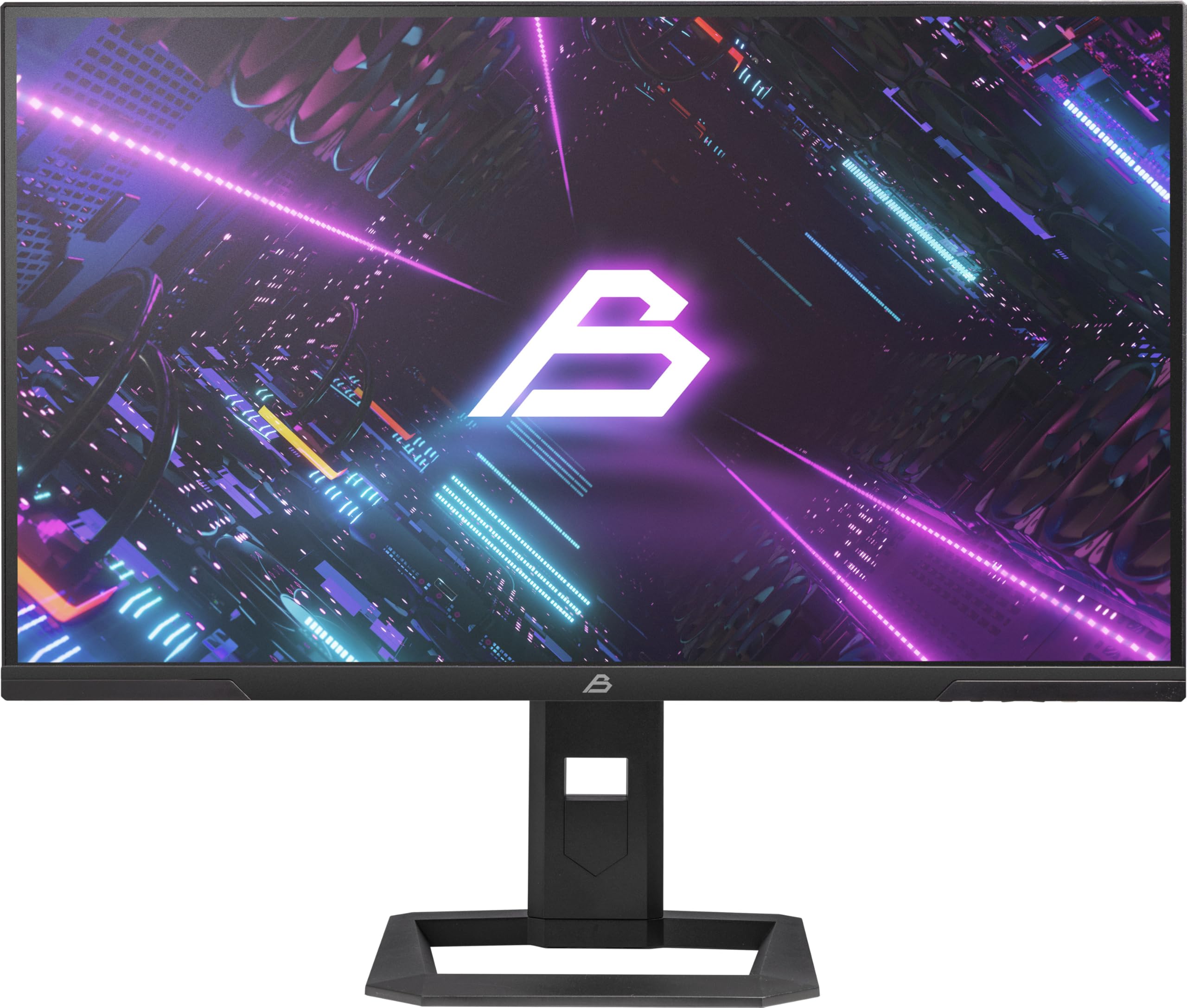
1-сурет: Алдыңғы view of the Blackstorm 27-inch QHD Mini-LED Gaming Monitor.
2. Негізгі мүмкіндіктер
- High-Performance Gaming Display: A 27-inch IPS panel with Mini-LED backlighting provides exceptional brightness, contrast, and color reproduction, ideal for visual precision and performance in all game types.
- Тегіс ойын тәжірибесі: WQHD resolution (2560 x 1440) and a 180 Hz refresh rate ensure smooth, detailed visuals. A rapid 2 ms response time is crucial for fast-paced games.
- Superior Color Reproduction and Brightness: Covers 99% of AdobeRGB and DCI-P3 color spaces for accurate and vibrant colors. Features 450 nits (SDR) brightness and HDR1000 compatibility for an impressive gaming experience in any environment.
- Ergonomic Design and Connectivity: The ergonomic stand allows for height, tilt, swivel, and pivot adjustments. VESA 100x100 mount compatible. Includes HDMI 2.1 and DisplayPort 1.4 connections for high-resolution, fast image transfer.
- Жетілдірілген дисплей технологиясы: IPS panel with Mini-LED technology, 576 dimming zones, and a 1,000,000:1 contrast ratio.
3. Пакет мазмұны
Пакет мазмұнын мұқият тексеріңіз. Кез келген зат жоқ немесе зақымдалған болса, сатушыға хабарласыңыз.
- Blackstorm 27-inch QHD Mini-LED Gaming Monitor
- Монитор тұғыры (негіз және мойын)
- Қуат кабелі
- HDMI кабелі
- DisplayPort кабелі
- Пайдаланушы нұсқаулығы (бұл құжат)
- Кепілдік картасы (бар болса)
4. Орнату нұсқаулары
4.1 Тұғырды құрастыру
- Монитор мен тірек компоненттерін қаптамадан абайлап алыңыз.
- Монитор тақтасына тұғыр мойнын бекітіңіз. Оның орнына сенімді түрде шертілгеніне немесе жылдам бастау нұсқаулығында көрсетілгендей бұрандалармен бекітілгеніне көз жеткізіңіз.
- Attach the stand base to the stand neck. Tighten any screws firmly to ensure stability.
- Жиналған мониторды тұрақты, тегіс бетке қойыңыз.

2-сурет: Артқы view of the monitor showing the stand attachment and port area.
4.2 Компьютерге қосылу
- Ensure both your computer and the monitor are powered off.
- Connect one end of the provided HDMI or DisplayPort cable to the corresponding port on your computer's graphics card.
- Connect the other end of the cable to the HDMI 2.1 or DisplayPort 1.4 input on the back of the monitor.
- Қуат кабелін монитордың қуат көзіне жалғаңыз, содан кейін екінші ұшын розеткаға қосыңыз.
- Power on your computer, then power on the monitor. The monitor should automatically detect the input signal.
4.3 Эргономикалық реттеулер
Монитор тұғыры оңтайландыру үшін әртүрлі реттеулерге мүмкіндік береді viewжайлылық:
- Биіктікті реттеу: Gently push or pull the monitor up or down to your desired height.
- Еңкейтуді реттеу: Tilt the monitor screen forward or backward to find the optimal viewкіру бұрышы.
- Айналуды реттеу: Мониторды оның негізінде солға немесе оңға бұрыңыз.
- Айналуды реттеу: Альбомдық және портреттік бағдар арасында ауысу үшін мониторды 90 градусқа бұрыңыз.

3-сурет: жағы view монитордың реттелетін тұғырын суреттейді.
5. Мониторды пайдалану
5.1 Экрандық дисплей (OSD) мәзірі
The OSD menu allows you to adjust various monitor settings. Typically, buttons are located on the back or bottom edge of the monitor. Refer to the quick start guide for exact button locations.
- Мәзірді ашу үшін OSD түймесін басыңыз.
- Use the navigation buttons (up/down/left/right) to browse through menu options.
- Ішкі мәзірге кіру немесе параметрді растау үшін таңдау түймесін басыңыз.
- Press the exit button to return to the previous menu or close the OSD.
5.2 Дисплей параметрлерін реттеу
Сіз реттей алатын негізгі параметрлер мыналарды қамтиды:
- Жарықтық/Контраст: Adjust for optimal visual comfort.
- Түс параметрлері: Fine-tune color temperature, gamma, and color space (e.g., AdobeRGB, DCI-P3).
- Жаңарту жылдамдығы: Ensure your computer's display settings are configured to utilize the monitor's 180 Hz refresh rate for the smoothest experience.
- HDR режимі: Enable HDR1000 for compatible content to experience enhanced dynamic range.
- Динамикалық артқы жарық: This feature enhances depth and realism. For competitive gaming requiring extreme responsiveness, you may choose to disable dynamic backlighting for a more consistent and precise image.
6. Техникалық қызмет көрсету
Тиісті күтім монитордың ұзақ қызмет ету мерзімін және оңтайлы өнімділігін қамтамасыз етеді.
- Экранды тазалау:
- Тазалау алдында мониторды әрқашан өшіріп, желіден ажыратыңыз.
- Жұмсақ, түксіз матаны жеңіл пайдаланыңыз dampсумен немесе аммиаксыз, алкогольсіз экран тазалағышпен жабылған.
- Wipe the screen gently to remove dust and smudges. Avoid applying direct pressure.
- C тазалауasing:
- Мониторды сүрту үшін жұмсақ, құрғақ шүберекті пайдаланыңыз casing.
- Бетті зақымдауы мүмкін абразивті тазартқыштарды немесе еріткіштерді қолданбаңыз.
- Желдету: Қызып кетудің алдын алу үшін монитордың желдету саңылауларының бітелмегеніне көз жеткізіңіз.
- Сақтау орны: Мониторды ұзақ уақыт пайдаланбаған кезде, салқын, құрғақ жерде, жақсысы бастапқы қаптамасында сақтаңыз.
7. Ақаулықтарды жою
Мониторға қатысты мәселелер туындаса, келесі жалпы шешімдерді қараңыз:
| Мәселе | Мүмкін шешім |
|---|---|
| Экранда сурет жоқ / «Сигнал жоқ» хабары |
|
| Кескін бұлыңғыр немесе бұрмаланған |
|
| Монитор қосылмайды |
|
| Түстер дұрыс емес көрінеді |
|
If the problem persists after trying these solutions, please contact Blackstorm customer support.
8. Техникалық шарттар
| Ерекшелік | Техникалық сипаттама |
|---|---|
| Бренд | Қара дауыл |
| Үлгі | GMF27QHD180-MLED |
| Экран өлшемі | 27 дюйм |
| Көрсету технологиясы | IPS with Mini-LED |
| Ажыратымдылық | 2560 x 1440 пиксель (WQHD) |
| Жаңарту жылдамдығы | 180 Гц |
| Жауап беру уақыты | 2 миллисекунд |
| Brightness (SDR) | 450 candela/square meter |
| Контраст қатынасы | 1,000,000:1 |
| Түс гаммасы | 99% AdobeRGB, DCI-P3 |
| HDR қолдауы | HDR1000 |
| Күңгірттеу аймақтары | 576 |
| Аспект қатынасы | 16:9 (1.77:1) |
| Аппараттық интерфейс | DisplayPort 1.4, HDMI 2.1 |
| Арнайы мүмкіндіктер | HDR, Height Adjustment, Tilt Adjustment, Swivel Adjustment, Pivot Adjustment, Adjustable Stand |
| VESA үйлесімділігі | 100x100 мм |
| Өнім өлшемдері | 23.5 x 54 x 96 см; 12.66 кг |

Figure 4: Energy efficiency label. For more details, visit EPREL деректер базасы.
9. Кепілдік және қолдау
For warranty information, please refer to the separate warranty card included with your product or visit the official Blackstorm website. For technical support, troubleshooting assistance beyond this manual, or service inquiries, please contact Blackstorm customer support through their official channels.
Қосымша ақпаратты және байланыс мәліметтерін мына жерден таба аласыз Blackstorm Store on Amazon.