
1. Кіріспе
This manual provides detailed instructions for the installation, operation, and maintenance of your darkFlash DS900 Air ATX Mid-Tower PC Gaming Case. Please read this manual thoroughly before beginning assembly to ensure proper setup and safe usage. The DS900 Air is designed to offer a clear view of your components with its 270° full-view tempered glass and provides excellent cooling capabilities for high-performance systems.

Figure 1.1: darkFlash DS900 Air ATX Mid-Tower PC Gaming Case with internal components and RGB lighting.
2. Қауіпсіздік туралы ақпарат
Орнату және пайдалану кезінде әрқашан келесі қауіпсіздік шараларын сақтаңыз:
- Кез келген құрамдас бөліктерді орнатпас немесе алып тастамас бұрын, қуат көзін қабырға розеткасынан ажыратыңыз.
- Сезімтал компоненттерге электростатикалық разрядтың (ESD) зақымдалуын болдырмау үшін антистатикалық білезік бауын киіңіз.
- Handle tempered glass panels with care. Avoid impacts or dropping them, as they can shatter.
- Кішкентай бөлшектер мен бұрандаларды балалардан алыс ұстаңыз.
- Қызып кетудің алдын алу үшін корпустың айналасында дұрыс желдетуді қамтамасыз етіңіз.
- Корпус құрылымын өзгертуге тырыспаңыз, себебі бұл кепілдікті жарамсыз етуі және қауіпсіздікке қауіп төндіруі мүмкін.
3. Техникалық сипаттамалар
| Ерекшелік | Техникалық сипаттама |
|---|---|
| Модель атауы | DS900 Air |
| Іс түрі | ATX ортаңғы мұнарасы |
| Аналық платаға қолдау көрсету | ATX, Micro ATX, Mini ITX |
| GPU ұзындығын тазалау | 425 мм дейін |
| CPU салқындатқышының биіктігін тазалау | 170 мм дейін |
| PSU түрі | ATX (Bottom-mounted) |
| Драйвер ұялары | 2x 3.5" HDD or 2x 2.5" SSD, 2x 2.5" SSD |
| Кеңейту слоттары | 7 PCIe слоттары |
| Енгізу/шығару порттары | 1x USB-C, 1x USB 3.0, Audio (HD Audio) |
| Желдеткіш қолдау | Bottom: 3x 120mm; Top: 3x 120mm or 2x 140mm; Rear: 1x 120mm; Right Side: 2x 120mm |
| Радиаторды қолдау | Top: Up to 360mm; Side: Up to 240mm |
| Материалдар | Болат, шыңдалған шыны |
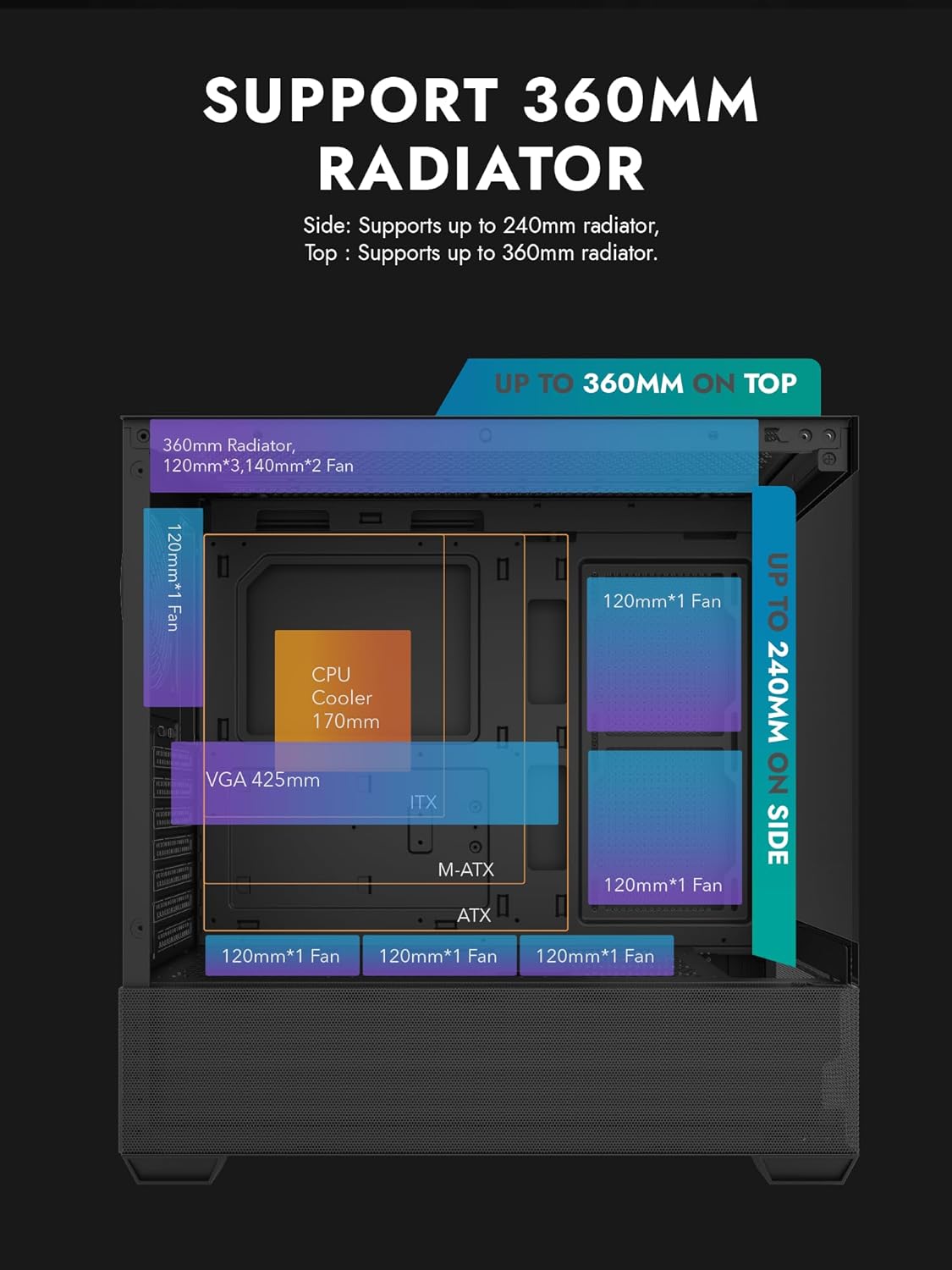
Figure 3.1: Radiator and fan support diagram for the DS900 Air case, illustrating maximum component dimensions.
4. Орнату және орнату
Follow these steps to assemble your PC components within the darkFlash DS900 Air case.
4.1. Істі дайындау
- Бүйірлік панельдерді алып тастаңыз: The DS900 Air features a tool-free clamshell side panel. Gently pull the top edge of the tempered glass side panel to unlatch it, then lift it off. Repeat for the other side panel if necessary.
- Керек-жарақ қорабы: Locate the accessory box inside the case, which contains screws, cable ties, and other mounting hardware.
4.2. Аналық платаны орнату
- Енгізу/шығару экранын корпустың артқы тесігіне орнатыңыз.
- Align your ATX, Micro-ATX, or Mini-ITX motherboard with the standoffs inside the case. Ensure the I/O ports align with the I/O shield.
- Берілген бұрандаларды пайдаланып, аналық платаны бекітіңіз.
4.3. Қуат блогын (PSU) орнату
- The DS900 Air has a dedicated bottom PSU chamber. Slide your ATX power supply into the chamber from the rear of the case.
- Қуат блогын корпустың артқы жағынан бұрандалармен бекітіңіз.
- Route necessary power cables through the cutouts into the main compartment.
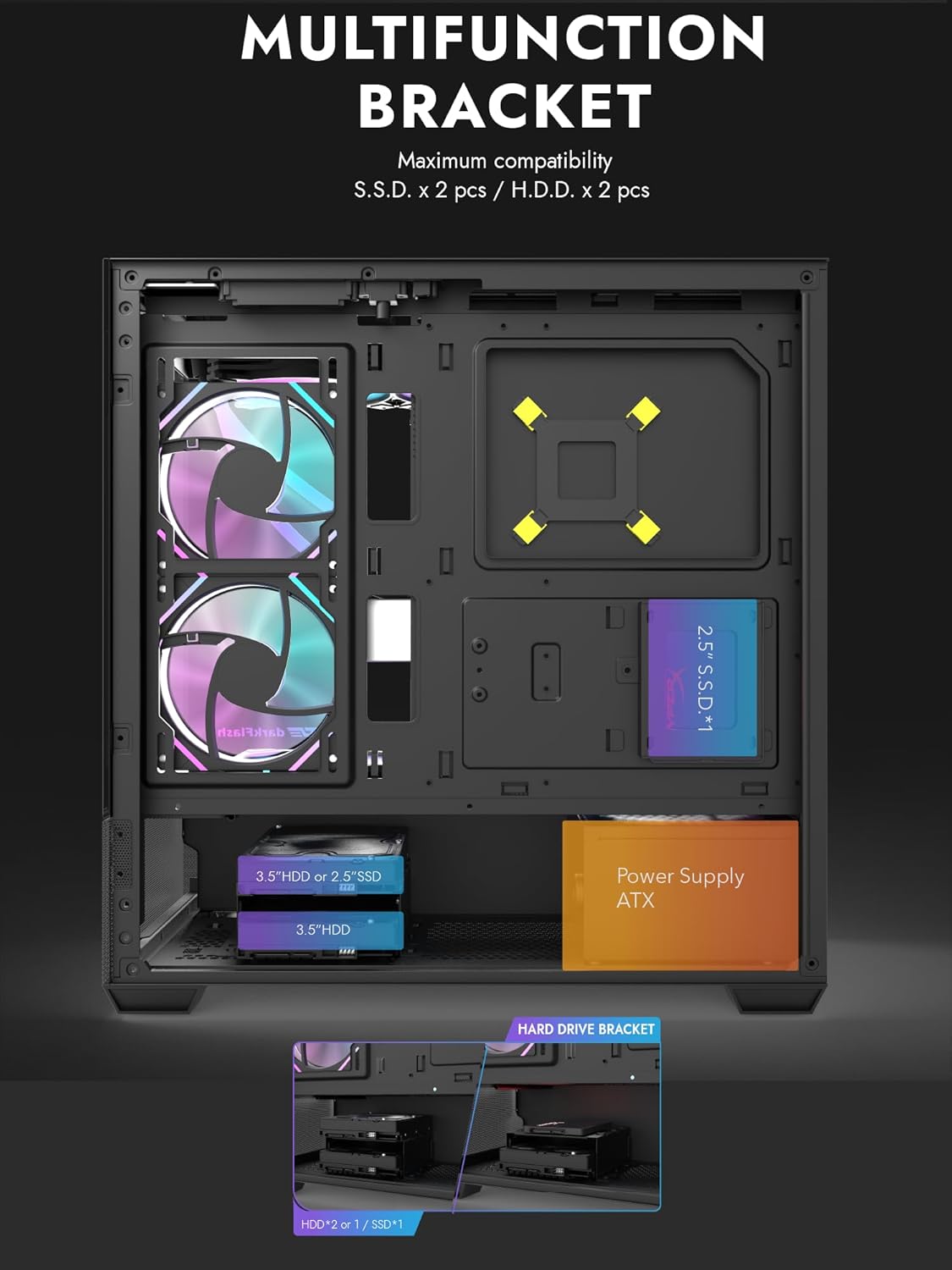
Figure 4.1: Internal layout showing the multifunction drive bracket and the bottom-mounted PSU chamber.
4.4. Сақтау құрылғысын орнату
The case supports up to two 3.5" HDDs or 2.5" SSDs in the hard drive bracket, and two additional 2.5" SSDs on the multifunction bracket.
- 3.5" HDD / 2.5" SSD: Install drives into the removable hard drive bracket located in the PSU chamber. Secure with screws.
- 2.5" SSD: Mount 2.5" SSDs onto the multifunction bracket located on the motherboard tray. Secure with screws.
4.5. Графикалық картаны (GPU) орнату
- Корпустың артқы жағынан қажетті PCIe ұясының қақпақтарын алыңыз.
- Графикалық картаңызды аналық платадағы сәйкес PCIe ұясына салыңыз.
- Secure the graphics card with screws. The case supports GPUs up to 425mm in length.
4.6. Cooling System Installation (Fans/Radiators)
The DS900 Air offers extensive cooling options:
- Жоғарғы: Supports up to 3x 120mm fans or 2x 140mm fans, or a 360mm radiator.
- Төменгі: Supports up to 3x 120mm fans.
- Артқы: 1x 120 мм желдеткішті қолдайды.
- Оң жағы: Supports 2x 120mm fans or a 240mm radiator.
Install fans and radiators using the appropriate screws and mounting points. Ensure correct airflow direction for optimal cooling.

Figure 4.2: Fan support locations and quantities within the DS900 Air chassis.

Figure 4.3: Airflow diagram demonstrating optimal cooling paths through the case.
4.7. Connecting Front I/O Cables
Connect the front panel cables (USB-C, USB 3.0, HD Audio, Power, Reset, LED) to their corresponding headers on your motherboard. Refer to your motherboard manual for exact header locations.

Figure 4.4: Top-right I/O panel featuring USB-C and USB 3.0 ports.
4.8. Кабельді басқару
Кабельдерді басқару үшін аналық плата науасының артындағы кабельді өткізу ойықтары мен бекіту нүктелерін пайдаланыңыз. Бұл ауа ағынын және эстетиканы жақсартады.
5. Компьютерді пайдалану
Once all components are installed and cables are connected, replace the side panels. Connect your monitor, keyboard, mouse, and power cable. Press the power button on the case to start your system. Ensure all fans are spinning and components are receiving power.
6. Техникалық қызмет көрсету
Тұрақты техникалық қызмет көрсету компьютер компоненттерінің оңтайлы өнімділігі мен ұзақ қызмет ету мерзімін қамтамасыз етуге көмектеседі.
- Шаңды тазалау: Periodically clean dust filters and internal components using compressed air. The DS900 Air features mesh panels that help filter dust.
- Ауа шығыны: Ensure no obstructions block the intake or exhaust vents of the case.
- Кабельдерді басқару: Re-evaluate cable routing periodically to ensure no cables are interfering with fan blades or airflow.
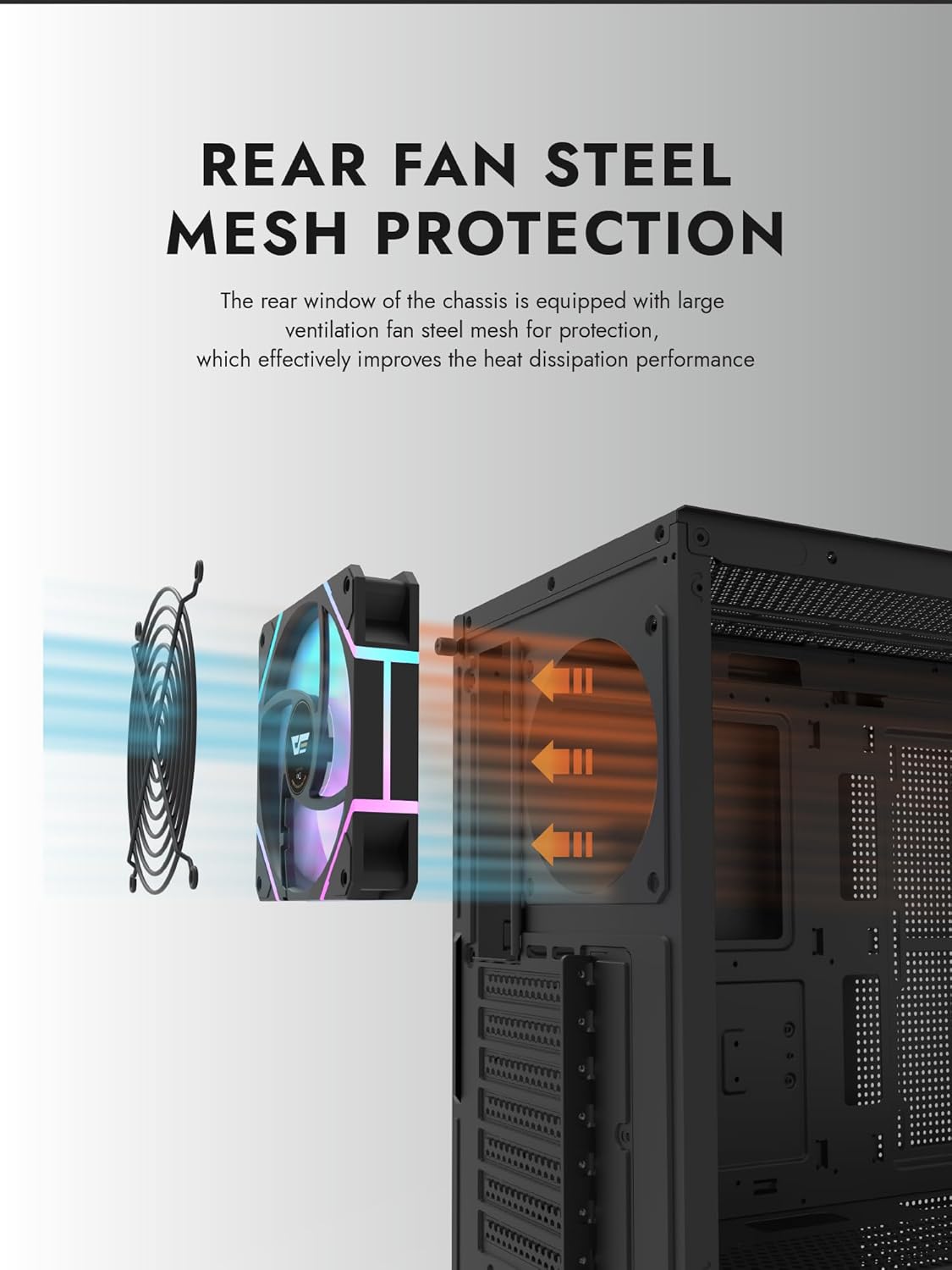
Figure 6.1: Rear fan steel mesh protection, designed to improve heat dissipation.
7. Ақаулықтарды жою
Егер компьютеріңіздің құрастыруында мәселелер туындаса, келесі жалпы ақаулықтарды жою қадамдарын қарастырыңыз:
- Қуат жоқ: Check all power connections, including the PSU to the wall, PSU to motherboard, and front panel power switch cable to the motherboard.
- Дисплей жоқ: Ensure your monitor is connected to the graphics card (not the motherboard I/O unless using integrated graphics). Reseat the graphics card and RAM.
- Қызып кету: Verify all fans are spinning correctly and are oriented for proper airflow. Check CPU cooler installation.
- Компонент анықталмады: Reseat the component (e.g., RAM, GPU, storage drive) and check its power and data connections.
8. Кепілдік және қолдау
darkFlash products are manufactured to high-quality standards. For warranty information or technical support, please refer to the official darkFlash webсайтына немесе сатушыға хабарласыңыз. Кепілдік шағымдары үшін сатып алуды растайтын құжатты сақтаңыз.