
Кіріспе
This manual provides essential information for the setup, operation, maintenance, and troubleshooting of your VGKE B12 2-in-1 Touch Screen Laptop. Please read this manual thoroughly before using your device to ensure proper function and longevity.
The VGKE B12 is a versatile device designed for both productivity and entertainment, featuring a 12.3-inch 3K IPS touchscreen and a detachable magnetic keyboard.
Өнім аяқталдыview
The VGKE B12 combines the functionality of a laptop with the portability of a tablet. Key features include:
- Процессор: Intel Celeron J4125 (4 Cores, up to 2.7 GHz)
- Көрсеткіш: 12.3-inch WQHD (3000 x 2000) 3K IPS Touchscreen, 300 nits brightness, 100% sRGB
- Жад: 8GB LPDDR4 RAM
- Сақтау орны: 256 ГБ SSD
- Қосылу мүмкіндігі: Wi-Fi 5 (802.11ac), Bluetooth 4.2
- Порттар: 2x Full-functional USB Type-C, 1x 3.5 mm Headphone Jack
- Камера: 2 МП алдыңғы камера
- Батарея: 3500mAh lithium battery, up to 8.5 hours usage
- Операциялық жүйе: Windows 11
Құрылғының құрамдас бөліктері
Familiarize yourself with the various parts of your VGKE B12 device.

1-сурет: The VGKE B12 2-in-1 laptop with its magnetic keyboard attached, showcasing its sleek design and kickstand.

2-сурет: The VGKE B12 in tablet mode, supported by its integrated kickstand, displaying a vibrant screen.
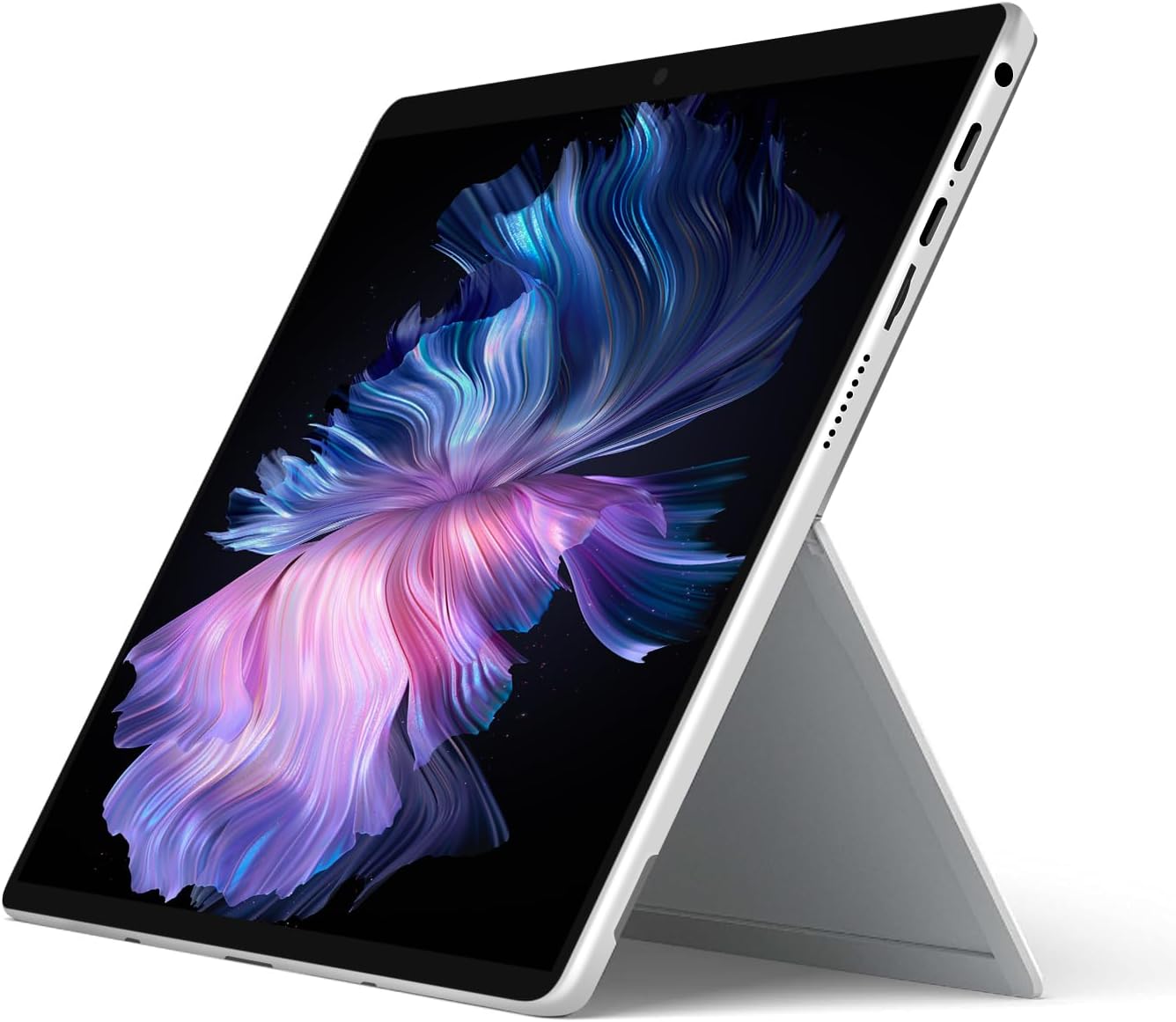
3-сурет: Егжей-тегжейлі view of the magnetic connection mechanism for attaching the keyboard to the tablet.

4-сурет: The VGKE B12 tablet separated from its magnetic keyboard, illustrating the full keyboard layout and touchpad.
Орнату
1. Бастапқы зарядтау
Before first use, fully charge your VGKE B12. Connect the included USB Type-C charger to one of the USB Type-C ports on the device and plug it into a power outlet. The charging indicator light will illuminate.
2. Attaching the Magnetic Keyboard
Align the magnetic connector of the keyboard with the corresponding port at the bottom edge of the tablet. The magnets will automatically snap the keyboard into place. Ensure a secure connection for proper functionality.
3. First Power-On
Press and hold the power button (typically located on the side or top edge of the tablet) for a few seconds until the screen illuminates. The device will boot up.
4. Windows жүйесін бастапқы орнату
Follow the on-screen prompts to complete the Windows 11 setup process. This includes selecting your region, language, connecting to a Wi-Fi network, and setting up your user account.
Пайдалану нұсқаулары
Қуатты басқару
- Қуат қосулы: Қуат түймесін басып тұрыңыз.
- Ұйқы режимі: Briefly press the power button. Press again to wake.
- Өшіру: Go to Start Menu > Power > Shut down. Alternatively, press and hold the power button for 10 seconds for a forced shutdown (use only when necessary).
Сенсорлық экранды пайдалану
The 3K IPS touchscreen supports multi-touch gestures for intuitive navigation.
- Түртіңіз: Элементті таңдаңыз немесе қолданбаны ашыңыз.
- Түртіп ұстап тұрыңыз: Контекстік мәзірлерге кіріңіз немесе элементтерді сүйреңіз.
- Масштабтау үшін шымшу: Үлкейту немесе кішірейту үшін екі саусақты пайдаланыңыз.
- Сырғыту: Мазмұнды айналдырыңыз немесе экрандар арасында шарлаңыз.

5-сурет: A user interacting with the responsive touchscreen of the VGKE B12.
Пернетақта және сенсорлық тақта
When the magnetic keyboard is attached, it functions like a standard laptop keyboard and touchpad.
- Теру: Мәтінді енгізу үшін пернелерді пайдаланыңыз.
- Функционалдық пернелер: Use the Fn key in combination with F1-F12 for special functions (e.g., volume, brightness).
- Сенсорлық тақта: Use for cursor control, left-click (single tap), right-click (two-finger tap or tap bottom right corner), and multi-touch gestures.
Қосылу мүмкіндігі
- Сымсыз дәлдiк: Қол жетімді Wi-Fi желілеріне қосылу үшін Windows тапсырмалар тақтасы арқылы желі параметрлеріне қол жеткізіңіз.
- Блютез: Enable Bluetooth in Windows settings to pair with compatible devices like headphones or mice.
- USB Type-C порттары: Use the two full-functional USB Type-C ports for charging, data transfer, or connecting external displays with compatible adapters.
- Құлаққап ұясы: Connect 3.5mm headphones or external speakers.
Webкамераны пайдалану
The integrated 2MP front camera can be used for video calls and conferences. Access it through applications like Camera, Microsoft Teams, or Zoom.
Техникалық қызмет көрсету
Құрылғыны тазалау
- Экран: Аздап жұмсақ, түксіз матаны пайдаланыңыз dampсумен немесе экран тазалағышпен аяқталады. Қатты химиялық заттардан аулақ болыңыз.
- Дене және пернетақта: Жұмсақ, құрғақ шүберекпен сүртіңіз. Қатты кір үшін аздап d пайдаланыңызamp cloth. Ensure no liquid enters ports.
Батареяға күтім жасау
- Төтенше температурадан аулақ болыңыз.
- Батареяның жиі зарядсыздануына жол бермеңіз.
- Ұзақ уақыт сақтау үшін батареяны шамамен 50-60% зарядтаңыз.
Бағдарламалық құрал жаңартулары
Regularly check for and install Windows updates to ensure optimal performance and security. Go to Settings > Windows Update.
Сақтауды басқару
Мерзімді түрде қажетсіз тазалаңыз files and applications to maintain system speed. Use Windows' built-in Disk Cleanup tool or Storage Sense.
Ақаулықтарды жою
| Мәселе | Ықтимал себеп/шешім |
|---|---|
| Құрылғы қосылмайды | Ensure the device is charged. Connect the charger and wait a few minutes before attempting to power on again. Try a forced shutdown by holding the power button for 10 seconds, then press it again to restart. |
| Экран бос немесе жауап бермейді | Check if the device is in sleep mode; press the power button to wake it. If unresponsive, perform a forced shutdown and restart. Ensure brightness is not set to minimum. |
| Keyboard or touchpad not working | Ensure the magnetic keyboard is securely attached. Detach and reattach the keyboard. Restart the device. |
| Wi-Fi байланысы мәселелері | Check if Wi-Fi is enabled in Windows settings. Restart your router. Forget the network and reconnect. Update Wi-Fi drivers if necessary. |
| Баяу өнімділік | Close unnecessary applications. Check for background processes. Ensure sufficient free storage space. Run Windows Update. |
Егер сіз мұнда көрсетілмеген мәселелерге тап болсаңыз немесе ұсынылған шешімдер мәселені шешпесе, тұтынушыларды қолдау қызметіне хабарласыңыз.
Техникалық сипаттамалар
| Ерекшелік | Мәлімет |
|---|---|
| Бренд | VGKE |
| Модель атауы | B12 |
| Экран өлшемі | 12.3 дюйм |
| Ажыратымдылық | 3000 x 2000 (3K WQHD) |
| Дисплей түрі | IPS LCD, Touchscreen |
| Процессор | Intel Celeron J4125 (4 Cores, up to 2.7 GHz) |
| Жедел Жадтау Құрылғысы | 8 ГБ LPDDR4 |
| Сақтау | 256 ГБ SSD |
| Операциялық жүйе | Windows 11 |
| Графикалық сопроцессор | Intel UHD графикасы 600 |
| Қосылу мүмкіндігі | Wi-Fi 5 (802.11ac), Bluetooth 4.2 |
| Порттар | 2x USB Type-C, 1x 3.5mm Headphone Jack |
| Webкамера | 2 МП алдыңғы камера |
| Батареяның қызмет ету мерзімі | 8.5 сағатқа дейін (3500 мАч) |
| Өлшемдері (L x W x Th) | 10.8" x 7.83" x 0.36" |
| Форма факторы | Convertible (2-in-1) |
Кепілдік және қолдау
Кепілдік туралы ақпарат
The VGKE B12 comes with a limited warranty. Please refer to the warranty card included with your product for specific terms and conditions. Additionally, a 30-day return policy may apply from the point of purchase.
Тұтынушыларды қолдау
For technical assistance, troubleshooting, or warranty claims, please contact VGKE customer support. You can typically find contact information on the official VGKE webсайтында немесе сатушының қолдау арналары арқылы.
Қосымша ақпарат алу үшін мына сайтқа кіріңіз VGKE Store on Amazon.