
Кіріспе
This manual provides essential information for the NIMO 15.6-inch Light Gaming Laptop N15A. It covers setup, operation, maintenance, troubleshooting, and product specifications. Please read this manual thoroughly before using your new laptop to ensure proper function and longevity.

Image: NIMO 15.6-inch Light Gaming Laptop N15A, showcasing оның толық дисплейі мен пернетақтасы.
Пакет мазмұны
Verify that all items listed below are present in your product packaging. If any items are missing or damaged, please contact NIMO customer support.
- 1 x NIMO N15A Laptop
- 1 x Type-C 100 Вт PD жылдам зарядтағыш
- 1 x Пайдаланушы нұсқаулығы
- Windows 11 Home Operating System (pre-installed)
Өнім аяқталдыview
The NIMO N15A laptop is designed for balanced performance, featuring an AMD Ryzen 7 Pro 6850U processor, 32GB LPDDR5 RAM, and a 1TB PCIe 4.0 SSD. It includes a 15.6-inch Full HD IPS display, a backlit keyboard, and an integrated fingerprint reader for secure access.
Негізгі ерекшеліктері:
- Процессор: AMD Ryzen 7 Pro 6850U with 8 Cores and 16 Threads, up to 4.7GHz.
- Графика: Кіріктірілген AMD Radeon 680M графикалық процессоры.
- Жад: 32GB LPDDR5 RAM for efficient multitasking.
- Сақтау орны: 1TB PCIe 4.0 SSD for fast boot times and data access.
- Көрсеткіш: 15.6-inch Full HD (1920x1080) IPS Anti-Glare Display.
- Зарядтау: 100W USB-C Power Delivery fast charging.
- Қауіпсіздік: Integrated fingerprint reader for secure login.
- Пернетақта: Backlit keyboard for use in various lighting conditions.
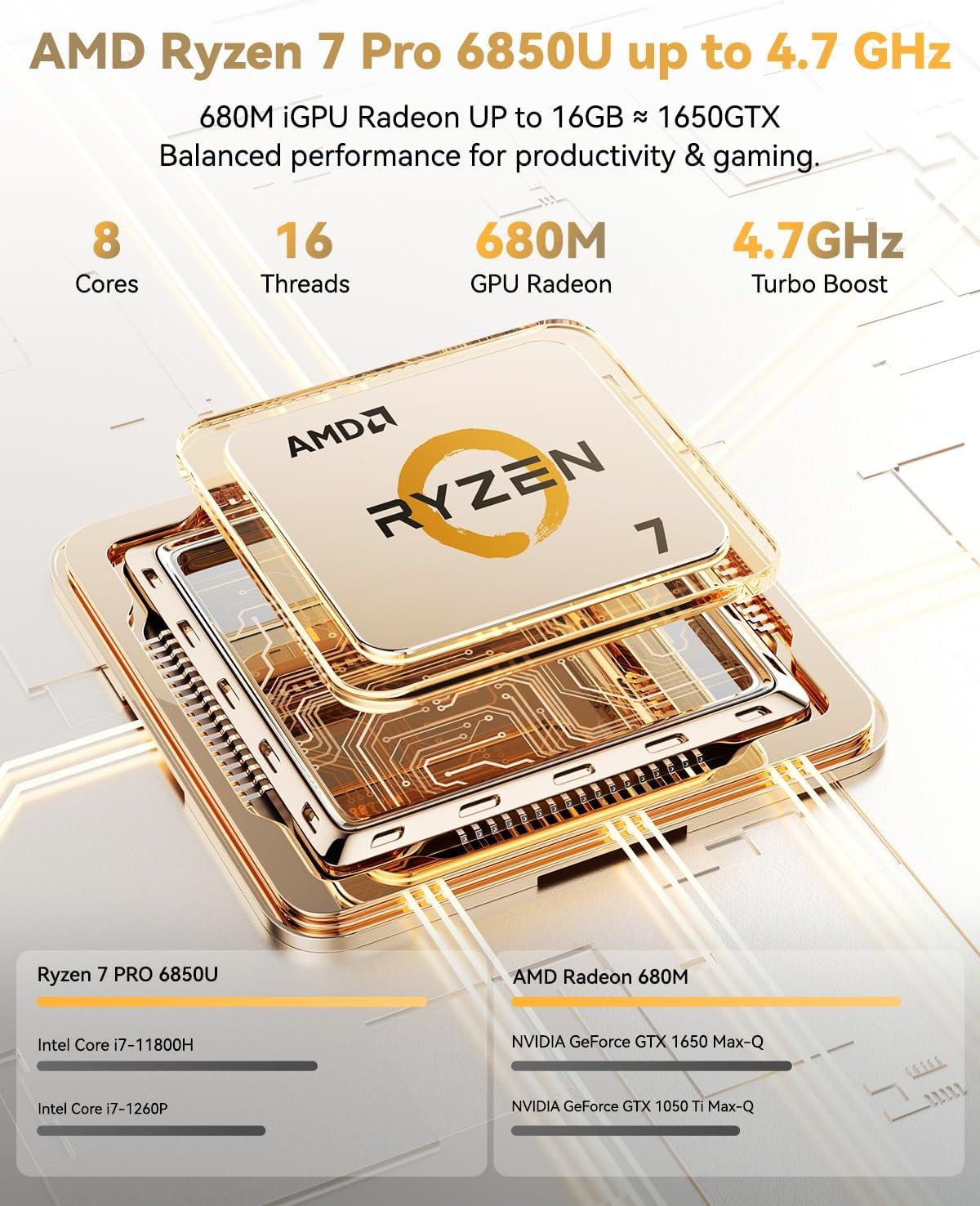
Image: Visual representation of the AMD Ryzen 7 Pro 6850U processor's core and thread count, and turbo boost speed.
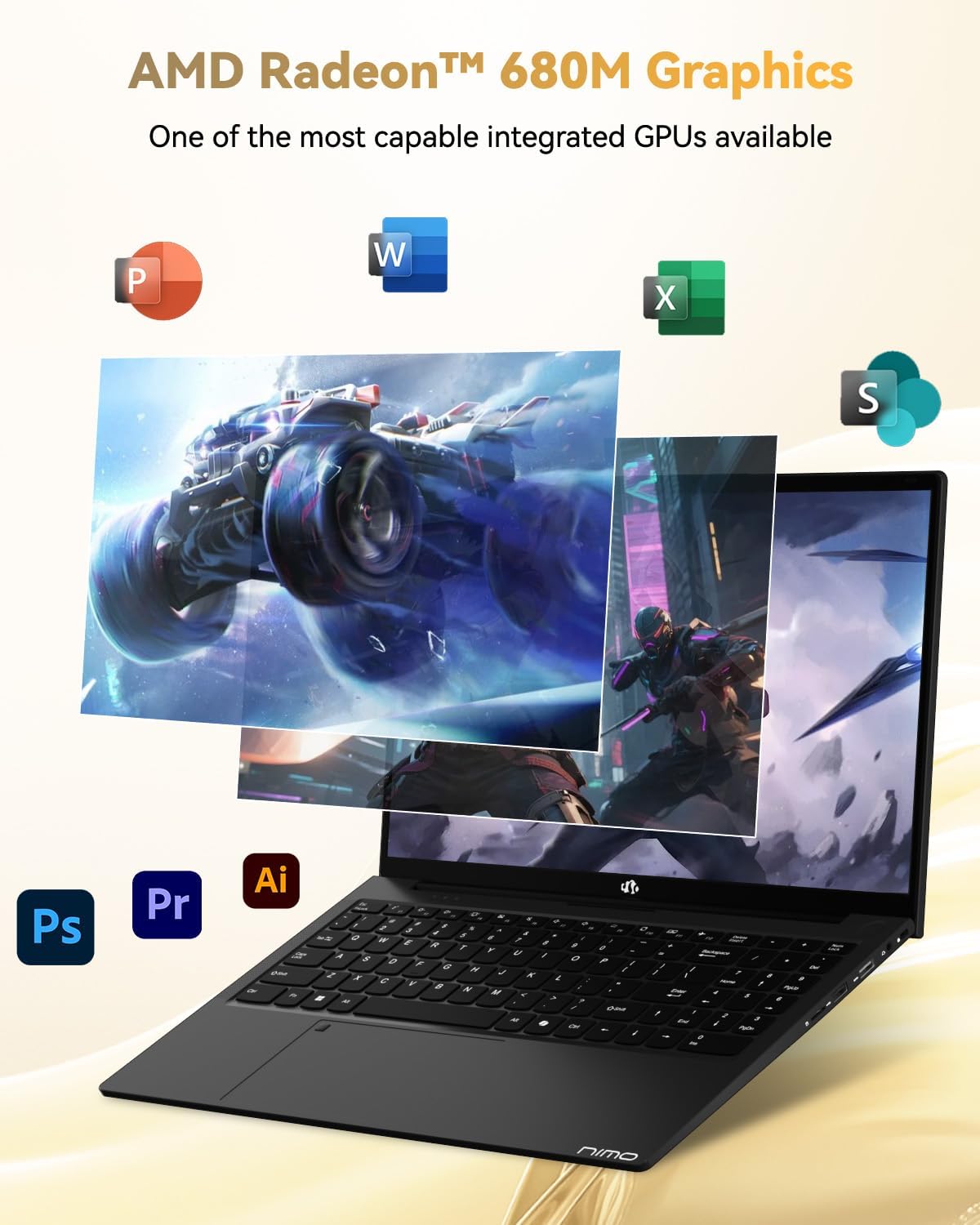
Image: Illustration highlighting the capabilities of the AMD Radeon 680M integrated graphics for various applications.

Image: Diagram showing the 32GB LPDDR5 RAM and 1TB PCIe 4.0 SSD for seamless multitasking and ampсақтау орны.
Image: The NIMO N15A laptop displaying a vibrant image on its 15.6-inch Full HD IPS screen.
Порттар және қосылу мүмкіндігі:

Image: Diagram illustrating the various ports on the NIMO N15A laptop, including USB, HDMI, and Type-C.
- Micro SD оқу құралы
- USB 2.0 порты
- USB 3.2 Ports (multiple)
- Құлаққап ұясы
- Кенсингтон құлпының ұясы
- Type-C (Multifunction) Ports (supporting charging and data transfer)
- HDMI порты
Орнату
1. Initial Charging and Power On:
- Connect the provided 100W Type-C PD Fast Charger to the laptop's Type-C charging port and a power outlet.
- Allow the laptop to charge for at least 30 minutes before initial use, or until the charging indicator shows sufficient battery.
- Ноутбукті қосу үшін пернетақтада орналасқан қуат түймесін басыңыз.

Image: Illustration of the NIMO N15A laptop being charged with the 100W Type-C PD Fast Charger.
2. Windows 11 Initial Setup:
Follow the on-screen prompts to complete the Windows 11 setup process. This typically includes:
- Аймақ пен пернетақта орналасуын таңдау.
- Wi-Fi желісіне қосылу.
- Signing in with a Microsoft account or creating a local account.
- PIN кодын немесе құпия сөзді орнату.
- Құпиялылық параметрлерін конфигурациялау.
Пайдалану нұсқаулары
Энергияны басқару:
- Қуат қосулы: Қуат түймесін басыңыз.
- Ұйқы режимі: Қақпақты жабыңыз немесе қуат түймесін қысқа уақыт басыңыз.
- Өшіру: «Бастау» түймесін, содан кейін «Қуат», содан кейін «Өшіру» түймесін басыңыз.
- Қайтадан қосу: «Бастау» түймесін, содан кейін «Қуат», содан кейін «Қайта іске қосу» түймесін басыңыз.
Пернетақта және сенсорлық тақта:

Сурет: жақыннан view of the NIMO N15A laptop's backlit keyboard and the integrated fingerprint reader on the touchpad.
- Артқы жарықтандырылған пернетақта: Use the dedicated function key (usually Fn + Fx) to toggle the keyboard backlight on/off and adjust brightness levels.
- Саусақ ізін оқу құралы: The fingerprint reader is integrated into the touchpad. During Windows setup, you can configure your fingerprint for secure, quick login.
- Дәл сенсорлық тақта: Навигация үшін көп түрту қимылдарын қолдайды. Теңшеу үшін Windows параметрлерін қараңыз.
Перифериялық құрылғыларды қосу:
Utilize the various ports to connect external devices such as monitors, printers, external storage, and audio devices.
- USB құрылғылары: Plug USB devices into the available USB 2.0 or USB 3.2 ports.
- Сыртқы дисплей: Connect an external monitor or TV using the HDMI port or a compatible Type-C adapter.
- Аудио: Use the 3.5mm headphone jack for headphones or external speakers.
Камераның құпиялылығы:
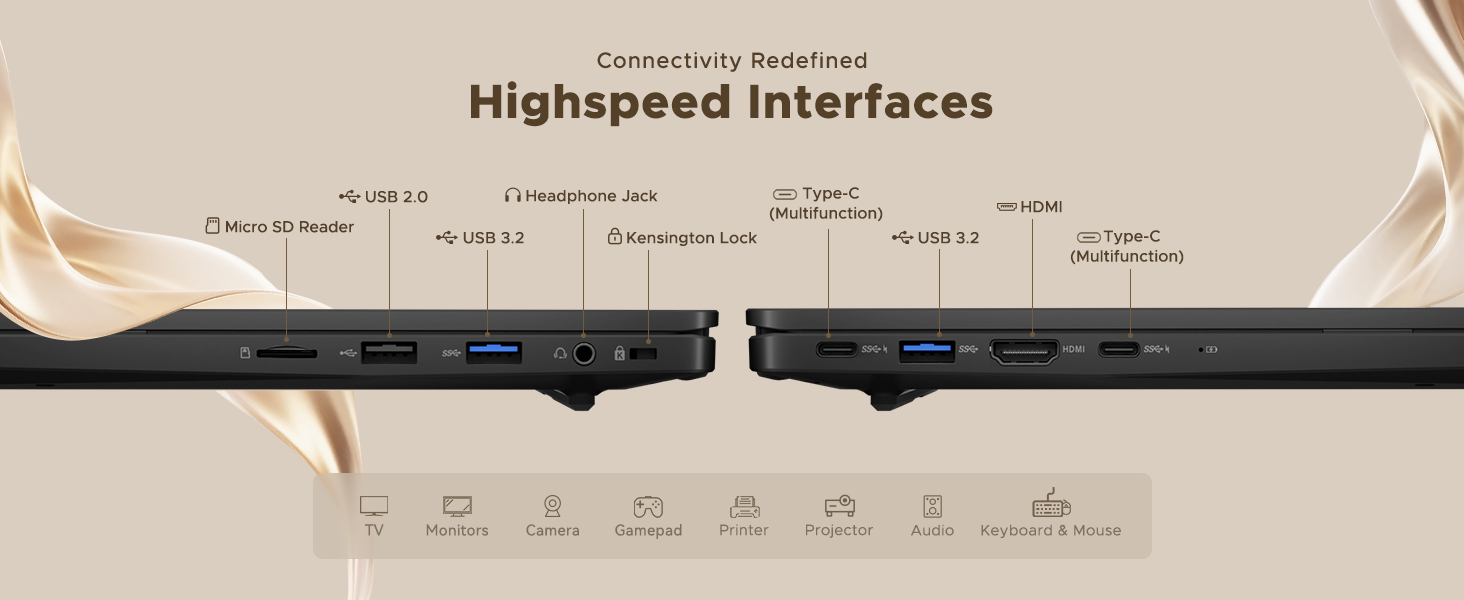
Image: Illustration of the NIMO N15A laptop's built-in privacy camera switch, allowing users to easily disable the webшыны.
The NIMO N15A laptop features a built-in privacy camera switch. This allows you to physically disable the 2.0MP webcam when not in use, ensuring your privacy.
Техникалық қызмет көрсету
Cleaning the Laptop:
- Power off the laptop and disconnect the charger before cleaning.
- Аздап жұмсақ, түксіз матаны пайдаланыңыз dampдисплейге арналған сумен немесе экран тазалағышпен аяқталды.
- Пернетақта мен шасси үшін жұмсақ матаны пайдаланыңыз. Қатты химиялық заттардан немесе абразивті материалдардан аулақ болыңыз.
- Пернетақта пернелері мен желдеткіш саңылаулардағы шаңды тазалау үшін сығылған ауаны пайдаланыңыз.
Батареяға күтім жасау:
- Батареяны жиі толық зарядсыздандырудан аулақ болыңыз.
- Store the laptop in a cool, dry place if not used for extended periods, with the battery charged to around 50-70%.
- Use only the original NIMO 100W Type-C PD Fast Charger.
Бағдарламалық құрал жаңартулары:
- Жүйе тұрақтылығы мен қауіпсіздігін қамтамасыз ету үшін Windows жаңартуларын үнемі тексеріп, орнатыңыз.
- Keep device drivers updated, especially for graphics and chipset, by checking the NIMO support webсайт немесе Windows жаңартуы.
Ақаулықтарды жою
| Мәселе | Мүмкін шешім |
|---|---|
| Ноутбук қосылмайды. | Ensure the charger is properly connected and the power outlet is functional. Allow the battery to charge for at least 30 minutes. If the issue persists, contact support. |
| Дисплей бос немесе жыпылықтайды. | Try connecting an external monitor to check if the issue is with the laptop's display. Adjust display brightness. Restart the laptop. |
| Баяу өнімділік. | Close unnecessary applications. Check for background processes consuming high resources. Ensure sufficient free storage space. Run a system scan for malware. |
| Пернетақтаның артқы жарығы жұмыс істемейді. | Press the dedicated function key combination (e.g., Fn + Fx) to toggle or adjust the backlight. Check keyboard settings in Windows. |
| Fingerprint reader not responding. | Ensure your finger is clean and dry. Re-register your fingerprint in Windows settings. Restart the laptop. |
Мұнда тізімде жоқ мәселелер немесе шешімдер мәселені шешпесе, көмек алу үшін Кепілдік және қолдау бөлімін қараңыз.
Техникалық сипаттамалар
| Ерекшелік | Мәлімет |
|---|---|
| Бренд | NIMO |
| Модель атауы | NIMO N15AL (N15A) |
| Экран өлшемі | 15.6 дюйм |
| Экран ажыратымдылығы | 1920 x 1080 пиксель (Full HD) |
| Процессор | AMD Ryzen 7 Pro 6850U (8 Cores, up to 4.7 GHz) |
| Жедел Жадтау Құрылғысы | 32 ГБ LPDDR5 (6400 МГц) |
| Қатты диск | 1024 GB SSD (PCIe 4.0, Solid State) |
| Графикалық сопроцессор | AMD Radeon 680M (біріктірілген) |
| Операциялық жүйе | Windows 11 |
| Сымсыз түрі | 802.11a/b/g/n/ac |
| USB 2.0 порттары | 1 |
| USB 3.0/3.2 порттары | 4 |
| Батареяның орташа қызмет ету мерзімі | 9 сағат |
| Элемент салмағы | 3.75 фунт |
| Өнім өлшемдері | 14.07 x 8.98 x 0.76 дюйм |
| Түс | Қара |
| Артқы Webкамераның ажыратымдылығы | 2 МП |
| Арнайы мүмкіндіктер | Артқы жарықтандырылған пернетақта, саусақ ізін оқу құрылғысы, HD аудио, сандық пернетақта |
Кепілдік және қолдау
NIMO provides comprehensive support for your laptop.
- Кепілдік: Your NIMO N15A laptop comes with a 2-year manufacturer's warranty.
- ТАУАРДЫ ҚАЙТАРУ ШАРТТАРЫ: A 90-day hassle-free return policy is offered from the date of purchase.
- Тұтынушыларды қолдау: For technical assistance, warranty claims, or product-related inquiries, please contact NIMO customer support.
Contact information for support is typically available on the official NIMO website or through the product's packaging.
Қауіпсіздік туралы ақпарат
Маңызды: Read and follow these safety guidelines to prevent damage to your device or personal injury.
- Тек түпнұсқа зарядтағыштарды пайдаланыңыз және кабельдердің зақымдалғанын үнемі тексеріп отырыңыз.
- Ноутбукты табанынан ұстап, қорғаныс қаптамасын пайдалануды қарастырыңыз. Оған ауыр заттар қоймаңыз.
- Place the laptop on a hard, flat surface to ensure proper ventilation and prevent overheating. Keep it away from extreme temperatures and moisture.
- Do not overcharge the battery. Discontinue use if the battery shows signs of swelling or damage.
- Set strong passwords, keep software updated, use antivirus software, and regularly back up your data.
- Сұйықтық төгілген жағдайда, ноутбукты дереу розеткадан ажыратып, қосуға тырыспас бұрын толық кептіріңіз.
- For any issues, consult qualified professionals. Do not attempt to disassemble or repair the device yourself.
Заңды жауапкершіліктен бас тарту
This NIMO laptop is provided "as is," without express or implied warranties, except for any applicable manufacturer's limited warranty. Implied warranties of merchantability or fitness for a specific purpose are disclaimed. NIMO is not liable for damages resulting from misuse (e.g., non-approved chargers, unauthorized repairs), physical damage, or failure to adhere to safety guidelines, including data loss or business interruption. Users are responsible for regularly backing up their data. This disclaimer does not exclude liability for manufacturing defects or violations of mandatory local laws. By using this laptop, you accept these terms, which are governed by the laws of the applicable jurisdiction.