
1. Қаттыview
The CORBOBO AULA F3099 is a versatile wireless keyboard designed for various computing needs, offering multiple connectivity options, customizable RGB backlighting, and a comfortable typing experience. This manual provides detailed instructions for setup, operation, and maintenance.
Негізгі ерекшеліктері:
- Үштік режимді қосылым: Seamlessly switch between 2.4GHz wireless, Bluetooth 5.0, and USB-C wired connections.
- 2-in-1 Multifunction Knob: Control media volume/mute or cycle RGB backlight effects and brightness.
- Programmable Driver: Customize macros and assign functions to individual keys (Windows systems, wired mode only).
- Durable & Quiet Typing: Membrane silicone keys provide a smooth, quiet keystroke feel.
- RGB артқы жарығы: Multiple lighting effects with 16.8 million colors, adjustable brightness and speed.
- Эргономикалық дизайн: Foldable dual-stage stand for adjustable tilt angles to reduce wrist strain.
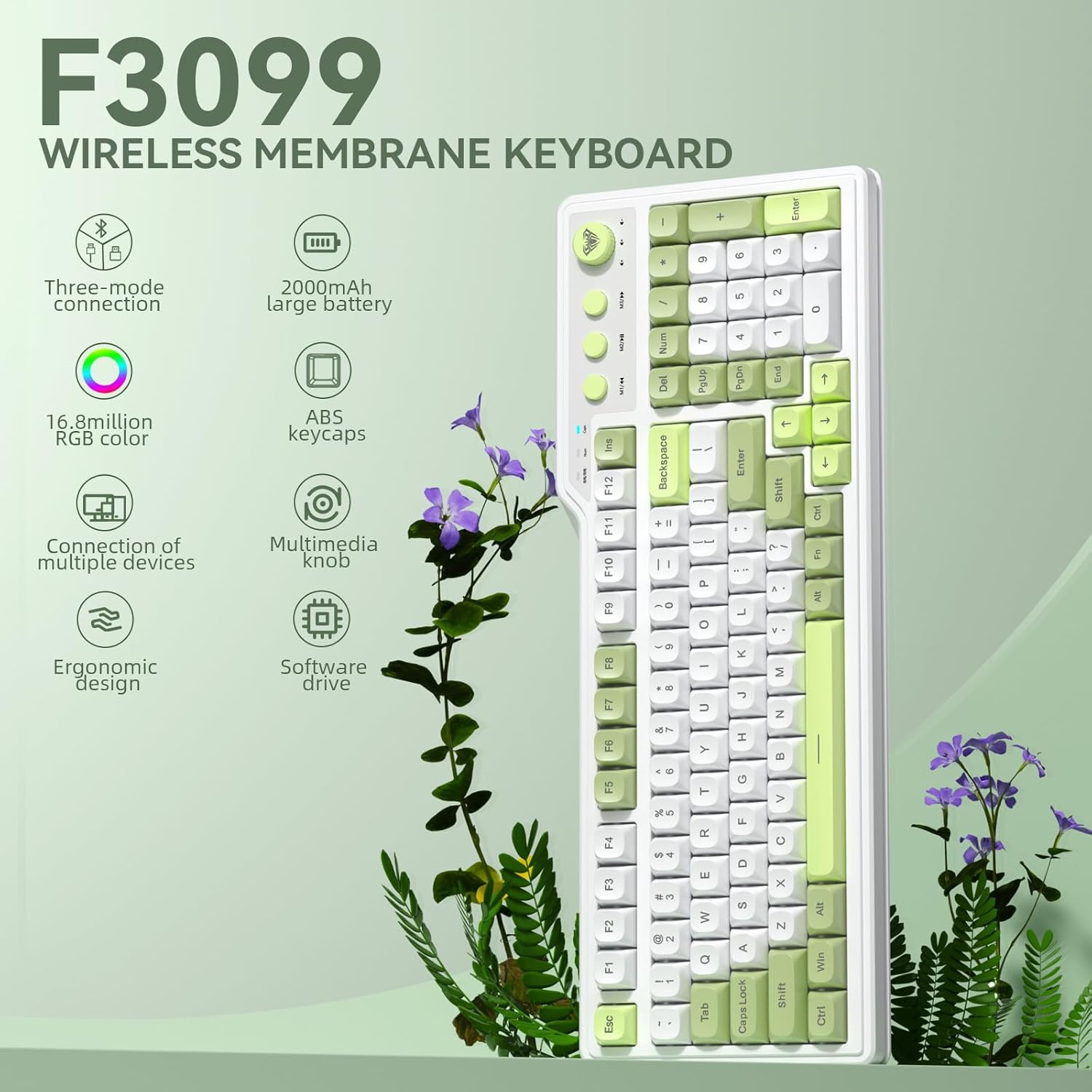
1.1-сурет: аяқталдыview of the AULA F3099 Wireless Membrane Keyboard, illustrating its triple-mode connection, 2000mAh battery, RGB color, multi-device support, multimedia knob, ergonomic design, and software driver capabilities.
2. Пакет мазмұны
Өнімнің бумасында барлық элементтердің бар екенін тексеріңіз:
- AULA F3099 Wireless Keyboard x 1
- Пайдаланушы нұсқаулығы x 1
- USB-C кабелі x 1
- Пернетақта тартқышы x 1
Video 2.1: An unboxing video demonstrating the contents of the AULA F3099 Wireless Keyboard package, including the keyboard, USB-C cable, and keycap puller.
3. Орнату
The AULA F3099 keyboard supports three connection modes: 2.4GHz wireless, Bluetooth 5.0, and USB-C wired. Choose the mode that best suits your device and needs.
3.1. Қуатты қосу/өшіру
Locate the power switch on the back of the keyboard. Slide it to "ON" to power on the keyboard or "OFF" to power it down.
3.2. 2.4 ГГц сымсыз режим
- Locate the 2.4GHz USB receiver stored in the compartment on the back of the keyboard.
- USB ресиверін компьютердегі қол жетімді USB портына қосыңыз.
- Пернетақтада түймесін басыңыз fn + ~ to switch to 2.4GHz wireless mode. The keyboard will automatically connect.

Image 3.1: Illustration of the keyboard's tri-mode connection capabilities, showing 2.4GHz wireless, Bluetooth 5.0, and USB-C wired connections to various devices.
3.3. Bluetooth 5.0 режимі
- түймесін басыңыз Fn + 1, Fn + 2, немесе Fn + 3 Bluetooth арнасын таңдау үшін индикатор шамы жыпылықтайды, бұл жұптастыру режимін көрсетеді.
- On your device (PC, laptop, smartphone, tablet), go to Bluetooth settings and search for "AULA F3099".
- Жұптастыру үшін пернетақтаны таңдаңыз. Қосылғаннан кейін индикатор шамы жыпылықтауын тоқтатады.
- The keyboard can save up to three different Bluetooth devices. Repeat the process for additional devices on different channels.
Note: Windows 7 and earlier systems do not support Bluetooth connections.
3.4. USB-C сымды режимі
- Берілген USB-C кабелін пернетақтаның USB-C портына, ал екінші ұшын компьютердің USB портына қосыңыз.
- түймесін басыңыз Fn + 4 сымды режимге ауысу үшін. Пернетақта пайдалануға дайын болады.
4. Пайдалану нұсқаулары
4.1. Multifunction Knob & Media Keys
The keyboard features a dual-mode knob and dedicated media keys for enhanced control.
- Ауыстыру режимдері: Long-press the knob for 3 seconds to toggle between Gaming Mode and Office Mode.
- Ойын режимі:
- Press the knob to cycle through RGB backlight effects.
- Артқы жарықтың жарықтығын реттеу үшін тұтқаны бұраңыз.
- M1/M2/M3 keys can be programmed for macros (see section 4.3).
- Кеңсе режимі:
- Rotate the knob to increase/decrease computer volume.
- Press the knob briefly to mute/unmute audio.
- M1 (Previous Song), M2 (Play/Pause), M3 (Next Song) keys function as standard multimedia controls.

4.1-сурет: Егжей-тегжейлі view of the dual-mode multimedia knob and adjacent media keys, explaining their functionalities for both gaming and office environments.
Video 4.2: A demonstration of the F3099 Wireless Keyboard's media knob functionality, showcasing its use for volume control and backlight adjustments.
4.2. RGB артқы жарықтандыруды басқару
The keyboard features multiple RGB lighting effects. Adjust them using the knob or shortcut keys:
- Fn + соңы: Adjust lighting colors (in constant light mode).
- Fn + PgUp: Adjust to the next light effect.
- Fn + PgDn: Adjust to the last light effect.
- Fn + [: Adjust lighting brightness up.
- Fn +]: Adjust lighting brightness down.
- Fn + -: Adjust lighting speed up.
- Fn + =: Adjust lighting speed down.
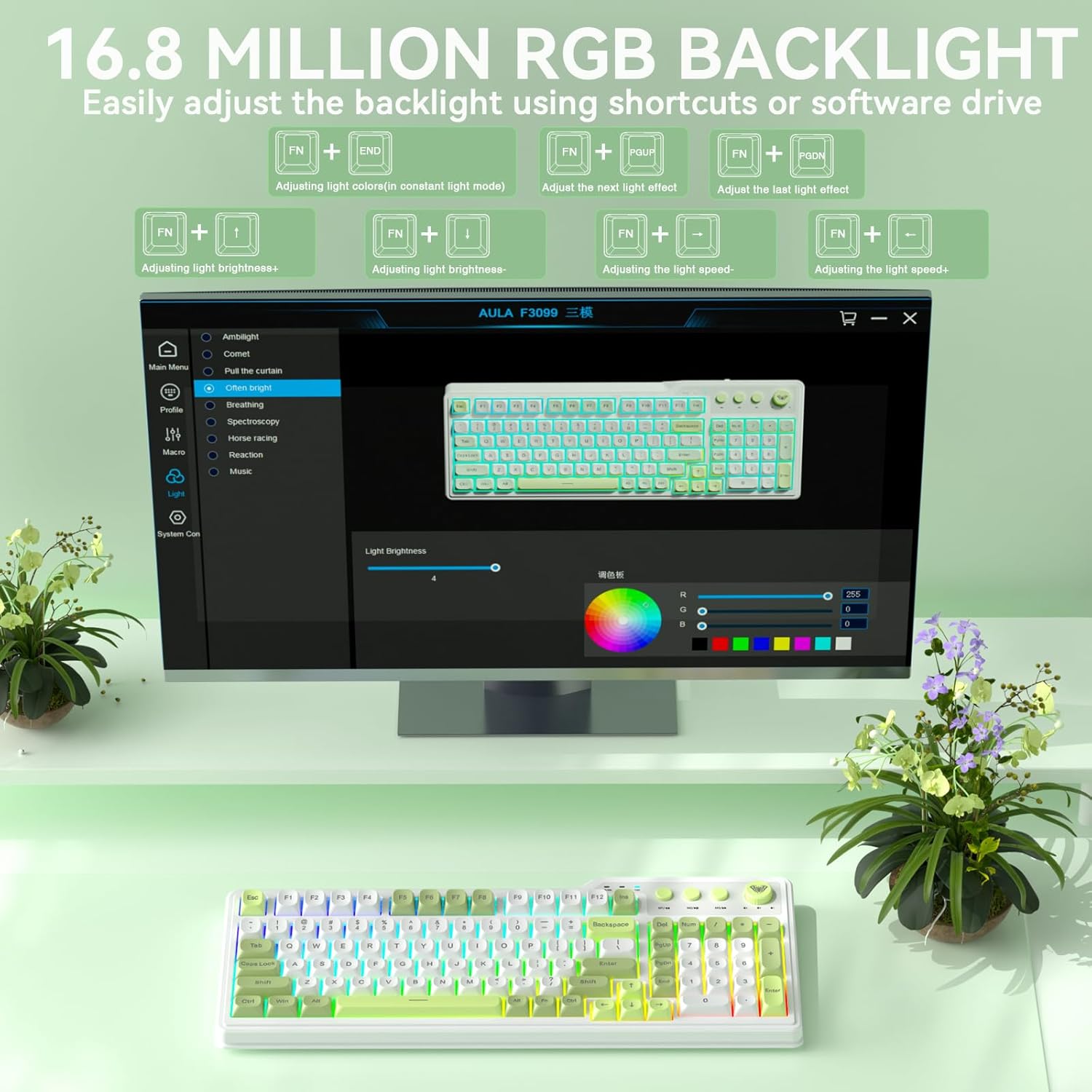
Image 4.3: Visual representation of the 16.8 million RGB backlighting, showing different lighting effects and the shortcut keys for adjustment.
4.3. Programmable Driver & Macro Customization
The F3099 keyboard supports full-key macro programming via its dedicated driver. This feature is available only when the keyboard is connected in wired mode on Windows systems.
- Драйверді мына жерден жүктеп алыңыз: bit.ly/m/corbobo
- Install the driver on your Windows system.
- Connect the keyboard via USB-C cable.
- Open the driver software to access macro customization, key remapping, and advanced RGB settings.

Image 4.4: The software driver interface for the AULA F3099, demonstrating options for macro recording, all-key programmability, and RGB settings.
5. Техникалық қызмет көрсету
5.1. Тазалау
- Тазалау алдында пернетақтаны барлық қуат көздерінен ажыратыңыз.
- Аздап жұмсақ, түксіз матаны пайдаланыңыз dampбетін сүрту үшін сумен немесе жұмсақ тазалау ерітіндісімен жабыңыз.
- For dust and debris between keys, use compressed air or the provided keycap puller to remove keycaps for deeper cleaning.
5.2. Батареяны зарядтау
The keyboard is equipped with a rechargeable battery. Connect the USB-C cable to the keyboard and a power source (computer USB port or USB wall adapter) to charge. The charging indicator light will show the charging status.
5.3. Keycap Removal and Installation
Use the included keycap puller to safely remove and install keycaps for cleaning or customization.
Video 5.1: A short video demonstrating the method for installing accidentally detached keycaps, useful for maintenance and customization.
6. Ақаулықтарды жою
| Мәселе | Шешім |
|---|---|
| Keyboard not connecting via 2.4GHz wireless. | Ensure the USB receiver is securely plugged in and the keyboard is in 2.4GHz mode (fn + ~). Try a different USB port. |
| Пернетақта Bluetooth арқылы қосылмайды. | Пернетақтаның Bluetooth жұптастыру режимінде екеніне көз жеткізіңіз (Fn + 1/2/3) and your device's Bluetooth is enabled. Forget the device on your computer and re-pair. Ensure your operating system supports Bluetooth 5.0. |
| Пернелер жауап бермейді немесе дұрыс терілмейді. | Check the connection mode (wired/wireless). Ensure the keyboard is charged. If using the programmable driver, verify macro settings. Restart the keyboard and computer. |
| RGB backlighting is not working or stuck. | Ensure the keyboard is powered on. Try cycling through lighting effects using Fn + PgUpЖарықтықты реттеңіз Fn + [ or Fn +]. If using the driver, check lighting settings. |
| Programmable driver not working. | The driver only supports wired mode operation on Windows systems. Ensure the keyboard is connected via USB-C and your system is Windows. Reinstall the driver if necessary. |
7. Техникалық сипаттамалар
| Ерекшелік | Мәлімет |
|---|---|
| Өнім өлшемдері | 17.51"L x 8.07"W x 1.96"H |
| Элемент салмағы | 2.57 фунт |
| Өндіруші | КОРБОБО |
| Элемент үлгі нөмірі | F3099 |
| Батареялар | 1 стандартты емес батарея (жинаққа кіреді) |
| Қосылу технологиясы | 2.4GHz, BT 5.0, USB-C |
| Пернетақта сипаттамасы | Мембрана |
| Арнайы мүмкіндік | Backlit, Ergonomic, Rechargeable, Volume Roller |
| Пернетақтаның артқы жарығы түстерін қолдау | RGB (16.8 миллион түс) |
| Үйлесімді құрылғылар | Ойын консолі, ноутбук, компьютер, смартфон, планшет |
8. Кепілдік және қолдау
For warranty information and technical support, please refer to the documentation included with your purchase or visit the official CORBOBO webсайт. Кез келген кепілдік талаптары үшін сатып алуды растайтын құжатты сақтаңыз.