
1. Кіріспе
The TABWEE 10.1 Inch WiFi Digital Calendar, Model P10, is an interactive touchscreen display designed to streamline family organization. It integrates calendars, task management, meal planning, and digital photo frame capabilities into a single device. This manual provides detailed instructions to help you set up and utilize all features of your new digital calendar.

1.1-сурет: The TABWEE Digital Calendar in use, showcasing its calendar interface and mobile app synchronization.
2. Қауіпсіздік туралы ақпарат
- Кездейсоқ құлауды болдырмау үшін құрылғының тұрақты, тегіс бетке қойылғанына көз жеткізіңіз.
- Тек берілген қуат адаптерін пайдаланыңыз. Рұқсат етілмеген адаптерлерді пайдалану құрылғыны зақымдауы және кепілдікті жарамсыз етуі мүмкін.
- Құрылғыны судан, ылғалдан және төтенше температурадан алыс ұстаңыз.
- Do not attempt to open or repair the device yourself. Refer to qualified service personnel for any maintenance or repair needs.
- Keep out of reach of small children to prevent accidental ingestion of small parts or damage to the device.
3. Пакет мазмұны
Барлық элементтер пакетте бар екенін тексеріңіз:
- TABWEE 10.1 Inch WiFi Digital Calendar (Model P10)
- Қуат адаптері
- Пайдаланушы нұсқаулығы (бұл құжат)
4. Өнім аяқталдыview
Familiarize yourself with the physical components of your TABWEE Digital Calendar.

4.1-сурет: Technical details and component layout of the TABWEE Digital Calendar.
- Қосу / өшіру түймесі: Құрылғыны қосу немесе өшіру үшін бүйірінде орналасқан.
- Дыбысты жоғарылату / төмендету түймелері: Құрылғының дыбыс шығысын реттеңіз.
- Жарық сенсоры: Automatically adjusts screen brightness based on ambient light.
- Support Stand: Integrated stand for desk placement.
5. Орнату
5.1 Бастапқы қосу
- Connect the provided power adapter to the device's power port.
- Plug the adapter into a standard electrical outlet. The device will automatically power on.
- Тілді және аймақты таңдау үшін экрандағы нұсқауларды орындаңыз.
5.2 Желіге қосылу
- Бастапқы орнату экранында тізімнен Wi-Fi желіңізді таңдаңыз.
- Enter your Wi-Fi password and tap 'Connect'.
- Ensure the device is connected to a stable internet connection for full functionality.
5.3 Қолданбаны орнату және тіркелгі жасау
To fully utilize the calendar's features, download and set up the companion 'eCalendar' app on your smartphone (iOS or Android).

5.1-сурет: Steps for downloading and creating an account on the eCalendar app.
- Scan the QR code displayed on the calendar screen or search for 'eCalendar' in your device's app store (Google Play Store for Android, Apple App Store for iOS).
- Қолданбаны жүктеп алып, орнатыңыз.
- Open the eCalendar app and follow the prompts to create a new account or log in if you already have one.
- Пайдаланушы келісімімен және Құпиялылық саясатымен келісіңіз.
5.4 Device Linking
Link your TABWEE Digital Calendar to your eCalendar app account.

5.2-сурет: Linking the calendar device to the eCalendar app and setting up your unique calendar email.
- In the eCalendar app, select the option to 'Add Device' or 'Activate a new eCalendar Frame'.
- Follow the on-screen instructions to pair your device. This may involve scanning a QR code displayed on the calendar or entering a pairing code.
- Once linked, you can set up your unique calendar email address within the app.
6. Операция
6.1 Негізгі шарлау
The TABWEE Digital Calendar features a responsive touchscreen. Navigate through menus and features by tapping, swiping, and pinching as you would on a tablet device.
6.2 Күнтізбені басқару
The core function of your device is calendar management, allowing for seamless synchronization and event organization.
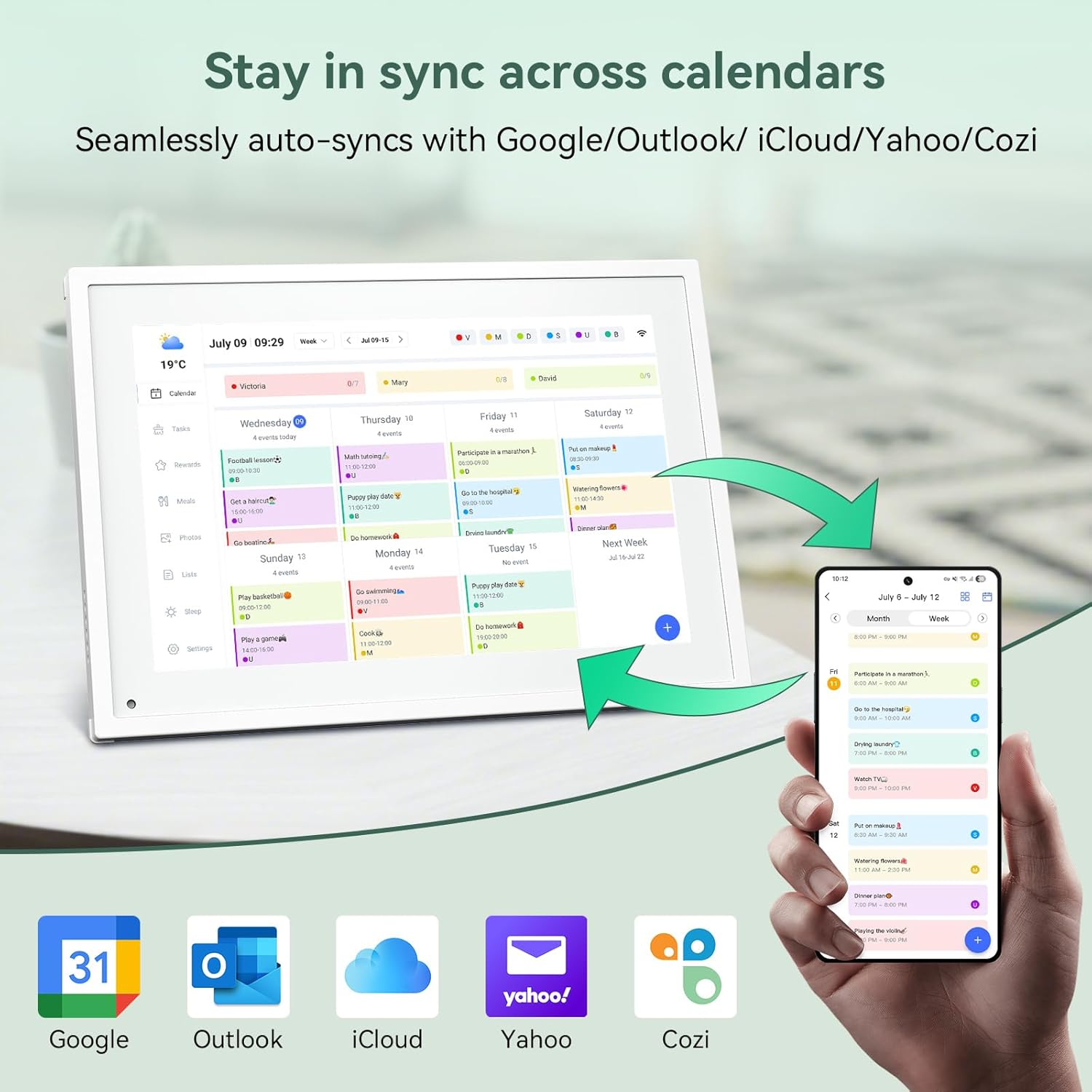
6.1-сурет: Seamless synchronization of the digital calendar with various external calendar services.
- Syncing External Calendars: Within the eCalendar app settings, you can link your Google, Apple, Outlook, Yahoo, or Cozi calendars. Events from these linked accounts will automatically appear on your TABWEE Digital Calendar.
- Adding/Editing Events: Tap on a date or time slot on the calendar display or use the eCalendar app to add new events. You can specify event details, set reminders, and assign participants.
- Бапталған Views: Switch between day, week, or month views directly on the device or through the app.
6.3 Task Management (Chore Chart)
Organize tasks and chores for family members with a built-in reward system.
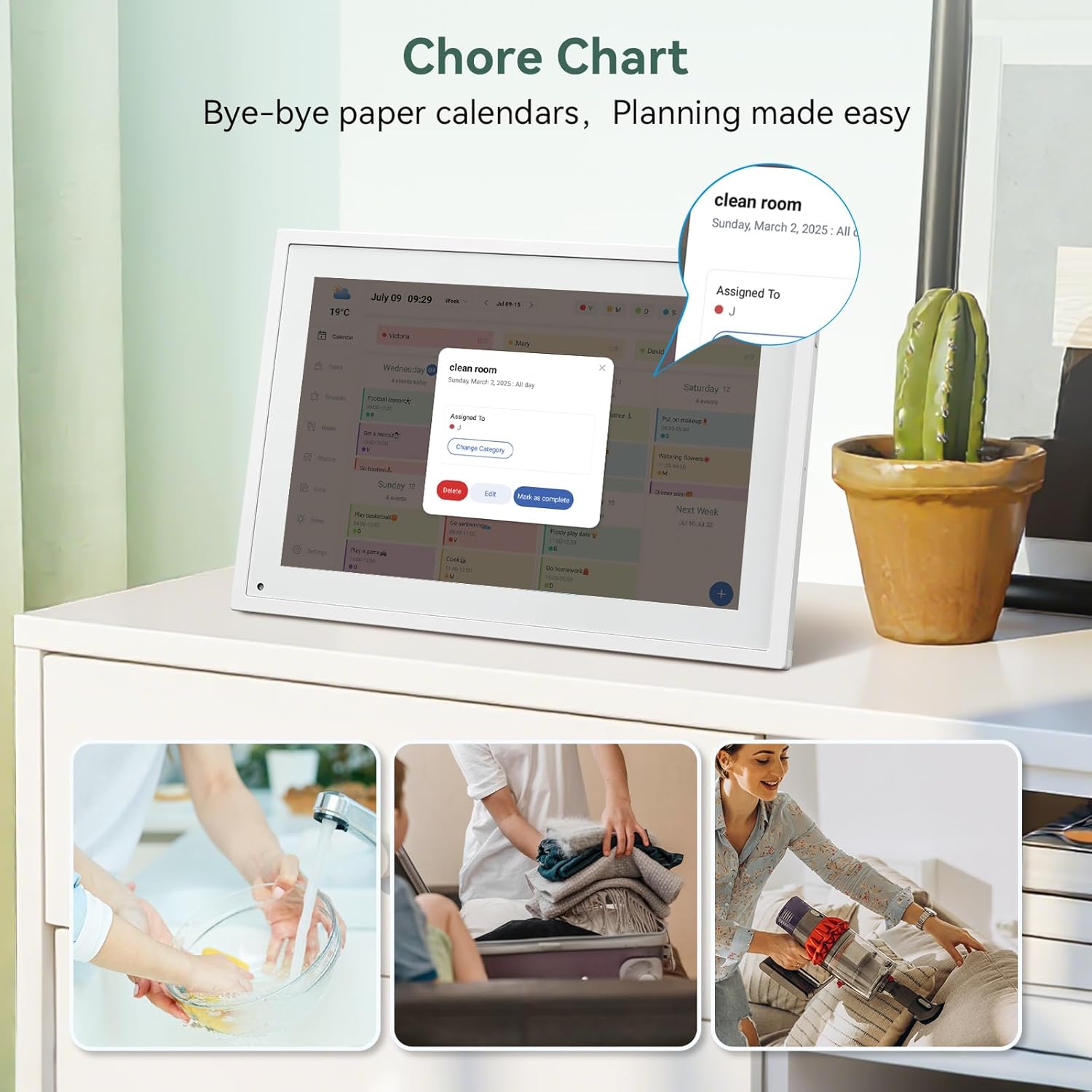
6.2-сурет: Managing tasks and chores on the digital calendar interface.
- Тапсырмаларды құру: Use the 'Tasks' section on the device or app to create new tasks. Assign them to specific individuals, set due dates, and configure recurring tasks.
- Бақылау барысы: Users can mark tasks as complete. The system tracks completion and can be configured to award points.
- Сыйақы жүйесі: Set up a star-point reward system within the app. Points earned from completed tasks can be redeemed for custom rewards, encouraging participation.

6.3-сурет: The task manager and rewards interface, designed for engaging users.
6.4 Тамақтануды жоспарлау
Plan your meals directly on the device or through the app.

6.4-сурет: Visual meal planning interface on the digital calendar.
- Create Meal Plans: Access the 'Meals' section to plan breakfasts, lunches, dinners, and snacks for the week.
- Тапсырыс бойынша рецепттер: Upload and store your favorite recipes.
- Grocery Lists: Generate grocery lists based on your meal plans.
6.5 Digital Photo Frame Functionality
The device can also function as a digital photo frame.

6.5-сурет: The digital calendar switching between calendar and photo frame modes, in both landscape and portrait orientations.
- Ауыстыру режимдері: Navigate to the 'Photos' section on the device or app to activate the digital photo frame mode.
- Фотосуреттерді жүктеп салу: Upload your favorite memories directly from your smartphone via the eCalendar app.
- Бағыт: The device supports both landscape and portrait orientations, automatically adjusting the display.
6.6 Басқа мүмкіндіктер
The TABWEE Digital Calendar includes additional smart features to enhance usability.
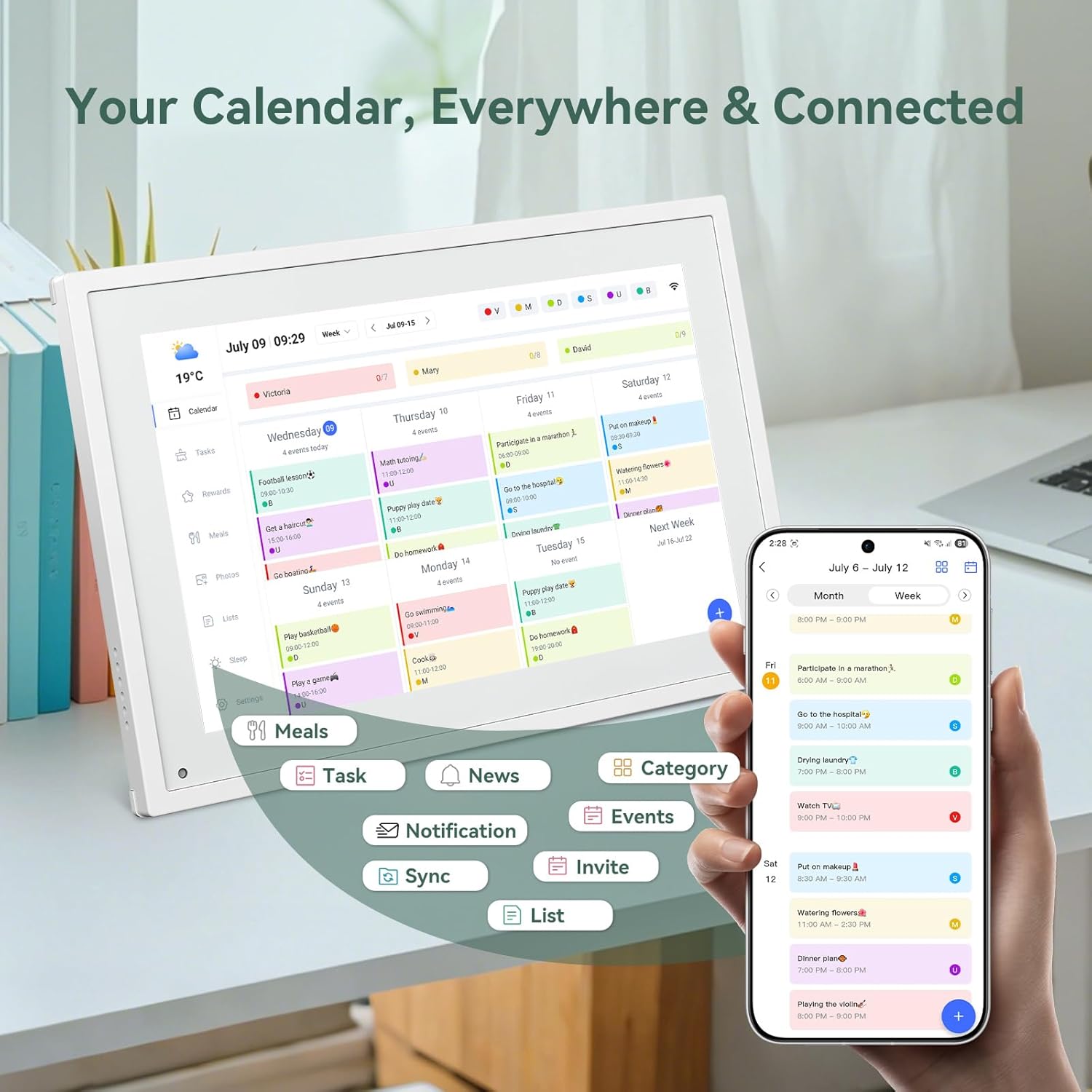
6.6-сурет: Біттіview of smart features and app connectivity.
- Live Weather Forecasts: Displays current weather conditions and forecasts.
- Автоматты жарықтық: The built-in light sensor automatically adjusts screen brightness for optimal viewing.
- Ұйқы режимі: Configure scheduled times for the device to enter a low-power sleep mode.
- Custom Lists: Create and manage various lists (e.g., shopping lists, packing lists).
- Түсті кодтау: Assign different colors to events or tasks for easy visual identification.
7. Техникалық қызмет көрсету
7.1 Құрылғыны тазалау
- Экранды жұмсақ, талшықсыз шүберекпен ақырын сүртіңіз. Қатты дақтар үшін, аздап dampшүберекті сумен немесе экранды тазалау ерітіндісімен құйыңыз.
- Қатты химиялық заттарды, абразивті материалдарды немесе аэрозоль спрейлерін тікелей құрылғыға қолданбаңыз.
- Тазалау алдында құрылғының өшірілгеніне және желіден ажыратылғанына көз жеткізіңіз.
7.2 Бағдарламалық құралды жаңарту
The device may receive periodic software updates to improve performance and add new features. Ensure your device is connected to Wi-Fi to receive these updates. You will typically be notified on-screen when an update is available.
8. Ақаулықтарды жою
| Мәселе | Ықтимал себебі | Шешім |
|---|---|---|
| Құрылғы қосылмайды. | Қуат адаптері қосылмаған немесе ақаулы. | Қуат адаптерінің құрылғыға және жұмыс істейтін қуат розеткасына мықтап қосылғанына көз жеткізіңіз. |
| Wi-Fi желісіне қосылу мүмкін емес. | Құпия сөз қате, ауқымнан тыс немесе желі мәселесі. | Verify Wi-Fi password. Move the device closer to the router. Restart your router. |
| Calendar events are not syncing. | App not linked, external calendar not connected, or internet issue. | Check app-device linking. Ensure external calendars are correctly linked in the eCalendar app. Verify internet connection. |
| Экран жауап бермейді. | Уақытша бағдарламалық құрал ақауы. | Restart the device by holding the power button until it turns off, then power it back on. |
9. Техникалық сипаттамалар
| Ерекшелік | Мәлімет |
|---|---|
| Үлгі нөмірі | P10 |
| Экран өлшемі | 10.1 дюйм |
| Дисплей түрі | Сенсорлық экран |
| Қосылу мүмкіндігі | Сымсыз дәлдiк |
| Өнім өлшемдері | 10.51 x 0.91 x 7.32 дюйм (26.7 x 2.3 x 18.6 см) |
| Элемент салмағы | 2.58 фунт (1.17 кг) |
| Монтаждау түрі | Desk Mount (not wall-mountable) |
| Қуат көзі | Plug-in (no internal battery) |
| Түс | Ақ |
10. Кепілдік және қолдау
The TABWEE Digital Calendar comes with a standard manufacturer's warranty. For specific warranty terms and conditions, please refer to the warranty card included in your product packaging or visit the official TABWEE webсайт.
For technical support, troubleshooting assistance, or any inquiries regarding your product, please contact TABWEE customer service through their official webсайт немесе өнім құжаттамасында берілген байланыс ақпараты.