
1. Кіріспе
Thank you for choosing the Jufodrca 9.7-inch HD Touch Screen Car Radio. This system is designed to enhance your driving experience with advanced features and seamless integration into compatible Cadillac models. This manual provides essential information for installation, operation, and maintenance of your new car radio.
Үйлесімділік: This car radio is compatible with Cadillac ATS, SRX, XTS, and CTS models manufactured between 2013 and 2018.
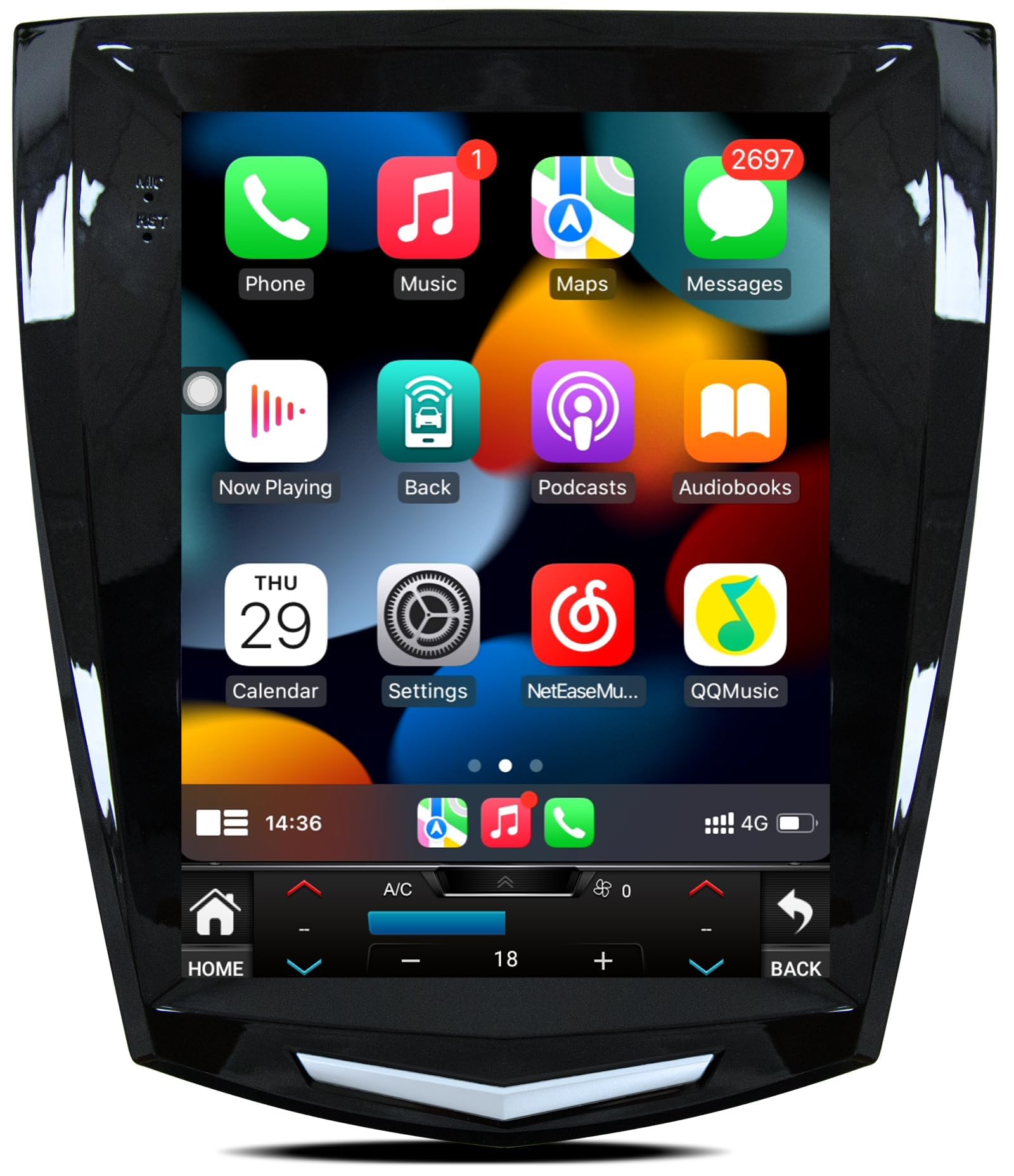
Image: The Jufodrca 9.7-inch Car Radio installed in a Cadillac dashboard, demonstrating its fit and modern interface. Insets show various Cadillac dashboard configurations, indicating which are compatible and which are not.
2. Пакет мазмұны
Төменде тізімделген заттардың барлығы сіздің пакетіңізге қосылғанын тексеріңіз:
- 1x Car Radio Unit
- 1x Canbus Box
- 1x қуат кабелі
- 1x RCA кабелі
- 1x Crowbar (for trim removal)
- 2x USB Cables (6-pin and 4-pin)
- 1x Backup Camera
- 1x GPS антеннасы
- 1x Microphone (3.5mm)
- 1x Antenna Adapter
3. Орнату және орнату
This car radio features a plug-and-play design for simplified installation. A detailed wiring diagram is included with the product. For visual guidance, please refer to the installation video below.
3.1. Wiring Connections Overview
Before beginning installation, ensure the vehicle's power is off. Connect the following components to the main unit:
- GPS антеннасы: Connect the GPS antenna to the designated port on the back of the radio unit.
- 4G антенна: Connect the 4G antenna to its respective port.
- Rear Camera Signal Wire: Plug the 10-pin rear camera signal wire into the appropriate input.
- USB кабельдері: Connect both the 6-pin and 4-pin USB cables to their ports.
- RCA кабелі: Connect the 20-pin RCA cable for audio/video inputs and outputs.
- Микрофон: Plug in the 3.5mm microphone for hands-free calling and voice commands.
- Қуат кабелі: Connect the main power cable to the unit.
- Канбус қорабы: Connect the Canbus box to the 8-pin connector on the power cable harness. This ensures proper communication with your vehicle's systems.
Always ensure all connections are secure before powering on the unit.
Video: A step-by-step guide demonstrating the connection of various cables and components to the Jufodrca car radio unit, including GPS antenna, 4G antenna, rear camera signal wire, USB cables, RCA cable, microphone, power cable, and Canbus box.
4. Пайдалану нұсқаулары
4.1. Сымсыз CarPlay және Android Auto
Connect your smartphone wirelessly via Bluetooth and Wi-Fi to access navigation, music, messaging, and voice commands directly on the 9.7-inch screen. This feature supports both Apple CarPlay and Android Auto.

Image: The car radio display showing the Wireless CarPlay and Android Auto interfaces, with examples of voice commands like "Hi Siri, call Lucy" and "OK Google, play music."
4.2. GPS Navigation & 5G WiFi
The unit includes built-in GPS navigation that functions offline with the provided GPS antenna. Connect to 5G WiFi for real-time navigation services and access to online map applications. The 5G WiFi offers faster internet speeds compared to 2.4G WiFi.

Image: The car radio screen displaying GPS navigation with a route and distance, and a separate panel illustrating 5G WiFi connectivity with icons for popular social media and streaming applications.
4.3. Bluetooth 5.0
Utilize Bluetooth 5.0 for stable, hands-free calls and seamless music streaming from your mobile device. The system supports quick pairing and reliable connections.

Image: A visual representation of Bluetooth 5.0 connectivity, showing a smartphone successfully paired with the car radio, along with icons indicating supported functions like GPS navigation, phone calls, and FM/RDS radio.
4.4. FM Radio & DSP Sound
The FM radio provides access to local broadcasts, news, and entertainment. The built-in Digital Sound Processor (DSP) allows for sound customization with a 32-band equalizer, optimizing your audio experience.
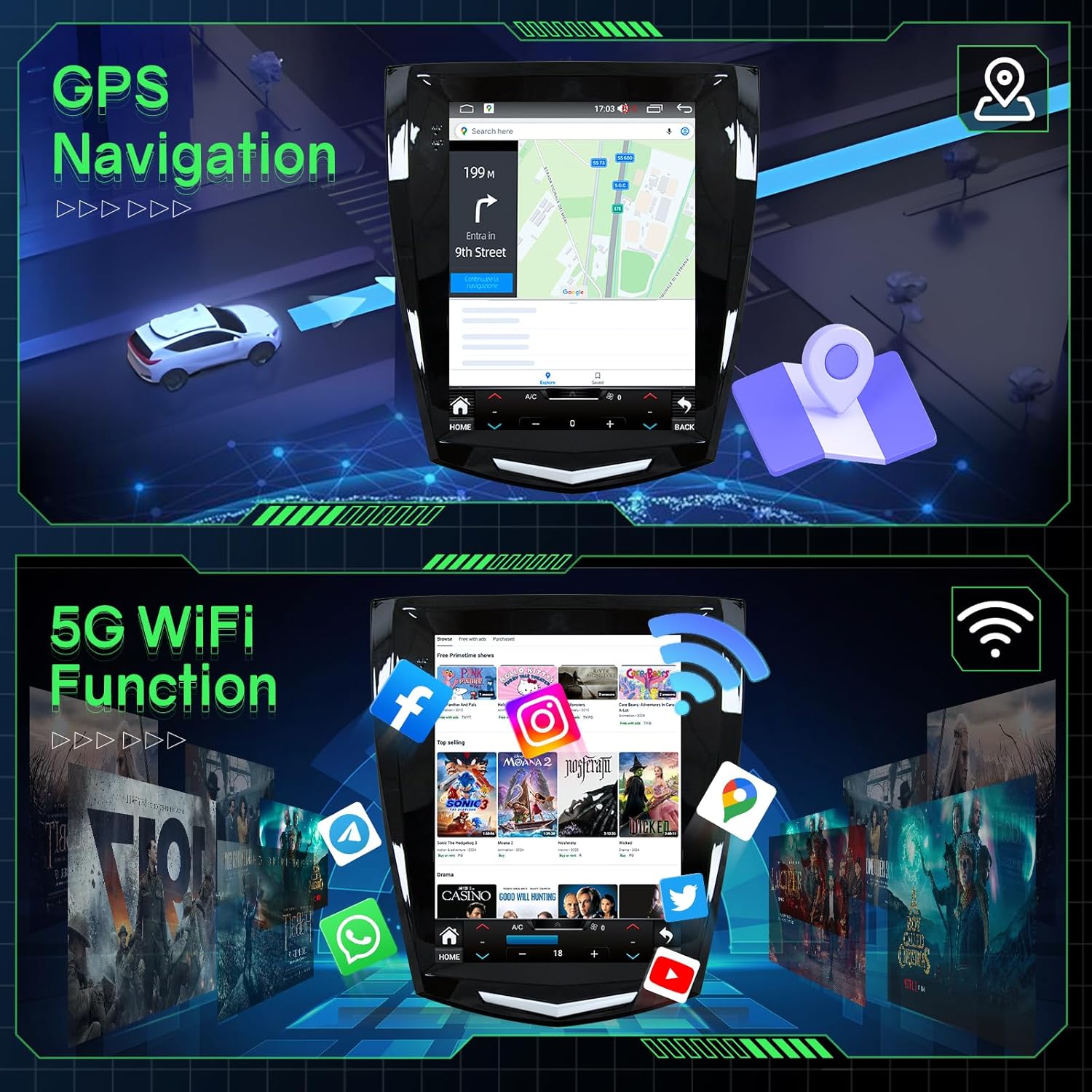
Image: The car radio displaying the FM radio interface with frequency selection. Below, a diagram illustrates the Digital Sound Processor (DSP) capabilities, highlighting sound quality and DSP adjustment features.
4.5. Руль басқару элементтері (SWC)
Maintain control of your media and volume without taking your hands off the steering wheel. The system supports integration with your vehicle's existing steering wheel controls.

Image: A car steering wheel with control buttons, and the car radio screen displaying the interface for learning and assigning functions to these steering wheel controls. A separate panel shows the view from a rear camera.
4.6. 1080P AHD Backup Camera
The included 1080P AHD backup camera automatically activates when you shift into reverse, providing a clear view қауіпсіз тұрақ және маневр жасау үшін көлігіңіздің артындағы аймақты пайдаланыңыз.
5. Техникалық сипаттамалар
| Ерекшелік | Сипаттама |
|---|---|
| Бренд | Jufodrca |
| Модель атауы | Jufodrca Car Radio |
| Экран өлшемі | 9.7 дюйм |
| Дисплей түрі | LED, Capacitive Touch Screen |
| Ажыратымдылық | 1024x768 |
| Операциялық жүйе | Android 13 |
| Процессор | 8-ядро |
| Жедел Жадтау Құрылғысы | 4 ГБ |
| Ішкі жад | 32 ГБ |
| Қосылу мүмкіндігі | Bluetooth 5.0, USB, Wi-Fi (5G) |
| Навигация жүйесі | Built-in GPS (North America maps) |
| Аудио мүмкіндіктері | DSP, RDS, EQ, HiFi, FM Radio, Stereo Output |
| Қосымша мүмкіндіктер | Wireless CarPlay, Android Auto, SWC, Mirror Link, 1080P Rear View Камера |
| Өнім өлшемдері | 10.91"L x 5.87"W x 12.21"H |
| Элемент салмағы | 2.25 фунт |
6. Техникалық қызмет көрсету
To ensure the longevity and optimal performance of your Jufodrca car radio, follow these maintenance guidelines:
- Тазалау: Экранды және сыртын тазалау үшін жұмсақ, құрғақ шүберекті пайдаланыңыз. Бетке зақым келтіруі мүмкін абразивті тазартқыштардан немесе еріткіштерден аулақ болыңыз.
- Бағдарламалық құрал жаңартулары: Periodically check for software updates to ensure you have the latest features and performance enhancements. Follow the on-screen instructions for any available updates.
- Температура: Құрылғыны ұзақ уақыт бойы өте жоғары температураға, ыстық және суыққа ұшыратпаңыз.
- Қосылымдар: Ensure all cables and connections remain secure. Loose connections can lead to intermittent functionality.
7. Ақаулықтарды жою
Көлік радиосына қатысты қандай да бір мәселе туындаса, келесі жалпы ақауларды жою қадамдарын қараңыз:
- Қуат жоқ: Барлық қуат сымдарының қосылымдарын тексеріңіз. Көліктің тұтану жүйесі қосулы екеніне көз жеткізіңіз. Қуат сымындағы сақтандырғышты тексеріңіз.
- Дыбыс жоқ: Динамик қосылымдарын тексеріңіз. Дыбыс деңгейінің өшірілмегеніне немесе тым төмен орнатылмағанына көз жеткізіңіз. Жүйе мәзірінде дыбыс параметрлерін тексеріңіз.
- GPS сигналының жоғалуы: GPS антеннасының дұрыс жалғанғанын және таза екеніне көз жеткізіңіз view of the sky. Move the antenna if necessary.
- CarPlay/Android Auto қосылым мәселелері: Ensure Bluetooth and Wi-Fi are enabled on your smartphone and the car radio. Try restarting both devices.
- Сақтық көшірме камерасы көрсетілмейді: Check the 10-pin rear camera signal wire connection. Ensure the camera is receiving power and is properly installed.
- Руль дөңгелегін басқару элементтері жұмыс істемейді: Verify the Canbus box connection and ensure it is correctly configured in the system settings.
If these steps do not resolve the issue, please contact Jufodrca customer service for further assistance.
8. Кепілдік және қолдау
Jufodrca is committed to providing excellent customer support. If you have any questions regarding installation, functionality, or require technical assistance, please do not hesitate to contact our professional customer service team. We are always here to assist you.
For warranty information, please refer to the documentation provided with your purchase or contact customer support.