
Кіріспе
Thank you for choosing the Vibox IV-584 Gaming PC. This manual provides essential information for setting up, operating, maintaining, and troubleshooting your new computer. The Vibox IV-584 is a high-performance desktop PC designed for gaming and demanding tasks, featuring an AMD Ryzen 7 5700X processor, NVIDIA GeForce RTX 3050 graphics, 16GB of RAM, and a 500GB SSD, pre-installed with Windows 11 Home.
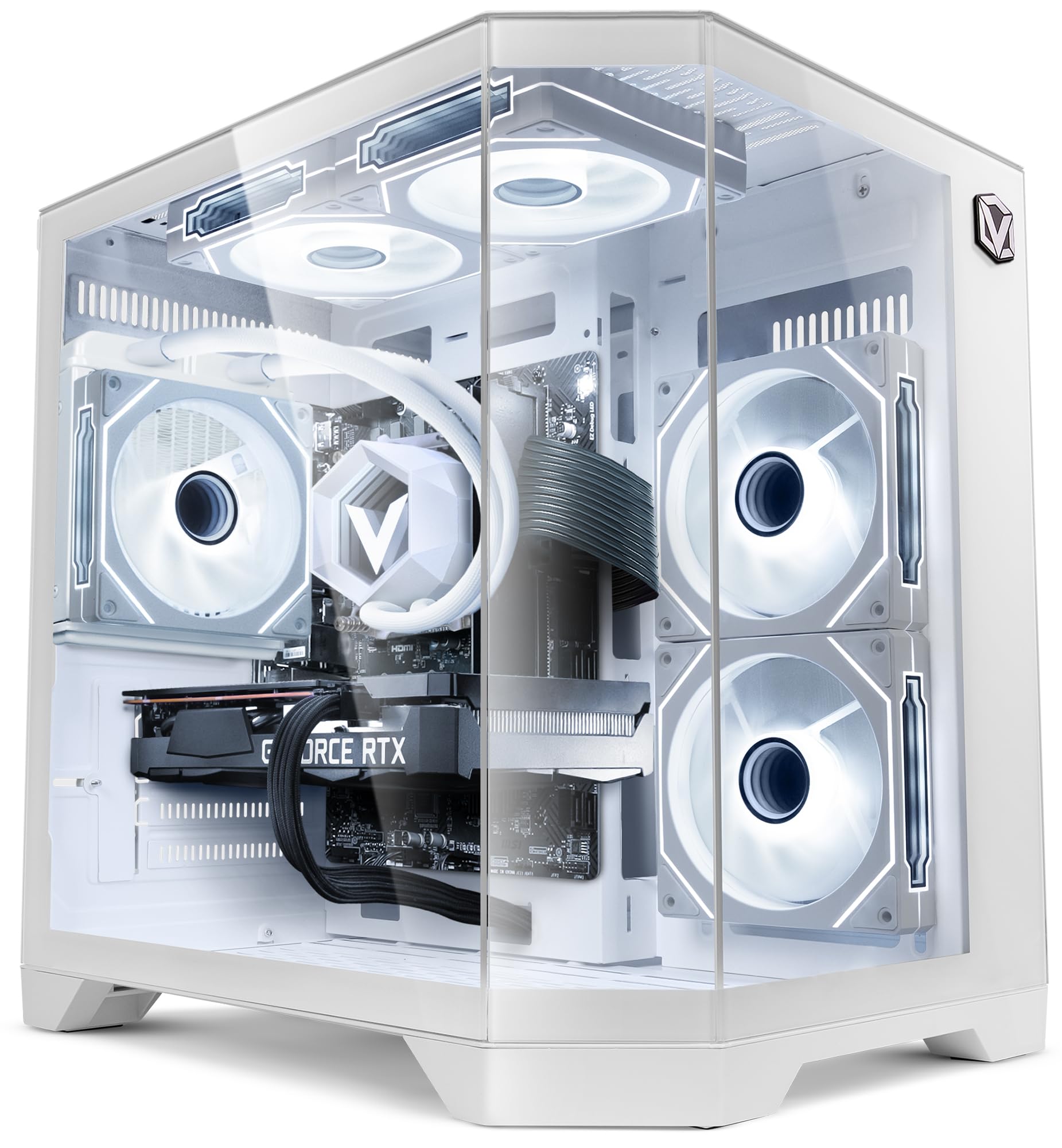
Image: The Vibox IV-584 Gaming PC, showcasing its internal components and sleek design.
1. Орнату
Follow these steps to set up your Vibox IV-584 Gaming PC:
- Компьютерді қаптамадан шығару: Carefully remove the computer and all accessories from the packaging. Retain the packaging for future transport or warranty claims.
- Перифериялық құрылғыларды қосу:
- Монитор(лар)ды компьютердің артқы жағында орналасқан графикалық карта порттарына (HDMI немесе DisplayPort) қосыңыз.
- Пернетақта мен тінтуірді қол жетімді USB порттарына қосыңыз.
- Үндеткіштер, құлақаспаптар немесе сыртқы дискілер сияқты кез келген басқа перифериялық құрылғыларды қосыңыз.
- Желілік байланыс:
- For a wired connection, connect an Ethernet cable from your router to the Ethernet port on the PC.
- For a wireless connection, ensure the included Wi-Fi adapter is installed (if not pre-installed) and follow Windows 11 instructions to connect to your network.
- Қуат қосылымы: Connect the power cable to the power supply unit (PSU) at the rear of the PC, then plug it into a wall outlet.
- Бастапқы жүктеу: Press the power button on the front of the PC. The system will boot into Windows 11. Follow the on-screen instructions for initial setup, including language, region, and user account creation.

Сурет: аяқталдыview of the versatile connectivity ports, including USB 2.0, USB 3.0, power button, and audio jacks.
2. Компьютерді пайдалану
Your Vibox IV-584 comes with Windows 11 Home pre-installed, offering a modern and efficient operating environment.
- Windows 11 Basics: Familiarize yourself with the Windows 11 interface, including the Start Menu, Taskbar, and File Explorer. Microsoft provides extensive online resources for learning Windows 11.
- Ойын: This PC is optimized for gaming. Ensure your graphics drivers are up to date for the best performance. You can download the latest drivers from the NVIDIA webсайт.
- Бағдарламалық құралды орнату: Install your preferred games and applications. The 500GB SSD provides fast loading times for your operating system and frequently used software.
- Желіге қосылу мүмкіндігі: Use the integrated Wi-Fi or Ethernet connection to access the internet, download games, and play online.

Image: Key features of Windows 11 Home, highlighting benefits for gaming such as faster loading times with DirectStorage, AutoHDR, and optimized CPU performance.
3. Техникалық қызмет көрсету
Тұрақты техникалық қызмет көрсету компьютеріңіздің ұзақ қызмет етуін және оңтайлы жұмыс істеуін қамтамасыз етеді:
- Тазалау:
- Keep the exterior of the PC clean with a soft, dry cloth.
- Periodically clean dust from the air vents and fans using compressed air. Ensure the PC is powered off and unplugged before cleaning.
- Бағдарламалық құрал жаңартулары: Regularly check for and install updates for Windows 11, graphics drivers (NVIDIA), and other installed software to ensure security and performance.
- Жүйелік сақтық көшірмелер: Create regular backups of your important data to an external drive or cloud storage to prevent data loss.
- Сұйықтықты салқындату: The PC features a liquid cooling system. This system is generally maintenance-free. Avoid opening the liquid cooling unit. Ensure proper airflow around the PC to aid cooling.

Image: An illustration demonstrating the optimized inverse airflow design for next-generation cooling within the PC chassis.
4. Ақаулықтарды жою
Here are solutions to some common issues:
- PC Does Not Power On:
- Қуат кабелінің компьютерге де, қабырға розеткасына да мықтап жалғанғанын тексеріңіз.
- Ensure the power switch on the PSU (at the back of the PC) is in the 'ON' position.
- Басқа қуат розеткасын қолданып көріңіз.
- Мониторда дисплей жоқ:
- Verify that the monitor is powered on and the video cable is securely connected to the graphics card (not the motherboard's integrated video ports).
- Мониторда дұрыс кіріс көзі таңдалғанына көз жеткізіңіз.
- Try connecting the monitor to a different video port on the graphics card if available.
- Баяу өнімділік:
- Қажет емес фондық қолданбаларды жабыңыз.
- Ensure Windows and graphics drivers are up to date.
- Зиянды бағдарлама немесе вирус бар-жоғын тексеріңіз.
- Monitor system temperatures to ensure the PC is not overheating.
- Желіге қосылу мәселелері:
- Сымды қосылымдар үшін Ethernet кабелі мен маршрутизатор күйін тексеріңіз.
- For Wi-Fi, ensure the adapter is properly installed and drivers are updated. Restart your router and PC.
- Windows желі ақауларын жою құралын іске қосыңыз.
5. Техникалық сипаттамалар
Detailed technical specifications for your Vibox IV-584 Gaming PC:
| Құрамдас | Техникалық сипаттама |
|---|---|
| Бренд | Vibox |
| Үлгі нөмірі | IV-584 |
| Процессор | AMD Ryzen 7 5700X (8 Cores, up to 4.6 GHz) |
| Графикалық карта | NVIDIA GeForce RTX 3050 6 ГБ GDDR6 |
| Жедел Жадтау Құрылғысы | 16GB DDR4 3200 MHz (Dual-channel) |
| Сақтау | 500 ГБ SSD |
| Операциялық жүйе | Windows 11 Home |
| Қосылу мүмкіндігі | Wi-Fi (300 Mbps adapter included), Ethernet |
| Порттар | USB (various), HDMI, DisplayPort |
| Салқындату | Liquid Cooling, RGB Fans |
| Істер дизайны | Tempered Glass (3 panels), RGB Lighting |
| Өлшемдері (L x W x H) | Шамамен 35 x 28 x 38 см |
| Қуат ашасының түрі | Type C/EF - 2 pin (EU/FR-DE hybrid) |

Image: The Vibox AIO 120mm liquid cooling unit, designed for efficient and compact cooling.

Image: Vibox Hex RGB Infinity 120mm fans, offering multiple colors and RGB modes for customization.

Image: The PC case design featuring three tempered glass panels, showcasing its elegant and high-end look, along with approximate dimensions.
6. Кепілдік және қолдау
Your Vibox IV-584 Gaming PC comes with comprehensive warranty and support:
- Өнім кепілдігі: The PC includes a 2-year warranty on parts and lifetime labor warranty. Please refer to your purchase documentation for full terms and conditions.
- Техникалық көмек: For technical assistance, troubleshooting beyond this manual, or warranty claims, please contact Vibox customer support through their official webсайты немесе сатып алумен бірге берілген байланыс ақпараты.