
Xprinter XP-420B
Xprinter XP-420B USB Direct Thermal Label Printer User Manual
Үлгі: XP-420B
1. Өнім аяқталдыview
The Xprinter XP-420B is a high-speed direct thermal label printer designed for various applications, including shipping labels. It offers a maximum print speed of 152 mm/s (6 inches/second) and a resolution of 203 DPI, ensuring clear and precise prints. Its robust double-walled clamshell design enhances durability, and the intelligent print head temperature control system ensures stable output. This printer is compatible with both Windows and Mac operating systems, making it a versatile solution for your labeling needs.
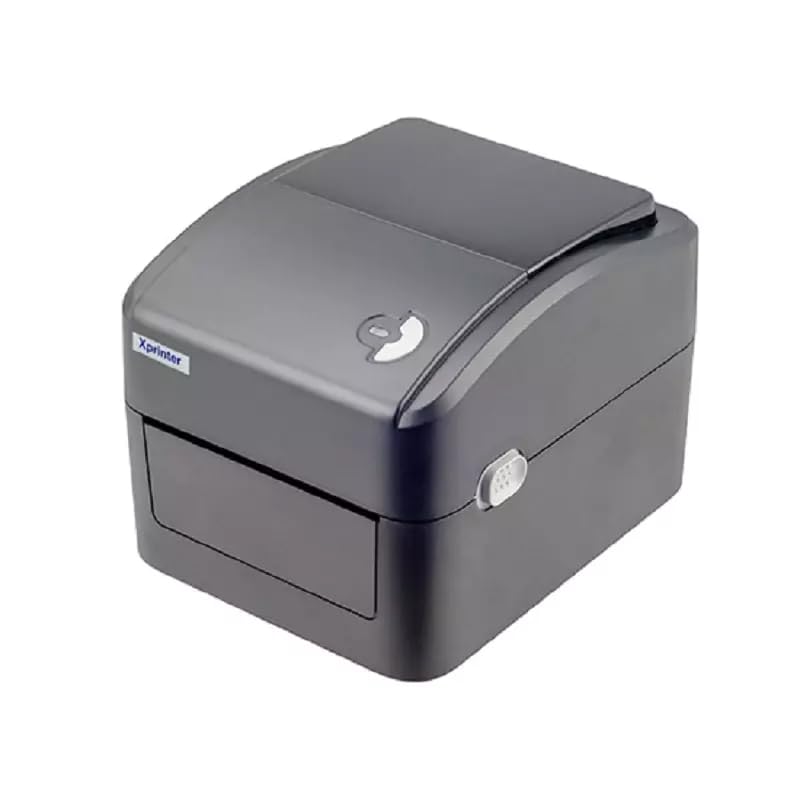
1-сурет: Алдыңғы view of the Xprinter XP-420B thermal label printer.
2. Орнату нұсқаулығы
2.1 Қаптаманы ашу және бастапқы тексеру
- Принтерді және барлық керек-жарақтарды қаптамадан абайлап алыңыз.
- Verify that all components are present: printer unit, power adapter, USB cable, and user manual.
- Inspect the printer for any visible damage that may have occurred during transit.
2.2 Принтерді қосу
- Қуат адаптерін принтердің қуат портына қосыңыз, содан кейін оны қуат көзіне қосыңыз.
- Берілген USB кабелінің бір ұшын принтердің USB портына, ал екінші ұшын компьютердегі қол жетімді USB портына жалғаңыз.
- Power on the printer using the power switch, usually located on the side or rear.

Figure 2: Xprinter XP-420B showing USB connectivity.
2.3 Жапсырмаларды жүктеу
- Екі жағындағы босату ысырмаларын басу арқылы принтердің үстіңгі қақпағын ашыңыз.
- Place the roll of thermal labels onto the label spindle, ensuring the labels feed from the bottom of the roll.
- Feed the leading edge of the labels through the label guide until it extends slightly past the print head.
- Adjust the movable label guides to fit the width of your labels snugly, without pinching them.
- Close the top cover firmly until it latches securely.
- The printer will automatically calibrate and detect the label size.
2.4 Драйверді орнату
Before printing, you must install the appropriate printer drivers on your computer. Drivers are typically provided on a CD included with the printer or can be downloaded from the official Xprinter website. The XP-420B supports both Windows and Mac operating systems.
- Windows үшін: Run the setup executable from the driver CD or downloaded file және экрандағы нұсқауларды орындаңыз.
- Mac үшін: Download the Mac driver from the Xprinter website and follow the installation prompts.
3. Пайдалану нұсқаулары
3.1 Негізгі басып шығару
- Принтердің қосулы және компьютерге жалғанғанына көз жеткізіңіз.
- Open the document or application from which you wish to print (e.g., shipping software, word processor).
- Қолданба мәзірінен «Басып шығару» тармағын таңдаңыз.
- Choose "Xprinter XP-420B" as your printer.
- In the printer settings or preferences, ensure the correct label size is selected. The printer supports adjustable label sizes.
- Тапсырманы принтерге жіберу үшін «Басып шығару» түймесін басыңыз.
3.2 Adjusting Label Size
The XP-420B allows for adjustable label sizes. This adjustment is primarily done through the printer driver settings on your computer and by physically adjusting the label guides within the printer.
- Software Adjustment: In your printing application or printer driver settings, navigate to the "Page Setup" or "Paper Size" options. Select or define the custom dimensions for your labels (e.g., 4x6 inches for shipping labels).
- Physical Adjustment: As described in Section 2.3, ensure the internal label guides are set correctly to the width of your loaded labels.
4. Техникалық қызмет көрсету
4.1 Басып шығару механизмін тазалау
Regular cleaning of the print head is crucial for maintaining print quality and extending the printer's lifespan. It is recommended to clean the print head after every roll of labels or if print quality degrades.
- Принтерді өшіріп, қуат сымын ажыратыңыз.
- Принтердің жоғарғы қақпағын ашыңыз.
- Принтер жақында пайдаланылған болса, басып шығару механизмі суығанша бірнеше минут күтіңіз.
- Gently wipe the print head surface with an alcohol swab or a lint-free cloth lightly dampизопропил спиртімен толықтырылған.
- Allow the print head to dry completely before closing the cover and reconnecting power.
4.2 Жалпы тазалау
- Принтердің сыртын сүрту үшін жұмсақ, құрғақ шүберекті пайдаланыңыз.
- Remove any dust or label debris from the inside of the printer using a soft brush or compressed air.
- Абразивті тазартқыштарды немесе еріткіштерді қолданбаңыз.
5. Ақаулықтарды жою
| Мәселе | Ықтимал себебі | Шешім |
|---|---|---|
| Принтер жауап бермейді | Power off; USB cable disconnected; Driver issue. | Ensure power is on and connected. Check USB cable. Reinstall printer driver. |
| Баспа сапасының нашарлығы (түсі кеткен, сызықтар) | Лас басып шығару механизмі; Жапсырма түрі дұрыс емес; Төмен басып шығару тығыздығы параметрі. | Clean the print head (Section 4.1). Ensure you are using direct thermal labels. Adjust print density in driver settings. |
| Жапсырмалар дұрыс берілмейді | Labels improperly loaded; Label guides not adjusted; Sensor obstruction. | Reload labels correctly. Adjust label guides. Clean any dust or debris from sensors. |
| Принтер бос жапсырмаларды басып шығарады | Labels loaded upside down; Not a direct thermal label. | Ensure labels are loaded with the printable side facing up. Verify labels are direct thermal. |
6. Өнімнің техникалық сипаттамалары
| Ерекшелік | Мәлімет |
|---|---|
| Бренд | Xprinter |
| Модель атауы | XP-420B |
| Қосылу технологиясы | USB |
| Баспа технологиясы | Тікелей термиялық |
| Ажыратымдылық | 203н/д |
| Максималды басып шығару жылдамдығы | 152 мм/с (6 дюйм/секунд) |
| Жад | 8 МБ SDRAM, 8 МБ флэш |
| Принтердің шығысы | Монохромды |
| Элемент салмағы | 3 келі |
| Өнім өлшемдері | 20D x 6W x 10H Сантиметр |
| Үйлесімділік | Windows, Mac |
7. Кепілдік және қолдау
7.1 Кепілдік туралы ақпарат
Xprinter XP-420B құрылғысымен бірге жеткізіледі 1 жылдық кепілдік сатып алған күннен бастап. Бұл кепілдік қалыпты пайдалану кезіндегі өндірістік ақаулар мен ақауларды қамтиды. Кепілдік шағымдары үшін сатып алуды растайтын құжатты сақтаңыз.
7.2 Тұтынушыларды қолдау қызметі
For technical assistance, troubleshooting beyond this manual, or warranty service, please contact Xprinter customer support. Refer to the contact information provided with your product packaging or visit the official Xprinter webең соңғы қолдау мәліметтері үшін сайт.