
1. Кіріспе
This manual provides detailed instructions for the LinYuvo KS10 Wireless Controller. It covers setup, operation, and maintenance to ensure optimal performance and an enhanced gaming experience across various platforms, including Nintendo Switch, Windows, SteamOS, and iOS devices.
2. Өнім аяқталдыview
The LinYuvo KS10 is a versatile wireless controller designed for a comfortable and responsive gaming experience. It features a transparent design showcasing internal components, enhanced joysticks, and customizable functions.

2.1-сурет: Алдыңғы view of the LinYuvo KS10 Wireless Controller, showing its transparent casing және түйме орналасуы.
Негізгі ерекшеліктері:
- Metal Mushroom Head & Honeycomb Design Joysticks: Provides improved operational feedback and anti-slip functionality for precise control.
- Three-Speed Continuous Firing (Turbo): Offers flexible operation for rapid input in games.
- Integrated Six-Axis Gyroscope: Enables immersive motion sensing for compatible games.
- Adjustable Vibration Level: Dual motors provide haptic feedback that can be customized.
- Түрлі-түсті жарық әсерлері: Features RGB lighting with various patterns to enhance the gaming atmosphere.
- Back-Key Macro Programming: Allows for personalized macro programming and multi-step combined key output.
- Эргономикалық дизайн: Shaped for comfortable grip during extended gaming sessions.
- Ояну функциясы: Қосылған консольді ояту мүмкіндігі.

Figure 2.2: Close-up of the metal rocker and honeycomb joystick design, highlighting enhanced detection and anti-slip features.
3. Орнату
3.1. Контроллерді зарядтау
Before initial use, fully charge the controller using the provided USB-C cable. Connect the cable to the controller's charging port and a compatible USB power source (e.g., a computer USB port or a USB wall adapter). The charging indicator will show the charging status and turn off when fully charged.
3.2. Nintendo Switch көмегімен жұптастыру
- Nintendo Switch консолінде HOME мәзіріне өтіңіз.
- таңдаңыз "Controllers", содан кейін "Change Grip/Order".
- түймесін басып тұрыңыз Жұптастыру түймесі on the top of the LinYuvo KS10 controller for a few seconds until the indicator lights start flashing rapidly.
- Once paired, the controller will appear on the Switch screen, and the indicator light(s) on the controller will remain solid.
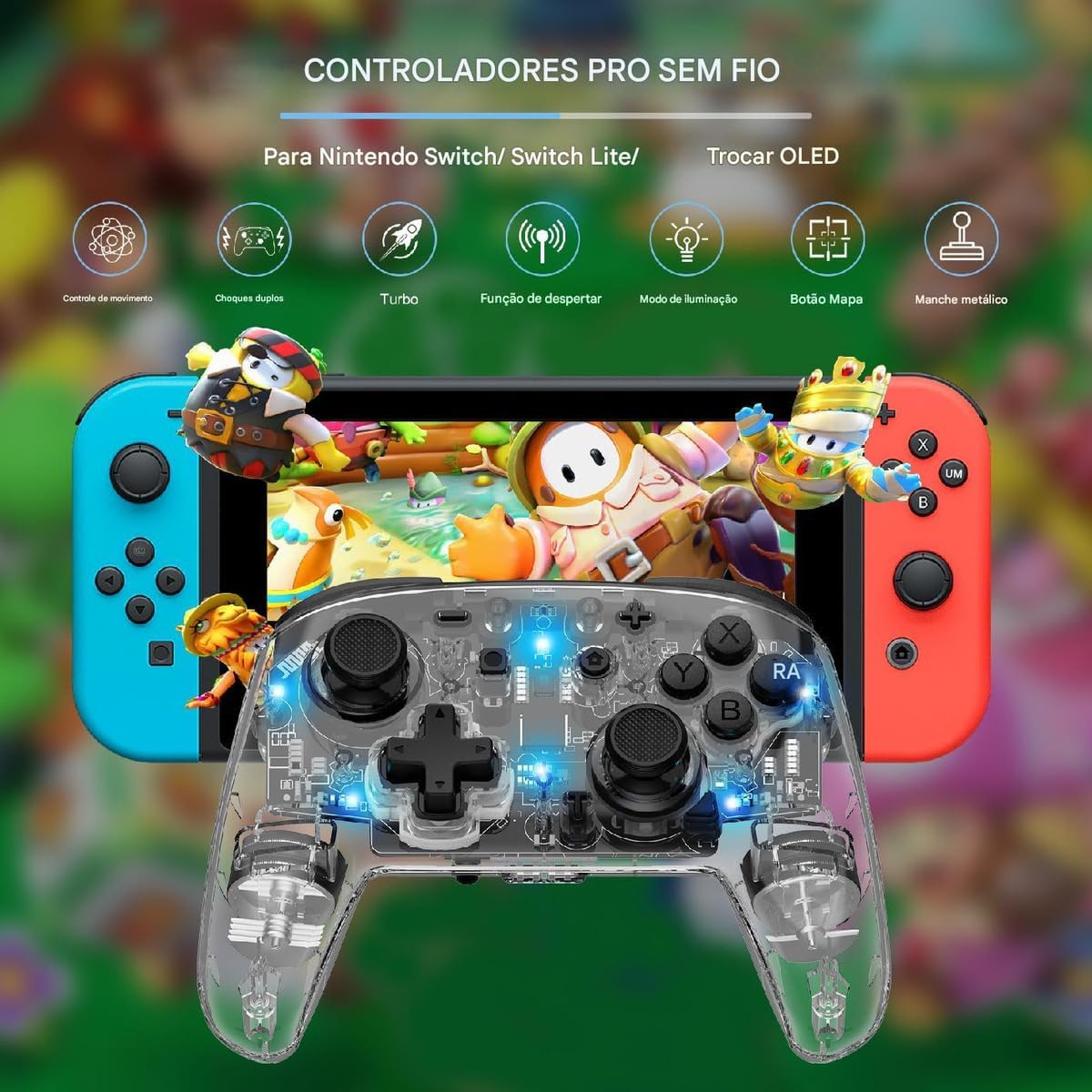
Figure 3.1: The LinYuvo KS10 controller shown alongside a Nintendo Switch console, illustrating its compatibility.
3.3. Pairing with Windows/SteamOS
- Ensure your Windows PC or SteamOS device has Bluetooth enabled.
- Құрылғыдағы Bluetooth параметрлеріне өтіп, таңдаңыз "Bluetooth немесе басқа құрылғыны қосу".
- түймесін басып тұрыңыз Жұптастыру түймесі on the LinYuvo KS10 controller until the indicator lights flash rapidly.
- Select the controller from the list of available devices to complete pairing.
3.4. Pairing with iOS Devices
- iOS құрылғыңызда келесіге өтіңіз: Параметрлер > Bluetooth және Bluetooth қосулы екеніне көз жеткізіңіз.
- түймесін басып тұрыңыз Жұптастыру түймесі on the LinYuvo KS10 controller until the indicator lights flash rapidly.
- Look for the controller in the "Other Devices" list and tap to connect.
3.5. Ояну функциясы
To activate a connected Switch console from sleep mode, simply press and hold the "HOME" button on the controller for approximately 3 seconds.

Figure 3.2: The controller's ergonomic design and the instruction to hold the HOME button for 3 seconds to wake up the Switch console.
4. Пайдалану нұсқаулары
4.1. Негізгі басқару элементтері
The LinYuvo KS10 controller features standard button layouts including A, B, X, Y buttons, D-pad, Left/Right joysticks, L/R and ZL/ZR shoulder buttons, HOME, SELECT, START, and screenshot buttons. Refer to in-game instructions for specific button functions.
4.2. Турбо функциясы
The Turbo function allows for rapid, continuous input of a selected button. It has three adjustable speeds: 5 shots/second, 12 shots/second, and 20 shots/second.
- Турбоны іске қосу үшін: түймесін басып тұрыңыз Турбо түймесі (T), then press the desired action button (e.g., A, B, X, Y, L, R, ZL, ZR). The button will now continuously fire when held down.
- Турбо жылдамдығын реттеу үшін: ұстап тұрғанда Турбо түймесі (T), түймесін басыңыз Минус (-) button to decrease speed or the Плюс (+) button to increase speed. The corresponding light will flash slowly, medium, or fast to indicate the speed level.
- To deactivate Turbo: түймесін басып тұрыңыз Турбо түймесі (T), содан кейін әрекет түймесін қайта басыңыз.

Figure 4.1: Visual representation of the adjustable Turbo function with three speed settings (5/s, 12/s, 20/s) and instructions for adjustment.
4.3. Gyroscope Motion Control
The integrated six-axis gyroscope provides motion control capabilities for games that support it. This allows for immersive gameplay where tilting and moving the controller translates into in-game actions.

Figure 4.2: A user demonstrating gyroscope motion control with the LinYuvo KS10 controller in a racing game scenario.
4.4. Adjustable Vibration Feedback
The controller features dual motors for haptic feedback. The vibration intensity can be adjusted to suit personal preference.
- To adjust vibration: түймесін басып тұрыңыз Vibration button (UM), содан кейін пайдаланыңыз Жоғары/төмен directional buttons on the D-pad to increase or decrease intensity.
- Available levels typically include 0%, 30%, 50%, 75%, and 100%.

Figure 4.3: Illustration of the adjustable vibration feedback levels (0%, 30%, 50%, 75%, 100%) provided by the integrated dual motors.
4.5. Colorful Lighting Effects
The controller includes customizable RGB lighting to enhance the gaming ambiance. There are various lighting modes and colors.
- To change lighting mode/color: түймесін басыңыз Lighting button (often represented by a lightbulb icon or a specific combination) to cycle through different colors (Blue, Red, Yellow, Green, Orange, Purple, Pink) or breathing patterns (e.g., rainbow breathing).
- Жарықтықты реттеу үшін: түймесін басып тұрыңыз Жарықтандыру түймесі және пайдаланыңыз Y түймесі жарықтық деңгейлерін реттеу үшін.
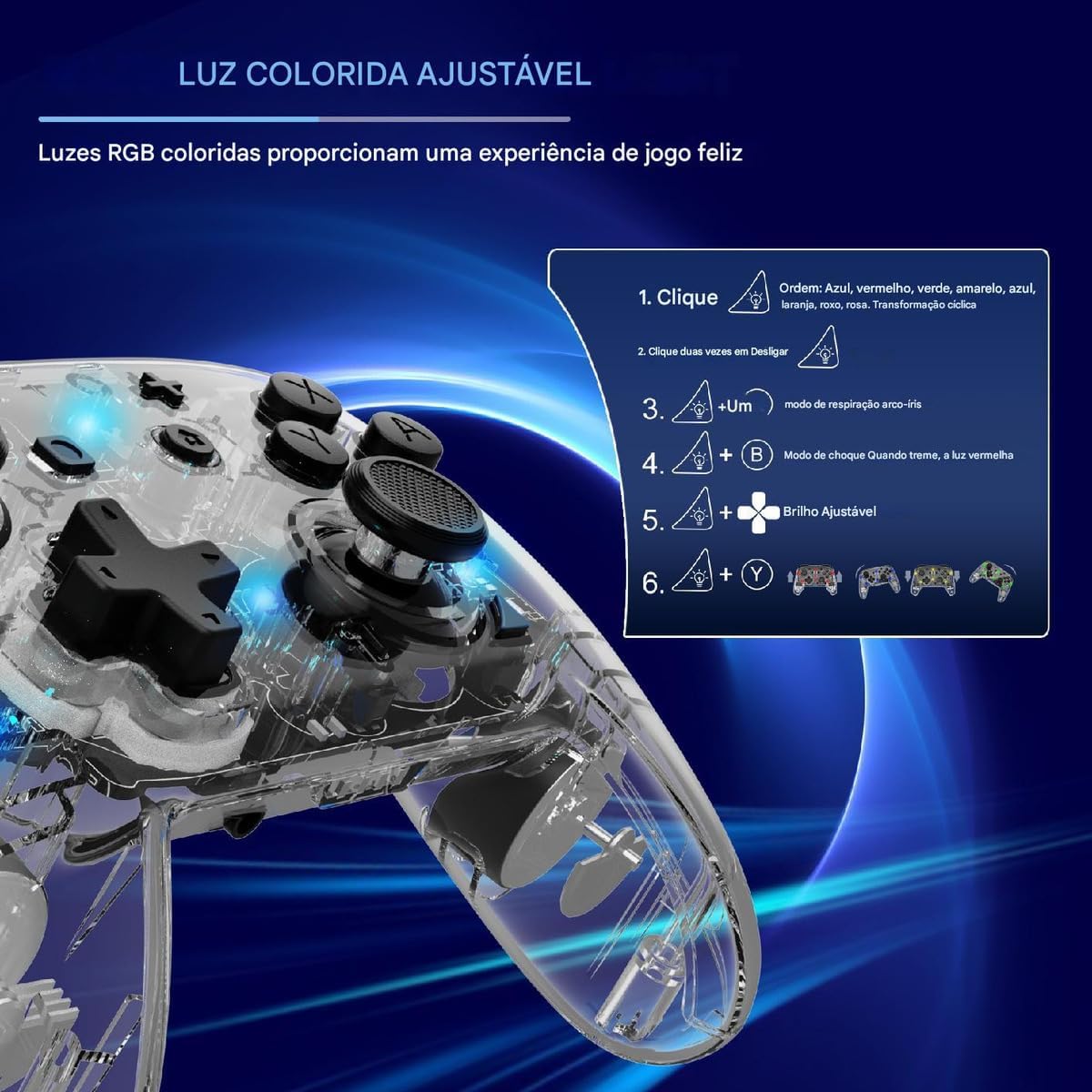
Figure 4.4: Diagram illustrating how to adjust the colorful RGB lighting, including color order and brightness settings.
4.6. Macro Programming (Back-Keys)
The back-keys on the controller can be programmed with custom macros, allowing for complex button sequences to be executed with a single press.
- To enter Macro Programming Mode: Refer to the specific instructions provided with your controller for the exact button combination (e.g., a dedicated Macro button + the back-key you wish to program).
- To record a Macro: While in programming mode, press the sequence of buttons you want to record.
- To save the Macro: Press the Macro button again to save the sequence to the selected back-key.
- To use a Macro: Press the programmed back-key to execute the recorded sequence.
Note: Detailed macro programming steps may vary. Consult the included quick start guide or manufacturer's webнақты нұсқаулар алу үшін сайтқа кіріңіз.
5. Техникалық қызмет көрсету
- Тазалау: Контроллерді тазалау үшін жұмсақ, құрғақ шүберекті пайдаланыңыз. Қатты химиялық заттарды немесе абразивті материалдарды қолданбаңыз.
- Сақтау орны: Контроллерді тікелей күн сәулесінен және төтенше температурадан алыс салқын, құрғақ жерде сақтаңыз.
- Батареяға күтім жасау: Батареяны жиі толық зарядсыздандырудан аулақ болыңыз. Батареяның денсаулығын сақтау үшін ұзақ уақыт пайдаланылмаса да контроллерді жүйелі түрде зарядтаңыз.
- Тамшылардан аулақ болыңыз: Контроллерді құлау мен соққылардан қорғаңыз, бұл ішкі құрамдастарды зақымдауы мүмкін.
6. Ақаулықтарды жою
| Мәселе | Ықтимал себебі | Шешім |
|---|---|---|
| Контроллер қосылмайды. | Батарея төмен. | Басқару құралын кем дегенде 30 минут зарядтаңыз. |
| Unable to pair with device. | Bluetooth not enabled; controller not in pairing mode; interference. | Ensure Bluetooth is on. Put controller in pairing mode (flashing lights). Move closer to the device. Restart both devices. |
| Енгізудің кешігуі немесе ажырату. | Low battery; too far from device; wireless interference. | Charge controller. Move closer to device. Reduce other wireless activity. |
| Buttons or joysticks unresponsive. | Бағдарламалық құралдың ақаулығы; физикалық зақым. | Restart the controller and the connected device. If problem persists, contact support. |
| Діріл жұмыс істемейді. | Vibration level set to 0%; game does not support vibration. | Adjust vibration intensity (Section 4.4). Check game settings. |
7. Техникалық сипаттамалар
- Үлгі: KS10
- Қосылу мүмкіндігі: Сымсыз (Bluetooth)
- Үйлесімділік: Nintendo Switch, Windows, SteamOS, iOS
- Арнайы мүмкіндіктер: Six-axis gyroscope, adjustable vibration, customizable RGB lighting, Turbo function, macro programming back-keys, metal joysticks.
- Қуат көзі: Қайта зарядталатын ішкі батарея
- Зарядтау порты: USB-C
- Шығу елі: Қытай
- ASIN: B0F18PLLLF
8. Кепілдік және қолдау
For warranty information and technical support, please refer to the documentation included with your purchase or contact the retailer. Keep your proof of purchase for any warranty claims.
This product is not an official Nintendo product but is compatible with the Nintendo Switch console.