
1. Кіріспе
The ORGBRO Z3 Bluetooth Thermal Label Printer is a versatile and portable device designed for efficient label creation. It supports a wide range of label sizes from 0.8 to 3.15 inches, making it suitable for various applications including home organization, small business needs, and office use. This manual provides detailed instructions to help you set up, operate, and maintain your label printer.
2. Пакет мазмұны
Төменде тізімделген заттардың барлығы сіздің пакетіңізге қосылғанын тексеріңіз:
- ORGBRO Z3 Label Printer
- USB зарядтау кабелі
- Пайдаланушы нұсқаулығы
- Roll of Labels (1.97"x1.18" square labels)
- USB Flash Drive (for PC drivers)
3. Өнім аяқталдыview
Familiarize yourself with the physical components and controls of your ORGBRO Z3 Label Printer.
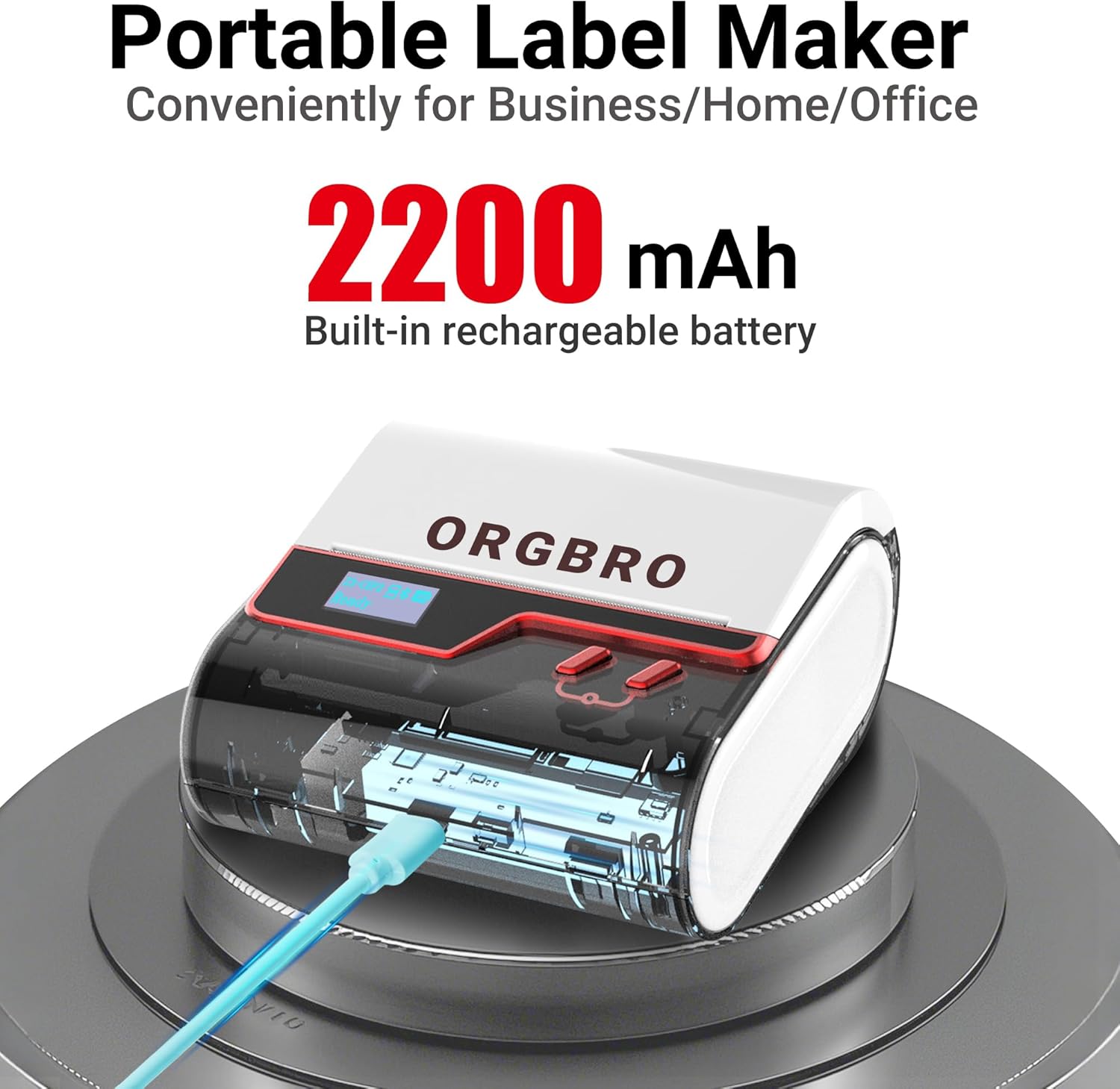
The ORGBRO Z3 Label Maker features a portable design with a built-in 2200mAh rechargeable battery, ensuring long-lasting use on the go.
The device includes a power button, an open cover button for loading labels, and a charging port. An LED screen displays essential information such as battery life, Bluetooth status, and print progress.
4. Негізгі мүмкіндіктер
- Versatile Label Compatibility: Supports labels from 0.8 to 3.15 inches wide, including square, round, transparent, and file белгілер.
- Жоғары сапалы басып шығару: Achieves crisp 203dpi resolution at speeds up to 50mm/s, ensuring clear text, graphics, and barcodes without smudging.
- Сиясыз термиялық басып шығару: Utilizes thermal printing technology, eliminating the need for ink or toner cartridges.
- Ұзақ жұмыс істейтін батарея: Equipped with a 2200mAh rechargeable battery, providing up to 4 weeks of runtime on a single charge.
- Смарт қолданбаларды біріктіру: Connects via Bluetooth to the free '4BarCode' app (Android/iOS) or via USB to computers (Windows/Mac/Chrome OS/Linux) for label customization.
- Реттелетін белгілер: The '4BarCode' app offers over 80 fonts, 150+ frames, 670+ icons, and allows importing images for personalized labels.

The ORGBRO Z3 supports a wide range of label paper widths, from 0.78 to 3.15 inches, accommodating various label styles for diverse applications.

Experience fast and clear printing with the ORGBRO Z3, capable of producing up to 52 labels per minute with a crisp 203 DPI resolution.

The ORGBRO Z3 is ideal for various business applications, including creating shipping labels, product labels, QR codes, and clothing tags.

Organize your home efficiently with the ORGBRO Z3, perfect for labeling kitchen canisters, storage bins, and other household items.
5. Орнату нұсқаулығы
5.1. Құрылғыны зарядтау
Before first use, fully charge the ORGBRO Z3 Label Printer using the provided USB cable. Connect the cable to the charging port on the device and a compatible USB power source. The LED screen will indicate charging status.
5.2. Белгілерді жүктеу
- Press the open cover button on the side of the printer to open the top cover.
- Insert the roll of thermal labels into the compartment, ensuring the printing side faces upwards and the label edge is aligned with the print head.
- Жоғарғы қақпақты орнына түскенше мықтап жабыңыз.
5.3. Қолданбаны орнату және қосу
The ORGBRO Z3 can be connected via Bluetooth to your smartphone or via USB to your computer.
5.3.1. Smartphone Connection (Bluetooth)
- Download the free '4BarCode' app from your device's app store (available for Android and iOS).
- Смартфонда Bluetooth қосылғанына көз жеткізіңіз.
- Power on the ORGBRO Z3 Label Printer.
- Open the '4BarCode' app and follow the on-screen instructions to connect to your printer via Bluetooth. The printer's name (e.g., Z3-XXXX) should appear in the app's device list.
5.3.2. Computer Connection (USB)
- Connect the ORGBRO Z3 Label Printer to your computer using the provided USB cable.
- Install the necessary drivers from the included USB flash drive or download them from the official ORGBRO webсайт.
- Follow the installation prompts to complete the driver setup.

The ORGBRO Z3 supports seamless connection to both phones (Android/iOS via Bluetooth) and computers (Windows/Mac/Chrome OS/Linux via USB).
6. Пайдалану нұсқаулары
Once connected, you can start creating and printing labels.
6.1. Creating Labels (Using '4BarCode' App)
- Open the '4BarCode' app on your smartphone.
- Select 'Create' to start a new label project.
- Choose your desired label size and orientation.
- Use the app's tools to add text, icons, images, barcodes, or QR codes. You can customize fonts, sizes, and styles.
- Arrange elements on the label canvas as needed.
6.2. Жапсырмаларды басып шығару
- After designing your label, tap the 'Print' button in the app.
- Review алдын ала басып шығаруview to ensure the layout is correct.
- Adjust printing density or number of copies if necessary.
- Confirm the print command. The label will be printed from the device.
- Gently tear off the printed label along the serrated edge.

The '4BarCode' app provides multiple labels and templates, along with extensive customization options including over 80 fonts, 150+ frames, and 670+ icons.
7. Техникалық сипаттамалар
| Ерекшелік | Мәлімет |
|---|---|
| Баспа құралдары | Термалды қағаз |
| Максималды кіріс парағы сыйымдылығы | 230 парақ |
| Максималды көшіру жылдамдығы (ақ-қара) | 2 бет/мин |
| Максималды басып шығару ажыратымдылығы | 203 нүкте/дюйм |
| Sheet Size (Included) | 1.97 дюйм (ені) |
| Ең үлкен медиа өлшемі | 3.15 дюйм (ені) |
| Екі жақты басып шығару | Жоқ (Симплекс) |
| Аппараттық интерфейс | USB |
| Қосылу технологиясы | Bluetooth, USB |
| Арнайы мүмкіндік | Портативті |
| Принтердің шығысы | Монохромды |
| Элемент салмағы | 1.21 фунт (0.55 килограмм) |
| Өнім өлшемдері | 4.42 x 4.42 x 2.41 дюйм |
| Батареялар | 1 AA batteries required (included) - 2200mAh rechargeable |
8. Техникалық қызмет көрсету
- Тазалау: Regularly clean the print head with a soft, lint-free cloth moistened with isopropyl alcohol. Ensure the device is powered off before cleaning.
- Сақтау орны: Принтерді салқын, құрғақ жерде, тікелей күн сәулесінен және төтенше температурадан алыс жерде сақтаңыз.
- Батареяға күтім жасау: Батареяның қызмет ету мерзімін ұзарту үшін батареяны жиі толық зарядсыздандырудан аулақ болыңыз. Ұзақ уақыт бойы пайдаланылмаса да, құрылғыны үнемі зарядтаңыз.
- Жапсырма орамдары: Use only high-quality thermal label rolls compatible with the ORGBRO Z3 to ensure optimal print quality and prevent damage to the print head.
9. Ақаулықтарды жою
- Принтер қосылмайды:
- Принтердің қосулы және толық зарядталғанына көз жеткізіңіз.
- Verify Bluetooth is enabled on your device and the '4BarCode' app has permission to use it.
- For USB connection, ensure drivers are correctly installed and the cable is securely connected.
- Try restarting both the printer and your connecting device.
- Нашар басып шығару сапасы:
- Check if the label roll is inserted correctly with the printing side facing up.
- Басып шығару механизмін Техникалық қызмет көрсету бөлімінде сипатталғандай тазалаңыз.
- Adjust the printing density settings in the '4BarCode' app.
- Үйлесімді термиялық жапсырмаларды пайдаланып жатқаныңызға көз жеткізіңіз.
- Белгілер дұрыс берілмейді:
- Ensure the label roll is properly seated and not jammed.
- Белгі жолындағы кедергілердің бар-жоғын тексеріңіз.
- Verify the label width is within the supported range (0.8-3.15 inches).
10. Кепілдік және қолдау
ORGBRO products are designed for reliability and performance. For warranty information, technical support, or service inquiries, please refer to the contact details provided in your product packaging or visit the official ORGBRO webсайт. Сатып алу түбіртегін кепілдік талаптары үшін сатып алудың дәлелі ретінде сақтаңыз.


