
1. Кіріспе
This manual provides detailed instructions for the setup, operation, and maintenance of your GOLOZA Digital Calendar and Projection Clock. Please read this manual thoroughly before using the device to ensure proper functionality and to maximize your user experience. This clock combines a digital calendar display with a red projection alarm clock, offering multiple features for timekeeping, alarms, and reminders.
2. Пакет мазмұны
Пакетте келесі элементтердің бар-жоғын тексеріңіз:
- GOLOZA Digital Calendar and Projection Clock Unit
- Қуат адаптері
- Remote Control (for Digital Calendar Display)
- Пайдаланушы нұсқаулығы (бұл құжат)
3. Өнім аяқталдыview
Familiarize yourself with the main components of your GOLOZA clock.
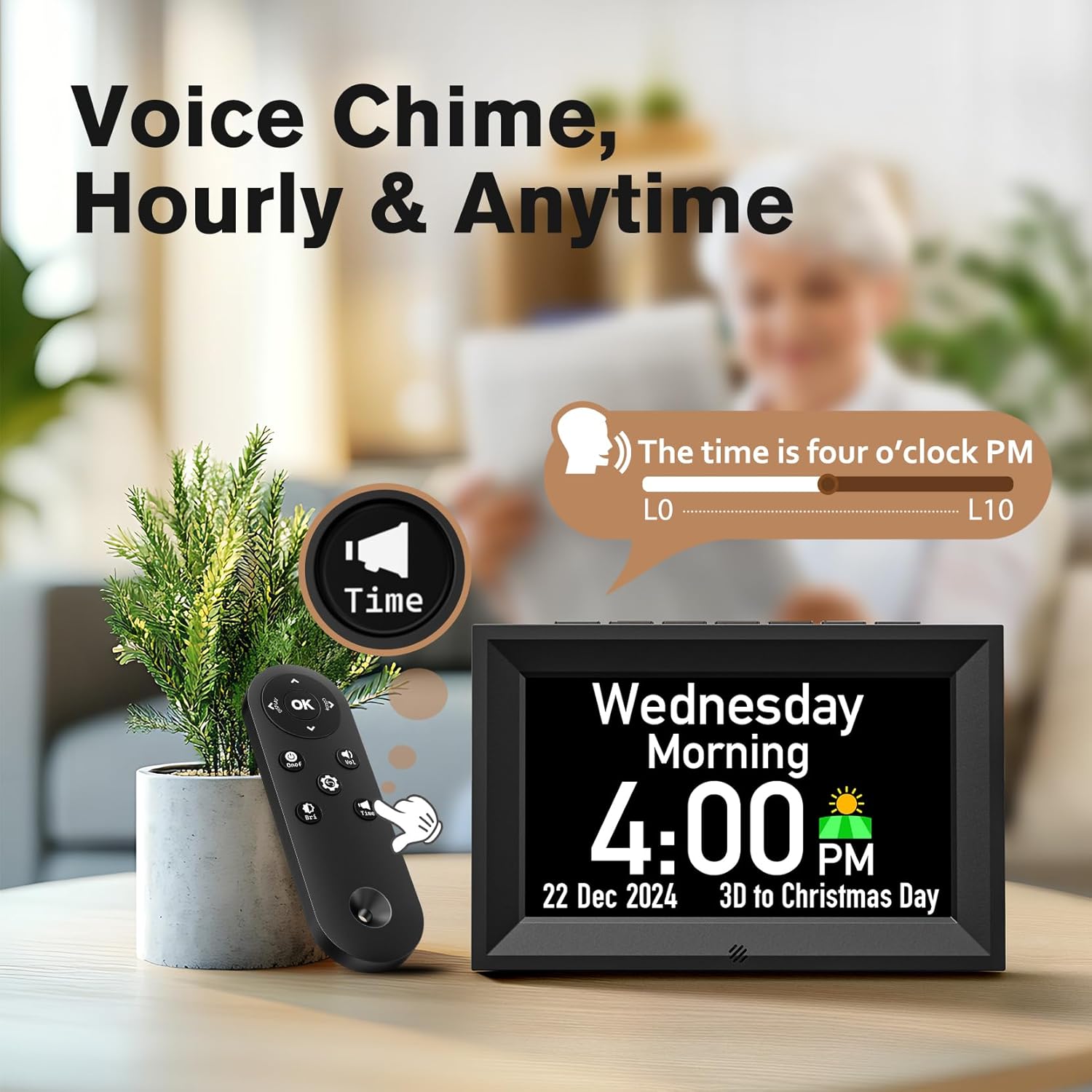
3.1-сурет: Digital Calendar Clock Display with Remote Control. This image shows the main digital calendar display, which presents the day, date, time, and includes a voice chime feature. A remote control is also visible, used for operating the digital calendar functions.

3.2-сурет: Red Projection Alarm Clock. This image highlights the compact design and dimensions of the projection alarm clock component, featuring a large LED curved screen that displays time in red digits.

3.3-сурет: USB Charging Port. This image illustrates the integrated USB charging port (5V/1.2A) located on the side of the projection clock, allowing users to charge external devices.
4. Орнату
- Қаптаманы ашу: Қаптамадан барлық компоненттерді мұқият алып тастаңыз. Болашақта тасымалдау немесе сақтау үшін қаптаманы сақтаңыз.
- Қуат қосылымы: Connect the provided power adapter to the DC input port on the back of the clock. Plug the adapter into a standard electrical outlet. The clock will power on automatically.
- Бастапқы параметрлер: Upon first power-on, the clock may prompt you to set the time, date, and other preferences. Use the buttons on the clock or the remote control (for the digital calendar display) to navigate and adjust settings. Refer to Section 5 for detailed operating instructions.
- Орналастыру: Place the clock on a stable, flat surface. Ensure the projection lens (if using the projection feature) is aimed at a suitable surface (wall or ceiling) for optimal visibility.
5. Пайдалану нұсқаулары
5.1 Setting Time and Date (Digital Calendar Display)
Use the remote control or buttons on the clock to access the settings menu. Navigate to "Time Settings" and "Date Settings" to adjust the current time, date, year, and time format (12/24-hour).
5.2 Дабыл функциялары
The clock supports multiple alarms and dedicated medicine reminders.
- Дабылдарды орнату: Access the "Alarm Settings" menu. You can set multiple daily alarms with customizable texts.
- Medicine Reminders: The clock features three dedicated medicine reminders. Configure these through the "Medicine Reminder" menu, setting specific times and custom text messages (e.g., "Take 2 Red Tablets").

5.2-сурет: Alarm and Medicine Reminder Settings. This image demonstrates the clock's capability to set unlimited alarms and up to three customizable medicine reminders, displaying examples like "Take 2 Red Tablets" and "Exercise".
5.3 Projection Feature (Red Projection Alarm Clock)
The projection clock displays the time onto a wall or ceiling in red digits. Locate the projection lens and adjust its angle for optimal viewing. Some models may allow for focus adjustment.
- Проекцияны қосу/өшіру: Use the dedicated button on the projection clock or remote (if applicable) to toggle the projection feature.
- Проекция жарықтығы: The red projection display typically offers 3 levels of brightness adjustment. Refer to the controls on the projection clock unit.

5.3-сурет: Red Projection Brightness Levels. This image illustrates the three adjustable brightness levels (0%, 30%, 60%, 100%) for the red projection display, allowing users to customize visibility in different lighting conditions.
5.4 Display Brightness (Digital Calendar Display)
The digital calendar display features an auto-dimmer function and 10 levels of manual brightness adjustment.
- Auto Dimmer: The clock can automatically adjust its display brightness based on ambient light. Default settings are often brighter during the day (e.g., 7:00 AM - 7:00 PM) and dimmer at night (e.g., 7:00 PM - 7:00 AM).
- Қолмен реттелетін жарықтық: Use the remote control or dedicated buttons to manually select one of the 10 brightness levels for the digital calendar display.

5.4-сурет: Digital Calendar Display Brightness. This image shows the digital calendar clock's auto-dimmer functionality and its 10-level brightness adjustment, adapting to day and night conditions.
5.5 Voice Chime
The digital calendar display offers a voice chime feature that can announce the time hourly or on demand.
- Hourly Қоңырау: Хоны қосыңыз немесе өшіріңізurly voice announcement through the settings menu.
- Anytime Chime: Press the designated "Time" button on the remote control to hear the current time announced.
5.6 USB зарядтау порты
The projection clock unit includes a USB output port (5V/1.2A) for charging compatible electronic devices.
- Қолданылуы: Connect your device's USB charging cable to the port on the clock. Ensure the clock is powered on.
- Ескерту: This port is for charging only and does not support data transfer.
5.7 Birthday and Holiday Reminders
The digital calendar display can be configured to remind you of birthdays and holidays with a 3-day countdown.
- Setting Reminders: Access the "Birthday/Holiday Reminder" menu. Input specific dates and names for birthdays. The clock will provide a countdown and play a "Happy Birthday" tune for birthdays.
- Exiting Reminders: Press any key on the clock or remote to exit a reminder notification.
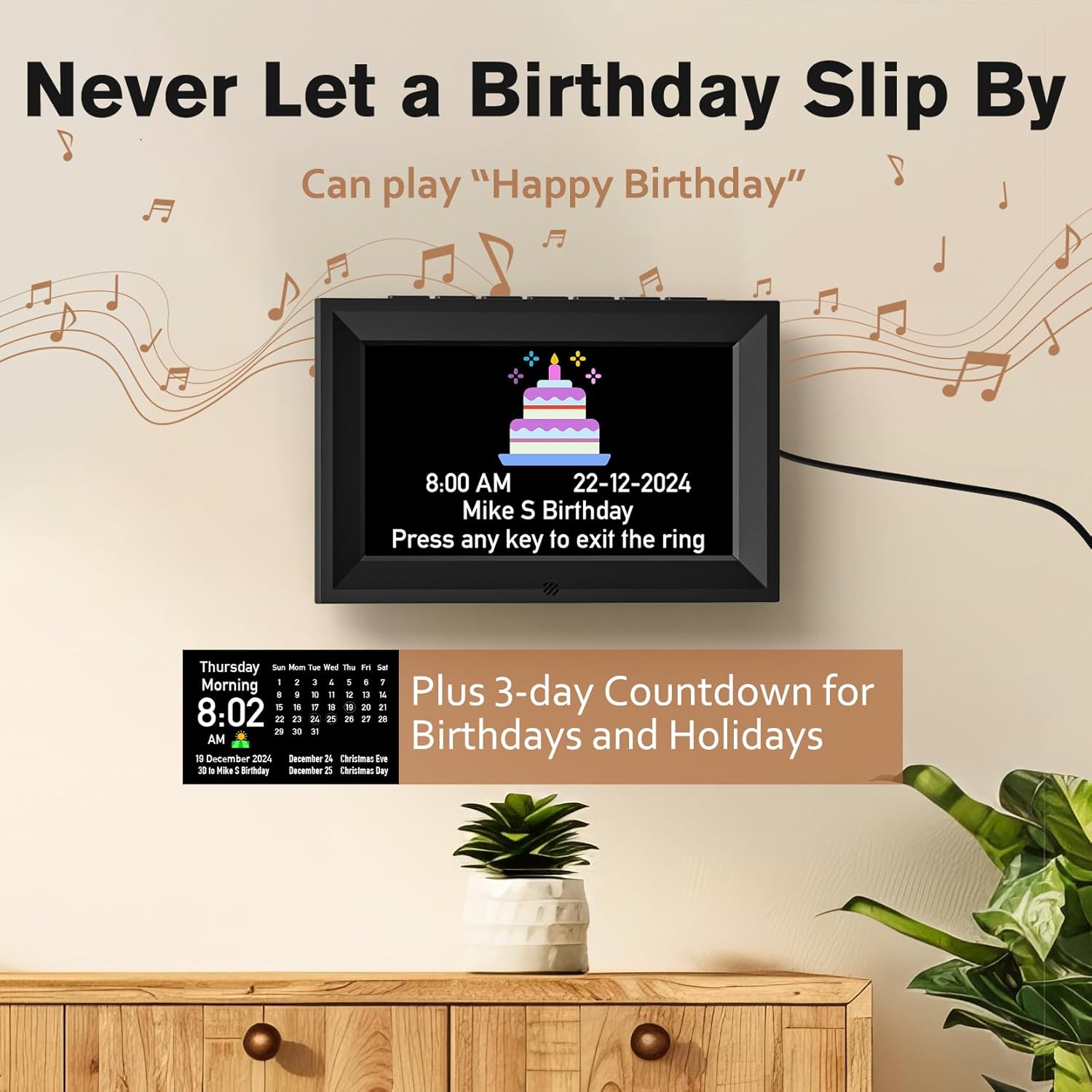
5.7-сурет: Birthday and Holiday Countdown. This image illustrates the digital calendar clock's feature to display birthday reminders with a countdown, including a "Happy Birthday" song playback, and a 3-day countdown for holidays.
6. Техникалық қызмет көрсету
- Тазалау: Use a soft, dry cloth to clean the clock's surface. Do not use abrasive cleaners, waxes, or solvents as they may damage the finish.
- Шаңды кетіру: Gently wipe the projection lens and display screens to remove dust.
- Қуатты ажырату: Disconnect the power adapter from the wall outlet before cleaning or if the clock will not be used for an extended period.
- Қоршаған орта: Avoid placing the clock in direct sunlight, extreme temperatures, or high humidity.
7. Ақаулықтарды жою
| Мәселе | Ықтимал себебі | Шешім |
|---|---|---|
| Сағат қосылмайды. | Қуат адаптері қосылмаған немесе ақаулы. | Ensure the power adapter is securely connected to the clock and a working electrical outlet. Try a different outlet. |
| Проекция күңгірт немесе анық емес. | Incorrect brightness setting; lens out of focus; ambient light too bright. | Adjust projection brightness levels. Ensure the projection lens is clean. Adjust the focus (if available). Reduce ambient light in the room. |
| Digital display is too bright/dim. | Brightness setting needs adjustment; auto-dimmer active. | Manually adjust the display brightness using the remote or buttons. Check auto-dimmer settings. |
| Дабылдар естілмейді. | Alarm not set correctly; volume too low; alarm disabled. | Verify alarm times and ensure alarms are enabled in the settings. Check the volume level. |
| Қашықтан басқару пульті жұмыс істемейді. | Батареялар таусылған; кедергі; қашықтан басқару құралы жұмыс ауқымынан тыс. | Replace remote control batteries. Ensure no obstructions between remote and clock. Operate within effective range. |
8. Техникалық сипаттамалар
| Ерекшелік | Мәлімет |
|---|---|
| Бренд | ГОЛОЗА |
| Дисплей түрі | Сандық |
| Стиль | Digital Calendar Clock & Red Projection Clock |
| Арнайы мүмкіндік | Alarm, Voice Chime, Projection, USB Charging, Birthday/Holiday Reminders |
| Пішін | Square (Digital Calendar), Rectangular/Curved (Projection Clock) |
| Ішкі/сыртқы пайдалану | Ішкі |
| Рама материалы | Пластмасса |
| Монтаждау түрі | Үстел үсті |
| Оятқыш | Иә |
| Жұмыс режимі | Электрлік |
| Сағат пішіні | Көп дисплей |
| USB шығысы | 5В/1.2А |
9. Кепілдік және қолдау
GOLOZA products are manufactured with quality and reliability in mind. For specific warranty information, please refer to the warranty card included with your purchase or contact GOLOZA customer support.
If you encounter any issues or have questions regarding your GOLOZA Digital Calendar and Projection Clock, please contact our customer support team for assistance. Contact details can typically be found on the product packaging or the official GOLOZA webсайт.