
1. Кіріспе
The Ulefone Armor PAD 4 Ultra is a rugged 5G tablet PC designed for durability and high performance in challenging environments. It features a 10.36-inch 2K FHD+ display, a powerful MediaTek Dimensity 6300 processor, and a large 11800mAh battery. This manual provides essential information for setting up, operating, maintaining, and troubleshooting your device.

Image: The Ulefone Armor PAD 4 Ultra tablet showcasing its rugged design in an outdoor environment.
Key features include IP68/IP69K and MIL-STD-810H certifications for water, dust, and drop resistance, a 50MP rear camera, a 32MP front camera, and a versatile 1100 lumens LED light. The tablet runs on Android 14 and offers up to 16GB RAM and 256GB internal storage, expandable up to 2TB.
2. Орнату нұсқаулығы
2.1 Пакет мазмұны
Бастамас бұрын, қаптамада барлық заттардың бар екеніне көз жеткізіңіз:
- Ulefone Armor PAD 4 Ultra Tablet PC
- Қуат адаптері
- USB-C кабелі
- SIM шығару құралы
- Пайдаланушы нұсқаулығы (бұл құжат)
2.2 Inserting SIM/SD Card
- Locate the SIM/SD card tray on the side of the tablet.
- Науаны ашу үшін берілген SIM шығару құралын пайдаланыңыз.
- Carefully place your Nano SIM card(s) and/or SD card into the designated slots. The tablet supports dual Nano SIM cards or one Nano SIM card and one SD card.
- Науаны орнына түскенше ақырын қайтадан планшетке итеріңіз.

Сурет: алдыңғы view of the Ulefone Armor PAD 4 Ultra tablet, showing its display and rugged frame.
2.3 Бастапқы зарядтау және қосу
- Connect the USB-C cable to the tablet's charging port and the power adapter.
- Plug the power adapter into a wall outlet. Allow the tablet to charge for at least 30 minutes before initial use, or until the battery indicator shows sufficient charge. The 11800mAh battery supports 33W fast charging.
- Press and hold the Power button (usually located on the side) until the Ulefone logo appears on the screen.
- Тілді таңдау, Wi-Fi қосылымы және Google есептік жазбасын орнату сияқты бастапқы орнатуды аяқтау үшін экрандағы нұсқауларды орындаңыз.
2.4 Желіге қосылу мүмкіндігі
The tablet supports 5G LTE dual SIM connectivity. Ensure your SIM card is active and your mobile data plan is configured. For Wi-Fi, navigate to Параметрлер > Желі және интернет > Wi-Fi to connect to an available network.
3. Пайдалану нұсқаулары
3.1 Негізгі шарлау (Android 14)
The Ulefone Armor PAD 4 Ultra runs on Android 14. Navigate using gestures or the traditional three-button navigation bar (Back, Home, Recents). Swipe up from the bottom for the app drawer, swipe down from the top for notifications and quick settings.

Image: The tablet displaying the Android 14 interface, with an HDMI connection to an external display for presentations.
3.2 Камераны пайдалану
The tablet is equipped with a 50MP rear camera and a 32MP front camera. Open the Camera app to capture photos and videos. Tap to focus, pinch to zoom, and use the on-screen controls for various modes and settings.

Сурет: егжей-тегжейлі view of the tablet's rear camera module, highlighting the 50MP sensor and the powerful LED light.
3.3 Versatile LED Light
The tablet features a powerful 1100 lumens LED light. This can be activated via a dedicated custom key or through the exclusive app. It functions as a flashlight, headlight, or portable campжарық.
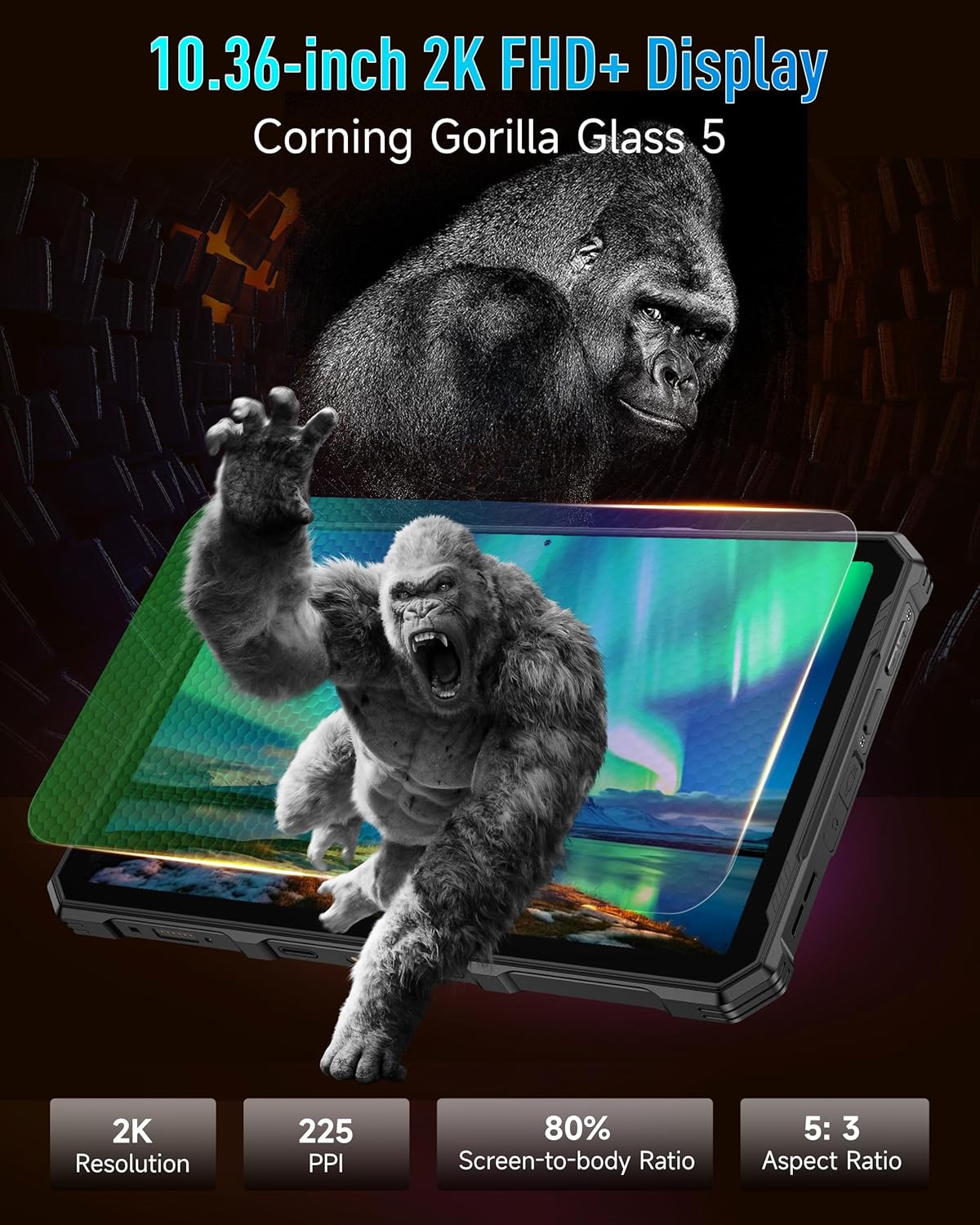
Image: The Ulefone Armor PAD 4 Ultra tablet illuminating a camping tent with its powerful LED light.
3.4 Custom Key Functionality
The tablet includes a customizable physical key. This key can be configured for single click, double click, or long press actions to quickly access specific functions or applications, such as activating the LED light or launching the camera.
3.5 Gloves Mode
For use in cold weather or industrial environments, activate Gloves Mode in Settings > Smart Assistant > Gloves Mode. This enhances touch sensitivity, allowing the screen to respond to gloved hands.
3.6 Face Unlock and Fingerprint ID
Enhance security and convenience by setting up Face Unlock or Fingerprint ID. Go to Settings > Security & privacy > Device unlock to configure these options.
3.7 Multi-use Digital Toolbox
The tablet comes with a suite of pre-installed tools in the Digital Toolbox, including a compass, sound meter, protractor, and more. These tools are designed to assist in various outdoor and professional tasks.

Image: A construction worker utilizing the Ulefone Armor PAD 4 Ultra tablet's digital toolbox for various measurements and utilities.
3.8 Headset-free FM Radio
Enjoy FM radio without needing to connect headphones. Simply open the FM Radio app and tune into your favorite stations.
3.9 HDMI порты
The tablet features an HDMI port for connecting to external displays, such as monitors or projectors. This allows for screen mirroring or extended display functionality, useful for presentations or media consumption.
4. Техникалық қызмет көрсету
4.1 Құрылғыны тазалау
Due to its rugged design, the Armor PAD 4 Ultra can be cleaned with water and mild soap. Ensure all port covers are securely closed before exposing the device to water. Wipe with a soft, lint-free cloth. Avoid using harsh chemicals or abrasive materials.
4.2 Батареяға күтім жасау
Батареяның қызмет ету мерзімін ұзарту үшін:
- Төтенше температурадан аулақ болыңыз.
- Оңтайлы зарядтау үшін түпнұсқа зарядтағыш пен кабельді пайдаланыңыз.
- Батареяны жиі толық зарядсыздандырмаңыз.
- Егер құрылғыны ұзақ уақыт сақтасаңыз, оны шамамен 50%-ға дейін зарядтап, өшіріңіз.
4.3 Бағдарламалық құралды жаңарту
Оңтайлы өнімділікті, қауіпсіздікті және жаңа мүмкіндіктерге қол жеткізуді қамтамасыз ету үшін бағдарламалық құрал жаңартуларын жүйелі түрде тексеріп, орнатыңыз. өтіңіз Параметрлер > Жүйе > Жүйені жаңарту.
4.4 Кескіндік мүмкіндіктері
The tablet is IP68/IP69K and MIL-STD-810H certified, meaning it is resistant to water, dust, and drops. While designed to be durable, avoid intentionally subjecting it to extreme conditions beyond its specifications. Ensure all port covers are sealed to maintain water and dust resistance.

Image: The Ulefone Armor PAD 4 Ultra tablet submerged in water, covered in dust, and dropped, demonstrating its IP68/IP69K and MIL-STD-810H certifications.
5. Ақаулықтарды жою
5.1 Құрылғы қосылмаған
- Ensure the battery is charged. Connect the tablet to its charger and wait a few minutes before attempting to power it on.
- Мәжбүрлеп қайта қосуды орындау үшін Қуат түймесін кем дегенде 10-15 секунд басып тұрыңыз.
5.2 Желіге қосылу мәселелері
- Сымсыз дәлдiк: Check if Wi-Fi is enabled in Settings. Restart your router. Forget the network and reconnect.
- Мобильді деректер: Ensure your SIM card is correctly inserted and activated. Check your data plan status with your carrier. Restart the tablet.
5.3 Экран жауап бермейді
- Restart the device by holding the Power button.
- If the screen is frozen, perform a forced restart.
5.4 Қолданбалар бұзылып жатыр немесе қатып жатыр
- Проблемалық қолданбаның кэші мен деректерін тазалаңыз (Параметрлер > Қолданбалар > [Қолданба аты] > Сақтау және кэш).
- Қолданбаны жойып, қайта орнатыңыз.
- Планшетіңіздің бағдарламалық құралының жаңартылғанына көз жеткізіңіз.
5.5 Зауыттық параметрлерді қалпына келтіру
If issues persist, a factory reset may be necessary. This will erase all data on your tablet, so back up important information first. Go to Параметрлер > Жүйе > Параметрлерді қалпына келтіру > Барлық деректерді өшіру (зауыттық параметрлерді қалпына келтіру).
6. Техникалық сипаттамалар
| Ерекшелік | Мәлімет |
|---|---|
| Бренд | Ulefone |
| Үлгі нөмірі | Ulefone Armor Pad 4 Ultra |
| Экран өлшемі | 10.36 дюйм |
| Native Resolution | 2000x1200 pixels (2K FHD+) |
| Аспект қатынасы | 5:3 |
| Процессор | MediaTek Dimensity 6300 (2400 MHz) |
| Жедел Жадтау Құрылғысы | Up to 16GB (8GB physical + 8GB virtual) |
| Ішкі жад | 256GB (2TB Expandable) |
| Операциялық жүйе | Android 14 |
| Артқы камера | 50 МП |
| Алдыңғы камера | 32 МП |
| Батарея сыйымдылығы | 11800 мАч |
| Зарядталуда | 33 Вт жылдам зарядтау |
| Қаттылық | IP68/IP69K, MIL-STD-810H Certified |
| Қосылу мүмкіндігі | 5G LTE, Wi-Fi (2.4G/5G), Bluetooth 5.2, NFC, GPS |
| Арнайы мүмкіндіктер | 1100 Lumens LED Light, Custom Key, Gloves Mode, HDMI Port, Multi-use Digital Toolbox |
| Элемент салмағы | 16 унция |
7. Кепілдік және қолдау
7.1 Кепілдік туралы ақпарат
The Ulefone Armor PAD 4 Ultra comes with a 2 жылдық жаһандық кепілдік. This warranty covers manufacturing defects and malfunctions under normal use. Please retain your proof of purchase for warranty claims. The warranty does not cover damage caused by misuse, accidents, unauthorized repairs, or normal wear and tear.
7.2 Тұтынушыларды қолдау қызметі
For technical assistance, warranty claims, or any other inquiries, please contact Ulefone customer support. Refer to the official Ulefone webең жаңа байланыс ақпаратын алу үшін сайт немесе сатып алу құжаттамасы.
Your satisfaction is a priority. Should you encounter any technical issues, the dedicated support team is available to assist you.