
Кіріспе
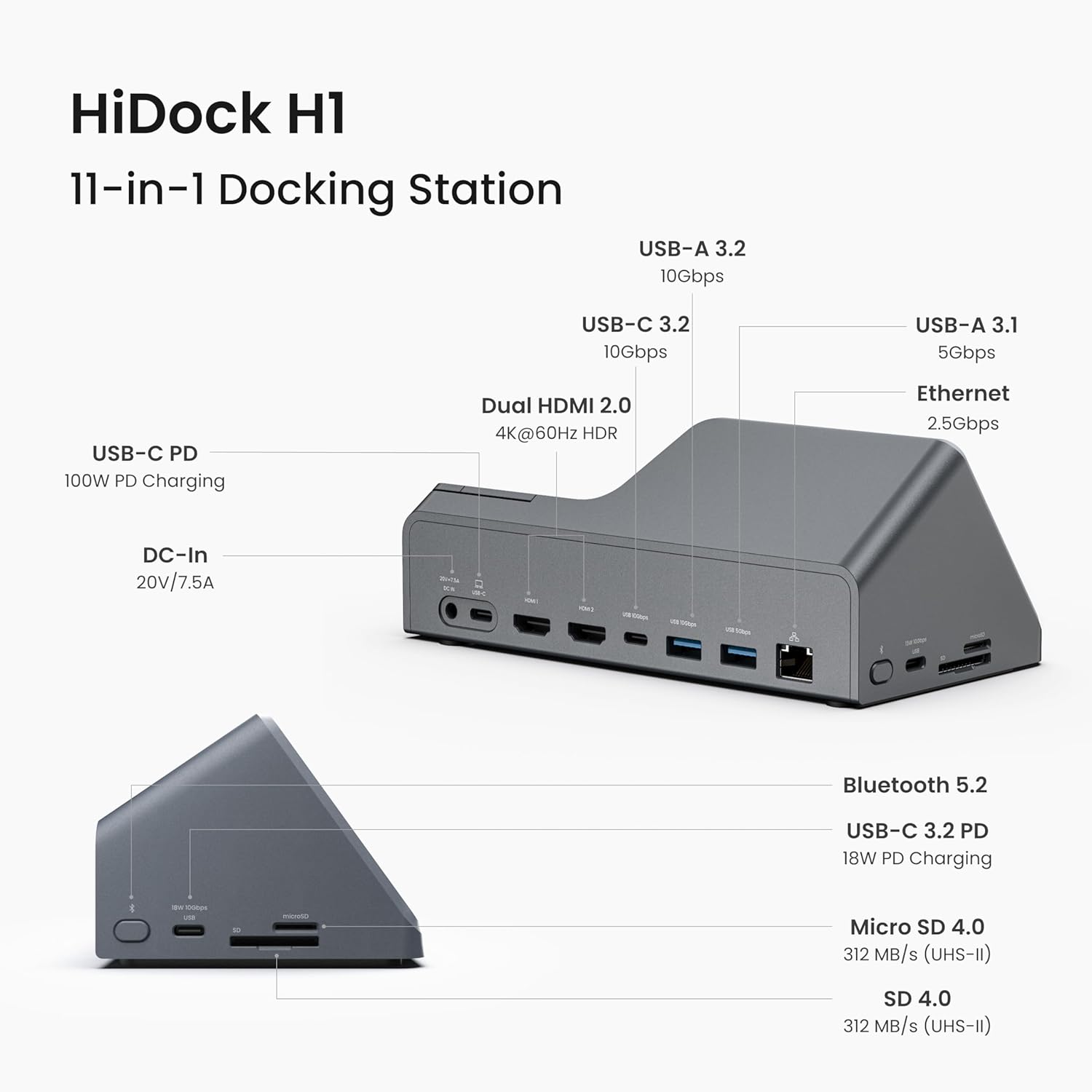
The HiDock H1 is a versatile 11-in-1 USB-C docking station integrated with an AI-powered voice recorder. This device is designed to expand your laptop's connectivity and enhance productivity through intelligent audio capture, transcription, and summarization capabilities. It supports high-resolution dual displays, fast data transfer, and efficient power delivery for various devices.
Өнім аяқталдыview
The HiDock H1 combines essential docking station functionalities with advanced AI audio features, making it a comprehensive tool for professionals and students.
Негізгі ерекшеліктері:
- 11-ы 1 қосылу мүмкіндігі: Features 2 HDMI ports (4K@60Hz), 1 DC-In port (20V/7.5A), 1 Ethernet port (2.5Gbps), 3 USB-C 3.2 ports, 2 USB-A ports, and SD/MicroSD 4.0 card slots.
- AI Voice Recorder: One-click recording, automatic transcription, and smart summaries in 75 languages with over 20 built-in templates. Supports up to 1,000 hours of continuous recording.
- Fast 118W Charging: Includes a 100W USB-C PD port for laptops and an 18W USB-C 3.2 port for smartphones.
- Қос HDMI дисплейі: Supports 4K@60Hz display output. Note: macOS supports only Single-Stream Transport (SST) mode, mirroring content across displays.
- Жоғары жылдамдықты деректерді тасымалдау: Up to 10Gbps via USB-C 3.2 ports and 312MB/s for SD/MicroSD 4.0 card readers.
- Интуитивті басқару тақтасы: Dedicated buttons for answering/ending calls, muting, recording, and a slider for bidirectional noise cancellation.
- Included Open-Ear Earphone: A lightweight earphone for private, hands-free communication during calls.

Орнату
1. Қуатқа қосылу
- Connect one end of the AC power cord to the power supply.
- Connect the other end of the AC power cord to an electrical outlet.
- Connect the power supply to the DC-In port (20V/7.5A) on the HiDock H1.
2. Компьютерге қосылу
- Connect one end of the USB-C cable to the USB-C upstream port on the HiDock H1.
- Connect the other end of the USB-C cable to a compatible USB-C port on your laptop.
- In your laptop's audio settings, select "HiDock H1" as the sound input and output device.
- For video conference software (Zoom, Microsoft Teams, etc.), configure HiDock H1 as both the microphone and speaker.
3. Перифериялық құрылғыларды қосу
Utilize the available ports on the HiDock H1 to connect your external devices:
- HDMI порттары: Connect up to two external monitors for dual display.
- USB порттары: Connect USB-A and USB-C devices for data transfer or charging.
- Ethernet порты: Connect an Ethernet cable for a stable wired network connection.
- SD/MicroSD Card Slots: Insert memory cards for data access.
Жұмыс істеп тұр
1. Using the AI Voice Recorder
The HiDock H1 features an integrated AI voice recorder for capturing and processing audio from meetings, calls, and other sources.
- Бір рет басу арқылы жазу: Press and hold the dedicated function button on the device to start recording.
- Automatic Transcription & Summarization: Recorded audio is automatically transcribed and summarized using the HiNotes App, powered by ChatGPT-4.1 and Claude 3.5 Sonnet.
- Тілдік қолдау: Supports transcription and summarization in 75 languages.
- Үлгілер: Utilize over 20 built-in templates for structured summaries (e.g., General Meeting, Weekly Team Meeting, Business Call).
- Speaker Identification: The HiNotes App can identify multiple speakers in a transcription.
- Recording Notification: The HiNotes App features an optional "recording notification" that alerts all parties with a "start recording" tone.

2. Using the Open-Ear Earphone
The included open-ear earphone provides private audio for calls and meetings.
- Қосу/ажырату: The earphone is magnetically attached to the docking station. Simply pull to detach and place back to re-attach.
- Сенсорлық басқару элементтері: Double-tap the touch sensor on the earphone to answer/end calls.
- Функция түймесі: Hold the function button on the earphone to start recording.
- Аудио ауыстыру: If audio is playing from both the speaker and earphone, double-press the earphone's touch sensor to force audio to the earphone only.
3. Adjusting Volume and Mute
- Дыбыс деңгейін басқару: Rotate the volume knob on the control panel to adjust audio output.
- Микрофон дыбысын өшіру: Press the mute button on the control panel to mute or unmute the microphone. An LED ring around the volume knob indicates recording status.
4. Bidirectional Noise Cancellation
The HiDock H1 features a bidirectional noise cancellation slider to reduce background noise for both your outgoing and incoming audio.
- Adjusting Noise Cancellation: Move the BNC slider on the control panel to adjust the level of noise reduction. This helps to focus on voices by eliminating ambient sounds.

Техникалық қызмет көрсету
To ensure optimal performance and longevity of your HiDock H1, follow these maintenance guidelines:
- Тазалау: Use a soft, dry cloth to clean the exterior of the device. Avoid liquid cleaners or abrasive materials.
- Сақтау орны: Құрылғыны салқын, құрғақ жерде, тікелей күн сәулесінен және төтенше температурадан алыс жерде сақтаңыз.
- Кабельдерді басқару: Зақымдану үшін кабельдердің шамадан тыс майыспағанын немесе шатаспағанын тексеріңіз.
- Бағдарламалық құрал жаңартулары: Regularly check for and install firmware updates for the HiDock H1 and the HiNotes App to ensure compatibility and access to new features.
Ақаулықтарды жою
Жалпы мәселелер мен шешімдер:
- Дисплей шығысы жоқ: Ensure your laptop supports DP Alt Mode and Power Delivery. Check all HDMI cable connections. For macOS, external monitors will mirror content.
- No Audio/Microphone Detected: Verify that "HiDock H1" is selected as the input/output device in your computer's sound settings and video conference application settings.
- Earphone Audio Issues: If audio plays from both the main speaker and the earphone, double-press the earphone's touch sensor to switch audio exclusively to the earphone.
- Recording Not Starting: Ensure the device is properly connected and powered. Press and hold the function button on the device or earphone to initiate recording.
- Үйлесімділік мәселелері: The HiDock H1 is compatible with MacBook (macOS 11+), Windows 10/11, and ChromeOS. It is not compatible with Linux. USB-C to USB-A connection for desktops does not support display output.
- Background Noise Persists: Adjust the BNC slider on the control panel to increase noise cancellation.
Техникалық сипаттамалар
| Ерекшелік | Техникалық сипаттама |
|---|---|
| Өнім өлшемдері | 7 x 3 x 4 дюйм (17.78 x 7.62 x 10.16 см) |
| Элемент салмағы | 1.15 фунт (520 грамм) |
| Үлгі нөмірі | HiDock H1 |
| Қосылу мүмкіндігі | USB-C, USB4, TB4, Bluetooth 5.2, Ethernet, HDMI, MicroSD |
| Порттар | 2x HDMI (4K@60Hz), 1x DC-In (20V/7.5A), 1x Ethernet (2.5Gbps), 3x USB-C 3.2, 2x USB-A, SD/MicroSD 4.0 |
| Қуатты жеткізу | 100W (USB-C PD), 18W (USB-C 3.2) |
| Деректерді тасымалдау жылдамдығы | 10Gbps (USB-C 3.2), 312MB/s (SD/MicroSD 4.0) |
| AI дауыс жазу құрылғысы | Up to 1,000 hours continuous recording, 75 languages, 20+ templates, ChatGPT-4.1 & Claude 3.5 Sonnet integration |
| Үйлесімділік | MacBook (macOS 11+), Windows 10/11, ChromeOS (with DP Alt Mode & Power Delivery). Not compatible with Linux. |
| Included Earphone | Lightweight, open-ear, suited for voice communication. |
Кепілдік және қолдау
The HiDock H1 comes with standard manufacturer support. For specific warranty details, please refer to the product packaging or contact HiDock customer service.
- Қосылған құлаққап: The complimentary open-ear earphone is not covered under warranty.
- Құпиялылық саясаты: HiDock adheres to GDPR compliance. No customer data is used to train AI models. Partnerships with OpenAI and Anthropic include robust data security measures.
- HiNotes App: Enjoy lifetime free transcription services with the HiNotes App upon purchase of the HiDock hardware device.


