
Кіріспе
The Maxcom FW59 Kiddo is a 4G smartwatch specifically designed for children, offering a blend of safety features and communication capabilities. It allows parents to stay connected with their children and monitor their location, providing peace of mind. Key features include video and voice calls, GPS tracking with safe zone definition, an SOS button for emergencies, and a user-friendly interface.
This manual provides detailed instructions on how to set up, operate, and maintain your Maxcom FW59 Kiddo smartwatch to ensure optimal performance and safety.
Пакет мазмұны
Келесі элементтер үшін құсбелгіні қойыңыз:
- Maxcom FW59 Kiddo Smartwatch
- USB зарядтау кабелі
- Пайдаланушы нұсқаулығы (бұл құжат)
- SIM Card Ejector Tool (if applicable)
Орнату нұсқаулығы
1. SIM картасын орнату
The Maxcom FW59 Kiddo requires a nano SIM card for 4G connectivity, enabling calls and GPS tracking. Ensure the SIM card is active and supports 4G LTE networks.
- Locate the SIM card slot on the side of the smartwatch.
- Using the provided SIM ejector tool or a small pin, gently press into the small hole next to the SIM slot to open the tray.
- Carefully place the nano SIM card into the tray with the gold contacts facing down, ensuring it is correctly oriented.
- Gently push the SIM tray back into the slot until it clicks into place.
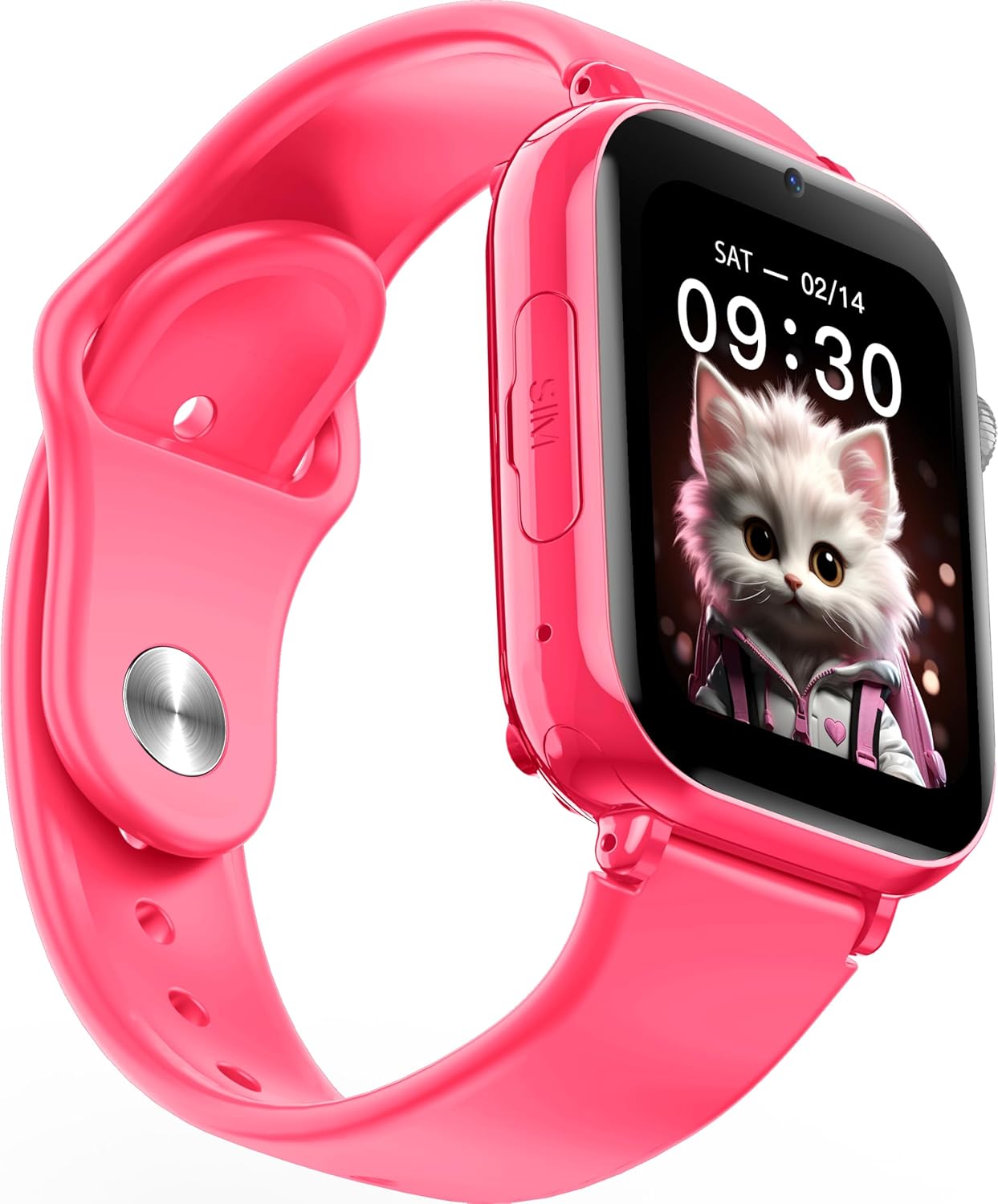
Сурет: бұрыштық view of the Maxcom FW59 Kiddo smartwatch, highlighting the location of the SIM card slot on the side.
2. Смарт сағатты зарядтау
Before first use, fully charge the smartwatch. The device is equipped with a 670 mAh Lithium Ion battery.
- Connect the USB charging cable to the charging port on the smartwatch.
- USB кабелінің екінші ұшын үйлесімді USB қуат адаптеріне (жинаққа кірмейді) немесе компьютердің USB портына жалғаңыз.
- The screen will indicate charging status. A full charge typically takes approximately 2-3 hours.
3. Қолданбаны орнату және жұптастыру
To utilize all features, parents must install the "MAXCOM TRACKER" mobile application on their smartphone and pair it with the smartwatch.
- Download the "MAXCOM TRACKER" app from your smartphone's app store (Google Play Store for Android or Apple App Store for iOS).
- Қолданбаны ашып, тіркелгі жасаңыз немесе бұрыннан бар болса, жүйеге кіріңіз.
- Follow the in-app instructions to add a new device. This usually involves scanning a QR code displayed on the smartwatch screen or manually entering the device ID.
- Once paired, you can configure settings, add contacts, define safe zones, and track the smartwatch's location from the app.
Смарт сағатты пайдалану
Негізгі навигация
The Maxcom FW59 Kiddo features a 1.85" IPS touchscreen display for easy interaction. Swipe left/right or up/down to navigate through menus and applications. Press the side button to return to the home screen or wake the device.

Сурет: алдыңғы view of the Maxcom FW59 Kiddo smartwatch displaying the time and a cute cat wallpaper.
Video and Voice Calls
With a nano SIM card inserted, the smartwatch supports both video and voice calls to pre-approved contacts.
- Қоңырау шалу: Navigate to the "Contacts" or "Phone" application, select the desired contact, and choose to initiate a voice or video call.
- Қоңырауды қабылдау: When a call comes in, the smartwatch will ring and display the caller ID. Tap the green icon to answer or the red icon to decline.
SOS функциясы
The dedicated SOS button provides an immediate way for the child to alert pre-set emergency contacts.
- SOS белсендіру: Press and hold the SOS button (usually a prominent side button) for a few seconds.
- The smartwatch will automatically call the emergency contacts in a pre-defined sequence until one answers. It will also send an alert with the child's current location to the parent's app.
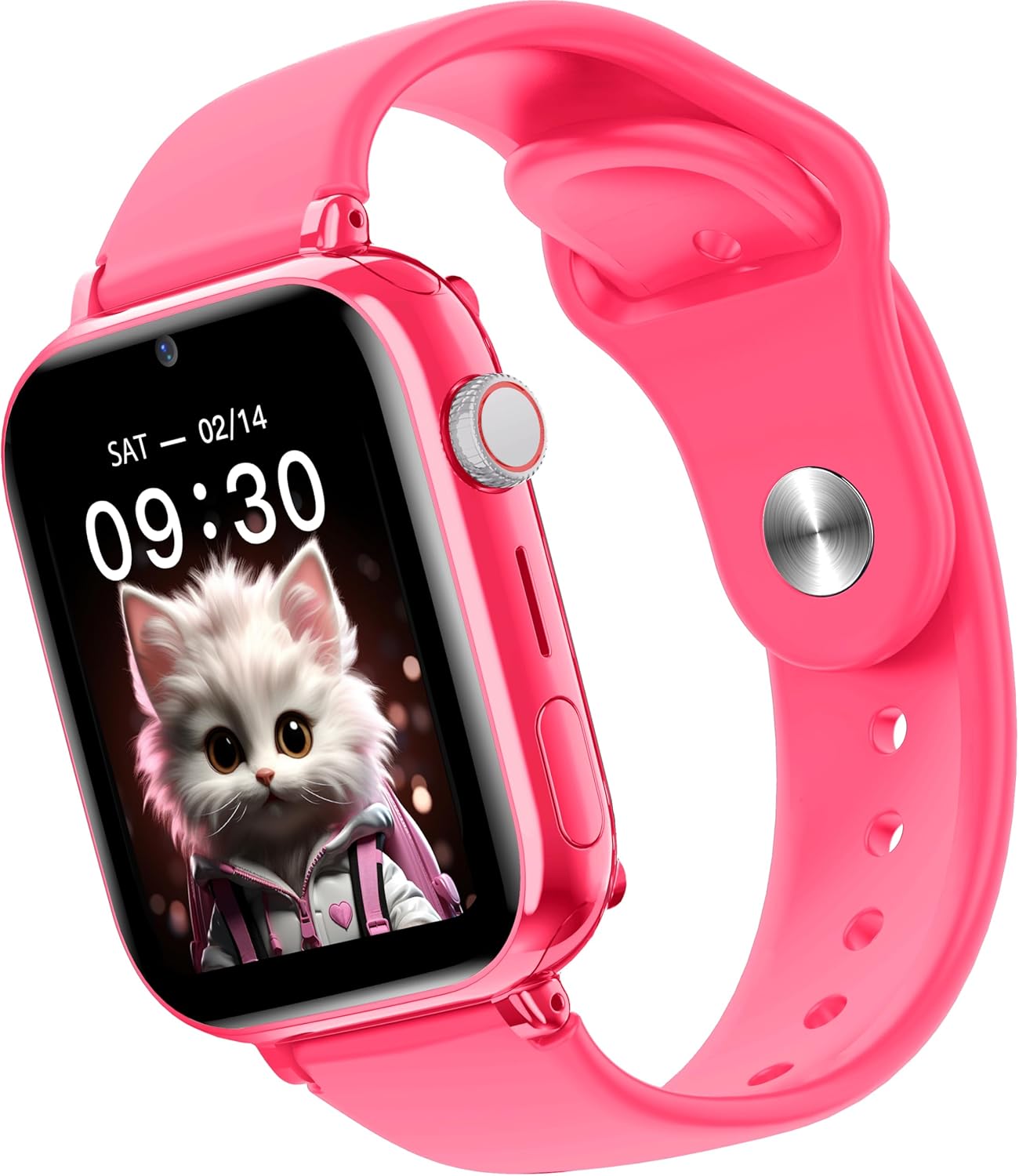
Сурет: жағы view of the Maxcom FW59 Kiddo smartwatch, illustrating the physical buttons, including the SOS button.
GPS Tracking and Safe Zones
Parents can monitor the child's location in real-time via the MAXCOM TRACKER app.
- Нақты уақыттағы бақылау: Open the MAXCOM TRACKER app on your smartphone to view the smartwatch's current location on a map.
- Қауіпсіз аймақтар: In the app, you can define virtual geographic boundaries (e.g., home, school). You will receive notifications when the smartwatch enters or exits these designated safe zones.
- Маршрут тарихы: The app also allows you to review the historical movement data of the smartwatch.
Камера функциясы
The smartwatch includes a built-in camera. Children can take photos directly from the watch, and parents can remotely activate the camera from the MAXCOM TRACKER app to capture images of the surroundings.
Phone Book Management
Contacts can only be added and managed through the MAXCOM TRACKER app by the parent. This ensures that the child can only communicate with pre-approved numbers.
Техникалық қызмет көрсету
Тазалау
To keep your smartwatch clean and in good condition:
- Экранды және корпусты жұмсақ, талшықсыз шүберекпен сүртіңіз.
- Қыңыр белгілер үшін аздап dampшүберекке су құйыңыз. Қатты химиялық заттарды немесе абразивті материалдарды пайдаланбаңыз.
- Ensure the charging port and SIM slot are free of dust and debris.
Батареяға күтім жасау
Proper battery care extends the life of your device:
- Төтенше температурадан аулақ болыңыз, себебі олар батареяның жұмысын нашарлатуы мүмкін.
- Құрылғыны үнемі зарядтаңыз, бірақ оны ұзақ уақыт бойы толық зарядсыз қалдырмаңыз.
- Тек берілген зарядтау кабелін пайдаланыңыз.
Ақаулықтарды жою
If you encounter issues with your Maxcom FW59 Kiddo, refer to the following common solutions:
- Смарт сағат қосылмайды: Батарея зарядталғанына көз жеткізіңіз. Зарядтағышқа қосылып, қосу әрекетінен бұрын бірнеше минут күтіңіз.
- No network signal/cannot make calls:
- Check if the nano SIM card is correctly inserted and active.
- Verify that the SIM card has sufficient credit or an active data plan.
- 4G желісі қамтылған аймақта екеніңізге көз жеткізіңіз.
- GPS location inaccurate:
- Ensure the smartwatch has a clear view оңтайлы GPS сигналын қабылдау үшін аспан.
- Location accuracy can be affected by dense buildings, underground areas, or poor network signal.
- Check the MAXCOM TRACKER app settings to ensure location services are enabled for the smartwatch.
- Қолданбамен жұптастыру мүмкін емес:
- Ensure the smartwatch is powered on and has a network connection.
- Verify that the QR code or device ID is entered correctly in the app.
- Ақылды сағатты да, смартфоныңызды да қайта іске қосып көріңіз.
- Батареяның қысқа қызмет ету мерзімі:
- Frequent video calls, high screen brightness, and continuous GPS tracking can consume more battery.
- Adjust settings in the app to optimize battery usage (e.g., location update frequency).
If the issue persists, please contact Maxcom customer support for further assistance.
Техникалық сипаттамалар
| Ерекшелік | Мәлімет |
|---|---|
| Бренд | Maxcom |
| Модель атауы | FW59 Kiddo |
| Экран өлшемі | 1.85 дюйм |
| Дисплей түрі | IPS (240 x 280 resolution) |
| Операциялық жүйе | Closed OS |
| Жад сақтау сыйымдылығы | 2 МБ |
| Батарея сыйымдылығы | 670 мАч (литий-ион) |
| Ұялы технология | 4G |
| Қосылу технологиясы | Bluetooth, Radio Frequency |
| Арнайы мүмкіндіктер | Kids Tracking, SOS Button, Video/Voice Calls |
| Элемент салмағы | 300 г |
Кепілдік және қолдау
For information regarding warranty coverage and terms for your Maxcom FW59 Kiddo smartwatch, please refer to the warranty card included with your purchase or visit the official Maxcom website. For technical support, troubleshooting beyond this manual, or service inquiries, please contact Maxcom customer support through their official channels.