
1. Кіріспе
This manual provides detailed instructions for the setup, operation, and maintenance of your TELLUR Shade Wireless Mouse (Model 491261). This mouse features multi-device connectivity, silent click buttons, RGB lighting, and adjustable DPI settings for enhanced productivity and comfort across various operating systems.
2. Пакет мазмұны
Пакетте барлық элементтердің бар екенін тексеріңіз:
- 1 x TELLUR Shade Wireless Mouse
- 1 x Nano receiver (USB-A)
- 1 x Type-C зарядтау кабелі
- 1 x Пайдаланушы нұсқаулығы (осы құжат)

Image: The TELLUR Shade Wireless Mouse, accompanied by its USB Nano receiver and Type-C charging cable, illustrating the complete package contents.
3. Өнім аяқталдыview
Familiarize yourself with the components of your TELLUR Shade Wireless Mouse:

Сурет: жоғарыдан төменге view of the TELLUR Shade Wireless Mouse, highlighting the left and right silent click buttons, the main scroll wheel, DPI adjustment button, and the multi-device switch button.
- Сол жақ түймені басу: Дыбыссыз операция.
- Тінтуірдің оң жақ түймешігі: Дыбыссыз операция.
- Scroll Wheel (Main): Тік айналдыру үшін.
- DPI реттеу түймесі: Cycles through DPI settings (800/1200/1600/2400/3200).
- Multi-Device Switch Button: Toggles between connected devices (1, 2, 3, 4).
- Алға жіберу түймесі: Алға қарай жылжиды web браузерлер немесе file зерттеушілер.
- Кері түймесі: Артқа ішке қарай жылжиды web браузерлер немесе file зерттеушілер.
- Horizontal Scroll Wheel: For horizontal scrolling.
- Windows Home Button: Minimizes all windows to show the desktop; pressing again restores them.
- USB-C зарядтау порты: Located on the front for recharging the internal battery.
- Қуат қосқышы: On/Off switch on the bottom of the mouse.
- Nano Receiver Storage: Compartment on the bottom for storing the USB receiver.
4. Орнату
4.1. Тінтуірді зарядтау
Before initial use, ensure the mouse is fully charged. Connect the provided Type-C charging cable to the USB-C port on the front of the mouse and the other end to a USB power source (e.g., computer USB port, USB wall adapter).

Сурет: жағы view of the TELLUR Shade Wireless Mouse, clearly showing the USB-C charging port located at the front for convenient recharging.
The RGB lighting may indicate charging status. A full charge typically provides approximately 20 days of average use.
4.2. Құрылғыға қосылу
The TELLUR Shade Wireless Mouse supports up to 4 devices simultaneously via Bluetooth and a 2.4GHz USB Nano receiver. Turn on the mouse using the power switch on the bottom.
4.2.1. 2.4GHz Wireless Connection (USB Nano Receiver)
- Locate the USB Nano receiver stored in the compartment on the bottom of the mouse.
- Plug the Nano receiver into an available USB-A port on your computer.
- Press the Multi-Device Switch Button on the mouse to select one of the 2.4GHz channels (usually indicated by a specific LED color or number).
- The mouse should automatically connect. If not, ensure the mouse is powered on and try replugging the receiver.
4.2.2. Bluetooth қосылымы (BT1, BT2, BT3)
- Press the Multi-Device Switch Button to select one of the Bluetooth channels (BT1, BT2, or BT3). The corresponding indicator light will flash.
- Press and hold the Multi-Device Switch Button for 3-5 seconds until the indicator light flashes rapidly. This puts the mouse into pairing mode.
- Құрылғыда (компьютер, планшет, смартфон) Bluetooth параметрлеріне өтіп, жаңа құрылғыларды іздеңіз.
- Select "TELLUR Shade Mouse" or a similar name from the list of available devices.
- Once paired, the indicator light on the mouse will stop flashing and remain solid for a few seconds before turning off.
Repeat these steps for additional Bluetooth devices on BT2 and BT3 channels.
5. Пайдалану нұсқаулары
5.1. Құрылғылар арасында ауысу
To switch between connected devices, simply press the Multi-Device Switch Button. The mouse will cycle through the 2.4GHz channel and the three Bluetooth channels (BT1, BT2, BT3).
5.2. Adjusting DPI Sensitivity
Press the DPI Adjustment Button to cycle through the available DPI settings: 800, 1200, 1600, 2400, and 3200 DPI. Each press will change the cursor speed, allowing you to find your preferred sensitivity.
5.3. RGB жарықтандыруды басқару
The mouse features customizable RGB lighting. To change the RGB lighting mode or turn it off, simultaneously press the Forward and Backward buttons located on the side of the mouse. Continue pressing to cycle through different lighting effects or to disable the lighting.

Сурет: жақыннан view of the TELLUR Shade Wireless Mouse, highlighting the side buttons (Forward and Backward) and the integrated RGB lighting strip.
5.4. Using the Windows Home Button
The dedicated Windows Home Button (often located near the thumb rest) allows for quick desktop access. Pressing this button will minimize all open windows, revealing your desktop. Pressing it again will restore the previously open windows.
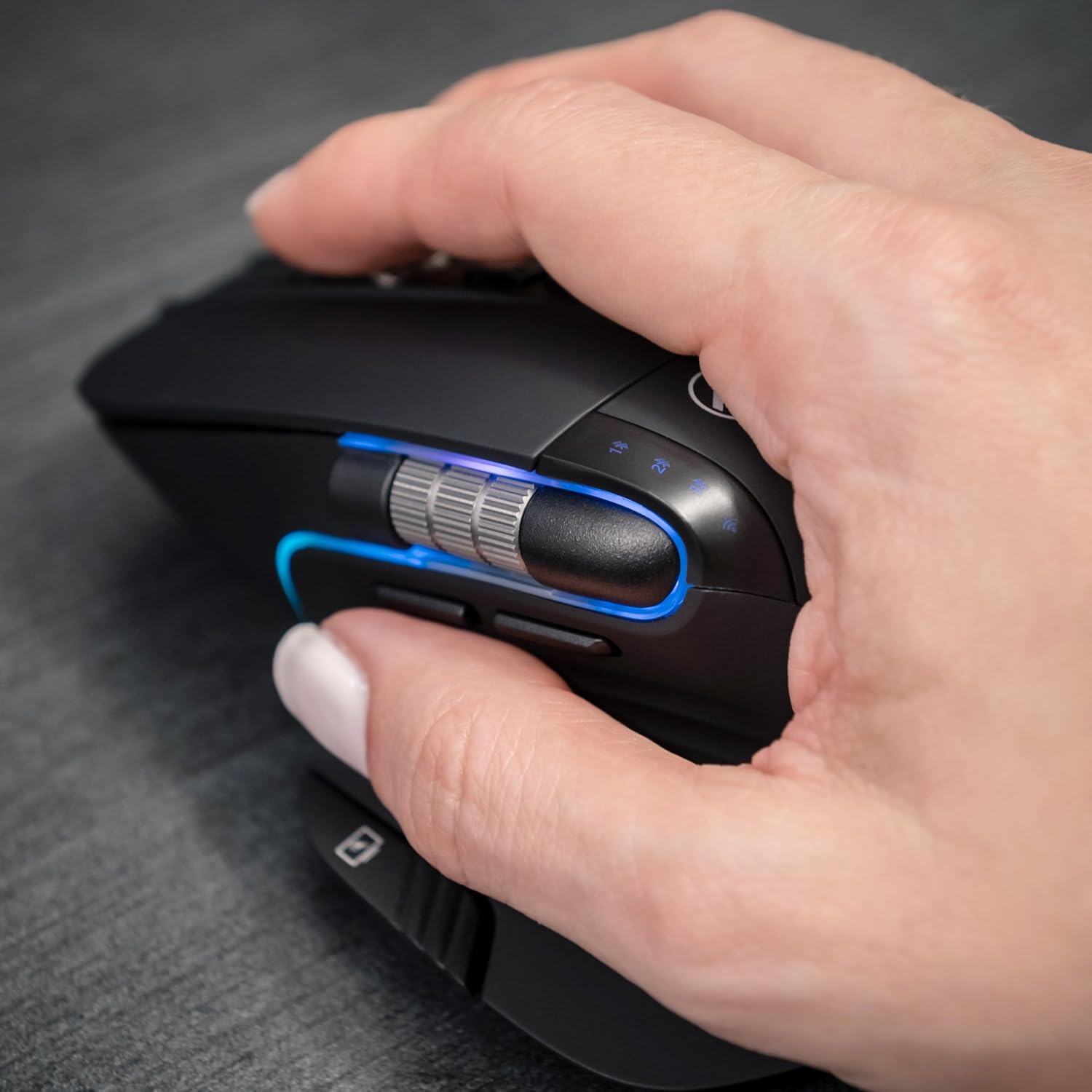
Image: A hand operating the TELLUR Shade Wireless Mouse, demonstrating the ergonomic grip and the placement of the Windows Home button accessible by the thumb.
6. Техникалық қызмет көрсету
- Тазалау: Тінтуірді тазалау үшін жұмсақ, құрғақ шүберекті пайдаланыңыз. Қатты кірлер үшін аздап damp шүберекті пайдалануға болады, бірақ құрылғыға ылғал енбегеніне көз жеткізіңіз.
- Сақтау орны: Ұзақ уақыт бойы пайдаланбаған кезде, батареяның қызмет ету мерзімін үнемдеу үшін тінтуірді өшіріңіз. Оны салқын, құрғақ жерде сақтаңыз.
- Батареяға күтім жасау: Avoid fully discharging the battery frequently. Recharge when the battery indicator is low.
- Төтенше жағдайлардан аулақ болыңыз: Тінтуірді шамадан тыс температураға, тікелей күн сәулесіне немесе жоғары ылғалдылыққа ұшыратпаңыз.
7. Ақаулықтарды жою
7.1. Тінтуір жауап бермейді
- Тінтуірдің қосулы екеніне көз жеткізіңіз.
- Батарея деңгейін тексеріңіз және қажет болса, тінтуірді зарядтаңыз.
- Verify that the correct connection channel (2.4GHz, BT1, BT2, or BT3) is selected using the Multi-Device Switch Button.
- For 2.4GHz connection, ensure the Nano receiver is securely plugged into a working USB port. Try a different USB port.
- For Bluetooth connection, ensure Bluetooth is enabled on your device and try re-pairing the mouse.
- Компьютерді немесе құрылғыны қайта іске қосыңыз.
7.2. Үзіліссіз қосылым
- Ensure the mouse is within the effective range (up to 10 meters).
- Басқа сымсыз құрылғылардан (мысалы, Wi-Fi маршрутизаторлары, басқа Bluetooth құрылғылары) кедергілерді азайтыңыз.
- Сымсыз сигналдарға кедергі келтіруі мүмкін металл беттерде тінтуірді пайдаланбаңыз.
7.3. Cursor Movement Issues
- Тінтуірдің төменгі жағындағы оптикалық сенсорды тазалаңыз.
- Тінтуірді таза, шағылыспайтын бетке немесе тінтуір жастықшасына пайдаланыңыз.
- Adjust the DPI setting using the DPI Adjustment Button.
7.4. RGB жарықтандыру жұмыс істемейді
- Тінтуірдің қосулы екеніне көз жеткізіңіз.
- Press the Forward and Backward buttons simultaneously to cycle through lighting modes or to turn it on if it was previously off.
- Check battery level; low battery might disable RGB lighting to conserve power.
8. Техникалық сипаттамалар
| Бренд | ТЕЛЛУР |
| Модель атауы | TL491261 |
| Үлгі нөмірі | 491261 |
| Қосылу технологиясы | Bluetooth, 2.4GHz Wireless (via Nano receiver) |
| Қозғалысты анықтау | Оптикалық |
| DPI сезімталдығы | 800/1200/1600/2400/3200 DPI |
| Түймелердің саны | 8 (including silent click, DPI, multi-device switch, forward/backward, horizontal scroll, Windows Home) |
| Қолды бағдарлау | Екі жақты |
| Арнайы мүмкіндіктер | Silent Click, RGB Light, Multi-device (4 devices), Lightweight, Portable |
| Үйлесімді құрылғылар | Personal Computer, Laptop, Smartphones, Tablets |
| Операциялық жүйені қолдау | Windows, Mac, iOS, Android, Linux |
| Сымсыз Range | 10 метрге дейін |
| Қуат көзі | Батареямен жұмыс істейді (USB-C арқылы қайта зарядталады) |
| Батареяның орташа қызмет ету мерзімі | Шамамен 20 күн |
| Материал | Пластмасса |
| Элемент салмағы | 0.29 келі |
9. Кепілдік және қолдау
For warranty information and technical support, please refer to the warranty card included with your product or visit the official TELLUR webсайт. Сатып алу түбіртегін кез келген кепілдік талаптары үшін сатып алудың дәлелі ретінде сақтаңыз.
Қолдау көрсету үшін байланыс ақпаратын әдетте өндірушінің веб-сайтынан табуға болады webсайтында немесе өнімнің қаптамасында.