
Кіріспе
This manual provides detailed instructions for the setup, operation, and maintenance of your Prechen 10.1 inch Portable Touchscreen Monitor, Model HD-101. Please read this manual thoroughly before using the device to ensure proper functionality and to prevent damage.
Өнім ерекшеліктері
- Portable Touchscreen: This 10.1-inch monitor is compact and lightweight, designed for portability. The touchscreen functionality allows for intuitive navigation and interaction, enhancing productivity on the go.
- Жоғары ажыратымдылықтағы IPS дисплейі: Features a 1920x1200 resolution with a 16:10 aspect ratio, delivering clear and vibrant visuals. IPS technology provides wide viewing angles and accurate color reproduction, suitable for various applications.
- Әмбебап қосылым: Equipped with HDMI and USB-C ports, offering flexible connection options. It can be easily connected to Windows PCs, laptops, and gaming consoles like Xbox. Note: USB-C is for touch functionality and power.
- Біріктірілген спикерлер: Built-in speakers provide clear and dynamic audio, eliminating the need for external speakers during media consumption, gaming, or virtual meetings.
- VESA бекіткішімен үйлесімді: The monitor supports VESA mounting standards, allowing for attachment to compatible stands or arms for customized workspace setups and comfortable viewбұрыштар.
Орнату
Пакет мазмұны
Барлық элементтер пакетте бар екенін тексеріңіз:
- Prechen 10.1 inch Portable Touchscreen Monitor
- HDMI кабелі
- USB-C - USB-C кабелі
- USB-A to USB-C Cable (for power/touch)
- Қуат адаптері
- Пайдаланушы нұсқаулығы (бұл құжат)
Мониторды қосу
- Қуат қосылымы: Connect the provided power adapter to the DC Power Port on the monitor and plug it into a power outlet. Alternatively, if your device supports power delivery, connect a USB-C to USB-C cable to the USB-C (Power & Touch) port for both power and signal.
- Бейне қосылымы:
- HDMI: Connect one end of the HDMI cable to the HDMI port on the monitor and the other end to the HDMI output of your computer or device.
- USB-C (DisplayPort Alternate Mode): If your device supports DisplayPort Alternate Mode over USB-C, connect a USB-C to USB-C cable to the USB-C (Power & Touch) port on the monitor and your device. This single cable can provide video, power, and touch functionality.
- Түрту функциясы: For touch functionality, ensure the USB-C (Power & Touch) port is connected to your device. If using HDMI for video, you will also need to connect a USB-A to USB-C cable from your device's USB-A port to the monitor's USB-C (Power & Touch) port.
- Аудио шығысы: If you wish to use external headphones or speakers, connect them to the 3.5mm Audio Port on the monitor.
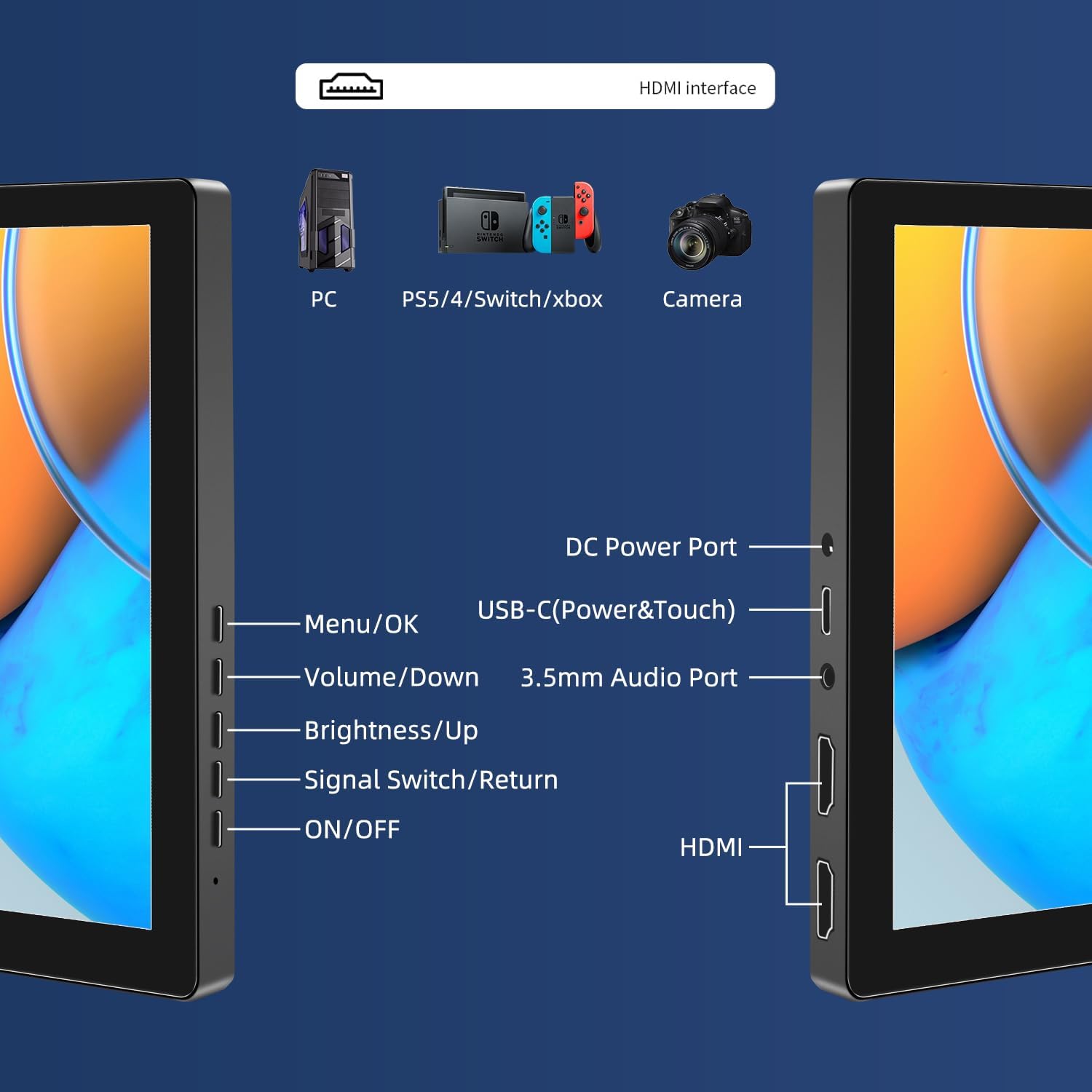
Сурет: аяқталдыview of the monitor's ports including DC Power, USB-C (Power & Touch), 3.5mm Audio, HDMI, and control buttons.
Пайдалану нұсқаулары
Қуатты қосу/өшіру
- To power on the monitor, press the ҚОСУ/ӨШІРУ түймесі.
- Қуатты өшіру үшін түймесін басып тұрыңыз ҚОСУ/ӨШІРУ button for a few seconds until the screen turns off.
Экрандық дисплей мәзірін пайдалану
Экрандық мәзір әртүрлі дисплей параметрлерін реттеуге мүмкіндік береді.
- түймесін басыңыз Мәзір / OK экран мәзірін ашу үшін түймесін басыңыз.
- пайдаланыңыз Дыбыс деңгейі/төмендету және Жарықтық/Жоғары мәзір опциялары бойынша шарлау үшін түймелер.
- түймесін басыңыз Мәзір / OK опцияны таңдау немесе параметрді растау үшін.
- түймесін басыңыз Signal Switch/Return Алдыңғы мәзірге оралу немесе экрандық дисплейден шығу үшін түймесін басыңыз.
Adjusting Display Modes
The monitor supports multiple display modes when connected to a computer:
- Көшірме режимі: Displays the same content on both your primary screen and the portable monitor.
- Кеңейту режимі: Жұмыс үстелін екі экранда да кеңейтіп, көбірек жұмыс кеңістігін қамтамасыз етеді.
- Екінші экран режимі: Uses only the portable monitor as the display.
These modes are typically configured through your operating system's display settings (e.g., Windows Display Settings, macOS System Preferences).
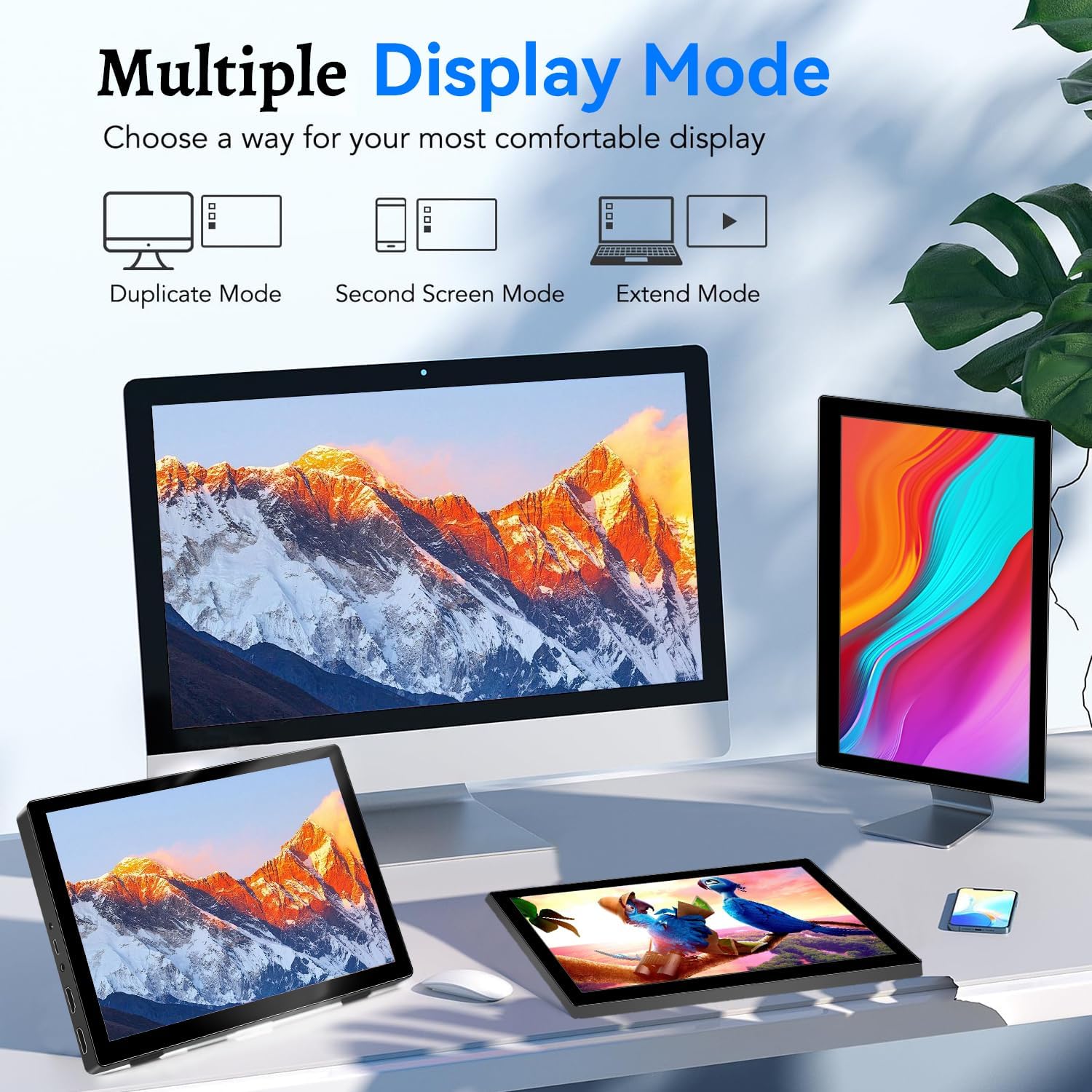
Image: Visual representation of Duplicate, Second Screen, and Extend display modes.
Using Touchscreen Functionality
The monitor supports 10-point touchscreen technology. Ensure the USB-C (Power & Touch) port is correctly connected to your device for touch input to function.

Сурет: Мысamples of 10-point touchscreen gestures for interaction.
Техникалық қызмет көрсету
- Экранды тазалау: Аздап жұмсақ, түксіз матаны пайдаланыңыз dampened with water or a non-abrasive screen cleaner. Do not spray cleaner directly onto the screen.
- C тазалауasing: Мониторды сүртіңіз casing жұмсақ, құрғақ шүберекпен. Күшті жуғыш заттарды немесе еріткіштерді пайдаланбаңыз.
- Сақтау орны: Мониторды пайдаланбаған кезде, оны салқын, құрғақ жерде, тікелей күн сәулесінен және жоғары температурадан алыс сақтаңыз.
- Өңдеу: Мониторды құлатып алмаңыз немесе қатты соққыларға ұшырамаңыз. Монитордың үстіне ауыр заттарды қоймаңыз.
Ақаулықтарды жою
| Мәселе | Ықтимал себебі | Шешім |
|---|---|---|
| Дисплей жоқ/Қара экран |
|
|
| Сенсорлық экран жауап бермейді |
|
|
| Динамиктерден дыбыс жоқ |
|
|
| Image quality issues (blurry, distorted) |
|
|
Техникалық сипаттамалар
| Ерекшелік | Мәлімет |
|---|---|
| Бренд | Пречен |
| Үлгі нөмірі | HD-101 |
| Экран өлшемі | 10.1 дюйм |
| Ажыратымдылық | 1920 x 1200 (UXGA Wide) |
| Аспект қатынасы | 16:10 |
| Панель түрі | IPS |
| Жаңарту жылдамдығы | 60 Гц |
| Жауап беру уақыты | 1 мс |
| Қосылу мүмкіндігі | 1x HDMI, 1x USB-C (Power & Touch), 1x 3.5mm Audio Jack, 1x DC Power Port |
| Өлшемдері (L x W x H) | 21.8 x 15.8 x 1.4 см |
| Салмағы | 990 грамм |
| Өндіруші | Шэньчжэнь Кенова Электроника компаниясы, ЖШС |
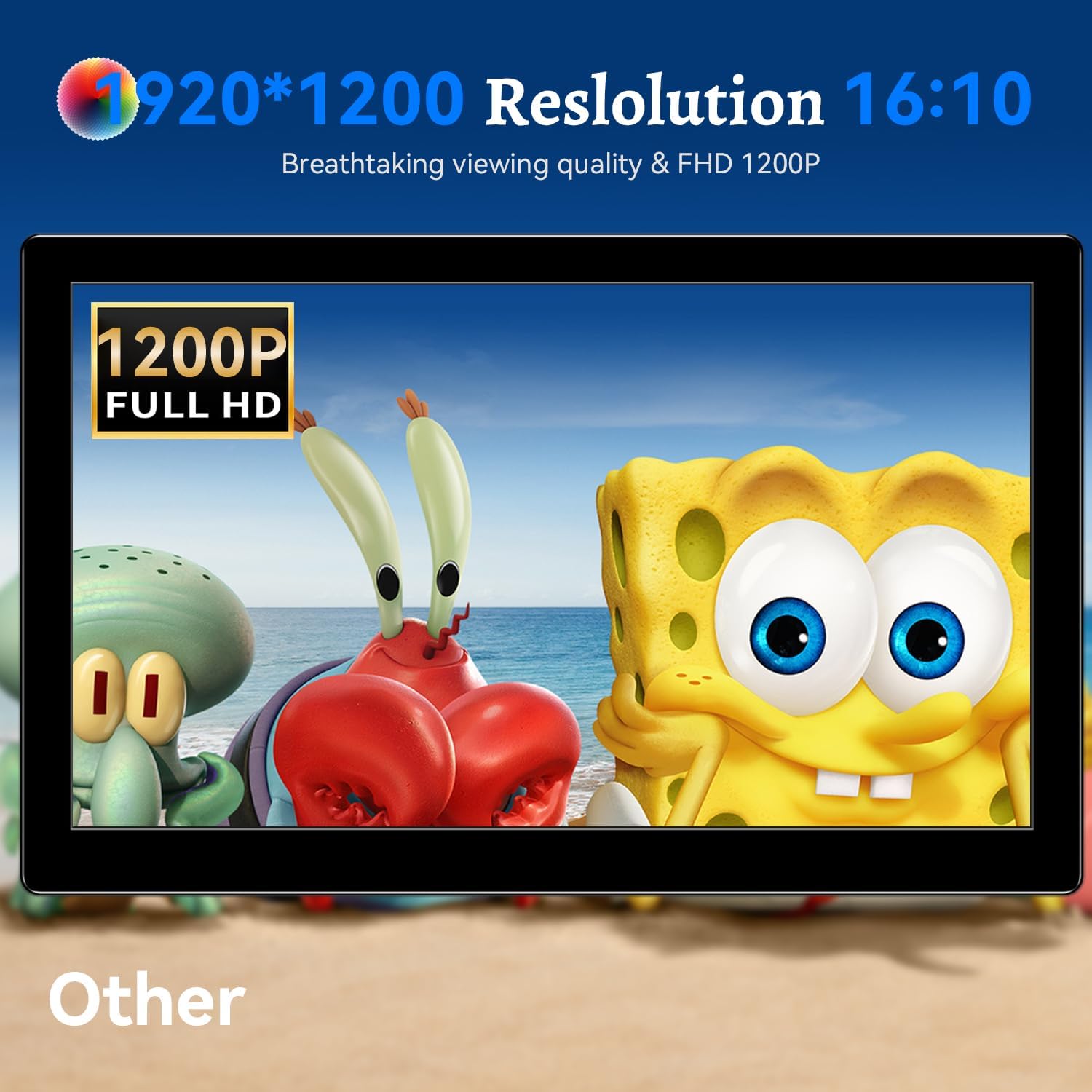
Сурет: монитор көрсетедіasing its 1920x1200 Full HD resolution.

Image: The monitor's IPS panel offering wide viewing angles and rich colors.
Кепілдік және қолдау
For warranty information and technical support, please refer to the warranty card included with your product or contact Prechen customer service through their official webсайт. Қолдау қызметіне хабарласқан кезде үлгі нөміріңізді (HD-101) және сатып алу туралы мәліметтерді дайындап қойыңыз.