
1. Кіріспе
This manual provides instructions for the Macally Wired Keyboard for Mac with an integrated USB Hub (Model: UCAMINIZHUB). This compact keyboard is designed for Apple computers, offering a familiar MacOS layout, convenient shortcut keys, and a built-in 3-port USB hub for connecting additional peripherals. Its 2-in-1 USB-C and USB-A plug ensures broad compatibility.

Сурет: аяқталдыview of the Macally Wired Keyboard for Mac, showcasing its compact design and integrated cable.
2. Орнату
2.1 Пакет мазмұны
- Macally Wired Keyboard (UCAMINIZHUB)
- Пайдаланушы нұсқаулығы (бұл құжат)
2.2 Пернетақтаны қосу
- Locate the integrated USB cable on the Macally keyboard. This cable features a unique 2-in-1 plug, allowing connection to either a USB-A or USB-C port.
- Connect the appropriate end of the keyboard's USB cable to an available USB-A or USB-C port on your Mac computer (MacBook Pro/Air, Mac mini, iMac).
- Your Mac should automatically detect the keyboard. Follow any on-screen prompts to identify the keyboard type if necessary. No additional drivers are required for basic functionality.

Сурет: жақыннан view of the keyboard's 2-in-1 USB-A and USB-C plug, demonstrating its versatility for different port types.
3. Операция
3.1 MacOS Layout and Shortcut Keys
The Macally UCAMINIZHUB keyboard features a 78-key MacOS layout, providing a familiar typing experience for Mac users. It includes 12 convenient shortcut keys for quick access to common functions such as screen brightness, volume control, media playback, and Mission Control.
- F1-F2: Экран жарықтығын реттеу
- F3: Миссияны басқару
- F4: Іске қосу тақтасы
- F7-F9: Media Playback Controls (Previous, Play/Pause, Next)
- F10-F12: Volume Control (Mute, Volume Down, Volume Up)

Image: The Macally keyboard positioned next to an iMac, highlighting its MacOS-specific layout and shortcut keys.
3.2 Integrated USB Hub
The keyboard includes a built-in 3-port USB hub, consisting of two USB-C ports and one USB-A port. This allows you to connect additional peripherals directly to your keyboard, such as a mouse, flash drive, or external hard drive, providing convenient access and reducing cable clutter.
- 2 USB-C порттары: For connecting USB-C compatible devices.
- 1x USB-A Port: For connecting standard USB-A compatible devices.
To use the USB hub, simply plug your peripheral devices into the available ports on the side of the keyboard.

Сурет: жақыннан түсірілген view of the side of the Macally keyboard, clearly showing the integrated USB-C and USB-A ports of the built-in hub.
3.3 Scissor Switch Keys
The keyboard utilizes scissor-switch key technology, providing a tactile and responsive typing experience similar to Apple's native keyboards. This design ensures comfortable and efficient typing.
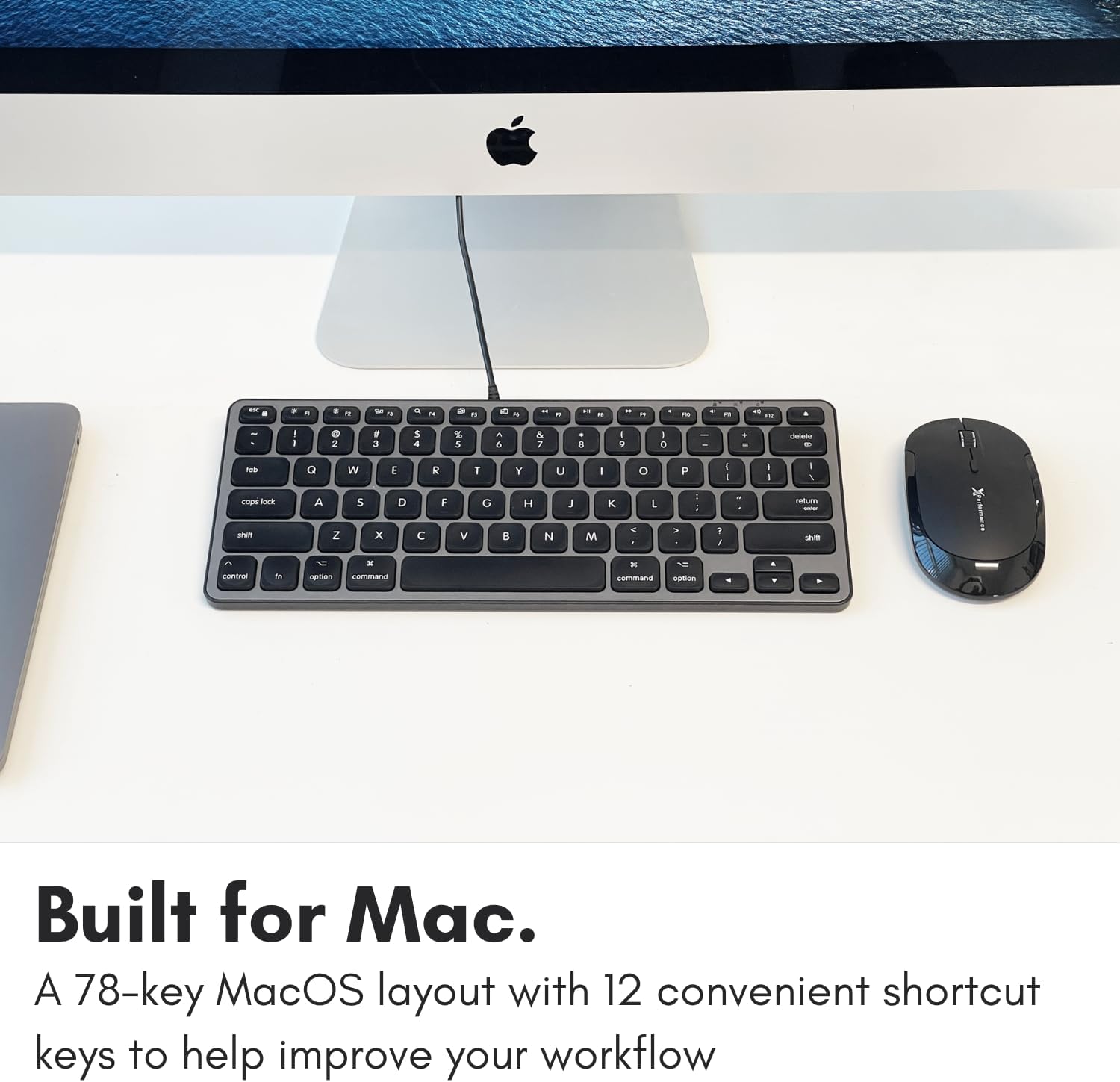
Image: A close-up of the keyboard keys, illustrating the low-profile design and keycap structure indicative of scissor-switch technology.
3.4 Эргономика және тасымалдануы
The keyboard features an integrated kickstand that angles the keyboard slightly, enhancing typing comfort. Its compact size makes it suitable for various desk setups and easy to transport.
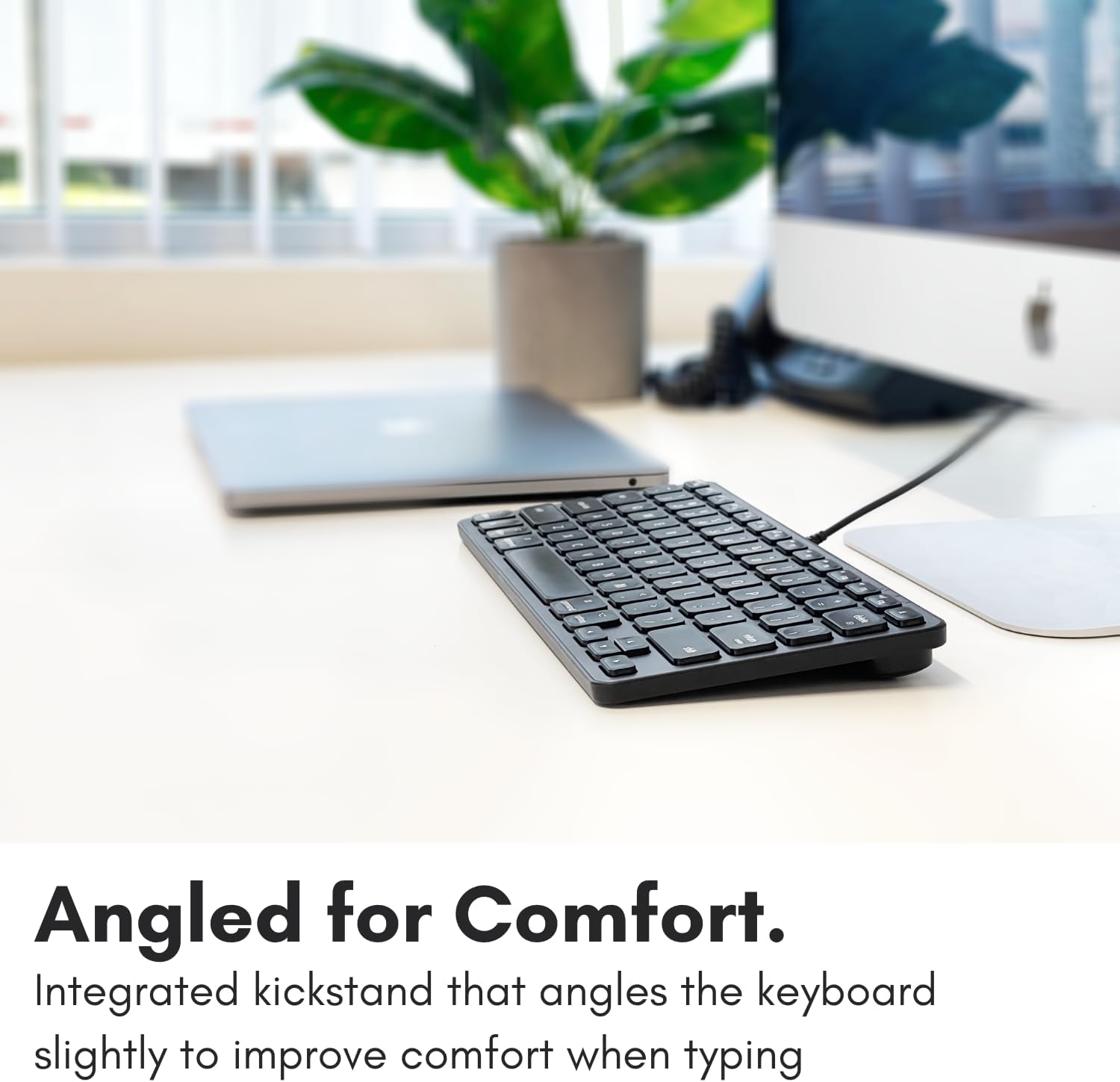
Image: The Macally keyboard shown from a side angle, highlighting the slight incline provided by its integrated kickstand for ergonomic typing.

Image: The compact Macally keyboard on a desk, demonstrating how its small footprint helps save desk space.
4. Техникалық қызмет көрсету
To ensure the longevity and optimal performance of your Macally keyboard, follow these maintenance guidelines:
- Тазалау: Аздап жұмсақ, түксіз матаны пайдаланыңыз dampened with water or a mild cleaning solution to wipe the surface of the keyboard. Avoid harsh chemicals, abrasive cleaners, or excessive moisture.
- Шаңды кетіру: Пернелер арасындағы шаң мен қоқысты кетіру үшін сығылған ауаны пайдаланыңыз.
- Сақтау орны: Пайдаланылмаған кезде пернетақтаны таза, құрғақ жерде, жоғары температурадан және тікелей күн сәулесінен алыс сақтаңыз.
- Кабельге күтім жасау: Зақым келтірмеу үшін USB кабелін шамадан тыс майыстырмаңыз немесе қыспаңыз.
5. Ақаулықтарды жою
If you encounter issues with your Macally keyboard, refer to the following common troubleshooting steps:
- Пернетақта жауап бермейді:
- Ensure the USB cable is securely connected to your Mac's USB-A or USB-C port.
- Try connecting the keyboard to a different USB port on your Mac.
- Restart your Mac computer.
- Check System Settings/Preferences > Keyboard to ensure the keyboard is recognized and configured correctly.
- USB хабы жұмыс істемейді:
- Ensure the keyboard itself is properly connected and functioning.
- Verify that the peripheral device connected to the hub is working correctly when plugged directly into your Mac.
- Some high-power devices may require direct connection to your Mac or a powered USB hub. The keyboard's hub is designed for low-power peripherals.
- Shortcut Keys Not Working:
- Ensure your Mac's operating system is up to date.
- Check System Settings/Preferences > Keyboard > Keyboard Shortcuts to ensure no conflicts exist.
6. Техникалық сипаттамалар
| Үлгі нөмірі | UCAMINIZHUB |
| Қосылу технологиясы | Сымды (USB-A, USB-C) |
| Үйлесімді құрылғылар | MacBook Pro/Air, Mac mini, iMac, Laptop, PC, Smartphone, Tablet (with appropriate USB port) |
| Пернетақта орналасуы | 78-key MacOS layout with 12 shortcut keys |
| Пернені ауыстыру түрі | Қайшы қосқышы |
| Кіріктірілген USB хабы | 2x USB-C ports, 1x USB-A port |
| Өнім өлшемдері | 11.81 x 5.91 x 0.79 дюйм (30 x 15 x 2 см) |
| Элемент салмағы | 1.08 фунт (0.49 кг) |
| Материал | Металл, пластик |
| Түс | Қара |
7. Кепілдік және қолдау
Macally products are designed for reliability and performance. This product comes with a 2 жылдық шектеулі кепілдік сатып алған күннен бастап.
For technical support, warranty claims, or further assistance, please contact Macally customer support. US-based support is available to assist you with any questions or issues you may have.
Please visit the official Macally webең соңғы байланыс ақпараты мен қолдау ресурстары үшін сайт: www.macally.com