
Homatics DONGLE G
Homatics DONGLE G 4K HDMI Streaming Device
Пайдаланушы нұсқаулығы
1. Кіріспе
The Homatics DONGLE G is a compact and powerful 4K HDMI streaming device designed to transform any compatible display into a smart Google TV experience. Running on Android Google TV 11, it provides access to a vast library of applications, movies, and shows. With integrated Wi-Fi, LAN connectivity, and a voice-enabled remote control, it offers a comprehensive and user-friendly entertainment solution.

Image: The Homatics DONGLE G streaming dongle and its accompanying voice remote control, shown alongside the product packaging.
2. Қорапта не бар
Барлық компоненттер пакетте бар екеніне көз жеткізіңіз:
- Homatics DONGLE G (Model 700D)
- Remote Control (Voice-enabled)
- Қуат адаптері
- Қуат кабелі
- Пайдаланушы нұсқаулығы (бұл құжат)

Image: A visual representation of the Homatics DONGLE G package contents, including the dongle, remote, power adapter, power cable, and manual.
3. Өнім аяқталдыview
Familiarize yourself with the Homatics DONGLE G and its remote control:
3.1. Homatics DONGLE G Device
The dongle features an integrated HDMI connector for direct plug-in to your TV. It includes a USB-C port for power and potential expansion, and an RJ45 Ethernet port for wired network connectivity.
3.2. Қашықтан басқару пульті
The remote control allows for intuitive navigation and voice commands. Key buttons include Power, Home, Back, Volume Up/Down, Channel Up/Down, and dedicated buttons for popular streaming services like YouTube and Netflix. The central directional pad is used for menu navigation.

Сурет: жақыннан түсірілген view of the Homatics DONGLE G, highlighting its HDMI connector, USB-C port, and RJ45 port, alongside the voice remote control.
4. Орнату нұсқаулығы
- Донглды қосыңыз: Plug the Homatics DONGLE G directly into an available HDMI port on your television or display.
- Қуатты қосу: Connect the provided power cable to the USB-C port on the dongle and then plug the power adapter into a wall outlet. The device will power on automatically.
- HDMI кірісін таңдаңыз: Using your TV's remote control, select the corresponding HDMI input source to which the Homatics DONGLE G is connected.
- Қашықтан басқару пультін жұптау: Follow the on-screen instructions to pair the Homatics remote control via Bluetooth. This typically involves holding down specific buttons on the remote until a pairing confirmation appears.
- Бастапқы орнату: Follow the on-screen prompts to complete the initial setup, which includes connecting to your Wi-Fi network (or using the LAN port), logging into your Google account, and installing essential apps.

Image: The Homatics DONGLE G connected to the HDMI port of a television, illustrating its compact form factor and ease of integration.
5. Пайдалану нұсқаулары
5.1. Навигация
Use the directional pad on the remote control to navigate through menus and select items on the Google TV interface. The 'OK' button in the center confirms selections. The 'Back' button returns to the previous screen, and the 'Home' button takes you to the main Google TV home screen.
5.2. Дауыспен басқару (Google көмекшісі)
Press the Google Assistant button on your remote (usually a microphone icon) and speak clearly into the remote to issue commands. You can search for content, open apps, control smart home devices, and get information.
5.3. App Installation and Management
Access the Google Play Store from the home screen to download and install a wide variety of streaming apps, games, and utilities. Apps can be managed (moved, uninstalled) from the 'Apps' section in the Google TV interface settings.

Image: The Homatics DONGLE G displaying the Google TV interface on a television screen, showcasing various streaming service icons and content recommendations.
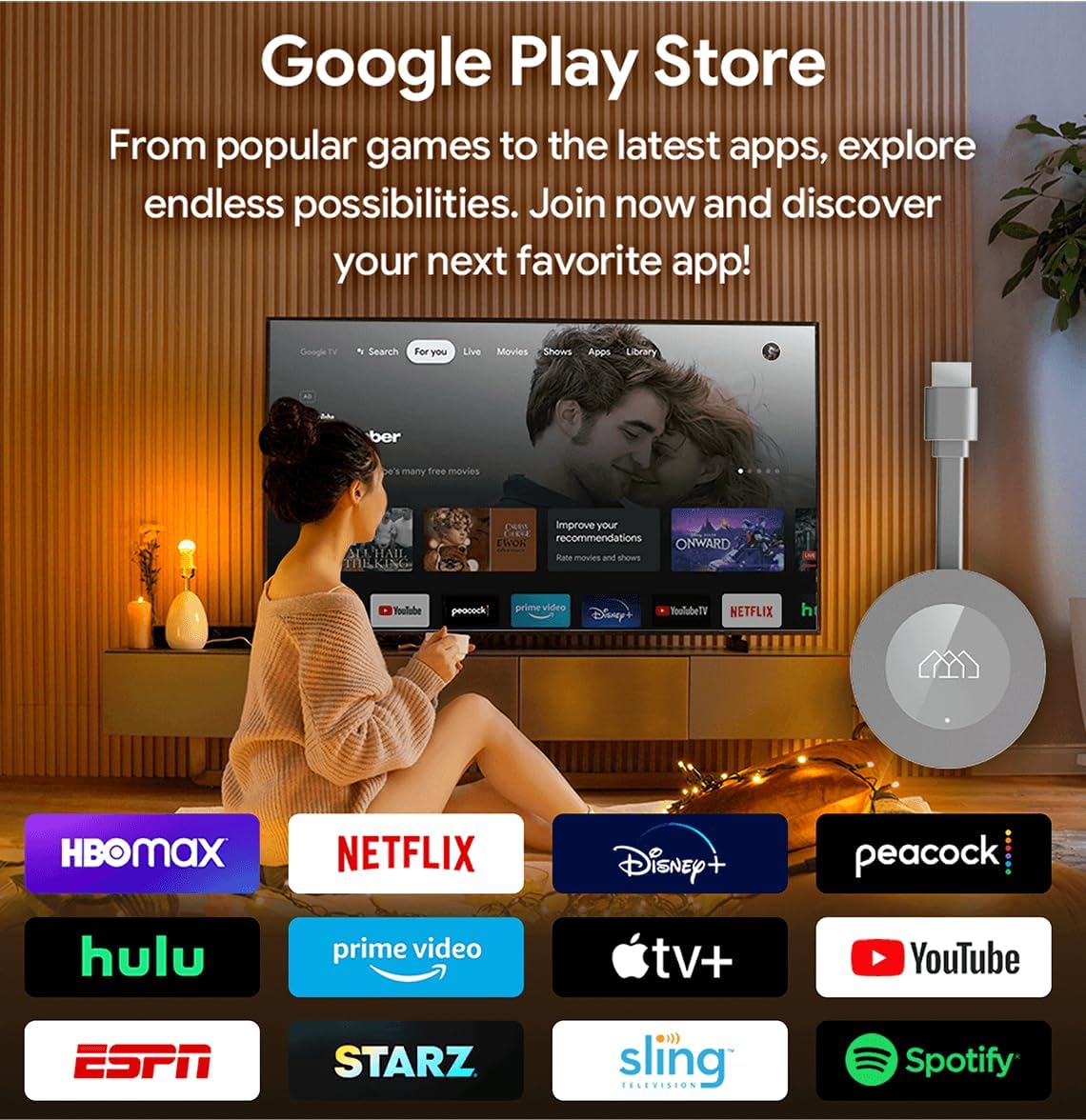
Image: The Google Play Store interface as seen on a television screen via the Homatics DONGLE G, illustrating the availability of numerous applications.
6. Қосылу мүмкіндігі
6.1. Wi-Fi қосылымы
The device supports Wi-Fi 5 (802.11 b/g/n/ac) for wireless internet access. During initial setup, you will be prompted to select your Wi-Fi network and enter the password. To change Wi-Fi settings later, navigate to Settings > Network & Internet.
6.2. LAN (Ethernet) Connection
For a more stable and potentially faster internet connection, connect an Ethernet cable from your router to the RJ45 port on the Homatics DONGLE G. The device will automatically detect and prioritize the wired connection.
6.3. Bluetooth қосылымы
The Homatics DONGLE G features Bluetooth 5.0, allowing you to connect compatible accessories such as headphones, gamepads, or external speakers. To pair a new Bluetooth device, go to Settings > Remotes & Accessories > Pair new device.
6.4. USB-C Expansion
The USB-C port on the dongle can be used for power and also supports connection of certain USB accessories via a compatible hub (not included). This allows for expanded storage (SSD), gamepads, or webcams for enhanced functionality.
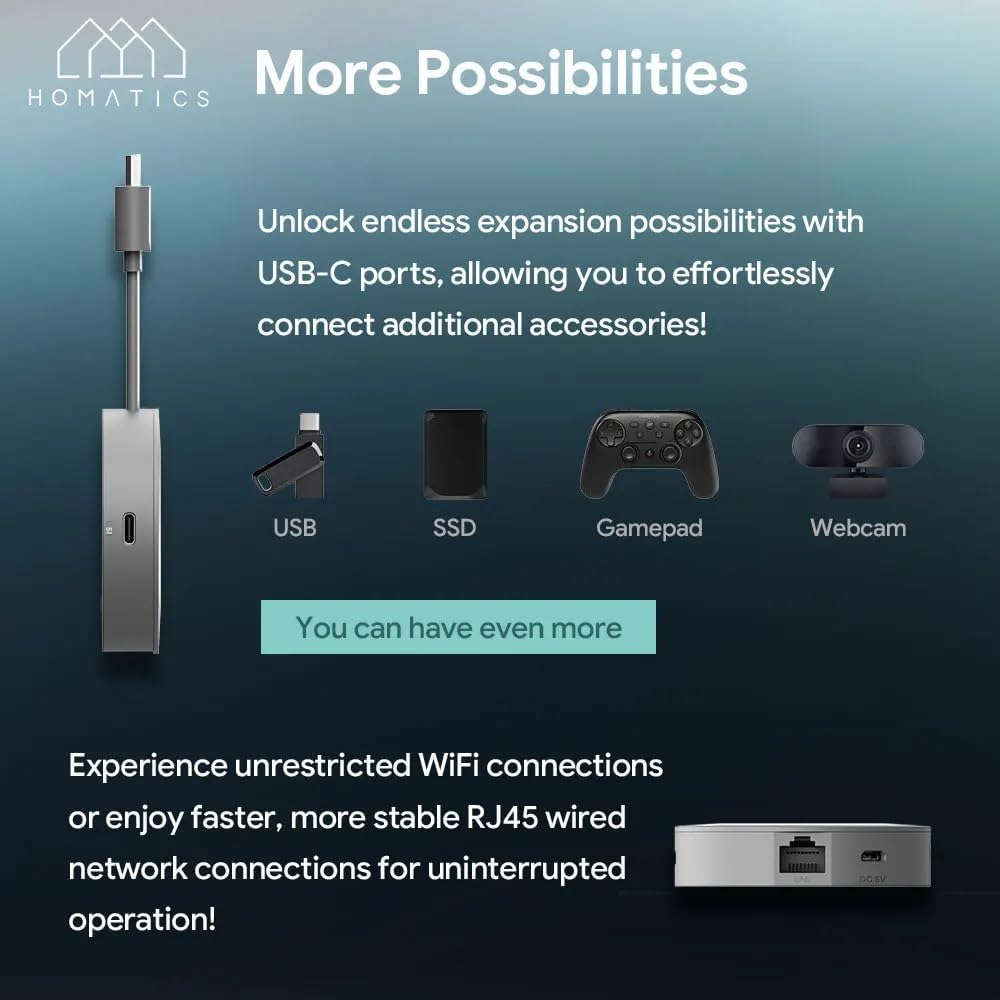
Image: The Homatics DONGLE G connected to a USB-C hub, illustrating the potential for connecting various accessories such as USB drives, SSDs, gamepads, and webкамералар.
7. Техникалық қызмет көрсету
- Тазалау: Use a soft, dry cloth to clean the device and remote. Do not use liquid cleaners or aerosols.
- Желдету: Ensure the device is placed in a well-ventilated area to prevent overheating. Do not cover the dongle.
- Бағдарламалық құрал жаңартулары: The device will periodically receive software updates. Ensure it is connected to the internet to receive these updates, which improve performance and add new features.
- Сақтау орны: Ұзақ уақыт бойы пайдаланбаған кезде, құрылғыны салқын, құрғақ жерде сақтаңыз.
8. Ақаулықтарды жою
| Мәселе | Мүмкін шешім |
|---|---|
| Қуат жоқ/құрылғы қосылмайды | Ensure the power cable is securely connected to the dongle and the power adapter is plugged into a working electrical outlet. Try a different outlet. |
| Теледидарда сигнал жоқ | Verify the dongle is fully inserted into the HDMI port. Check that your TV is set to the correct HDMI input source. Try a different HDMI port. |
| Қашықтан басқару пульті жауап бермейді | Ensure the remote has fresh batteries. Re-pair the remote by following the on-screen instructions during initial setup or via Settings > Remotes & Accessories. |
| Wi-Fi желісіне қосылу мүмкін емес | Check your Wi-Fi password. Ensure your router is working correctly. Try restarting your router and the Homatics DONGLE G. Move the device closer to the router if possible. |
| Қолданба бұзылады немесе қатып қалады | Try force-stopping the app (Settings > Apps > [App Name] > Force stop). Clear the app's cache (Settings > Apps > [App Name] > Clear cache). If the problem persists, uninstall and reinstall the app. |
9. Техникалық сипаттамалар
Technical specifications for the Homatics DONGLE G:
| Ерекшелік | Мәлімет |
|---|---|
| Модель атауы | DONGLE G |
| Операциялық жүйе | Android Google TV 11 |
| Ажыратымдылық | 4K UHD дейін |
| Процессор | Quad Core Cortex-A35 (Amlogic S905Y4) |
| Жедел Жадтау Құрылғысы | 2 ГБ LPDDR4 |
| Flash сақтау орны | 8 ГБ eMMC Flash |
| Қосылу мүмкіндігі | Wi-Fi 5 (802.11 b/g/n/ac), Bluetooth 5.0, RJ45 (10/100M Ethernet) |
| Бейне шығысы | HDMI 2.1 |
| Аудио қолдау | Dolby Audio, Dolby Atmos |
| Арнайы мүмкіндіктер | Chromecast кіріктірілген, Google көмекшісі |
| Қуат кірісі | DC 5V (via USB-C) |

Image: A visual summary of the Homatics DONGLE G's technical specifications, including processor, RAM, storage, connectivity, and audio support.

Image: Illustration highlighting the Homatics DONGLE G's support for Dolby Atmos and Dolby Audio technologies, enhancing the immersive sound experience.
10. Кепілдік және қолдау
For warranty information and technical support, please refer to the official Homatics webсайтына өтіңіз немесе тұтынушыларға қызмет көрсету бөліміне хабарласыңыз. Сатып алу түбіртегін кепілдік талаптары үшін сатып алудың дәлелі ретінде сақтаңыз.

Image: The Homatics remote control, emphasizing its integration with Google Assistant for voice commands and Chromecast built-in for casting content.
Ask a question about this manual
Ask about setup, troubleshooting, compatibility, parts, safety, or missing instructions. Manuals+ will review the question and use this page’s manual context to help answer it.