
1. Кіріспе
Thank you for choosing the typecase Touch iPad Keyboard Case. This manual provides detailed instructions for setting up, operating, and maintaining your keyboard case to ensure optimal performance and longevity. Please read this manual thoroughly before use.
2. Үйлесімділік
This keyboard case is designed for specific iPad models. Please verify your iPad model number to ensure compatibility.
- iPad 10th Generation (10.9-inch, 2022): A2696, A2757, A2777 модельдері
- iPad A16 (11th Generation, 2025): A3354, A3355, A3356 модельдері
To verify your iPad model:
- 1-әдіс: Check the back of your iPad for the model number (e.g., A2696).
- 2-әдіс: Go to iPad Settings > General > About > Model Number. Tap the model number to display the A-number.
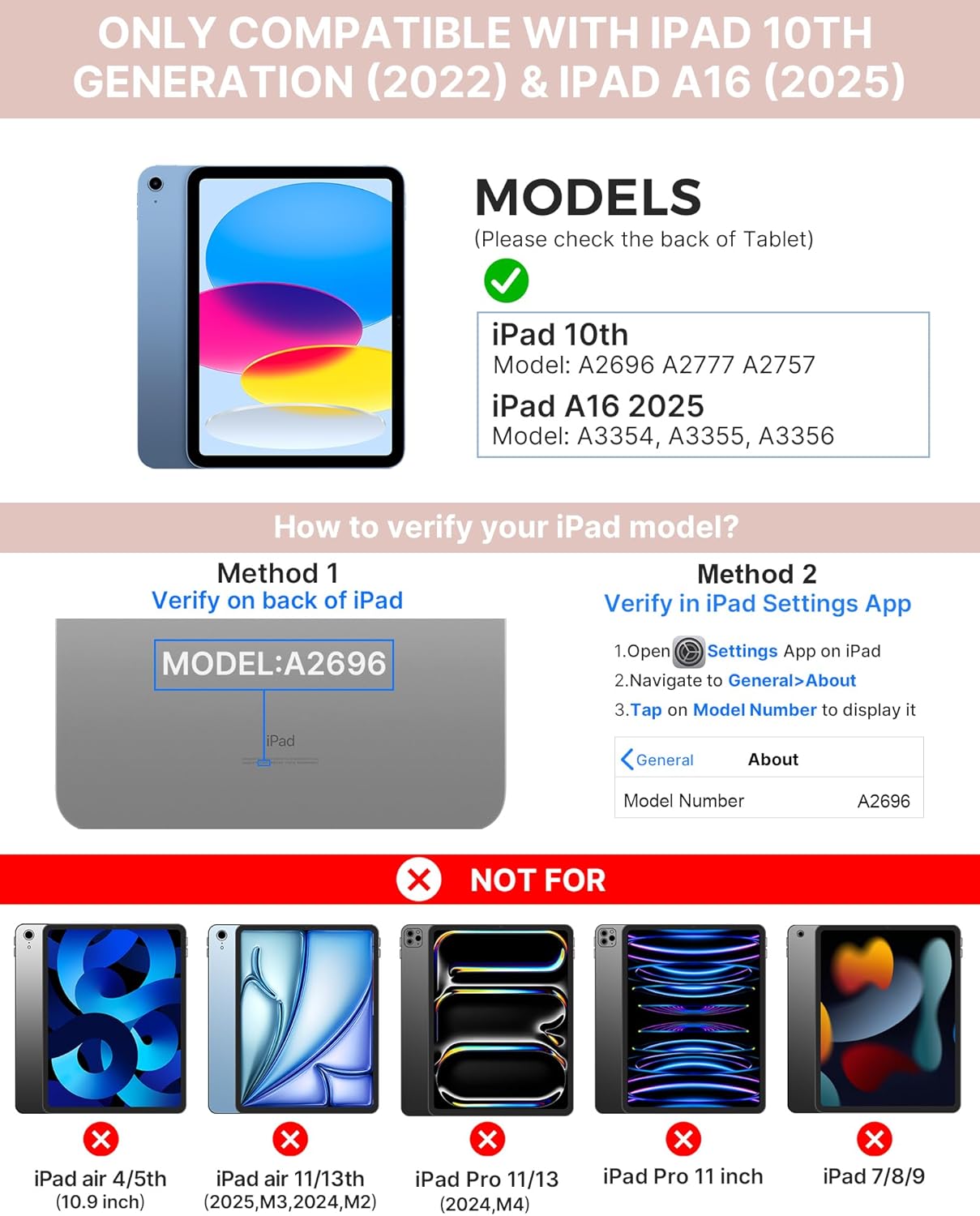
Image: Visual guide for identifying compatible iPad models and verifying the model number on the device or through settings.
3. Пакет мазмұны
Пакетке мыналар кіреді:
- 1 x typecase Touch iPad Keyboard Case
- 1 x USB-C зарядтау кабелі
- 1 x Пайдаланушы нұсқаулығы
4. Орнату нұсқаулары
4.1 Пернетақтаны зарядтау
Before initial use, fully charge the keyboard. Connect the provided USB-C charging cable to the keyboard's charging port and a power source. The charging indicator light will show the charging status.
- Қал: 1 жылға дейін
- Daytime use (2 hours/day with backlight off): 3 айға дейін
- Nighttime use (2 hours/day with backlight on): 2 аптаға дейін

Image: Close-up of the keyboard's USB-C charging port and battery life specifications.
4.2 Pairing with iPad
- Пернетақтаның зарядталғанына көз жеткізіңіз.
- Turn on the keyboard by pressing the power button. The Bluetooth indicator light will flash.
- iPad құрылғыңызда келесіге өтіңіз Параметрлер > Bluetooth.
- Turn on Bluetooth. Your iPad will search for available devices.
- Select "typecase Keyboard" from the list of devices.
- Жұптастыру процесін аяқтау үшін экрандағы кез келген нұсқауларды орындаңыз. Сәтті жұптастырылған кезде пернетақтадағы Bluetooth индикатор шамы тұрақты жанады.
5. Пайдалану нұсқаулары
5.1 Installing Your iPad
Gently insert your iPad into the case, ensuring all edges are securely seated. The case provides full protection for your device.
5.2 Пернетақта функциялары
The keyboard features a standard 78-key layout with a dedicated row of iPadOS shortcut keys for enhanced productivity.

Сурет: үстіңгі жағы view of the keyboard layout, highlighting the 78-key design and iPadOS shortcuts.
Артқы жарықтандырылған пернелер
The keyboard features 11-color RGB LED backlighting with adjustable brightness levels. This allows for comfortable typing in various lighting conditions.
- түймесін басыңыз шамның кілті артқы жарық түстерін ауыстыру үшін.
- түймесін басыңыз Fn + light bulb key артқы жарықтың жарықтығын реттеу үшін.
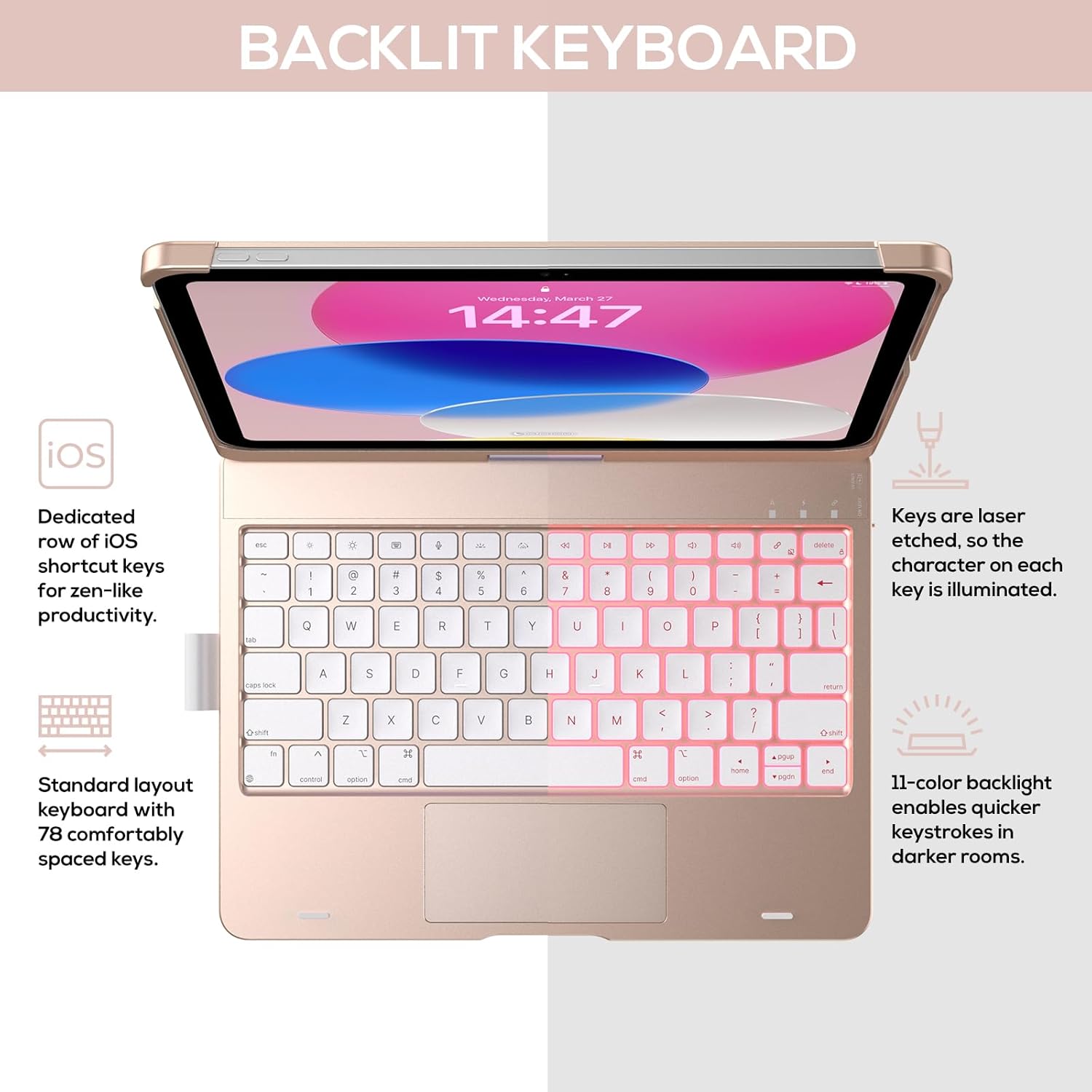
Image: The keyboard with illuminated keys, demonstrating the 11-color backlight and dedicated iOS shortcut keys.
5.3 Мульти-сенсорлық сенсорлық тақта
The integrated precision trackpad supports multi-gesture controls, enhancing productivity for tasks like document editing, web шолу және презентация құру.
- Бір саусақпен түрту: Click/Select
- Екі саусақпен айналдыру: Scroll up/down or left/right
- Масштабтау үшін қысыңыз: Үлкейту/кішірейту
- Үш саусақпен жоғары сырғыту: Қолданба ауыстырғышты ашыңыз
- Three-finger swipe down: Негізгі экранға оралу

Image: Diagram showing common multi-touch gestures for the trackpad, including managing files, web browsing, and app switching.
5.4 360° Rotatable Hinge and Use Modes
The patented 360° hinge allows for versatile use of your iPad in 7 unique modes, adapting to various tasks from typing to viewing.
- Ноутбук режимі: Traditional laptop setup for typing.
- Тұру режимі: үшін өте қолайлы viewмазмұны.
- Шатыр режимі: Stable for touch interaction or presentations.
- Планшет режимі: Fold the keyboard behind the iPad for tablet use. Keys are protected in this mode.
- Corner Mode: Angled for comfortable drawing or writing.
- Бөлісу режимі: Rotate the screen to share content with others.
- Protect Mode: Close the case to fully protect the iPad.
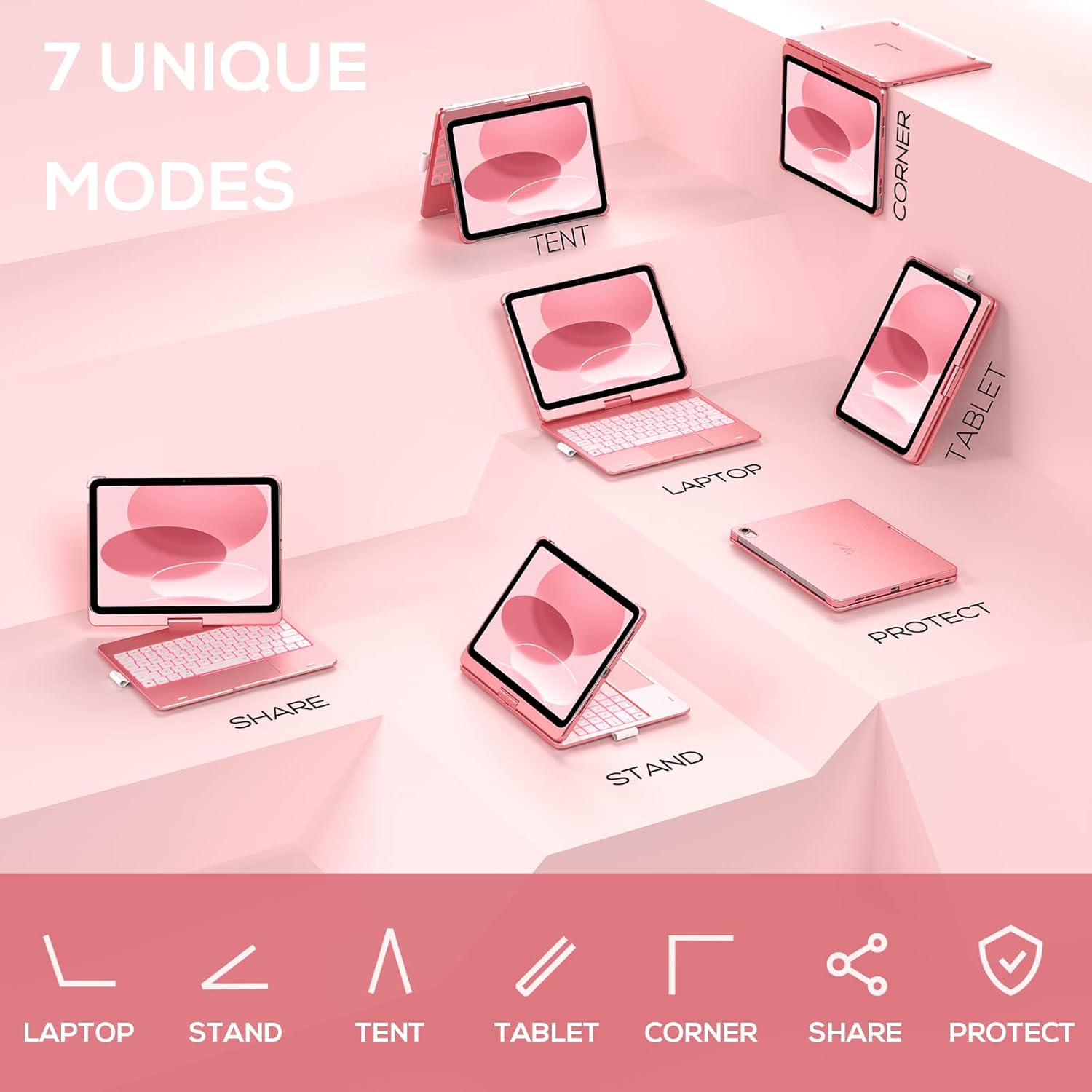
Image: A visual representation of the seven different configurations the keyboard case can be used in, including laptop, stand, and tablet modes.
5.5 Auto Sleep/Wake Function
The case features an auto sleep/wake function. Opening the case will wake your iPad, and closing it will put your iPad to sleep, helping to conserve battery life for both the iPad and the keyboard.

Image: A user's hand on the trackpad, illustrating the built-in trackpad and the auto sleep/wake feature that activates when the case is opened or closed.
5.6 Apple қарындаш ұстағышы
An integrated holder is provided for your Apple Pencil, ensuring it is securely stored and easily accessible.
6. Техникалық қызмет көрсету
6.1 Тазалау
To clean the keyboard case, use a soft, damp cloth. Avoid using harsh chemicals or abrasive materials, as these may damage the surface. Ensure the charging port is dry before charging.
6.2 Сақтау
When not in use for extended periods, store the keyboard case in a cool, dry place. It is recommended to fully charge the keyboard before long-term storage to maintain battery health.
7. Ақаулықтарды жою
7.1 Пернетақта қосылмайды
- Пернетақтаның қосулы және зарядталғанын тексеріңіз.
- iPad құрылғыңызда Bluetooth қосылғанын тексеріңіз.
- Құрылғыны iPad құрылғыңыздың Bluetooth параметрлерінде ұмытып, қайта жұптастыруға тырысыңыз.
- iPad пен пернетақтаны қайта іске қосыңыз.
7.2 Кілттер жауап бермейді
- Пернетақтаның Bluetooth арқылы дұрыс қосылғанына көз жеткізіңіз.
- Пернетақтаның батарея деңгейін тексеріңіз.
- Пернелердің айналасындағы қоқысты тазалаңыз.
7.3 Trackpad Not Working
- Пернетақтаның жалғанғанына көз жеткізіңіз.
- Check iPad settings for trackpad functionality (Settings > General > Trackpad).
- Пернетақта мен iPad-ты қайта іске қосыңыз.
7.4 Артқы жарық жұмыс істемейді
- Пернетақтаның қосулы екеніне көз жеткізіңіз.
- Press the backlight control keys (light bulb key, Fn + light bulb key) to activate or adjust.
- Батарея деңгейін тексеріңіз; батареяның аздығы артқы жарықты өшіруі мүмкін.
8. Техникалық сипаттамалар
| Үлгі нөмірі | KB201T-100 |
| Өнім өлшемдері | 11 x 8.6 x 1.5 дюйм (11"L x 8.6"W x 1.5"H) |
| Элемент салмағы | 1.43 фунт |
| Қосылу технологиясы | Блютез |
| Пернетақта сипаттамасы | Flexible, 78-key layout with iPadOS shortcuts |
| Арнайы мүмкіндіктер | 360° Rotatable, 11-Color Backlit, Ergonomic, Lightweight, Multi-Touch Trackpad, Auto Sleep/Wake, Apple Pencil Holder |
| Пернетақтаның артқы жарығы | RGB (11 XNUMX XNUMX түс) |
| Батарея Түрі | 1 литий полимерлі батарея (жинаққа кіреді) |
9. Кепілдік және қолдау
typecase is committed to product quality and customer satisfaction. This product comes with the following support:
- Ауыстыру қызметі: Within 1 year of purchase.
- Қайтару саясаты: Сатып алғаннан кейін 30 күн ішінде.
For any issues or inquiries, please contact typecase customer support for quick feedback and assistance.

Image: Information on typecase's after-sales service, including replacement, refund, and customer support.