
1. Кіріспе
This manual provides essential information for setting up, operating, maintaining, and troubleshooting your Alienware X17 R2 Gaming Laptop. Please read this guide thoroughly to ensure optimal performance and longevity of your device.
The Alienware X17 R2 is designed for high-performance gaming and demanding tasks, featuring advanced cooling technologies, powerful processors, and dedicated graphics.
2. Өнім аяқталдыview
The Alienware X17 R2 is engineered to deliver an immersive gaming experience in a thin 17-inch form factor. Key features include:
- Powerful Intel CPUs: Experience high-performance action across all your favorite games with 12th Gen Intel Core processors.
- Next-Gen GPUs: Game unrestrained with NVIDIA GeForce RTX 3070Ti graphics, Dynamic Boost 2.0, and Deep Learning Super Sampling technology.
- Patented Quad Cooling: An industry-first design uses four intelligently controlled and programmable fans to dissipate heat.
- Ұзартылған ойнау уақыты: Improve battery life with Advanced Optimus technology from NVIDIA—now available on all display options.
- Legend 2.0 Industrial Design: A fresh evolution in design with a high-endurance finish and customizable AlienFX lighting.

2.1-сурет: Алдыңғы view of the Alienware X17 R2 Gaming Laptop displaying a game.
3. Орнату
3.1 Қораптан шығару және бастапқы тексеру
- Ноутбукті және барлық керек-жарақтарды қаптамадан абайлап алыңыз.
- «Қорапта не бар» бөлімінде тізімделген барлық заттардың бар екенін тексеріңіз.
- Ноутбукті физикалық зақымдардың бар-жоғын тексеріңіз. Зақым табылса, дереу сатушыға хабарласыңыз.
3.2 Қуатты қосу
- Connect the power adapter to the charging port located at the rear of the laptop.
- Қуат сымын қабырғадағы розеткаға қосыңыз.
- The power indicator light will illuminate, indicating the laptop is receiving power.
3.3 Алғашқы жүктеу және операциялық жүйені орнату
- Press the Alienware head power button to turn on the laptop.
- Windows 11 Home орнату процесін аяқтау үшін экрандағы нұсқауларды орындаңыз. Бұған аймағыңызды таңдау, Wi-Fi желісіне қосылу және пайдаланушы тіркелгісін жасау кіреді.
- Жүйеге қажетті жаңартуларды жүктеп алуға және орнатуға рұқсат етіңіз.
4. Ноутбукті пайдалану
4.1 Пернетақта және сенсорлық тақта
The Alienware X17 R2 features a backlit keyboard and a responsive touchpad. The AlienFX lighting allows for customizable colors and effects across the keyboard and other zones.

4.1-сурет: Егжей-тегжейлі view артқы жарықтандырылған пернетақта мен сенсорлық тақтаның.
4.2 Дисплей және графика
Enjoy stunning visuals on the 17.3-inch FHD display with a 480Hz refresh rate and 3ms response time. The NVIDIA GeForce RTX 3070Ti graphics card ensures smooth gameplay and high-fidelity rendering. The laptop supports Dolby Vision for optimized color profiles.
4.3 аудио
Experience immersive 3D sound via Dolby Atmos, designed to deliver audio as studios intended.
4.4 Порттар және қосылу мүмкіндігі
The laptop offers a variety of ports for peripherals and external displays:

4.2-сурет: Артқы view illustrating the various connectivity ports.
- USB 3.0 порттары: 3 ports for connecting various USB devices.
- USB-C порттары: For versatile connectivity, including Thunderbolt 4.
- HDMI2.1: Supports up to 4K/120Hz output for external displays.
- Ethernet: Killer E3100 RJ45 Ethernet for stable wired network connections.
- Сымсыз: Killer Wi-Fi 6 (802.11ax) and Bluetooth for wireless connectivity.
5. Техникалық қызмет көрсету
5.1 Тазалау
- Экранды және сыртқы беттерді тазалау үшін жұмсақ, түксіз матаны пайдаланыңыз.
- Қатты химиялық заттарды немесе абразивті материалдарды пайдаланбаңыз.
- Regularly clean the cooling vents to prevent dust buildup, which can affect performance.
5.2 Бағдарламалық құралды жаңарту
Ensure your operating system and drivers are kept up-to-date. Windows Update will handle OS updates, and Alienware Command Center can assist with driver and firmware updates.
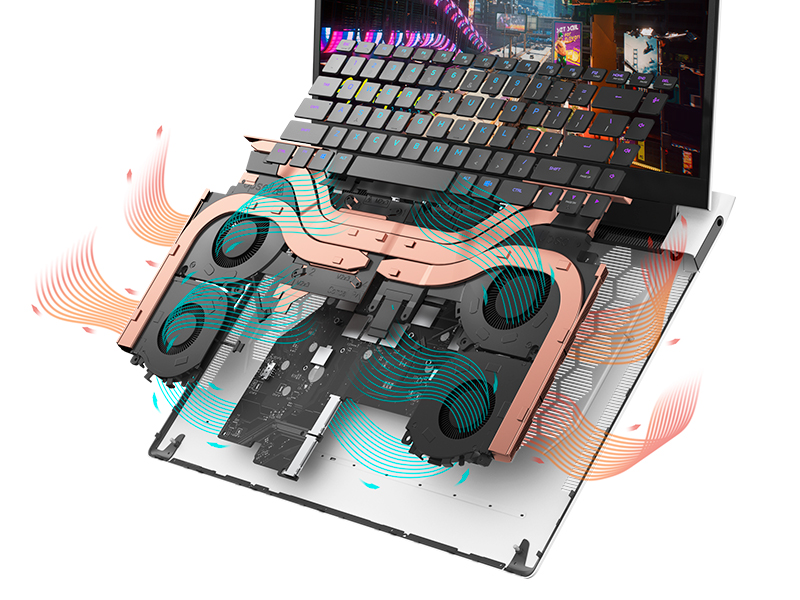
Figure 5.1: Alienware Command Center for system management.
6. Ақаулықтарды жою
If you encounter issues with your Alienware X17 R2, consider the following basic troubleshooting steps:
- Қуат жоқ: Қуат адаптерінің ноутбукке де, жұмыс істейтін қуат розеткасына да сенімді жалғанғанын тексеріңіз. Қуат индикатор шамын тексеріңіз.
- Көрсету мәселелері: If the screen is black, try connecting an external monitor to verify if the issue is with the laptop's display or the graphics card. Update graphics drivers.
- Қызып кету: Ensure cooling vents are clear of obstructions. Use Alienware Command Center to monitor temperatures and adjust fan profiles.
- Өнімділіктің баяулауы: Қажет емес қолданбаларды жабыңыз. Жоғары процессорды немесе жедел жадты тұтынатын фондық процестерді тексеріңіз. SSD дискісінде жеткілікті бос орын болуын қамтамасыз етіңіз.
- Бағдарламалық қамтамасыз ету мәселелері: Restart the laptop. If issues persist, consider performing a system restore or reinstalling the problematic software.
7. Техникалық сипаттамалар
| Ерекшелік | Техникалық сипаттама |
|---|---|
| Экран өлшемі | 17.3 дюйм |
| Экран ажыратымдылығы | 1920 x 1080 пиксель (FHD) |
| Процессор | Intel Core i9-12900H (3.8 ГГц, 14 ядро) |
| Жедел Жадтау Құрылғысы | 16 ГБ DDR5 (4800 МГц) |
| Қатты диск | 1 ТБ SSD (қатты күйдегі) |
| Графикалық сопроцессор | NVIDIA GeForce RTX 3070 Ti (8 ГБ GDDR6) |
| Операциялық жүйе | Windows 11 Home |
| Сымсыз түрі | 802.11ax (Killer Wi-Fi 6), Bluetooth |
| USB 3.0 порттары | 3 |
| Элемент салмағы | 6.82 фунт |
| Өнім өлшемдері | 11.79 x 15.72 x 0.58 дюйм |
8. Қорапта не бар
- Alienware X17 R2 ойын ноутбукі
- Қуат адаптері
- Қуат сымы
- Құжаттама
9. Өнімнің ресми бейнелері
Alienware X17 R2 Gaming Laptop Overview
Бейне 9.1: Шенеунік аяқталдыview of the Alienware X17 R2 Gaming Laptop, highlighting its design, cooling, and performance features.
About Alienware X17 R2 Gaming Laptop
Video 9.2: A detailed look at the Alienware X17 R2 Gaming Laptop, showcasing its features and design elements.
10. Кепілдік және қолдау
Your Alienware X17 R2 Gaming Laptop comes with a standard manufacturer's warranty. For detailed warranty information, please refer to the documentation included with your product or visit the official Alienware support webсайт.
For technical support, driver downloads, and service requests, please visit the Alienware support portal. You can also find FAQs and community forums for additional assistance.