
1. Кіріспе
This manual provides essential information for the installation, operation, maintenance, and troubleshooting of your MAXSUN GeForce RTX 2060 iCraft 6GB graphics card. Please read this manual thoroughly before installing and using the product to ensure proper functionality and safety.
2. Қауіпсіздік туралы ақпарат
- Кез келген құрамдас бөліктерді орнатпас немесе алып тастамас бұрын компьютеріңізді әрқашан қуат көзінен ажыратыңыз.
- Электростатикалық разрядтың (ЭЗР) компоненттерге тигізетін зақымдануын болдырмау үшін антистатикалық білезік тағыңыз немесе жерге қосылған металл затқа жиі тиіп тұрыңыз.
- Сезімтал компоненттерге тиіп кетпеу үшін графикалық картаны шетінен ұстаңыз.
- Компьютеріңіздің қызып кетуіне жол бермеу үшін корпустың ішінде жеткілікті желдетуді қамтамасыз етіңіз.
- Do not attempt to repair the graphics card yourself. Refer to qualified service personnel.
3. Пакет мазмұны
Пакетте келесі элементтер бар екенін тексеріңіз:
- 1 x MAXSUN GeForce RTX 2060 iCraft 6GB Graphics Card
Егер қандай да бір зат жоқ немесе зақымдалған болса, сатушыға хабарласыңыз.
4. Өнім аяқталдыview
The MAXSUN GeForce RTX 2060 iCraft 6GB graphics card is designed for gaming PCs, featuring NVIDIA's Turing GPU architecture, 6GB GDDR6 memory, and a 192-bit memory interface. It includes a triple-fan cooling system and RGB lighting.

4.1-сурет: Алдыңғы view of the MAXSUN GeForce RTX 2060 iCraft 6GB graphics card, showing the three cooling fans and RGB lighting elements.

4.2-сурет: Бұрыштық view of the graphics card, highlighting its robust design and cooling solution.

4.3-сурет: Артқы view графикалық картаның, showcasing the alloy backplate designed for structural integrity and heat dissipation.

Figure 4.4: Display output ports on the graphics card, including DisplayPort (DP), HDMI, and DVI connectors.
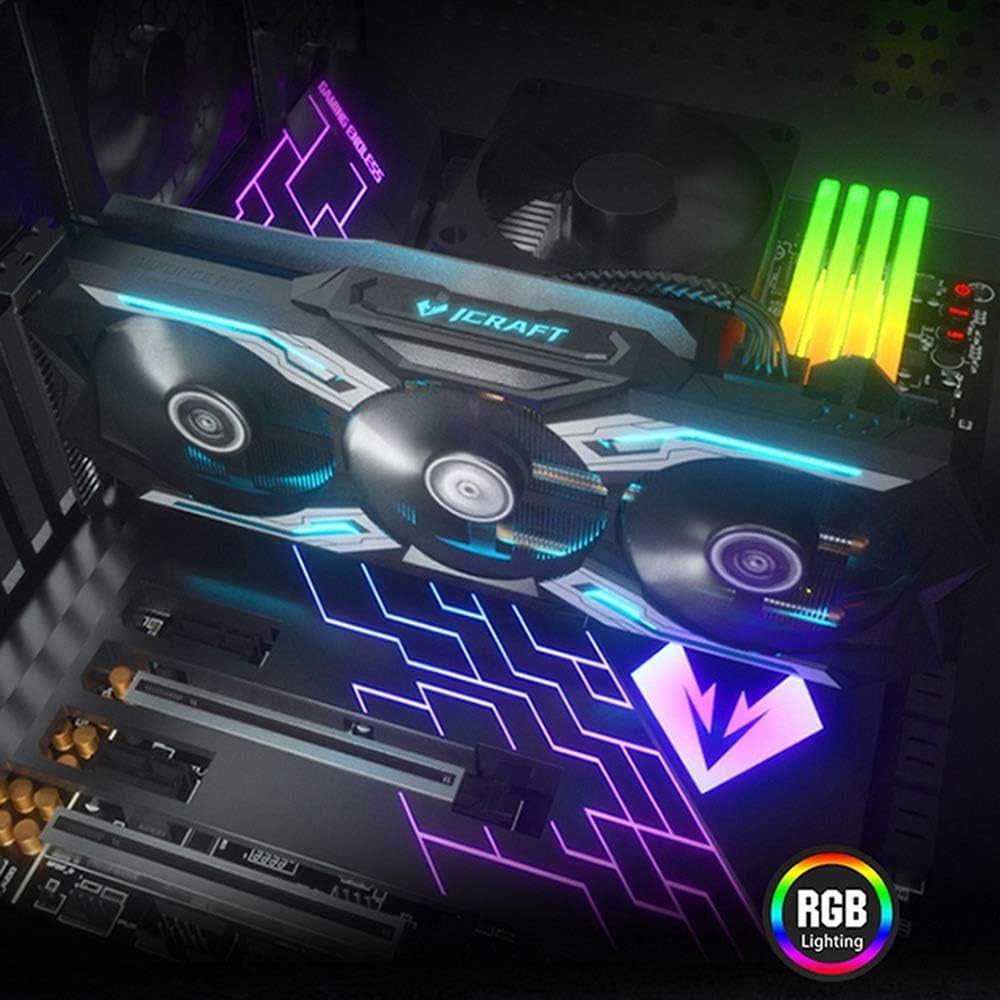
Figure 4.5: The graphics card installed in a PC case, demonstrating its integrated RGB lighting.
Негізгі ерекшеліктері:
- Turing GPU Architecture: Provides enhanced performance for real-time ray tracing and AI capabilities.
- iCraft Series RGB Lighting: Features auto RGB lighting for aesthetic customization within your PC build.
- Triple Fan Cooling: Equipped with 3 MAXSUN Blade II hydro-mechanics low noise fans for efficient heat dissipation.
- Alloy Backplate & Radiator: Includes an alloy backplate and a high-end fin technology radiator with 5 heat pipes for improved thermal performance.
- Өнімділік: Boost Clock up to 1680 MHz, 6GB GDDR6 memory, 192-bit memory interface.
5. Орнату және орнату
5.1 Алдын ала орнату
- Қуат көзін өшіру: Компьютеріңізді өшіріп, қуат кабелін қабырға розеткасынан ажыратыңыз.
- Ашық іс: Аналық плата мен PCIe ұяшықтарына кіру үшін компьютер корпусын ашыңыз.
- Статикалық қорғаныс: Ground yourself by touching a metal part of the computer chassis or wearing an anti-static wrist strap to prevent ESD.
- Ескі картаны алып тастаңыз (қажет болса): If replacing an existing graphics card, carefully remove it by unscrewing its bracket and releasing the PCIe retention clip.
5.2 Физикалық орнату
- PCIe ұясын табыңыз: Identify an available PCIe x16 slot on your motherboard. This is typically the topmost long slot.
- Графикалық картаны салыңыз: Align the graphics card with the PCIe slot and press down firmly until it is securely seated. The PCIe retention clip should click into place.
- Қауіпсіз карта: Графикалық картаны компьютер корпусына бұрандалармен бекітіңіз.
- Қуатты қосу: Connect the required PCIe power cables from your power supply to the graphics card. This model typically requires one 8-pin PCIe power connector. Ensure all connections are firm.
- Істі жабу: Компьютердің корпусын жауып, қуат кабелін қайта қосыңыз.
5.3 Драйверді орнату
- Қуат қосулы: Connect your monitor to one of the graphics card's output ports (HDMI, DisplayPort, or DVI) and power on your computer.
- Драйверлерді жүктеп алу: Ресми NVIDIA жүйесіне өтіңіз webсайт (www.nvidia.com/drivers) GeForce RTX 2060 үшін ең соңғы драйверлерді жүктеп алу үшін.
- Драйверлерді орнату: Жүктеп алынған драйвер орнатушысын іске қосыңыз және экрандағы нұсқауларды орындаңыз. Орнатқаннан кейін қайта іске қосу қажет болуы мүмкін.
Video 5.1: An official video demonstrating the MAXSUN Nvidia Geforce RTX 2060 iCraft 6GB graphics card, showcasing its design and features. This video provides a visual overview өнімнің.
6. Пайдалану нұсқаулары
6.1 Дисплейлерді қосу
Connect your monitor(s) to the available display output ports on the graphics card (HDMI, DisplayPort, DVI). The card supports multiple displays simultaneously. Ensure your display cables are securely connected.
6.2 RGB жарықтандыру
The MAXSUN iCraft series graphics card features automatic RGB lighting. The lighting effects are pre-programmed and activate upon system power-on. Please note that dedicated software for controlling the RGB lighting is not typically provided for this model, and it may not be compatible with third-party motherboard RGB software.
7. Техникалық қызмет көрсету
7.1 Тазалау
- Жиілік: Clean your graphics card periodically, especially if you notice dust accumulation on the fans or heatsink.
- Процедура: Disconnect power from your PC. Use compressed air to gently blow dust out of the heatsink fins and fan blades. Hold the fan blades in place while blowing to prevent over-spinning and potential damage.
- Алдын алу: Do not use liquid cleaners or abrasive materials on the graphics card.
7.2 Желдеткішке техникалық қызмет көрсету
The Blade II hydro-mechanics fans are designed for durability. If you notice unusual fan noise or reduced cooling performance, ensure there are no obstructions to the fan blades. Do not attempt to lubricate or disassemble the fans.
8. Ақаулықтарды жою
8.1 Дисплей шығысы жоқ
- Монитор кабелінің графикалық картаға да, мониторға да сенімді жалғанғанын тексеріңіз.
- Verify that the graphics card is fully seated in the PCIe slot and that all power connectors are properly attached.
- Монитор дұрыс кіріс көзіне орнатылғанын тексеріңіз.
- Мүмкін болса, басқа дисплей кабелін немесе мониторды қолданып көріңіз.
8.2 Performance Issues or Crashes
- NVIDIA-ның ең соңғы драйверлері орнатылғанына көз жеткізіңіз.
- Monitor your GPU temperatures using third-party software. High temperatures can lead to throttling or instability. Ensure proper case airflow.
- Қуат көзінің (ҚБ) ең аз қуатқа сәйкес келетініне көз жеткізіңізtage графикалық картаны қоса, жүйеге қойылатын талаптар.
- Check for any conflicting software or background applications that might be consuming system resources.
8.3 Желдеткіштің шуы
- Желдеткіш қалақшаларына ешқандай кабельдер немесе кедергілер кедергі келтірмейтініне көз жеткізіңіз.
- Clean any dust accumulation from the fans and heatsink.
- Fan speed will increase under load to maintain optimal temperatures. This is normal operation.
9. Техникалық сипаттамалар
| Ерекшелік | Техникалық сипаттама |
|---|---|
| Графикалық сопроцессор | NVIDIA GeForce RTX 2060 |
| Бренд | maxsun |
| Графикалық жедел жады өлшемі | 6 ГБ GDDR6 |
| Бейне шығыс интерфейсі | DVI, DisplayPort, HDMI |
| Графикалық процессор өндірушісі | NVIDIA |
| Өнім өлшемдері | 12.05 x 4.92 x 1.61 дюйм |
| Элемент салмағы | 3.19 фунт |
| Үлгі нөмірі | NVIDIA Geforce RTX 2060 iCraft 6G |
10. Кепілдік және қолдау
For warranty information and technical support, please refer to the documentation provided with your purchase or visit the official MAXSUN webсайт. Кепілдік шағымдары үшін сатып алуды растайтын құжатты сақтаңыз.