
1. Кіріспе
This user manual provides detailed instructions for the Waveshare Raspberry Pi 4 Model B Display Kit. It covers the assembly, setup, operation, and maintenance of your 7-inch capacitive touch LCD display kit designed for the Raspberry Pi 4. Please read this manual thoroughly before use to ensure proper functionality and to maximize your experience with the product.
2. Пакет мазмұны
Төменде көрсетілген барлық заттардың қаптамада бар екеніне көз жеткізіңіз. Егер қандай да бір компоненттер жоқ немесе зақымдалған болса, тұтынушыларды қолдау қызметіне хабарласыңыз.

Image: All components included in the Waveshare Raspberry Pi 4 Display Kit.
- 7-inch Capacitive Touch LCD
- Acrylic Case (Black/White)
- HDMI кабелі
- USB-A to Micro-USB Cable (for touch and power)
- Қуат адаптері
- Micro SD Card (16GB)
- Micro SD картасын оқу құрылғысы
- Screws and Standoffs for assembly
3. Өнім аяқталдыview
The Waveshare Raspberry Pi 4 Model B Display Kit combines a high-resolution 7-inch capacitive touch screen with essential accessories, allowing you to build a compact, all-in-one computer solution with your Raspberry Pi 4.
3.1 Raspberry Pi 4 Model B Features (Raspberry Pi board sold separately)
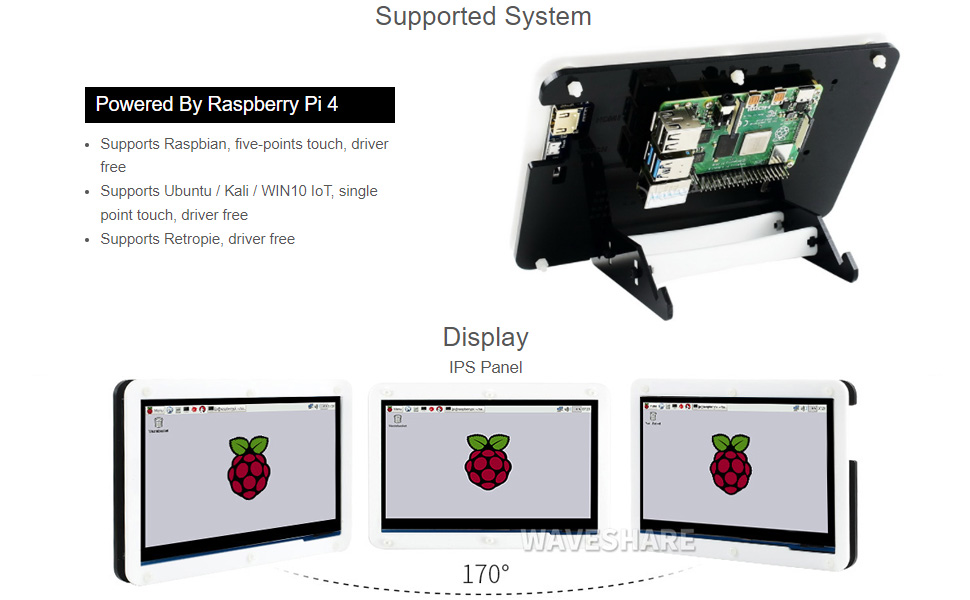
Image: Raspberry Pi 4 Model B board layout with key components labeled.
- Процессор: Broadcom BCM2711, төрт ядролы Cortex-A72 (ARM v8) 64 биттік SoC @ 1.5 ГГц
- Жад: LPDDR4-2400 SDRAM (available in 1GB, 2GB, 4GB, or 8GB options)
- Қосылу мүмкіндігі: 2.4 GHz and 5.0 GHz IEEE 802.11ac wireless, Bluetooth 5.0, Gigabit Ethernet
- USB порттары: 2 × USB 3.0 ports, 2 × USB 2.0 ports
- Бейне және дыбыс: 2 × micro-HDMI ports (up to 4Kp60 supported), 2-lane MIPI DSI display port, 2-lane MIPI CSI camera port, 4-pole stereo audio and composite video port
- GPIO: 40-pin GPIO header
- Қуат: 5V DC via USB-C connector (minimum 3A recommended)
4. Орнату нұсқаулығы
Follow these steps to assemble and set up your Waveshare Raspberry Pi 4 Display Kit.
4.1 Hardware Assembly

Image: Fully assembled Waveshare Raspberry Pi 4 Display Kit.
- Raspberry Pi дайындаңыз: Ensure your Raspberry Pi 4 Model B board is ready.
- Raspberry Pi орнатыңыз: Attach the Raspberry Pi 4 board to the designated mounting points on the back panel of the acrylic case using the provided screws and standoffs.
- Дисплейді жалғаңыз: Connect the 7-inch LCD to the Raspberry Pi 4. Typically, this involves connecting the HDMI cable from the display to one of the micro-HDMI ports on the Raspberry Pi, and the USB-A to Micro-USB cable for touch functionality and power.
- Assemble the Case: Secure the front panel of the acrylic case around the display and then attach it to the back panel, enclosing the Raspberry Pi and display. Ensure all cables are properly routed and not pinched.
- Тіректі бекіту: Assemble and attach the included stand to the bottom of the case for stable positioning. The stand often allows for adjustable viewing angles (e.g., 45° or 60°).
4.2 Бағдарламалық жасақтаманың конфигурациясы
The Waveshare 7-inch capacitive touch LCD is designed for driver-free operation with several popular operating systems.
- Операциялық жүйені орнату: Install your preferred operating system (e.g., Raspbian, Ubuntu, Kali, WIN10 IoT, Retropie) onto the provided 16GB Micro SD card using a suitable imaging tool (e.g., Raspberry Pi Imager).
- SD картасын салыңыз: Insert the prepared Micro SD card into the Raspberry Pi's Micro SD card slot.
- Қуат қосулы: Connect the power adapter to the display kit. The Raspberry Pi and display should power on automatically.
- Жүргізушісіз жұмыс істеу: For most supported systems, the display and touch functionality will work automatically without additional driver installation.
5. Пайдалану нұсқаулары
5.1 Сенсорлық функция

Image: User interacting with the capacitive touch screen.
- The 7-inch display features a capacitive touch panel, supporting up to five-point touch input.
- Ensure the USB touch cable is securely connected between the display and the Raspberry Pi for touch input to function.
- Touch gestures and multi-touch capabilities will depend on the operating system and applications running on your Raspberry Pi.
5.2 Қолдау көрсетілетін операциялық жүйелер
The display kit offers broad compatibility with various Raspberry Pi operating systems:
- Распий: Бес нүктелі түртуді қолдайды, драйверсіз.
- Ubuntu / Kali / WIN10 IoT: Драйверсіз бір нүктелі түртуді қолдайды.
- Ретропия: Supports driver-free operation.
6. Техникалық сипаттамалар
| Ерекшелік | Техникалық сипаттама |
|---|---|
| Дисплей өлшемі | 7 дюйм |
| Түрді түртіңіз | Capacitive, up to 5-points |
| Интерфейс | Дисплей үшін HDMI, сенсорлық режим үшін USB |
| Үйлесімділік | Raspberry Pi 4 B үлгісі |
| Операциялық жүйені қолдау | Raspbian, Ubuntu, Kali, WIN10 IoT, Retropie |
| Memory Storage Capacity (SD Card) | 16 ГБ |
| Элемент салмағы | 1.28 фунт |
| Үлгі нөмірі | PI4B Display Acce |
| Өндіруші | Waveshare |
7. Техникалық қызмет көрсету
- Тазалау: Экранды ақырын сүрту үшін жұмсақ, талшықсыз матаны пайдаланыңыз. Қатты дақтар үшін, аздап dampшүберекті сумен немесе экранға қауіпсіз тазалағышпен салыңыз. Қатты химиялық заттардан немесе абразивті материалдардан аулақ болыңыз.
- Сақтау орны: Пайдаланылмаған кезде жинақты салқын, құрғақ жерде, тікелей күн сәулесінен және жоғары температурадан алыс сақтаңыз.
- Өңдеу: Handle the display and Raspberry Pi board with care to avoid physical damage. Avoid applying excessive pressure to the screen.
8. Ақаулықтарды жою
8.1 Дисплей шығысы жоқ
- Қуатты тексеру: Ensure the power adapter is securely connected to the display kit and plugged into a working power outlet.
- HDMI қосылымы: Verify that the HDMI cable is firmly connected between the display and the Raspberry Pi's micro-HDMI port. Try a different micro-HDMI port if available.
- SD картасы: Confirm that the Micro SD card with a properly installed operating system is inserted correctly into the Raspberry Pi.
- Нәр беруші: Ensure your Raspberry Pi is receiving adequate power (a 5V/3A USB-C power supply is recommended for Raspberry Pi 4).
8.2 Сенсорлық функция жұмыс істемейді
- USB қосылымы: Check that the USB-A to Micro-USB cable is securely connected from the display to a USB port on the Raspberry Pi.
- Операциялық жүйені қолдау: Confirm that your operating system supports the touch functionality of this display. While most are driver-free, some configurations might require specific settings.
- Қайта жүктеу: Try rebooting the Raspberry Pi.
8.3 Screen Flickering or Instability
- Нәр беруші: Ensure a stable and sufficient power supply is used for both the display and the Raspberry Pi.
- Кабельдің тұтастығы: Check the HDMI and USB cables for any damage or loose connections.
9. Кепілдік және қолдау
For warranty information, technical support, or further assistance, please refer to the official Waveshare webсайтына немесе сатушыға хабарласыңыз. Сатып алу түбіртегін кепілдік талаптары үшін сатып алудың дәлелі ретінде сақтаңыз.