
1. Кіріспе
Сатып алғаныңыз үшін рахметasing the Bewinner Portable Remote Control. This device is designed to provide convenient control over your PC or laptop's media functions, allowing you to navigate applications, play media, and execute custom shortcuts from a distance. This manual provides detailed instructions for setup, operation, maintenance, and troubleshooting to ensure optimal performance.

The Bewinner Portable Remote Control is designed for ease of use and portability, allowing you to control your PC media from a comfortable distance.
2. Қауіпсіздік туралы ақпарат
Өнімнің зақымдалуын немесе өзіңізге зиян келтірмеу үшін осы қауіпсіздік нұсқауларын оқып, орындаңыз:
- Do not expose the remote control or USB receiver to water or excessive moisture.
- Құрылғыны түсіріп алмаңыз немесе қатты соққыларға ұшырамаңыз.
- Do not attempt to disassemble or modify the remote control. This will void the warranty.
- Батареяларды балалардың қолы жетпейтін жерде сақтаңыз. Жұтылған жағдайда дереу медициналық көмекке жүгініңіз.
- Пайдаланылған батареяларды жергілікті ережелерге сәйкес тастаңыз.
- Орнату кезінде батареяның полярлығының дұрыстығына көз жеткізіңіз.
3. Пакет мазмұны
Пакетте барлық элементтердің бар екенін тексеріңіз:
- 1 x Bewinner Portable Remote Control
- 1 x USB Infrared Receiver
- Note: 2 x AAA batteries are NOT included and must be purchased separately.
4. Өнім аяқталдыview
The Bewinner Portable Remote Control features a slim design with various buttons for comprehensive PC control.

Алдыңғы view of the remote control, highlighting its button layout.
Түймелердің функциялары:
- Қуат түймесі: Turns the computer on or off (requires system configuration).
- Тінтуір түймесі: Activates/deactivates mouse mode for cursor control using directional keys.
- Directional Keys (Up, Down, Left, Right): Navigation in menus, web pages, or mouse cursor movement.
- Енгізу түймесі: Таңдауларды растайды.
- Дыбыс деңгейін жоғарылату/төмендету: Жүйенің дыбыс деңгейін реттейді.
- Дыбысты өшіру: Дыбысты өшіреді/қосады.
- Play/Pause, Stop, Previous/Next Track: Медиа ойнатуды басқару элементтері.
- Толық экран: Toggles full-screen mode for media players.
- My PC: «Бұл компьютер» немесе «Менің компьютерім» ашылады.
- Backspace: Performs a backspace action.
- Бет жоғары/төмен: Беттерді айналдырады.
- Қойынды: Performs a tab action.
- Шығу: Escapes current action or closes menus.
- Desktop: Minimizes all windows to show the desktop.
- Numlock: Toggles numeric keypad functionality.
- Сандық пернелер (0-9): Сандарды енгізу.
- Custom Shortcut Keys (A, B, C, D): Programmable keys for launching applications.

Егжей-тегжейлі view of the top section of the remote, including power and custom shortcut buttons.

Егжей-тегжейлі view of the bottom section of the remote, showing numeric and function keys.
5. Орнату
5.1. Батареяны орнату
- Қашықтан басқару құралының артқы жағындағы батарея бөлімін табыңыз.
- Батарея қақпағын ашу үшін оны төмен сырғытыңыз.
- Дұрыс полярлықты (+ және -) қамтамасыз ете отырып, екі AAA батареясын салыңыз.
- Батарея қақпағын шерткенше орнына сырғыту арқылы қайта жабыңыз.
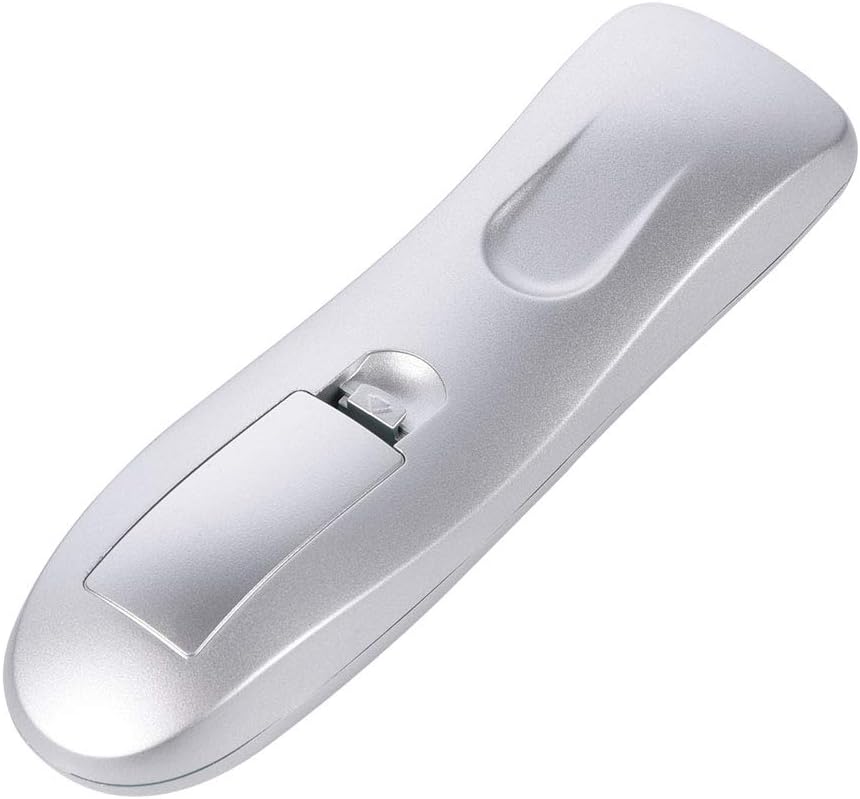
Батареяларды салу үшін батарея бөлімін ашыңыз.

Орнатқаннан кейін батарея қақпағының мықтап жабылғанына көз жеткізіңіз.
5.2. Connecting the USB IR Receiver
- Компьютерде немесе ноутбукте қол жетімді USB портын табыңыз.
- Plug the USB Infrared Receiver into the USB port.
- The operating system (Windows 98/ME/XP/MCE/Vista/2000 and later) will automatically detect and install the necessary drivers. No manual driver installation is required.
- Once the drivers are installed, the remote control is ready for use.

The remote control and its accompanying USB Infrared Receiver.
6. Пайдалану нұсқаулары
6.1. Негізгі басқару
- Тікелей бақылау: Most buttons (e.g., volume, media playback, page navigation) function directly without additional setup.
- Тінтуір режимі: түймесін басыңыз Тінтуір button to activate cursor control. Use the directional keys to move the cursor. Press the Тінтуір button again to exit mouse mode.
- Тасымалдау қашықтығы: The remote operates effectively up to 10 meters (approximately 33 feet) from the USB IR receiver. Ensure a clear line of sight between the remote and the receiver for optimal performance.

The remote control offers a transmission distance of up to 10 meters.
6.2. Customizing Shortcut Keys (A, B, C, D)
The remote features four customizable shortcut keys (A, B, C, D) that can be programmed to launch specific applications. Each shortcut key can be configured to start up to three programs.
To customize these keys, you will typically need to use a third-party software or the operating system's built-in shortcut management features. Refer to your operating system's documentation for detailed instructions on assigning custom shortcuts to applications.
6.3. Үйлесімділік
The remote control is compatible with the following operating systems:
- Windows 98
- Windows ME
- Windows XP
- Windows MCE
- Windows Vista
- Windows 2000
- Later versions of Windows
It supports most common playback software, including but not limited to: WinDvd, RealPlayer, Winamp, MediaPlayer, PowerDvd, and web browsers like IE.
7. Техникалық қызмет көрсету
7.1. Тазалау
To clean the remote control, use a soft, dry cloth. Do not use liquid cleaners, aerosols, or solvents, as these may damage the device.
7.2. Батареяны ауыстыру
If the remote control's performance degrades or it stops responding, replace the AAA batteries. Refer to section 5.1 for battery installation instructions.
8. Ақаулықтарды жою
| Мәселе | Ықтимал себебі | Шешім |
|---|---|---|
| Қашықтан басқару құралы жауап бермейді. | Low or dead batteries. Incorrect battery polarity. USB receiver not properly connected. No line of sight. | Replace batteries. Check battery polarity. Ensure USB receiver is firmly plugged in. Ensure clear path between remote and receiver. |
| Mouse cursor movement is erratic or slow. | Weak signal. Obstruction between remote and receiver. | Move closer to the receiver. Remove any obstructions. Ensure direct line of sight. |
| Custom shortcut keys do not work. | Keys not programmed. Incorrect programming. | Refer to your operating system's documentation for programming custom shortcuts. Ensure the correct application path is set. |
| Қашықтан басқару үзіліспен жұмыс істейді. | Interference. Low battery. | Ensure no other IR devices are causing interference. Replace batteries. |
9. Техникалық сипаттамалар
- Бренд: Жеңімпаз
- Модель атауы: Bewinnerrygza79bs3
- Қосылу технологиясы: Инфрақызыл
- Үйлесімді құрылғылар: Ноутбук, компьютер
- Максималды диапазон: 10 метр
- Батарея Түрі: 2 x AAA (қоспаған)
- Button Quantity: 10 (including numeric and function keys)
- Ерекше ерекшелігі: Universal control for PC media
- Қолдау көрсетілетін операциялық жүйелер: WIN98, WINME, WINXP, Windows MCE, Vista, WIN2000, and later Windows versions.
10. Кепілдік және қолдау
Bewinner products are manufactured with quality and performance in mind. If you encounter any issues with your Portable Remote Control, please contact our customer service team.
For product support, technical assistance, or warranty inquiries, please reach out to the seller or manufacturer through the platform where the product was purchased. Our professional customer service team is available to assist you with any questions or concerns.