
1. Кіріспе
This manual provides comprehensive instructions for the installation, operation, and maintenance of your Intel 3168NGW Dual Band Wireless-AC 3168 WiFi Card. Please read this manual thoroughly before installation and use to ensure proper functionality and to prevent damage.
The Intel 3168NGW is a compact M.2 2230 form factor card designed to provide high-speed 802.11ac Wi-Fi and Bluetooth 4.2 connectivity to compatible systems.
2. Қауіпсіздік туралы ақпарат
- Always disconnect power from your computer before installing or removing any internal components.
- Handle the card by its edges to avoid touching the gold connectors or sensitive components. Electrostatic discharge (ESD) can damage the card.
- Ensure proper grounding when working inside your computer.
- Keep the card away from moisture and extreme temperatures.
- This product is intended for installation by qualified personnel.
3. Пакет мазмұны
Пакетте барлық элементтердің бар екенін тексеріңіз:
- Intel 3168NGW Dual Band Wireless-AC 3168 WiFi Card
- (Antennas and mounting screw may be included depending on retailer/kit)
4. Орнату және орнату
This section outlines the general steps for installing the Intel 3168NGW WiFi Card. Specific steps may vary depending on your computer's make and model.
4.1. Орнатуға дейінгі бақылау тізімі
- Compatible M.2 2230 slot (Key E) on your motherboard or laptop.
- Кішкентай Phillips бас бұрағыш.
- Антистатикалық білезік бауы (ұсынылады).
- Internet access (for driver download).
4.2. Орнату қадамдары
- Қуатты өшіру және ажырату: Shut down your computer completely and disconnect the power cord and any other peripherals.
- Ашық компьютер корпусы: Open your computer's case or access panel to expose the motherboard. Refer to your computer's manual for specific instructions.
- M.2 ұяшығын табыңыз: Identify an available M.2 2230 slot (often labeled "Key E" or "WiFi").
- Insert WiFi Card: Carefully align the Intel 3168NGW card with the M.2 slot. Insert the card at a slight angle (approximately 30 degrees) and gently push it into the slot until it is fully seated.
- Картаны қорғаңыз: Once seated, push the card down towards the motherboard. Secure it with the small screw provided with your computer or the card (if included).
- Attach Antennas (if applicable): If your system uses external antennas, carefully connect the antenna cables to the corresponding connectors on the WiFi card (Main and Aux). Ensure a secure connection.
- Компьютер корпусын жабу: Replace the computer's access panel or close the case.
- Қуатты қайта қосу: Reconnect the power cord and other peripherals.
- Қуат қосулы: Компьютеріңізді қосыңыз.
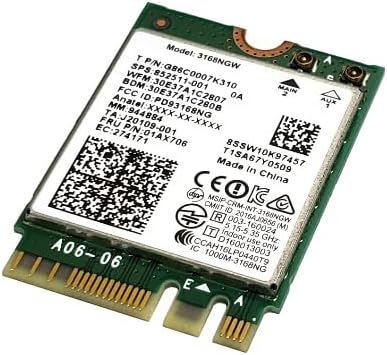
Image 1: Intel 3168NGW Dual Band Wireless-AC 3168 WiFi Card. This image displays the Intel 3168NGW WiFi card, an M.2 2230 form factor component. The card features a green PCB with a white label detailing the model number (3168NGW), part numbers (G86C0007K310, 852511-001), and regulatory information. Two small gold antenna connectors are visible at one end, labeled "MAIN" and "AUX". The M.2 connector pins are visible at the opposite end.
5. Пайдалану нұсқаулары
5.1. Драйверді орнату
After physical installation, you will need to install the appropriate drivers for the WiFi and Bluetooth functionalities.
- Бастапқы жүктеу: Upon booting your computer, the operating system may automatically detect the new hardware and attempt to install generic drivers.
- Соңғы драйверлерді жүктеп алыңыз: For optimal performance and stability, it is highly recommended to download the latest drivers directly from the official Intel support webсайт. Іздеу "Intel Wireless-AC 3168 drivers" and "Intel Bluetooth 4.2 drivers".
- Драйверлерді орнату: Run the downloaded driver installation packages and follow the on-screen prompts. You may need to restart your computer after installation.
- Орнатуды тексеру: Open Device Manager (Windows) or System Information (macOS/Linux) to confirm that the Intel Wireless-AC 3168 and Bluetooth 4.2 devices are recognized and functioning correctly.
5.2. Wi-Fi желісіне қосылу
- Операциялық жүйе параметрлерінде Wi-Fi қосылғанына көз жеткізіңіз.
- Жүйелік тақтадағы (Windows) немесе мәзір жолағындағы (macOS) Wi-Fi белгішесін басыңыз.
- Қол жетімді желілер тізімінен қалаған Wi-Fi желісін таңдаңыз.
- Enter the network password (if required) and click "Connect".
5.3. Bluetooth құрылғыларын жұптастыру
- Амалдық жүйе параметрлерінде Bluetooth қосылғанына көз жеткізіңіз.
- Bluetooth құрылғыңызды жұптастыру режиміне қойыңыз (құрылғының нұсқаулығын қараңыз).
- Go to your computer's Bluetooth settings and search for new devices.
- Тізімнен құрылғыңызды таңдап, жұптастыру процесін аяқтау үшін экрандағы кез келген нұсқауларды орындаңыз.
6. Техникалық қызмет көрсету
- Драйвер жаңартулары: Intel қолдауын жүйелі түрде тексеріңіз website for updated drivers to ensure optimal performance and security.
- Физикалық тексеру: Periodically inspect the card and antenna connections for any signs of damage or loose connections.
- Тазалау: If necessary, gently clean any dust accumulation on the card using compressed air. Ensure the computer is powered off and disconnected before cleaning.
7. Ақаулықтарды жою
7.1. Wi-Fi or Bluetooth Not Detected
- Физикалық қосылымды тексеріңіз: Ensure the card is properly seated in the M.2 slot and secured.
- Антенна қосылымдары: Verify that antenna cables are securely attached to the card.
- Құрылғы менеджері: Check Device Manager (Windows) for any yellow exclamation marks or unknown devices. Reinstall drivers if necessary.
- BIOS/UEFI параметрлері: Some motherboards may have an option to enable/disable M.2 slots or wireless functionality in the BIOS/UEFI settings. Ensure it is enabled.
7.2. Poor Wi-Fi Performance or Disconnections
- Драйверді жаңарту: Ensure you have the latest drivers installed from Intel.
- Маршрутизатордың жақындығы: Move closer to your Wi-Fi router or access point.
- Интерференция: Other electronic devices (cordless phones, microwaves) can cause interference. Try changing your router's Wi-Fi channel.
- Антеннаның орналасуы: If using external antennas, ensure they are positioned for optimal signal reception.
7.3. Bluetooth Pairing Issues
- Құрылғының үйлесімділігі: Ensure the Bluetooth device you are trying to pair is compatible with Bluetooth 4.2.
- Жұптау режимі: Confirm the Bluetooth device is in pairing mode.
- Restart Bluetooth Service: Try disabling and re-enabling Bluetooth in your computer's settings.
- Remove Existing Pairings: If you've previously paired the device, remove it from your computer's Bluetooth list and try pairing again.
8. Техникалық сипаттамалар
| Ерекшелік | Техникалық сипаттама |
|---|---|
| Үлгі | Intel 3168NGW |
| Бөлшек нөмірлері | G86C0007K310, 852511-001, 01AX706, SW10K97457, J20109-001, 84811-002, 11S01AX706, 8SSW10K97457 |
| Сымсыз стандарт | 802.11a/b/g/n/ac |
| Жиілік жолақтары | Қос диапазонды (2.4 ГГц және 5 ГГц) |
| Деректерді тасымалдау жылдамдығы | 433 Мбит/с дейін |
| Bluetooth стандарты | Bluetooth 4.2 |
| Интерфейс | PCI-Express (M.2 2230, Key E) |
| Форма факторы | М.2 2230 |
| Үйлесімді құрылғылар | Desktop (with compatible M.2 slot) |
| Өндіруші | Intel |
| Элемент салмағы | 2 фунт (Note: This weight might refer to shipping weight, actual card weight is minimal) |
| UPC | 735899008645 |
9. Кепілдік және қолдау
Кепілдік туралы ақпаратты және техникалық қолдауды ресми Intel компаниясынан қараңыз website or contact your point of purchase. Intel provides comprehensive support resources, including driver downloads, troubleshooting guides, and customer service contacts.
Intel қолдауы Webсайт: www.intel.com/support