
Кіріспе
This manual provides essential information for setting up, operating, maintaining, and troubleshooting your Intel NUC 7 Business Mini PC (model NUC7i5DNKPC). This compact and powerful PC is designed for business environments, featuring a 7th Generation Intel Core i5 processor, 256GB NVMe SSD, 8GB DDR4-2133 memory, and Windows 10 Pro. It includes Intel vPro Technology for remote manageability and enhanced security, and Intel HD Graphics 620 supporting dual 4K monitors.
Қорапта не бар
Барлық элементтер пакетте бар екенін тексеріңіз:
- Intel NUC 7 Business Mini PC Unit
- VESA орнату тақтасы
- Power Supply/Adapter (Note: An AC power cord is not included and must be supplied by the user. A 3-prong "laptop style" cord with 3 round pins in a triangle formation is required.)
- Нұсқаулық (бұл құжат)
Өнім аяқталдыview
Familiarize yourself with the ports and features of your Intel NUC.
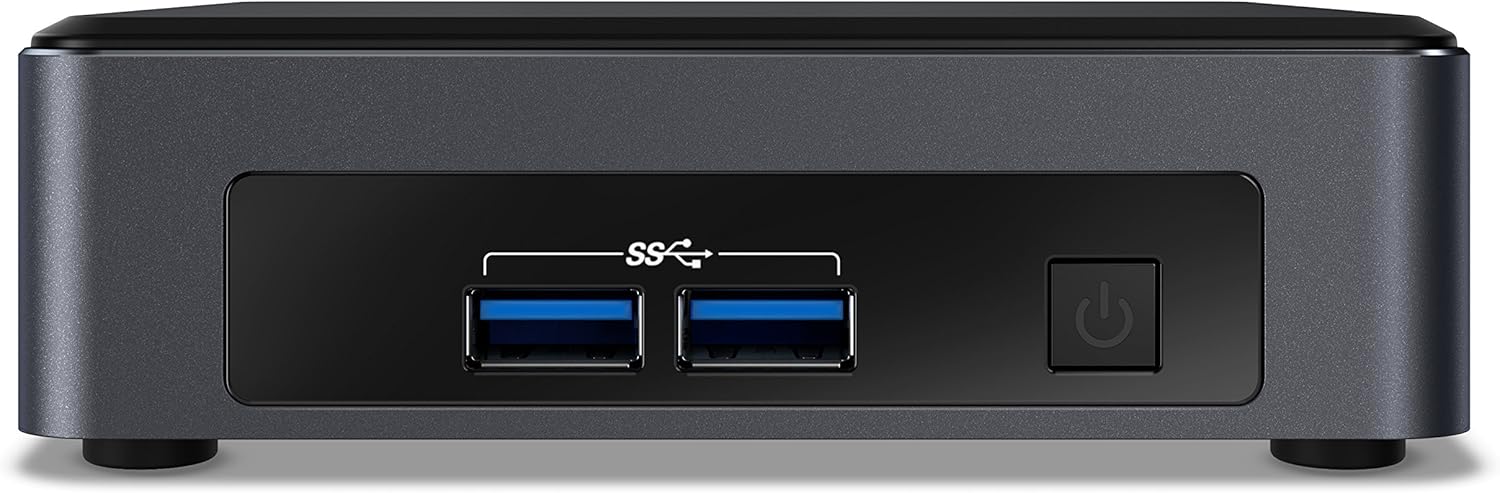
1-сурет: Алдыңғы панель. This image shows the front of the Intel NUC 7 Business Mini PC. It features two USB 3.0 ports (marked with "SS" for SuperSpeed) and a power button on the right side.

2-сурет: Артқы панель. This image displays the rear of the Intel NUC 7 Business Mini PC. From left to right, it includes a 19V DC power input, two HDMI ports (one labeled "Protected UHD"), an Ethernet port, and two additional USB 3.0 ports.

Figure 3: Internal Access. This image shows the Intel NUC 7 Business Mini PC with its top cover partially removed, illustrating access to internal components for potential upgrades or maintenance.
Орнату
- Қуатты қосу: Connect the power adapter to the 19V DC input port on the rear of the NUC. Plug the AC power cord (not included) into the power adapter and then into a wall outlet.
- Дисплейді қосу: Connect your monitor(s) to the HDMI ports on the rear of the NUC using HDMI cables. The NUC supports dual 4K displays.
- Перифериялық құрылғыларды қосу: Connect your USB keyboard, mouse, and any other USB devices to the available USB 3.0 ports (two on the front, two on the rear).
- Желіге қосылу (қосымша): For a wired internet connection, connect an Ethernet cable from your router or modem to the Ethernet port on the rear of the NUC. For wireless connectivity, the NUC includes built-in Wi-Fi and Bluetooth.
- Қуат қосулы: Press the power button located on the front panel of the NUC. The system will boot up.
- Windows 10 Pro жүйесін бастапқы орнату: Follow the on-screen instructions to complete the initial setup of Windows 10 Pro, including language, region, network settings, and user account creation.
Пайдалану нұсқаулары
- Негізгі операция: Once Windows 10 Pro is set up, you can use the NUC like any standard desktop computer. Launch applications, browse the web, and manage files.
- Қос дисплейді қолдау: Utilize the two HDMI ports to connect multiple monitors for an extended desktop experience. Configure display settings within Windows.
- Intel vPro технологиясы: This NUC includes Intel vPro Technology, enabling remote management and enhanced security features. Consult your IT administrator or Intel documentation for specific vPro setup and usage.
- Shut Down/Restart: To properly shut down or restart the NUC, use the options available in the Windows Start Menu. Avoid simply unplugging the power cable to prevent data loss.
Техникалық қызмет көрсету
- Тазалау: Keep the NUC clean by gently wiping the exterior with a soft, dry cloth. Do not use liquid cleaners directly on the device. Ensure ventilation openings are free from dust and obstructions.
- Бағдарламалық құрал жаңартулары: Regularly update Windows 10 Pro and Intel drivers to ensure optimal performance, security, and compatibility. Access Windows Update through the Settings menu.
- Деректердің сақтық көшірмесі: Деректердің жоғалуын болдырмау үшін маңызды деректердің сақтық көшірмесін сыртқы дискіге немесе бұлттық жадқа мерзімді түрде жасаңыз.
Ақаулықтарды жою
- Қуат жоқ / Жүйе қосылмайды:
- Ensure the power adapter is securely connected to the NUC and a working power outlet.
- Verify that you are using a compatible 3-prong AC power cord with the power adapter. This cord is not included with the NUC.
- Қуат розеткасын басқа құрылғымен тексеріңіз.
- Мониторда дисплей жоқ:
- Check that the HDMI cables are securely connected to both the NUC and the monitor.
- Ensure the monitor is powered on and set to the correct input source (HDMI 1, HDMI 2, etc.).
- Try connecting to a different HDMI port on the NUC or using a different monitor/cable if available.
- Интернет қосылымы жоқ:
- For wired connections, ensure the Ethernet cable is properly connected and your router/modem is working.
- For wireless connections, check Wi-Fi settings in Windows to ensure you are connected to the correct network and the signal is strong.
- Restart your router/modem and the NUC.
- System Performance Issues:
- Windows және драйверлердің жаңартылғанына көз жеткізіңіз.
- Check for background applications consuming excessive resources using Task Manager.
- Қызып кетудің алдын алу үшін тиісті желдетуді қамтамасыз етіңіз.
Техникалық сипаттамалар
| Ерекшелік | Мәлімет |
|---|---|
| Модель атауы | Intel NUC 7 Business |
| Үлгі нөмірі | BLKNUC7I5DNKPC1 |
| Процессор | 7th Generation Intel Core i5-7300U (2.6 GHz CPU Speed) |
| Операциялық жүйе | Windows 10 Pro |
| Жедел Жадтау Құрылғысы | 8GB DDR4-2133 (Max 32GB, 1 slot available) |
| Сақтау | 256 ГБ NVMe SSD |
| Графика | Intel HD Graphics 620 (кіріктірілген) |
| Бейне шығысы | 2x HDMI (Supports dual 4K displays, Max Resolution: 3840 x 2160 pixels) |
| USB порттары | 4x USB 3.0 (Total) |
| Желі | Ethernet, Wi-Fi (802.11b/g/n), Bluetooth |
| Арнайы мүмкіндіктер | Intel vPro Technology, Hardware TPM 2.0, Microphone |
| Өлшемдері (LxWxH) | 5.59 x 4.88 x 4.49 дюйм |
| Салмағы | 2.2 фунт |
| Түс | Қара |
| UPC | 735858382656 |
Кепілдік туралы ақпарат
The Intel NUC 7 Business Mini PC comes with a 3 жылдық шектеулі кепілдік. For detailed terms and conditions, please refer to the official Intel warranty documentation or visit the Intel support webсайт. Кепілдік шағымдары үшін сатып алуды растайтын құжатты сақтаңыз.
Қолдау
For further assistance, technical support, driver downloads, or additional documentation, please visit the official Intel support website. You can typically find support resources by searching for "Intel NUC support" or by navigating to Intel's official support page.