
Waveshare 7inch HDMI LCD (H)
Waveshare 7-inch HDMI Capacitive Touch Screen LCD User Manual
Үлгі: 7 дюймдік HDMI LCD (H)
Кіріспе
This manual provides detailed instructions for setting up, operating, and maintaining your Waveshare 7-inch HDMI Capacitive Touch Screen LCD. This display features a 1024x600 resolution IPS panel, capacitive touch functionality, and broad compatibility with various single-board computers and PCs.
Пакет мазмұны
Төменде тізімделген заттардың барлығы пакетіңізге қосылғанын тексеріңіз:
- 7-inch HDMI LCD (H)
- HDMI кабелі
- USB Type-A to Micro-B Cable (for touch and power)
- HDMI to Micro HDMI Adapter (for Raspberry Pi Zero series)
- Screws and standoffs for mounting

Image: Contents of the Waveshare 7-inch HDMI LCD package, including the display, HDMI cable, USB cable, HDMI adapter, and mounting hardware.
Өнім ерекшеліктері
- Дисплей өлшемі: 7 дюймдік IPS экраны.
- Ажыратымдылық: 1024x600 hardware resolution, software configurable up to 1920x1080.
- Түрту түрі: Capacitive, 5-point touch support.
- Viewбұрышы: Ені 170 ° viewкіру бұрышы.
- Дисплей интерфейсі: HDMI / VGA (VGA requires separate cable).
- Аудио шығысы: 3.5mm audio jack and 4PIN header for speaker connection.
- Экрандық мәзір: Қуатты басқаруға, жарықтық пен контрастты реттеуге арналған көп тілді экрандық дисплей мәзірі.
- Үйлесімділік: Supports Raspberry Pi OS, Ubuntu, Kali, Retropie (driver-free for Raspberry Pi); Windows 11/10/8.1/8/7 (5-point touch, driver-free); Jetson Nano (Ubuntu, single-point touch, driver-free); Game Consoles (Xbox360, PS4, Switch - display only).

Сурет: аяқталдыview of the 7-inch HDMI Touch Display's key specifications including size, resolution, display interface, panel type, viewing angle, touch type, touch points, touch port, OSD menu, and audio outputs.
Орнату нұсқаулары
1. Connecting to Raspberry Pi
- Connect the HDMI port of the Raspberry Pi to the HDMI port of the display using the provided HDMI cable.
- Connect the USB port of the Raspberry Pi to the Micro-B USB port labeled "Touch" on the display using the provided USB A to Micro-B cable. This provides power to the display and enables touch functionality.
- For Raspberry Pi Zero series, use the included HDMI to Micro HDMI adapter.
- Ensure the Raspberry Pi is powered by a suitable 5V/3A (or higher, depending on Pi model) power supply. The display can draw power from the USB connection, but an external power supply for the Pi is essential.
2. Компьютерге қосылу (Windows)
- Connect the HDMI output of your PC to the HDMI input of the display.
- Connect a USB port on your PC to the Micro-B USB port labeled "Touch" on the display. This provides power and enables 5-point touch functionality.
- The display is driver-free for Windows 11/10/8.1/8/7.
3. Connecting to Jetson Nano
- Connect the HDMI output of the Jetson Nano to the HDMI input of the display.
- Connect a USB port on the Jetson Nano to the Micro-B USB port labeled "Touch" on the display. This provides power and enables single-point touch functionality.
- Ensure the Jetson Nano is powered by a suitable 5V/4A power supply.
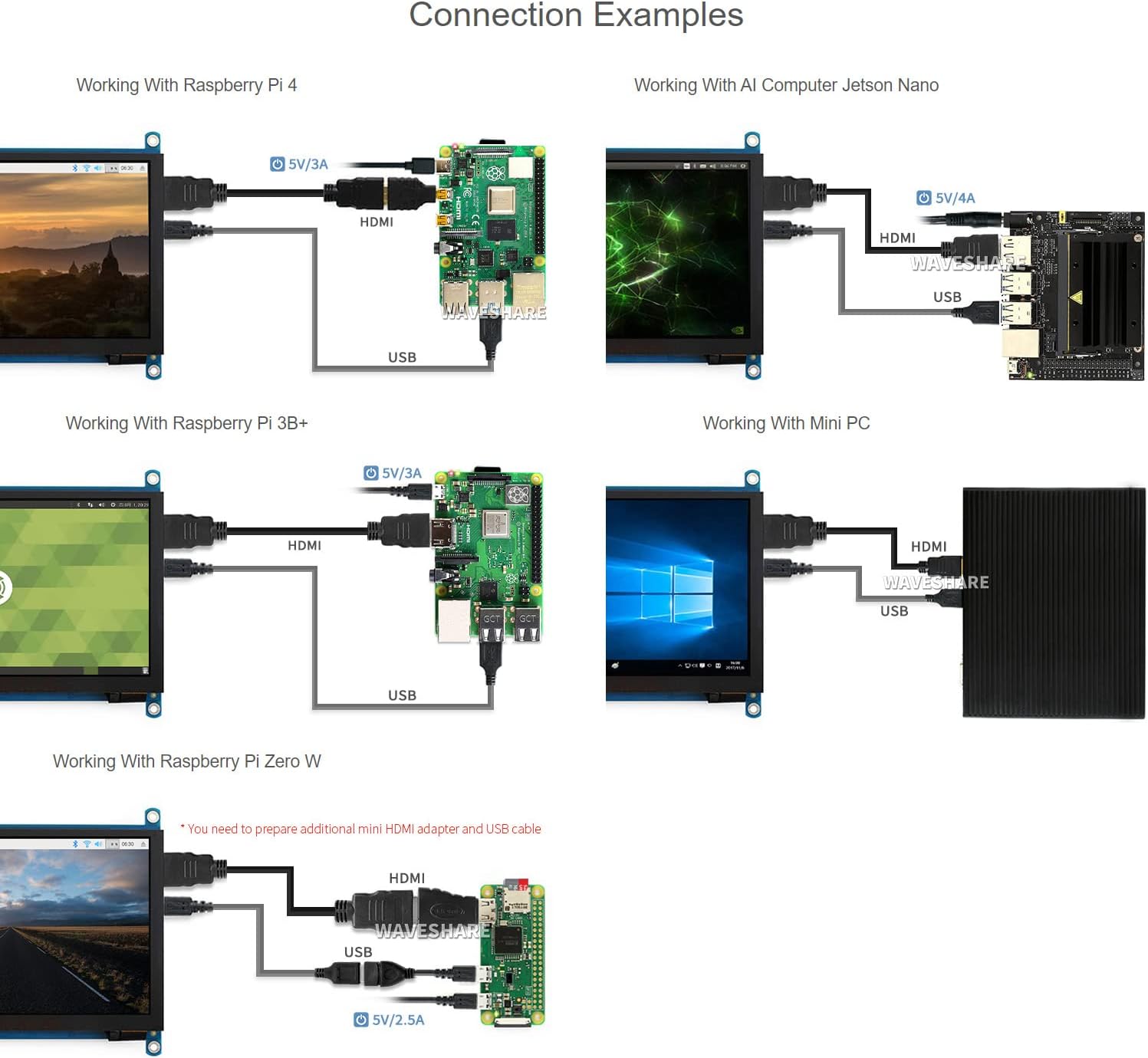
Image: Diagrams illustrating various connection examples for the 7-inch HDMI LCD with Raspberry Pi 4, Jetson Nano, Raspberry Pi 3B+, Raspberry Pi Zero W, and a Mini PC, showing HDMI and USB cable connections.
Пайдалану нұсқаулары
1. Қосу / Өшіру
The display powers on automatically when connected to a powered device via HDMI and USB. To power off, disconnect the power source from the connected device or the display's USB power input.
2. Экрандық мәзірді шарлау
The display features an On-Screen Display (OSD) menu for various settings. Use the physical buttons on the side of the display to navigate and adjust settings such as brightness, contrast, and power management. Refer to the "Appearance and Dimensions" section for button identification.
3. Басқару түймесін түртіңіз
The display supports capacitive touch input. When connected via USB to a compatible operating system (Raspberry Pi OS, Ubuntu, Kali, Windows), the touch functionality will be recognized automatically without additional drivers. The number of touch points supported depends on the operating system (e.g., 5-point touch on Windows, single-point on Jetson Nano Ubuntu).

Image: Demonstrates the capacitive touch control functionality on the 7-inch HDMI LCD, showing a hand interacting with a web browser interface. Also shows the display connected to a game console, indicating support for gaming display.
4. Аудио шығысы
Audio can be output through the 3.5mm audio jack or the 4PIN header for external speakers. Ensure your connected device is configured to output audio via HDMI.
Техникалық қызмет көрсету
- Тазалау: Use a soft, lint-free cloth to gently wipe the screen surface. Do not use abrasive cleaners or solvents.
- Сақтау орны: Дисплейді салқын, құрғақ жерде, тікелей күн сәулесінен және жоғары температурадан алыс сақтаңыз.
- Өңдеу: Avoid applying excessive pressure to the screen or dropping the device.
Ақаулықтарды жою
- Дисплей/қара экран жоқ:
- Ensure all HDMI and USB cables are securely connected.
- Verify the connected device (Raspberry Pi, PC) is powered on and outputting video.
- Check the power supply for the connected device; insufficient power can cause display issues.
- Бар болса, басқа HDMI кабелін немесе портын қолданып көріңіз.
- Сенсорлық функция жұмыс істемейді:
- Ensure the USB cable for touch is connected from the display's "Touch" port to the host device.
- Verify the operating system on your host device supports touch input and is configured correctly.
- For Raspberry Pi, ensure the OS is up-to-date and configured for the display's resolution.
- A low USB voltage can cause touch failure; ensure adequate power supply.
- Дисплейдің жыпылықтауы:
- This can be caused by low USB voltage. Ensure the host device has a stable and sufficient power supply (e.g., 5V/3A for Raspberry Pi).
- Бос кабель қосылымдарын тексеріңіз.
- Аудио шығысы жоқ:
- Ensure your host device is configured to output audio via HDMI.
- Check connections to the 3.5mm jack or 4PIN header.
Техникалық сипаттамалар
| Экран өлшемі | 7 дюйм |
| Ажыратымдылық | 1024 x 600 (Hardware), up to 1920x1080 (Software) |
| Панель түрі | IPS |
| Viewбұрыш | 170° |
| Түрді түртіңіз | Сыйымдылық |
| Сенсорлық нүктелер | 5-point (Windows), Single-point (Jetson Nano), 5-point (Raspberry Pi OS) |
| Дисплей интерфейсі | HDMI, VGA (requires separate cable) |
| Аудио шығысы | 3.5mm Jack, 4PIN Header |
| Қуат кірісі | 5 В тұрақты ток (USB арқылы) |
| Өнім өлшемдері | 7.09 x 5.51 x 1.97 дюйм (шамамен 180 x 140 x 50 мм) |
| Элемент салмағы | 0.352 унция (шамамен 10 грамм) |
Құрылғы мен жүйені қолдау
- Raspberry Pi: Supports Raspberry Pi OS, Ubuntu, Kali, Retropie (driver-free). Supports all versions of Raspberry Pi.
- Джетсон Нано: Ubuntu жүйесін қолдайды (бір нүктелі түрту, драйверсіз).
- ДК: Supports Windows 11 / 10 / 8.1 / 8 / 7 (5-point touch, driver-free).
- Ойын консольдері: Xbox360, PS4, Switch (display only).
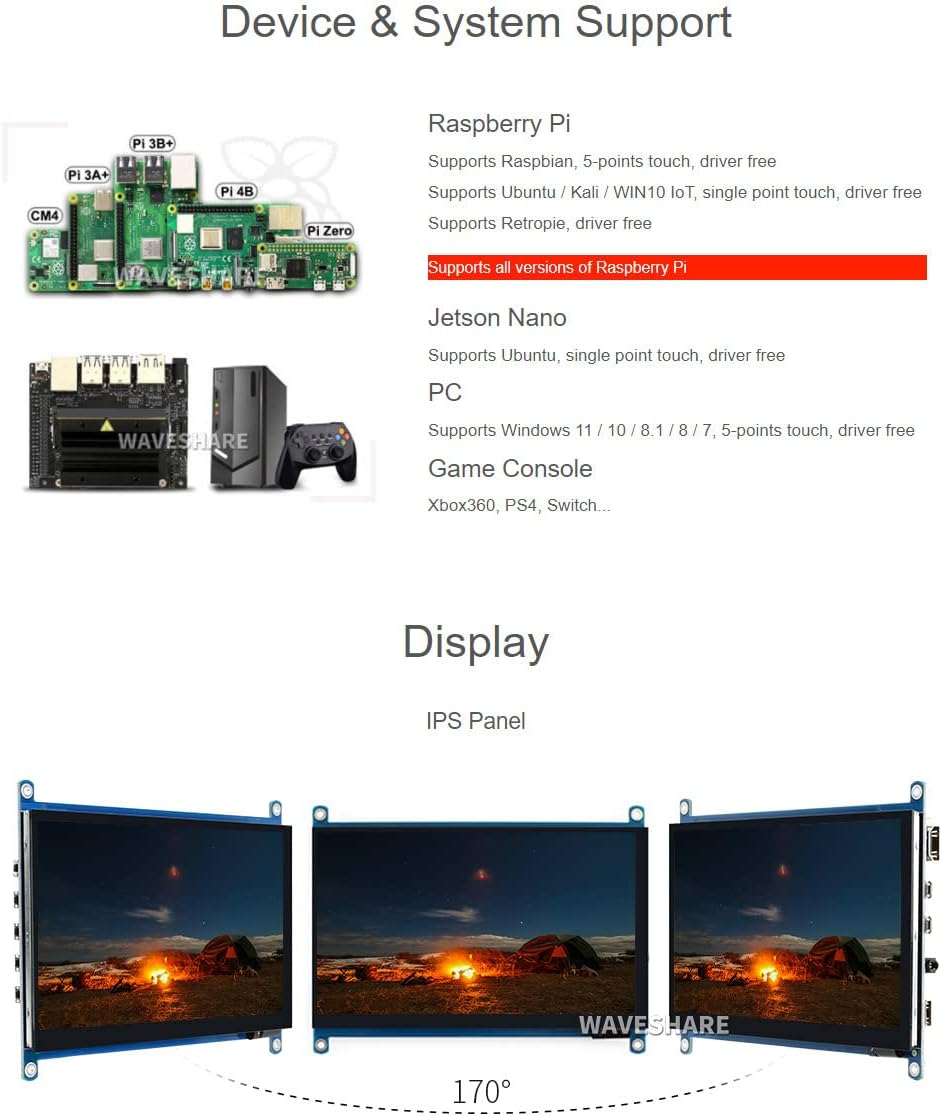
Image: Illustrates various compatible devices including Raspberry Pi models (Pi 3A+, Pi 3B+, Pi 4B, CM4, Pi Zero), Jetson Nano, and a generic PC setup, along with a list of supported operating systems and touch capabilities.
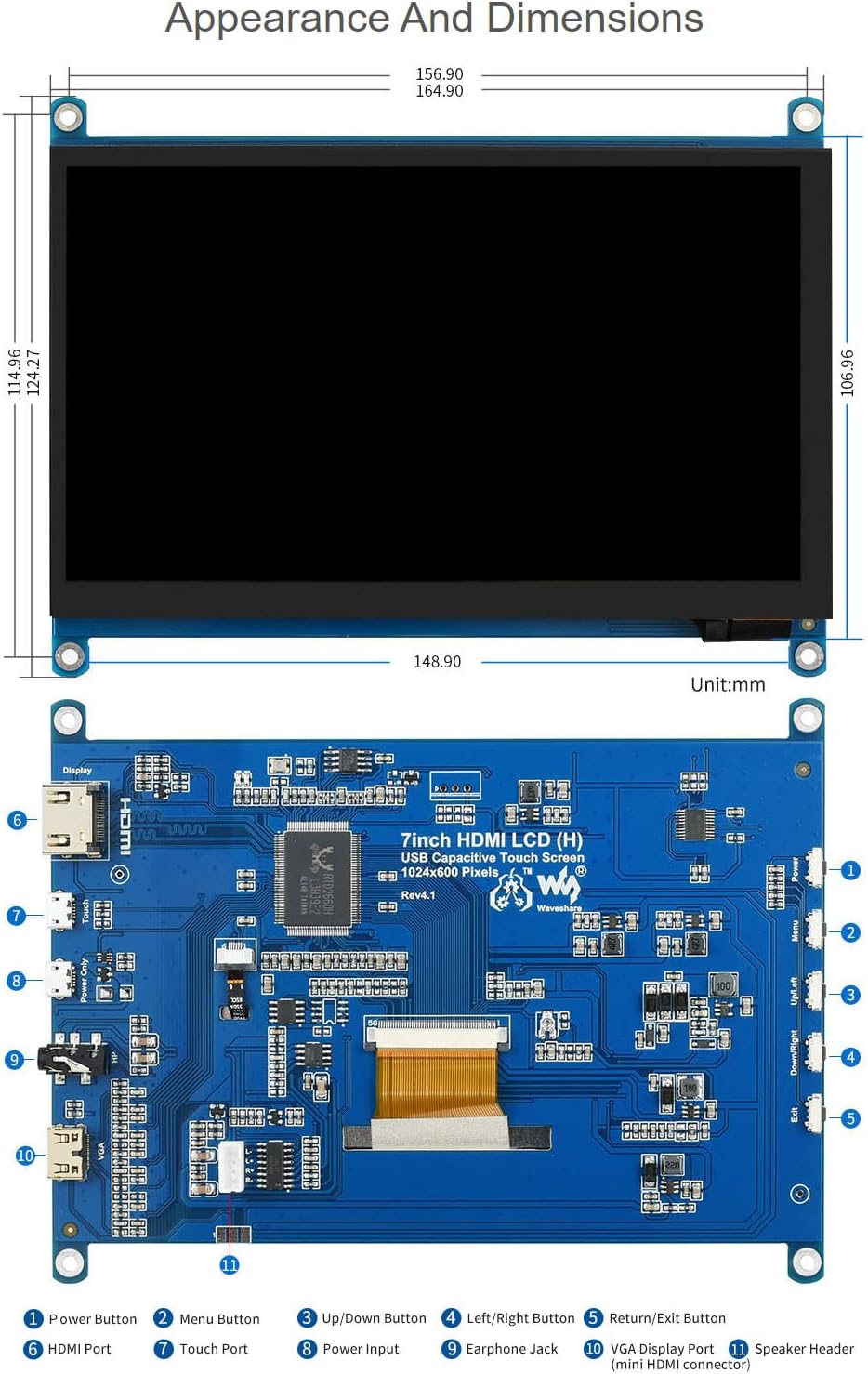
Image: Technical drawing showing the physical dimensions of the 7-inch HDMI LCD in millimeters, along with a detailed diagram identifying various ports and buttons on the display's circuit board, such as HDMI port, touch port, power input, earphone jack, VGA display port, and OSD menu buttons.
Кепілдік және қолдау
Waveshare is committed to providing high-quality products and customer service.
- Тегін ауыстыру: 30 days from purchase date.
- Free Repair: 365 days from purchase date.
- Техникалық қызмет көрсету: Өмір бойы техникалық қолдау қол жетімді.
For technical assistance or warranty claims, please contact Waveshare customer support through their official channels.

Image: Details Waveshare's commitment to support and service, including rigorous testing, one-to-one technical service, 24-hour response, 30-day free replacement, 365-day free repair, and lifetime technical service.
Сертификаттар
This product holds the following certifications:
- HDMI Certified: The display is an officially authorized HDMI adopter, ensuring higher-quality images and stable data transmission. For verification, visit HDMI.org.
- RoHS сәйкес: Complies with the Restriction of Hazardous Substances Directive.
- CE сертификаты: Meets European Union safety, health, and environmental protection requirements.
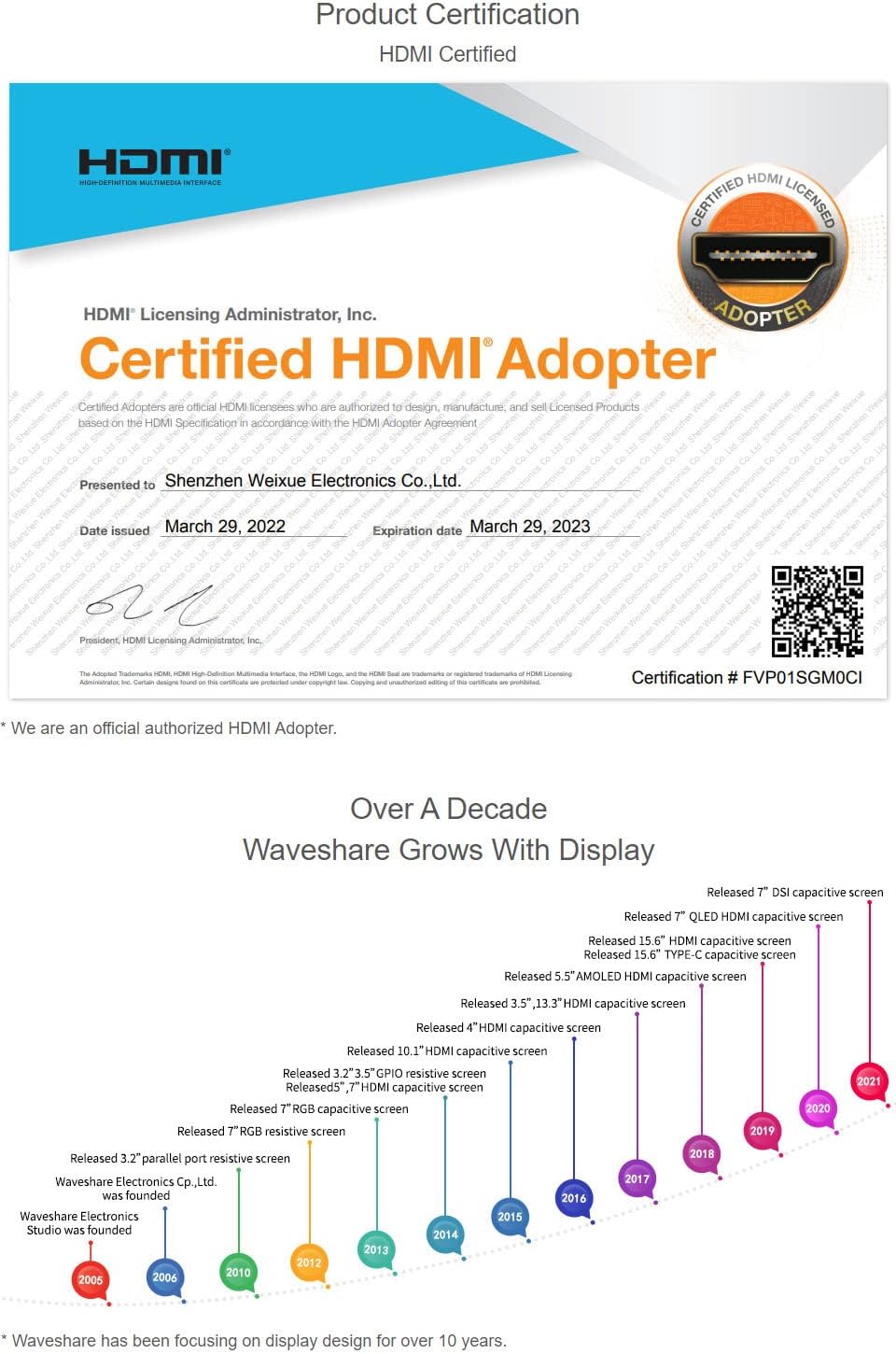
Image: A certificate indicating that Waveshare is an officially authorized HDMI adopter, ensuring compliance with HDMI standards for quality and reliability.

Image: Displays certificates for RoHS compliance and CE marking, indicating the product meets relevant environmental and safety standards.
Ask a question about this manual
Ask about setup, troubleshooting, compatibility, parts, safety, or missing instructions. Manuals+ will review the question and use this page’s manual context to help answer it.