
1. Кіріспе
This manual provides essential information for the safe and efficient use of your Alienware AW3418DW 34.1-inch Curved Gaming Monitor. This monitor features a WQHD (3440x1440) resolution, a 120Hz refresh rate (overclocked), and NVIDIA G-SYNC technology for an immersive gaming experience. Please read this manual thoroughly before operating the device.
2. Қауіпсіздік туралы ақпарат
- Always disconnect the power cable from the wall outlet before cleaning the monitor.
- Өрт немесе ток соғу қаупін болдырмау үшін мониторды жаңбырға немесе ылғалға ұшыратпаңыз.
- Мониторды ашпаңыз casing. Ішінде пайдаланушы жөндеуге болатын бөліктер жоқ. Барлық қызмет көрсетуді білікті қызмет көрсету қызметкерлеріне тапсырыңыз.
- Мониторды құлап кетпес үшін тұрақты, тегіс бетке қойыңыз.
- Монитордың айналасында дұрыс желдетуді қамтамасыз етіңіз. Желдету саңылауларын жаппаңыз.
- Монитормен бірге берілген қуат адаптері мен кабельдерді ғана пайдаланыңыз.
3. Пакет мазмұны
Барлық компоненттер пакетте бар екеніне көз жеткізіңіз:
- Alienware AW3418DW Monitor
- Монитор тірегі (негізі және көтергіші)
- Қуат кабелі
- DisplayPort кабелі
- HDMI кабелі
- USB 3.0 Upstream кабелі
- Құжаттама (Жылдам орнату нұсқаулығы, қауіпсіздік туралы ақпарат)
4. Орнату
4.1 Физикалық орнату
Carefully remove the monitor and its components from the packaging. Place the monitor face down on a soft cloth or cushion to prevent scratches.
Стендті бекіту
- Тұғыр көтергішті монитор панеліне орнына шерткенше бекітіңіз.
- Attach the stand base to the stand riser and tighten the captive screw.

4.1-сурет: Алдыңғы view of the Alienware AW3418DW monitor with its stand attached.

4.2-сурет: жағы view of the Alienware AW3418DW monitor with its stand.
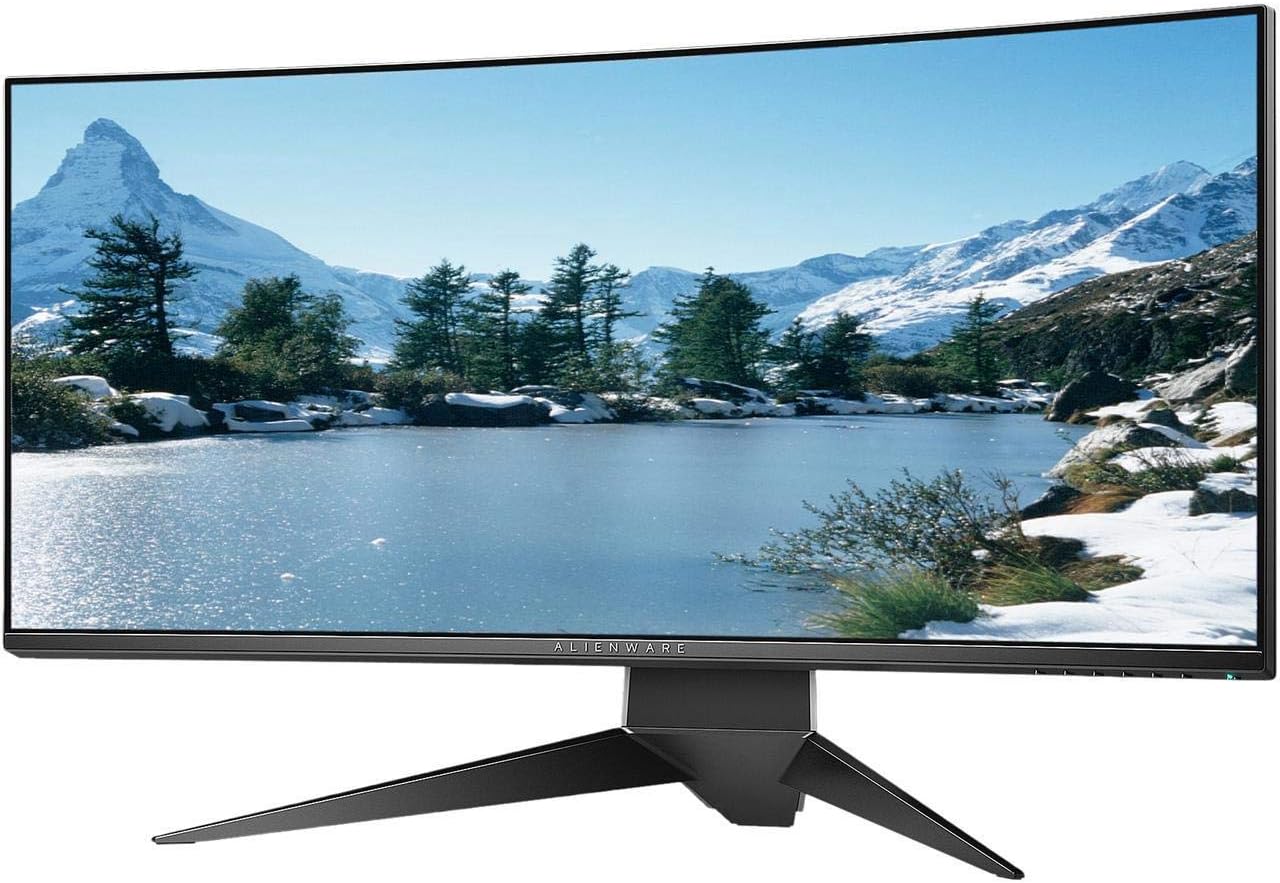
4.3-сурет: Артқы view of the Alienware AW3418DW monitor showing the stand and AlienFX lighting.
VESA монтаждау
The monitor supports VESA mounting (100 x 100 mm). Remove the stand riser by pressing the release button and then attach the VESA-compatible mount to the monitor using appropriate screws. Ensure the mount can support the monitor's weight of 26.1 pounds (without stand).

Figure 4.4: Monitor dimensions for VESA mount compatibility.
4.2 Қосылатын кабельдер
Қажетті кабельдерді монитор мен компьютерге қосыңыз.
- Қуат кабелі: Connect the power cable to the monitor's power port and then to a wall outlet.
- Бейне кабель: Connect either the DisplayPort cable or the HDMI cable from your computer's graphics card to the corresponding port on the monitor. For optimal performance, especially for 120Hz refresh rate and G-SYNC, use the DisplayPort connection.
- USB Upstream кабелі: Connect the USB 3.0 upstream cable from your computer to the monitor's upstream USB port to enable the monitor's USB hub functionality.
- USB төмен порттары: Connect your USB devices (e.g., keyboard, mouse, webcam) to the four USB 3.0 downstream ports on the monitor.
5. Пайдалану нұсқаулары
5.1 Қуатты қосу/өшіру
Мониторды қосу немесе өшіру үшін мониторда орналасқан қуат түймесін басыңыз. Қуат индикаторы монитордың күйін көрсетеді.
5.2 Экрандық дисплей (OSD) навигациясы
The On-Screen Display (OSD) menu allows you to adjust various monitor settings. Use the control buttons, typically located on the bottom right or rear of the monitor, to navigate the OSD.
- OSD мәзірін іске қосу үшін басқару түймесін басыңыз.
- Use the navigation buttons (up/down/left/right) to move through menu options.
- Таңдауды растау немесе ішкі мәзірге кіру үшін таңдау түймесін басыңыз.
- Алдыңғы мәзірге оралу немесе экрандық дисплейден шығу үшін артқа/шығу түймесін пайдаланыңыз.
5.3 Дисплей параметрлері
Оңтайлы үшін дисплей параметрлерін реттеңіз viewing and gaming performance.
- Ажыратымдылық: Set your computer's display resolution to 3440x1440 for the native WQHD experience.
- Жаңарту жылдамдығы: The monitor supports up to 120Hz refresh rate (overclocked). Ensure your graphics card drivers are updated and the refresh rate is set in your operating system's display settings or graphics control panel.
- NVIDIA G-SYNC: For tear-free and smooth gameplay, enable G-SYNC in your NVIDIA Control Panel. This feature synchronizes the monitor's refresh rate with your GPU's frame rate.
- Жарықтық/Контраст: Adjust these settings in the OSD menu to suit your environment and preference.
5.4 AlienFX Lighting
Customize the AlienFX lighting zones on your monitor through the OSD menu or Alienware Command Center software (if installed on your PC). You can select colors, effects, and synchronize lighting with other Alienware devices.
5.5 USB хабын пайдалану
The monitor acts as a USB 3.0 hub, providing convenient access to four downstream USB ports for connecting peripherals. Ensure the USB upstream cable is connected to your computer for this feature to function.
6. Техникалық қызмет көрсету
6.1 Мониторды тазалау
- Тазалау алдында мониторды әрқашан электр розеткасынан ажыратыңыз.
- Жұмсақ, түксіз матаны жеңіл пайдаланыңыз dampсумен немесе абразивті емес экран тазалағышпен жабылған.
- Тазартқышты тікелей экранға шашпаңыз.
- Шаң мен дақтарды кетіру үшін экранды ақырын сүртіңіз.
- Сыртын тазалау casing жұмсақ, құрғақ шүберекпен.
6.2 Сақтау
If storing the monitor for an extended period, disconnect all cables, carefully disassemble the stand (if applicable), and store it in its original packaging in a cool, dry place.
7. Ақаулықтарды жою
Мониторға қатысты мәселелерге тап болсаңыз, келесі жалпы ақауларды жою қадамдарын қараңыз:
- Дисплей жоқ: Ensure all power and video cables are securely connected. Check if the monitor is powered on and the correct input source is selected in the OSD.
- Жыпылықтау/кекештену: Verify that your graphics drivers are up to date. Ensure G-SYNC is properly configured in the NVIDIA Control Panel. Check for interference from other electronic devices.
- Қате ажыратымдылық/жаңарту жылдамдығы: Adjust the display settings in your operating system or graphics control panel to the native resolution (3440x1440) and desired refresh rate (up to 120Hz).
- Өлі пикселдер: The Alienware AW3418DW comes with a Premium Panel Guarantee. Refer to the warranty information for details on pixel policy.
- USB порттары жұмыс істемейді: USB 3.0 жоғары ағынды кабелінің монитордан компьютерге қосылғанына көз жеткізіңіз.
8. Техникалық сипаттамалар
| Ерекшелік | Техникалық сипаттама |
|---|---|
| Бренд | Alienware |
| Үлгі нөмірі | AW3418DW |
| Экран өлшемі | 34.1 дюйм |
| Ажыратымдылық | WQHD (3440 x 1440 Pixels) |
| Аспект қатынасы | 21:9 |
| Жаңарту жылдамдығы | 120 Гц (артық жылдамдықпен) |
| Жауап беру уақыты | 4 миллисекунд |
| Адаптивті синхрондау технологиясы | NVIDIA G-SYNC |
| Дисплей түрі | Жарықдиодты IPS |
| Қисықтық | 1900R |
| Жарықтық | 300 кд/м² |
| Контраст қатынасы | 1000:1 |
| Viewбұрыш | 178 градус |
| Қосылу мүмкіндігі | 1x DisplayPort (1.2), 1x HDMI (1.4), 4x USB 3.0 Downstream, 1x USB 3.0 Upstream |
| Элемент салмағы | 26.1 фунт (тірексіз) |
| Монтаждау түрі | VESA Compatible (100 x 100 mm) |
9. Кепілдік және қолдау
Your Alienware AW3418DW monitor is covered by a 3 Years Limited Hardware Warranty және 3 Years Advance Exchange Service, оның ішінде а Premium Panel Guarantee. The Premium Panel Guarantee ensures a free panel replacement during the limited hardware warranty period even if only one bright pixel is found.
For technical support, warranty claims, or additional information, please visit the official Alienware or Dell support website. You may also find updated drivers and firmware there.
Желідегі қолдау: www.dell.com/support