
ILEBYGO H18
ILEBYGO H18 Mini Wireless Keyboard Touchpad Combo User Manual
Model: H18 | Brand: ILEBYGO
1. Кіріспе
This manual provides detailed instructions for the ILEBYGO H18 2.4Ghz Mini Wireless Keyboard Touchpad Combo. This device combines a QWERTY keyboard with a multi-touch touchpad, offering versatile control for various smart devices. Please read this manual thoroughly before use to ensure proper operation and longevity of your device.
2. Қорапта не бар
- 1 x ILEBYGO H18 2.4G Mini Wireless Keyboard (Batteries included)
- 1 x USB қабылдағышы
- 1 x USB зарядтау кабелі
- 1 x Пайдаланушы нұсқаулығы
3. Өнім аяқталдыview
The ILEBYGO H18 features a compact design with a large touchpad area that doubles as a keyboard. Key indicators and control buttons are strategically placed for ease of use.
3.1 Құрылғының орналасуы

Figure 1: ILEBYGO H18 device dimensions and top view.
3.2 Көрсеткіштер мен түймелер
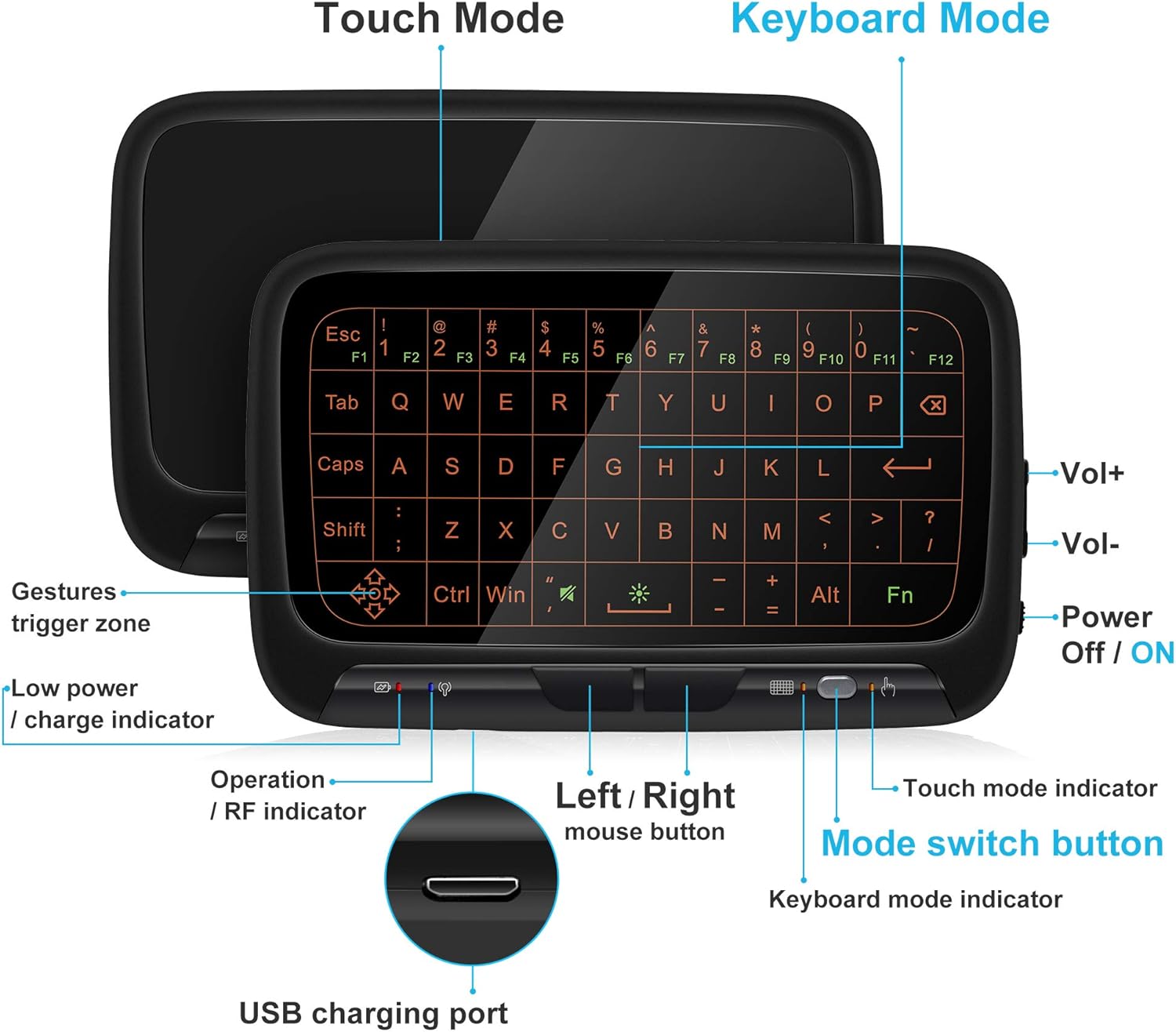
2-сурет: Алдыңғы view of the ILEBYGO H18 with labeled indicators and buttons.
- USB зарядтау порты: Құрылғыны зарядтау үшін.
- Low Power / Charge Indicator: Батарея күйін көрсетеді.
- Operation / RF Indicator: Қосылым күйін көрсетеді.
- Left / Right Mouse Buttons: Physical buttons for mouse clicks.
- Режимді ауыстыру түймесі: Toggles between Touchpad Mode and Keyboard Mode.
- Touch Mode Indicator: Lights up when in Touchpad Mode.
- Keyboard Mode Indicator: Lights up when in Keyboard Mode.
- Volume Controls (Vol+ / Vol-): Дыбыс шығысын реттейді.
- Power Off / ON Switch: Құрылғыны қосады немесе өшіреді.
4. Орнату
4.1 Құрылғыны зарядтау
- Connect the provided USB charging cable to the micro USB port on the device.
- Кабельдің екінші ұшын USB қуат көзіне қосыңыз (мысалы, компьютердің USB порты, USB қабырға адаптері).
- The Low Power / Charge Indicator will illuminate during charging. It will change or turn off when fully charged.

Figure 3: Charging the ILEBYGO H18.
4.2 Құрылғыға қосылу
- Locate the USB receiver included in the package.
- Insert the USB receiver into an available USB port on your target device (e.g., Android TV Box, Projector, HTPC, PC, Laptop).
- Turn on the ILEBYGO H18 by sliding the Power Off / ON switch to the "ON" position.
- The Operation / RF Indicator will blink, then turn solid blue once a connection is established.

Figure 4: Connecting the ILEBYGO H18 via USB receiver.
5. Пайдалану нұсқаулары
5.1 Switching Between Touchpad and Keyboard Modes
түймесін басыңыз Режимді ауыстыру түймесі (located near the right mouse button) to toggle between Touchpad Mode and Keyboard Mode. The corresponding indicator light will illuminate to show the active mode.

Figure 5: Switching between Keyboard and Touchpad Modes.
5.2 Touchpad Mode Gestures
The touchpad supports various multi-touch gestures for intuitive navigation:

Figure 6: Touchpad gesture guide.
- Бір рет түрту: Тінтуірдің сол жақ батырмасын басыңыз.
- Екі саусақпен түрту: Тінтуірдің оң жақ түймешігі.
- Single Finger Drag: Mouse movement.
- Two-Finger Drag: Экранды айналдырыңыз.
- Екі саусақпен қысу: Кішірейту/кішірейту.
- Three-Finger Swipe: Switch applications or access multitasking view.
5.3 Пернетақта режимі
In Keyboard Mode, the touchpad area illuminates to display a full QWERTY keyboard layout. You can type by tapping on the virtual keys. The keyboard supports standard functions like Shift, Ctrl, Alt, and Windows key combinations.
5.4 Артқы жарықты реттеу
The keyboard features a 3-level adjustable backlight. To adjust the backlight brightness, press the Fn key and the backlight adjustment key (often indicated by a sun icon or similar) simultaneously or in sequence, depending on the specific model's implementation.

Figure 7: Adjusting keyboard backlight.
6. Техникалық қызмет көрсету
- Құрылғыны жұмсақ, құрғақ шүберекпен сүрту арқылы таза ұстаңыз.
- Құрылғыны шектен тыс температураға, ылғалға немесе тікелей күн сәулесінің әсеріне ұшыратпаңыз.
- Құрылғыны бөлшектеуге тырыспаңыз, себебі бұл кепілдікті жояды.
- Жиі пайдаланылмаса да, батареяның жұмыс істеу қабілетін сақтау үшін құрылғыны үнемі зарядтап отырыңыз.
7. Ақаулықтарды жою
7.1 Құрылғы жауап бермейді
- Құрылғының қосулы екеніне көз жеткізіңіз.
- Check if the USB receiver is securely plugged into the host device.
- Verify the device battery is charged. Recharge if the low power indicator is active.
- Try plugging the USB receiver into a different USB port on the host device.
7.2 Артқы жарық жұмыс істемейді
- Ensure the device is in Keyboard Mode.
- Press the Fn key and the backlight adjustment key to cycle through brightness levels or turn it on.
7.3 Touchpad Sensitivity Issues
- Ensure the device is in Touchpad Mode.
- Clean the touchpad surface to remove any dirt or oils that might affect sensitivity.
8. Техникалық сипаттамалар
| Ерекшелік | Мәлімет |
|---|---|
| Бренд | ILEBYGO |
| Үлгі нөмірі | H18 |
| Қосылу технологиясы | 2.4Ghz Wireless (USB Receiver) |
| Пернетақта орналасуы | QWERTY |
| Арнайы мүмкіндіктер | 3-Level Backlit, Rechargeable, Touchpad Mode, Keyboard Mode |
| Батарея | Кірістірілген 300 мАч литий-ионды батарея |
| Өнім өлшемдері | 5.6"L x 3.6"W x 0.7"H |
| Элемент салмағы | 0.13 фунт |
| Үйлесімді құрылғылар | Laptop, PC, Projector, Android TV Box, IPTV, HTPC |
9. Кепілдік және қолдау
ILEBYGO provides a 12-month warranty for this product. For any issues, questions, or support needs, please contact our customer service. Refer to the contact information provided with your purchase or visit the official ILEBYGO webсайт.
Note: The warranty does not cover damage caused by misuse, accidents, or unauthorized modifications.
10. Өнім бейнелері
1-бейне: Ресми аяқталдыview of the ILEBYGO 2.4Ghz Mini Wireless Keyboard Touchpad Combo, demonstrating its features and functionality.
Ask a question about this manual
Ask about setup, troubleshooting, compatibility, parts, safety, or missing instructions. Manuals+ will review the question and use this page’s manual context to help answer it.