
1. Кіріспе
The SteelSeries Kana Optical Gaming Mouse is engineered for precision and versatility, designed to accommodate all three primary grip styles: palm, claw, and fingertip. This ambidextrous mouse features an ergonomic button layout and size, developed in collaboration with professional gaming teams to ensure consistent performance and accuracy in competitive environments. This manual provides comprehensive instructions for setup, operation, maintenance, and troubleshooting to help you maximize your gaming experience.
2. Пакет мазмұны
- SteelSeries Kana Optical Gaming Mouse (White)
- Quick Start Guide (integrated into this manual)
3. Өнім аяқталдыview
Familiarize yourself with the key components of your SteelSeries Kana mouse:
- Сол жақ түймені басу: Негізгі әрекет түймесі.
- Тінтуірдің оң жақ түймешігі: Secondary action button.
- Айналдыру дөңгелегі: For scrolling and a clickable middle button. The scroll wheel is illuminated.
- CPI Toggle Button: Located centrally, allows quick switching between sensitivity settings.
- Бүйірлік түймелер (x2): One on each side, large and easily accessible for rapid-fire actions. These can be customized or disabled via software.
- Оптикалық сенсор: Located on the underside, provides precise tracking.
- USB қосқышы: For connecting the mouse to your computer.
- Өрілген кабель: Durable, tangle-free nylon cord.
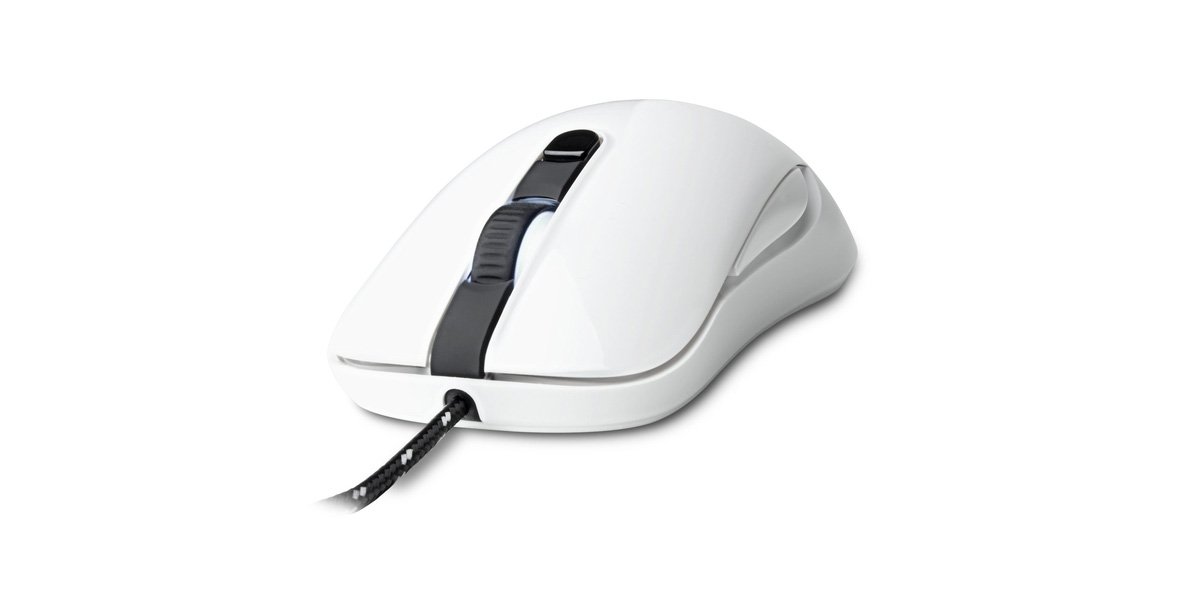
Image of the SteelSeries Kana Optical Gaming Mouse in white, showcasing its ambidextrous design, illuminated scroll wheel, and side buttons.
4. Орнату
4.1 Жабдыққа қосылу
- Компьютерде қол жетімді USB портын табыңыз.
- Plug the USB connector of the SteelSeries Kana mouse into the USB port.
- Your operating system should automatically detect and install basic drivers for the mouse.
4.2 Software Installation (SteelSeries Engine)
To unlock the full customization potential of your SteelSeries Kana mouse, including CPI settings, button programming, macros, and LED intensity, install the SteelSeries Engine software.
- Ресми SteelSeries сайтына кіріңіз webсайт: steelseries.com/engine
- Download the SteelSeries Engine software compatible with your operating system (Windows or macOS).
- Орнатуды аяқтау үшін экрандағы нұсқауларды орындаңыз.
- Once installed, launch the SteelSeries Engine to configure your mouse settings.
Mac пайдаланушыларына арналған ескертпе: Compatibility with macOS versions 10.9 and later for SteelSeries Engine 2.0 (required for Kana) has historically been inconsistent. Please check the official SteelSeries website for the latest software updates and compatibility information before installation.
5. Пайдалану нұсқаулары
5.1 Негізгі функционалдылық
- Қозғалыс: Move the mouse across a surface to control the cursor on your screen.
- Басу: Негізгі және қосымша әрекеттер үшін сол және оң жақ түймелерді пайдаланыңыз.
- Айналдыру: Rotate the scroll wheel to navigate documents and web pages. Press the scroll wheel for its assigned middle-click function.
5.2 Adjusting CPI (Counts Per Inch)
The centrally located CPI toggle button allows you to switch between two pre-defined sensitivity settings instantly. The default CPI settings are optimized for gaming, but can be customized using the SteelSeries Engine software. The maximum CPI supported is 3200.
- Press the CPI toggle button once to switch to the alternate CPI setting.
- Press it again to revert to the previous setting.
5.3 Customizing with SteelSeries Engine
The SteelSeries Engine software provides extensive customization options:
- CPI Settings: Fine-tune or set custom CPI values beyond the pre-defined options.
- Түймелерді бағдарламалау: Assign custom functions, keyboard shortcuts, or macros to any of the 6 programmable buttons (including side buttons and scroll wheel click).
- Макростар: Create and assign complex sequences of commands with precise timing control.
- Жарықдиодты жарықтың қарқындылығы: Adjust the brightness of the illuminated scroll wheel.
- Profiles: Бірнеше кәсіпқой жасаңыз және сақтаңызfiles for different games or applications, with automatic switching based on game triggers.
6. Техникалық қызмет көрсету
6.1 Тышқаныңызды тазалау
To ensure optimal performance and longevity, keep your mouse clean.
- Сыртқы: Аздап жұмсақ, түксіз матаны пайдаланыңыз dampтінтуірдің бетін сүрту үшін сумен немесе жұмсақ тазалау ерітіндісімен жабыңыз. Қатты химиялық заттардан немесе абразивті материалдардан аулақ болыңыз.
- Оптикалық сенсор: Gently clean the optical sensor lens on the underside of the mouse with a dry cotton swab or compressed air to remove dust or debris.
- Тышқан аяқтары: Ensure the mouse feet are clean and free of obstructions for smooth gliding.
Абайлаңыз: Do not immerse the mouse in water or any cleaning solution. Avoid spraying liquids directly onto the mouse.
7. Ақаулықтарды жою
| Мәселе | Мүмкін шешім |
|---|---|
| Mouse not detected / Not responding |
|
| Inaccurate or erratic tracking |
|
| Buttons not responding or performing incorrectly |
|
| SteelSeries Engine software not recognizing mouse (Mac OS) |
|
8. Техникалық сипаттамалар
| Бренд | SteelSeries |
| Үлгі нөмірі | 62029 |
| Түс | Ақ |
| Қозғалысты анықтау технологиясы | Оптикалық |
| Түймелердің саны | 6 (Бағдарламаланатын) |
| Қолды бағдарлау | Ambidextrous (Left, Right) |
| Аппараттық платформа | PC |
| Кабель түрі | Өрілген нейлон |
| Элемент салмағы | 0.16 келі |
| Арнайы мүмкіндік | Ergonomic Design, Illuminated Scroll Wheel |
9. Кепілдік және қолдау
9.1 Кепілдік туралы ақпарат
The SteelSeries Kana Optical Gaming Mouse comes with a 1 жылдық шектеулі кепілдік from the date of purchase. This warranty covers manufacturing defects and workmanship under normal use. It does not cover damage caused by misuse, accidents, unauthorized modifications, or normal wear and tear. Please retain your proof of purchase for warranty claims.
9.2 Тұтынушыларды қолдау қызметі
For technical assistance, warranty claims, or further information, please visit the official SteelSeries support webсайт:
You can find FAQs, driver downloads, and contact information for customer service on their webсайт.