BlackBerry BB 9900 Bold Touch Smartphone User Manual
Model: BB 9900
1. Кіріспе
This manual provides essential instructions for setting up, operating, and maintaining your BlackBerry BB 9900 Bold Touch smartphone. Please read this guide thoroughly to ensure proper use and to maximize the device's capabilities. The BlackBerry BB 9900 Bold Touch combines a capacitive touchscreen with a full QWERTY keyboard, running on BlackBerry OS 7.
2. Пакет мазмұны
Пакетте келесі элементтер бар екенін тексеріңіз:
BlackBerry BB 9900 Bold Touch Smartphone
Қайта зарядталатын батарея
Қабырғадағы зарядтағыш
USB кабелі
Пайдаланушы нұсқаулығы (бұл құжат)
3. Құрылғы аяқталдыview
Familiarize yourself with the physical features of your BlackBerry BB 9900 Bold Touch.
3.1 Алдыңғы View
Сурет: алдыңғы view of the BlackBerry BB 9900 Bold Touch, highlighting the 2.8-inch touchscreen and the physical QWERTY keyboard below it. The device also features a trackpad and call/end buttons.
Сенсорлық дисплей: 2.8-inch capacitive display for interactive navigation.
QWERTY пернетақтасы: Full physical keyboard for efficient typing.
Optical Trackpad: For precise navigation and selection.
Call/End Buttons: Standard telephony controls.
3.2 Артқы View
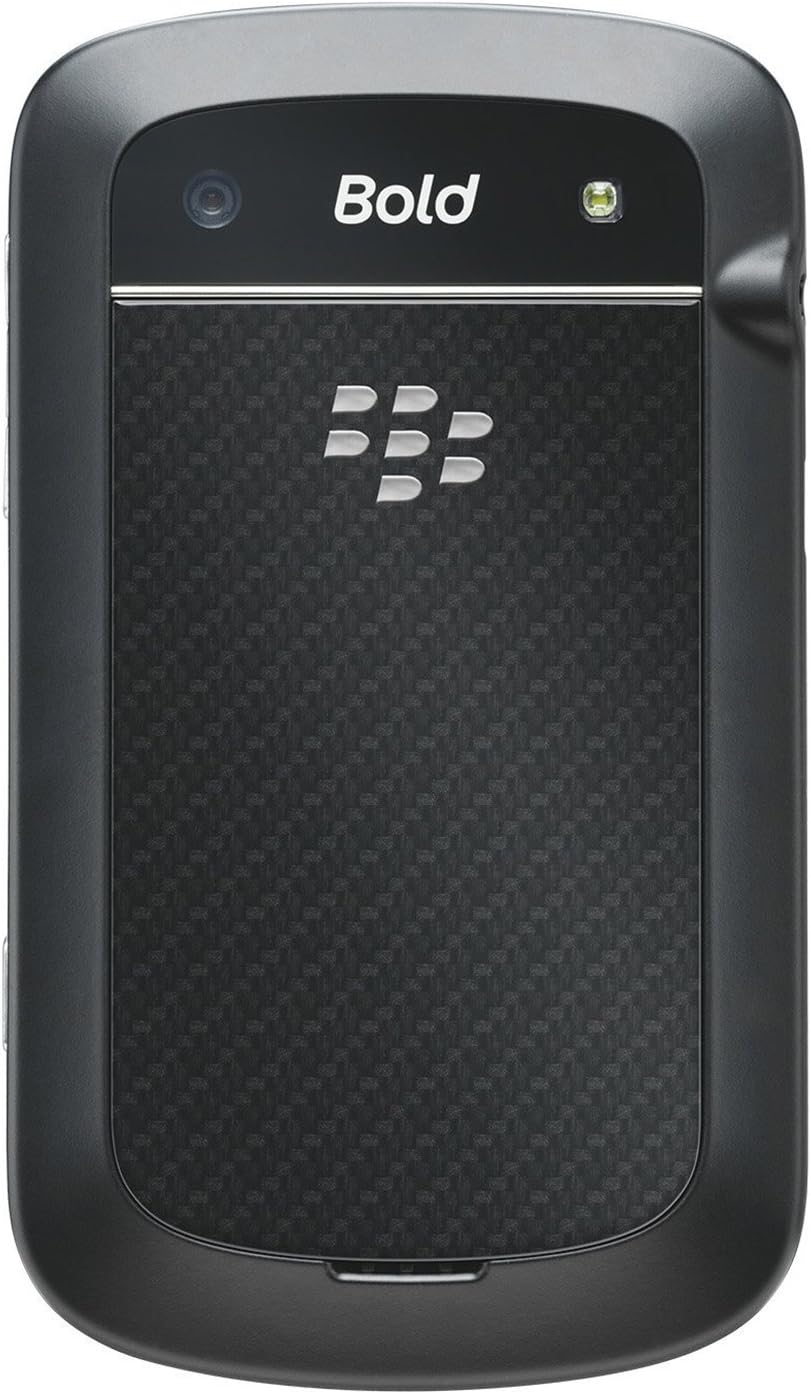
Сурет: артқы view of the BlackBerry BB 9900 Bold Touch, featuring the 5-megapixel camera lens, LED flash, and the BlackBerry logo.
5 МП камера: Primary camera with autofocus and LED flash.
Батарея қақпағы: Removable cover for battery and SIM card access.
3.3 жағы View
Сурет: жағы view of the BlackBerry BB 9900 Bold Touch, illustrating the placement of the volume control buttons and a customizable convenience key.
Дыбыс деңгейі түймелері: Аудио деңгейлерін реттеңіз.
Convenience Key: Customizable shortcut button.
4. Орнату
4.1 SIM картасын салу
Remove the battery cover from the back of the device.
SIM картасының ұясын табыңыз.
SIM картасын алтын түсті контактілерін төмен қаратып және кесілген бұрышын ұяға туралап салыңыз.
Ensure the SIM card is securely in place.
4.2 Батареяны салу
After inserting the SIM card, align the battery's gold contacts with the contacts in the battery compartment.
Батареяны сырт еткенше ақырын басыңыз.
Батарея қақпағын орнына салыңыз.
4.3 Құрылғыны зарядтау
Connect the USB cable to the charging port on your device.
Plug the other end of the USB cable into the wall charger, then into a power outlet.
Allow the device to charge fully before first use. The battery indicator on the screen will show charging status.
4.4 Қуатты қосу/өшіру
Қосу үшін: Press and hold the Power/Lock button (usually located on the top edge) until the BlackBerry logo appears.
Қуатты өшіру үшін: Press and hold the Power/Lock button until the 'Power Off' option appears on the screen. Tap 'Power Off' to confirm.
5. Пайдалану нұсқаулары
5.1 Touch Screen Navigation
Түртіңіз: Touch the screen briefly to open applications, select items, or activate buttons.
Сырғыту: Drag your finger across the screen to scroll through lists or switch between home screen panels.
Масштабтау үшін шымшу: Use two fingers to zoom in or out on photos, web беттер немесе карталар.
5.2 QWERTY пернетақтасын пайдалану
The physical QWERTY keyboard allows for fast and accurate text entry. Each key corresponds to a letter, number, or symbol. Use the 'Alt' key for alternate characters and the 'Shift' key for capitalization.
5.3 Қоңырау шалу
From the home screen, tap the Phone icon or press the green Call button.
Enter the phone number using the keyboard.
Press the green Call button to initiate the call.
To end a call, press the red End Call button.
5.4 Хабарламаларды жіберу
Tap the Messages icon from the home screen.
Select 'Compose New' or similar option.
Алушының нөмірін енгізіңіз немесе контактілерден таңдаңыз.
Type your message using the QWERTY keyboard.
Tap 'Send'.
5.5 Камераны пайдалану
Tap the Camera icon to open the camera application.
Экран ретінде суретті кадрға түсіріңіз viewтабушы.
Tap the screen or press the convenience key (if configured) to take a photo.
The 5MP camera features autofocus and an LED flash for improved image quality.
5.6 Wi-Fi желісіне қосылу
Go to 'Options' > 'Networks and Connections' > 'Wi-Fi'.
Turn Wi-Fi on. The device will scan for available networks.
Қажетті желіні таңдап, сұралса, құпия сөзді енгізіңіз.
Once connected, the Wi-Fi indicator will appear in the status bar.
5.7 Using NFC (Near Field Communication)
The BlackBerry BB 9900 Bold Touch supports NFC for short-range wireless communication. This allows for quick pairing with compatible accessories or sharing data with other NFC-enabled devices by tapping them together.
Құрылғы параметрлерінде NFC қосылғанына көз жеткізіңіз.
Hold your device close to another NFC-enabled device or tag.
Follow on-screen prompts to complete the desired action (e.g., pairing, data transfer).
6. Техникалық қызмет көрсету
6.1 Құрылғыны тазалау
Құрылғының экраны мен корпусын сүрту үшін жұмсақ, мамықсыз шүберекті пайдаланыңыз.
Қатты химиялық заттарды, абразивті тазартқыштарды немесе аэрозоль спрейлерін пайдаланбаңыз.
Құрылғыны шамадан тыс ылғалға ұшыратпаңыз.
6.2 Батареяға күтім жасау
Батареяның жұмысын нашарлатуы мүмкін шамадан тыс температурадан аулақ болыңыз.
Use only the original or approved charger.
Батареяны теспеңіз немесе зақымдамаңыз.
6.3 Бағдарламалық құралды жаңарту
Periodically check for software updates to ensure your device has the latest features and security enhancements. Updates can typically be found in the device's 'Options' or 'Settings' menu under 'Software Updates'.
7. Ақаулықтарды жою
7.1 Құрылғы қосылмаған
Батарея дұрыс салынғанын және зарядталғанын тексеріңіз.
Connect the device to the charger and wait a few minutes before attempting to power on again.
If the issue persists, try removing and reinserting the battery.
7.2 Желіге қосылу мәселелері
Check if your SIM card is correctly inserted and activated with your carrier.
Verify that cellular data or Wi-Fi is enabled in your device settings.
Құрылғыны қайта іске қосыңыз.
If using Wi-Fi, ensure your router is working and you have entered the correct password.
7.3 Touch Screen Unresponsive
Құрылғыны қайта іске қосыңыз.
Экранның таза және қоқыс немесе ылғал жоқ екеніне көз жеткізіңіз.
If the issue is intermittent, check for any recent software installations that might be causing conflicts.
8. Техникалық сипаттамалар
Ерекшелік
Мәлімет
Модель атауы
BB 9900
Операциялық жүйе
BlackBerry OS 7
Дисплей
2.8-inch Capacitive Touchscreen, 640 x 480 Resolution
Процессор
Not specified (typically 1.2 GHz for this model)
Жедел Жадтау Құрылғысы
768 МБ
Ішкі жад
8 ГБ
Артқы камера
5 MP, Autofocus, LED Flash
Қосылу мүмкіндігі
Wi-Fi 802.11 b/g/n, NFC, Bluetooth, GPS
Желіге қолдау көрсету
Quad-band GSM/GPRS/EDGE, Tri-band HSPA+
Өлшемдері
4.53 x 2.6 x 0.41 дюйм (115 x 66 x 10.5 мм)
Салмағы
4.6 унция (130 грамм)
Аудио ұясы
3.5 мм
9. Қолдау және кепілдік
9.1 Тұтынушыларды қолдау қызметі
For technical assistance, troubleshooting beyond this manual, or service inquiries, please visit the official BlackBerry support website or contact your local service provider. Refer to the packaging or official webнақты байланыс мәліметтері үшін сайт.
9.2 Кепілдік туралы ақпарат
Your BlackBerry BB 9900 Bold Touch is covered by a limited warranty. Please refer to the warranty card included in your product packaging or visit the official BlackBerry webкепілдік мерзімі мен қамту ерекшеліктерін қоса, егжей-тегжейлі шарттар мен талаптарға арналған сайт. Кепілдік шағымдары үшін сатып алуды растайтын құжатты сақтаңыз.
Ask a question about this manual
Ask about setup, troubleshooting, compatibility, parts, safety, or missing instructions. Manuals+ will review the question and use this page’s manual context to help answer it.