
1. Кіріспе
The Microsoft Arc Touch Mouse is a portable and innovative wireless mouse designed for mobile computing. Its unique flexible design allows it to be curved for comfortable use and flattened for easy storage. Featuring Microsoft's BlueTrack Technology, it offers precise tracking on a wide variety of surfaces. This manual provides essential information for setting up, operating, maintaining, and troubleshooting your Arc Touch Mouse.
2. Негізгі мүмкіндіктер
- Икемді дизайн: Curve for comfort during use, flatten for ultimate portability and storage.
- Қуатты қосу және өшіру: The mouse automatically powers on when curved and powers off when flattened, conserving battery life.
- Touch to Scroll: Utilize the touch strip for smooth, intuitive vertical scrolling with haptic feedback.
- BlueTrack технологиясы: Enables precise tracking on virtually any surface, combining optical power with laser precision.
- Plug-and-go Nano Transceiver: A compact USB transceiver that can be left plugged into your computer or magnetically stowed in the mouse.
- Екі жақты дизайн: Suitable for use with either hand.
3. Орнату
3.1. Батареяны орнату
The Microsoft Arc Touch Mouse requires two AAA alkaline batteries (included). To install:
- Тінтуірдің астыңғы жағындағы батарея бөлімін табыңыз.
- Батарея бөлігінің қақпағын ашыңыз.
- Дұрыс полярлықты (+/-) қамтамасыз етіп, екі AAA батареясын салыңыз.
- Батарея бөлігінің қақпағын мықтап жабыңыз.
3.2. Connecting the Transceiver
The mouse connects wirelessly to your computer via a USB Nano Transceiver.
- Locate the Nano Transceiver, which may be magnetically stowed in the underside of the mouse for transport.
- Plug the Nano Transceiver into an available USB port on your computer.
- Сіздің компьютеріңіз қажетті драйверлерді автоматты түрде тауып, орнатуы керек. Бұл бірнеше минут алуы мүмкін.
- Драйверлер орнатылғаннан кейін тінтуір пайдалануға дайын.
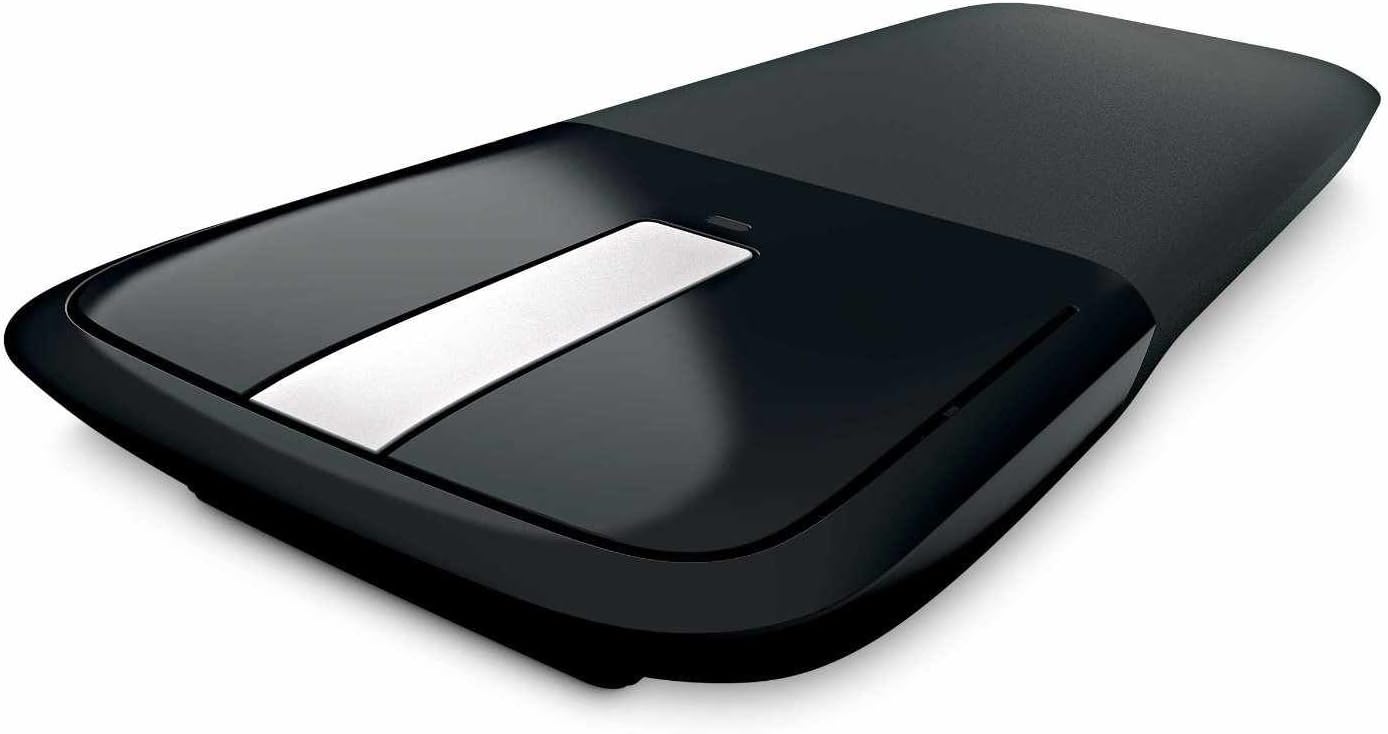
Image: The Microsoft Arc Touch Mouse in its flattened state, showing the USB Nano Transceiver magnetically attached to its underside for storage.
4. Тінтуірді пайдалану
4.1. Power On/Off (Flexible Design)
The Arc Touch Mouse features an intuitive power mechanism:
- To turn the mouse on, curve the mouse into its ergonomic arc shape. A green light will briefly flash to indicate it is powered on.
- To turn the mouse өшірулі, flatten the mouse. This action conserves battery life and makes the mouse compact for storage.

Image: The Microsoft Arc Touch Mouse in its curved, ready-to-use position, displaying its touch strip and power indicator light.
4.2. Touch Scrolling
The central touch strip allows for precise vertical scrolling:
- Жоғары/Төмен айналдыру: Gently brush your finger up or down the touch strip to scroll through documents or web беттер.
- Hyperfast Scrolling: Flick your finger quickly up or down for rapid scrolling.
- Гаптикалық кері байланыс: The touch strip provides light vibrations to signal scrolling speed, enhancing the tactile experience.
- Tap to Stop: Tap the touch strip to stop scrolling.
4.3. BlueTrack Technology
BlueTrack Technology allows the Arc Touch Mouse to track on a wide range of surfaces that traditional optical or laser mice may struggle with. This includes rough wood, carpet, and other challenging textures. For optimal performance, avoid using the mouse on clear glass or mirrored surfaces.
5. Техникалық қызмет көрсету
5.1. Батареяны ауыстыру
When the mouse's performance degrades or the power indicator light no longer flashes green upon curving, it's time to replace the batteries. Follow the steps in Section 3.1 to replace the two AAA batteries.
5.2. Тазалау
To clean your Arc Touch Mouse:
- Ensure the mouse is flattened and powered off.
- Жұмсақ, түксіз матаны жеңіл пайдаланыңыз dampсумен немесе жұмсақ тазалау ерітіндісімен толтырыңыз.
- Wipe the surface of the mouse gently. Avoid excessive moisture.
- Абразивті тазартқыштарды немесе еріткіштерді қолданбаңыз.
6. Ақаулықтарды жою
- Тінтуір жауап бермейді: Ensure the mouse is curved to power on. Check battery levels and replace if necessary. Verify the Nano Transceiver is securely plugged into a USB port. Try a different USB port.
- Erratic cursor movement or no tracking: Ensure the BlueTrack sensor on the underside of the mouse is clean and free of obstructions. Try using the mouse on a different surface. Avoid clear glass or mirrored surfaces.
- Wireless interference: Move the mouse closer to the Nano Transceiver. Avoid placing the transceiver near other wireless devices or large metal objects that could cause interference.
- Scroll strip not working: Ensure the mouse is powered on. Gently clean the touch strip with a soft cloth.
7. Техникалық сипаттамалар
| Ерекшелік | Мәлімет |
|---|---|
| Өнім өлшемдері | 1.38 x 6.25 x 4 дюйм |
| Элемент салмағы | 3 унция |
| Үлгі нөмірі | RVF-00001 |
| Батареялар | 2 AAA батареясы (жинаққа кіреді) |
| Қосылу технологиясы | Радиожиілік (2.4 ГГц) |
| Қозғалысты анықтау технологиясы | BlueTrack (Laser, Optical) |
| Түс | Қара |
| Өндіруші | Microsoft |
8. Жүйе талаптары
To use the Microsoft Arc Touch Mouse, your computer must meet the following requirements:
- Операциялық жүйе: Windows 8, Windows 7, Windows Vista, Windows XP (excluding Windows XP 64-bit)
- Қатты диск: 100 MB free space
- Басқа: USB порты
9. Кепілдік және қолдау
The Microsoft Arc Touch Mouse comes with a 3 жылдық шектеулі аппараттық кепілдік. For detailed warranty information, terms, and conditions, please refer to the warranty documentation included with your product or visit the official Microsoft support webсайт.
For technical support, driver downloads, or additional assistance, please visit the Microsoft қолдау қызметі webсайт or contact Microsoft customer service.